
CleanShot X for macOS
Description
You have a bug report to file. The form wants a screenshot that shows the glitch, the menu bar clock, and your OS version. One image, no cropping afterwards.
- Press the CleanShot X shortcut for Capture Area. The crosshair appears.
- Drag across the broken dialog. Before you release, check the pixel-accurate magnifier at the edge of the selection.
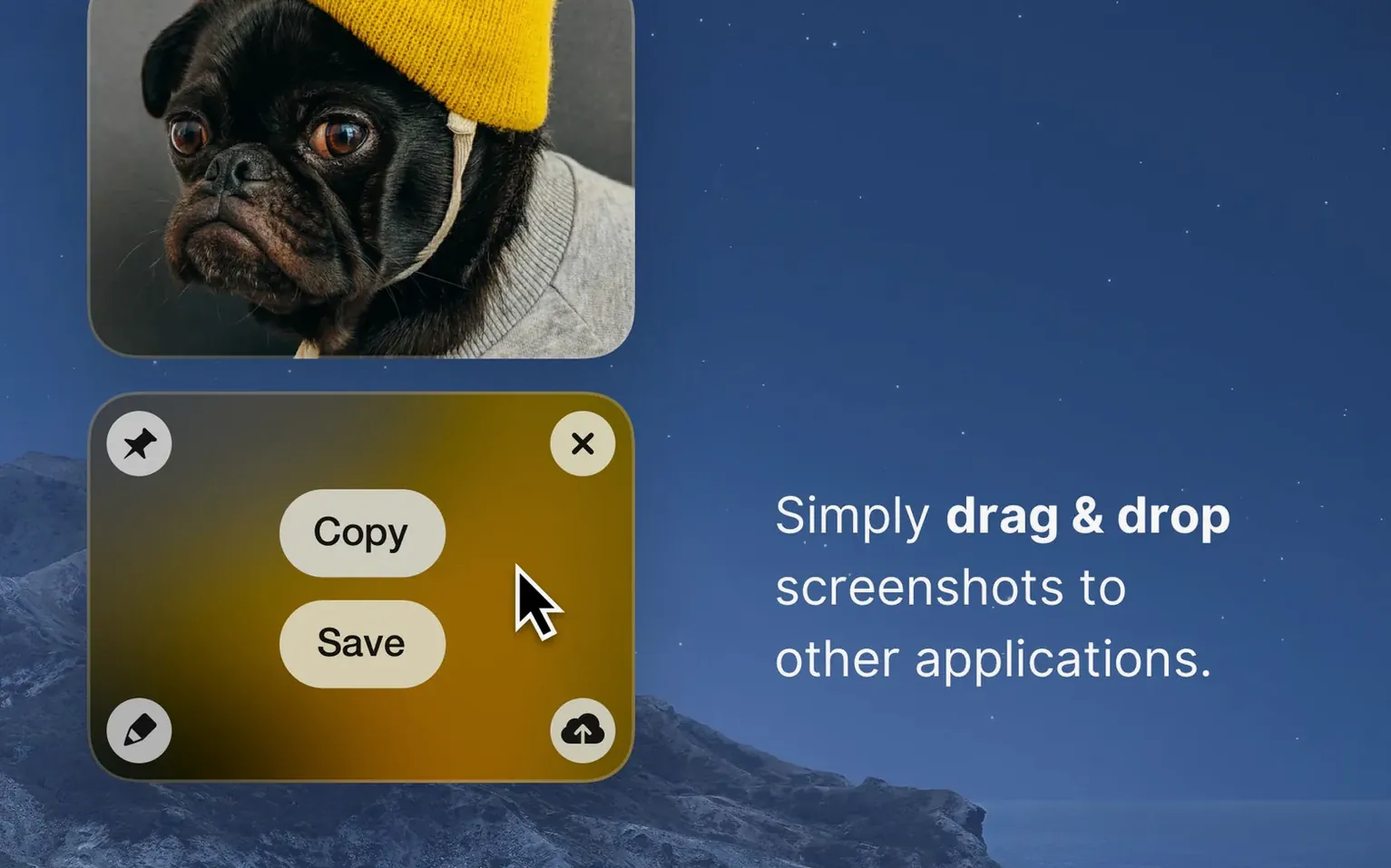
- Release. The Quick Access overlay appears. Click the annotation pen.
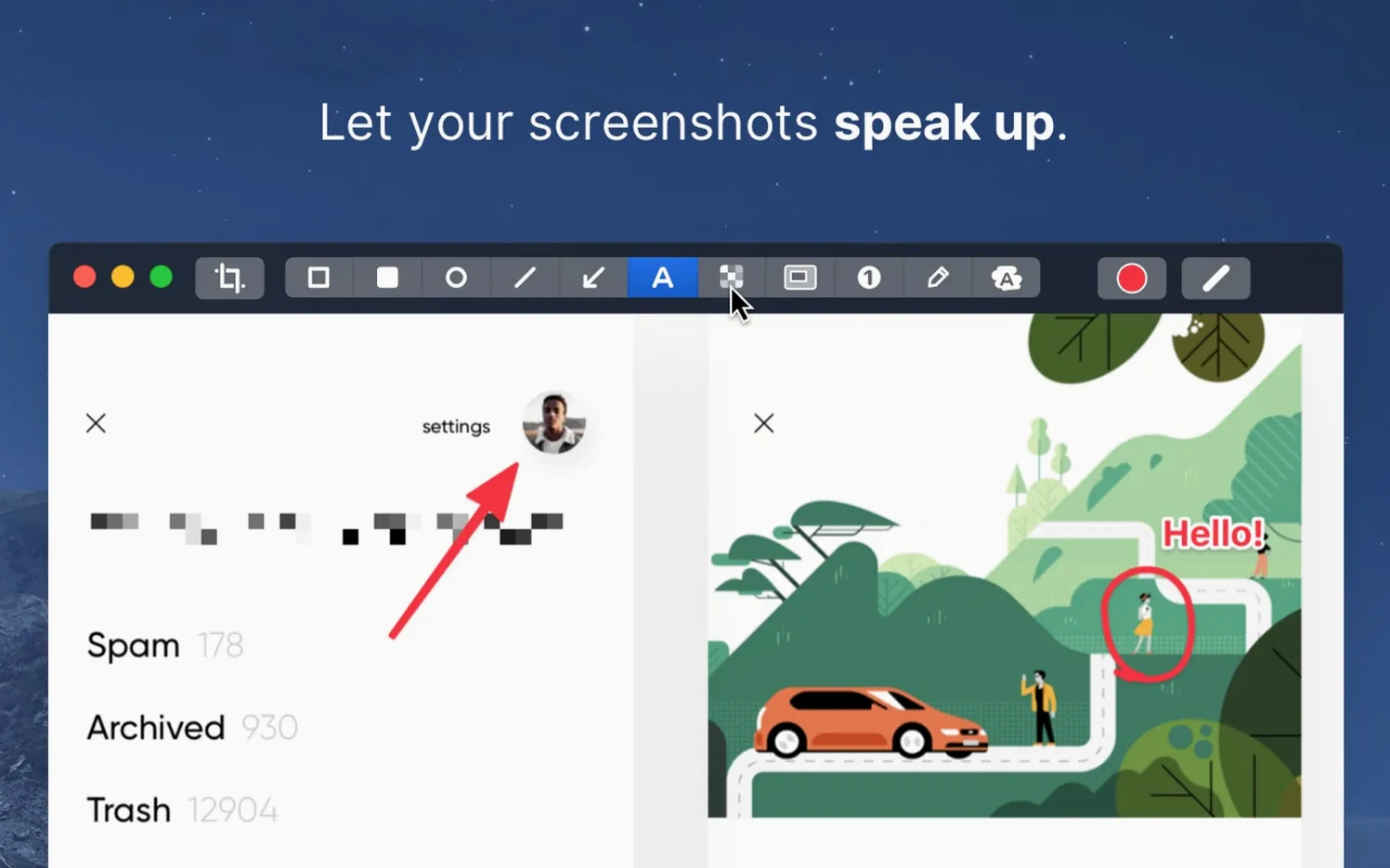
- In the editor, add a rectangle around the glitch, type a short note, and blur your email address with the hide-details tool.
- Click Copy, then paste it straight into the web form.
The whole thing took under a minute. No exports, no opening Preview. CleanShot X puts capture, recording, and annotation tools in one place, so multi-step jobs like this stay fast.
Learn the Quick Access overlay shortcut in ten minutes
CleanShot X ships with sensible defaults, but a few tweaks make the first week smoother.
1. Learn the Quick Access overlay. After every capture, a floating toolbar appears. It offers copy, save, annotate, pin, and upload. Spend ten minutes memorising what each icon does. The pin feature alone — which floats the screenshot above all other windows — replaces half a dozen trips to Preview for reference images.
2. Set a custom save location. By default, captures land in the CleanShot folder inside Documents. If you work project-to-project, point it at an active folder. Open Preferences > Save and pick something closer to where you actually use the files. You will stop hunting through Finder.
3. Turn off desktop icons before a clean shot. In Preferences > General, tick "Hide desktop icons during capture". It toggles them off while the crosshair is active and restores them after. No more dragging clutter out of the way for a tidy screenshot.
Preparing release notes with screenshots, a recording, and an annotation
You are preparing release notes for a web app. The draft needs three screenshots, one screen recording, and a quick annotation on a mockup someone sent yesterday.
First, the screenshots. You press the Capture Area shortcut and select the login screen. Quick Access appears — you hit Copy and paste it into Notion. Same routine for the dashboard and the settings panel. Three captures, no files on the desktop.
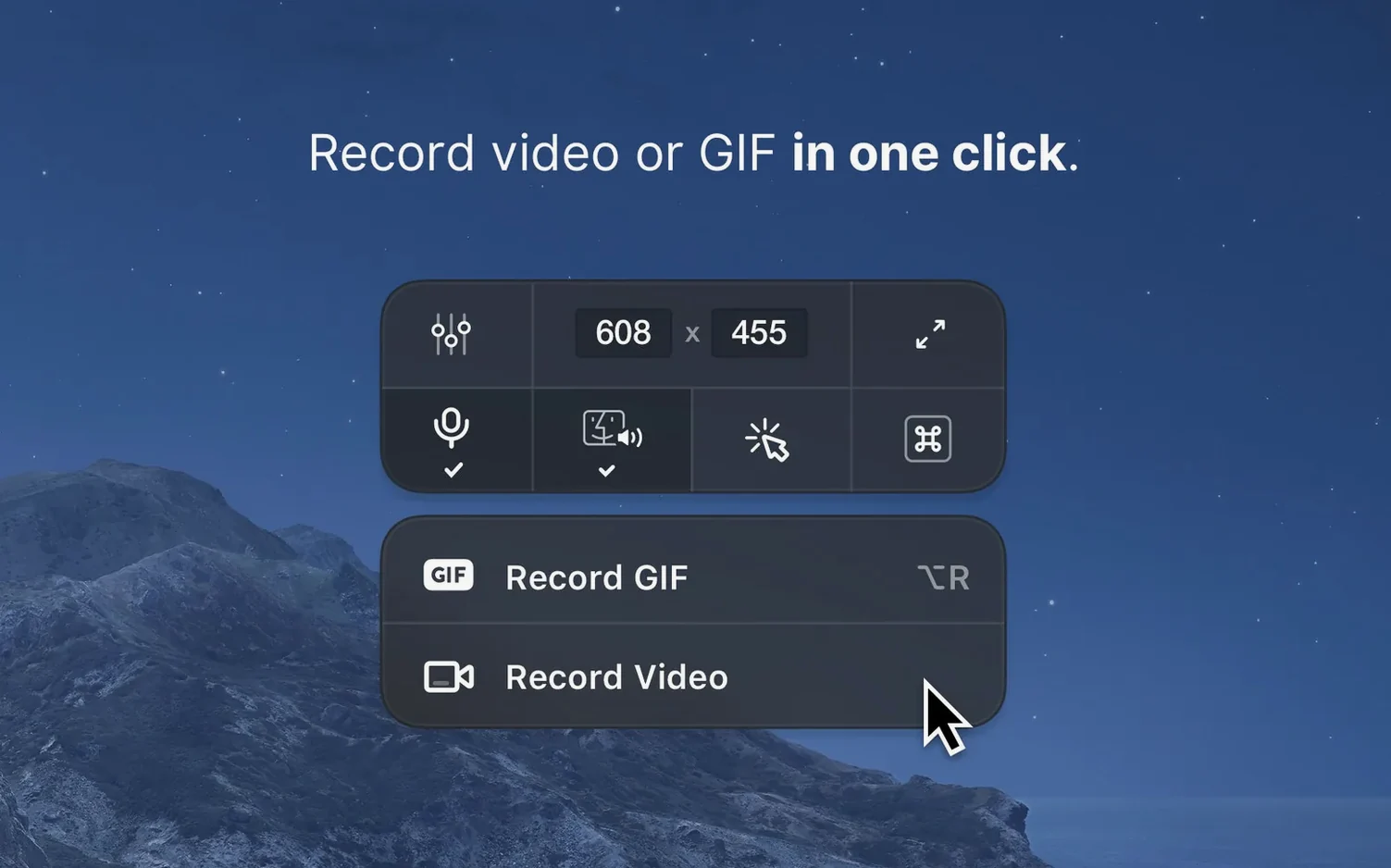
Next, the recording. You need a fifteen-second walkthrough of a new filter. Press Record Screen, select the browser window, and click Record. CleanShot X hides notifications automatically. You talk through the steps while the recording captures the cursor and every click. When you finish, the clip opens in the built-in viewer. You trim two seconds off the end, then drag the MP4 straight into the release notes.
Finally, the annotation. You drag the mockup PNG onto the CleanShot X menu bar icon. The editor opens. You add an arrow pointing at a spacing issue, type "needs 8px padding" in a text box, and blur the client name in the corner. Click Copy, paste it into Slack, done.
The whole session never left the keyboard and menu bar. No exports, no temporary files to delete later.
Set recording default to 60 fps for UI animation work
Open Preferences before you do any serious work. Three changes make the app feel like yours.
Recording quality. Under the Recording tab, set the default to 60 fps if your work involves UI animations. The file size grows, but motion blur disappears. For bug reports, 30 fps keeps files small and uploads fast.
Screenshot format. Preferences > Capture lets you switch the default from PNG to JPEG. PNG preserves text perfectly; JPEG works better for photo-heavy captures. Pick one, then assign the other to the "Save as…" shortcut for the odd exception.
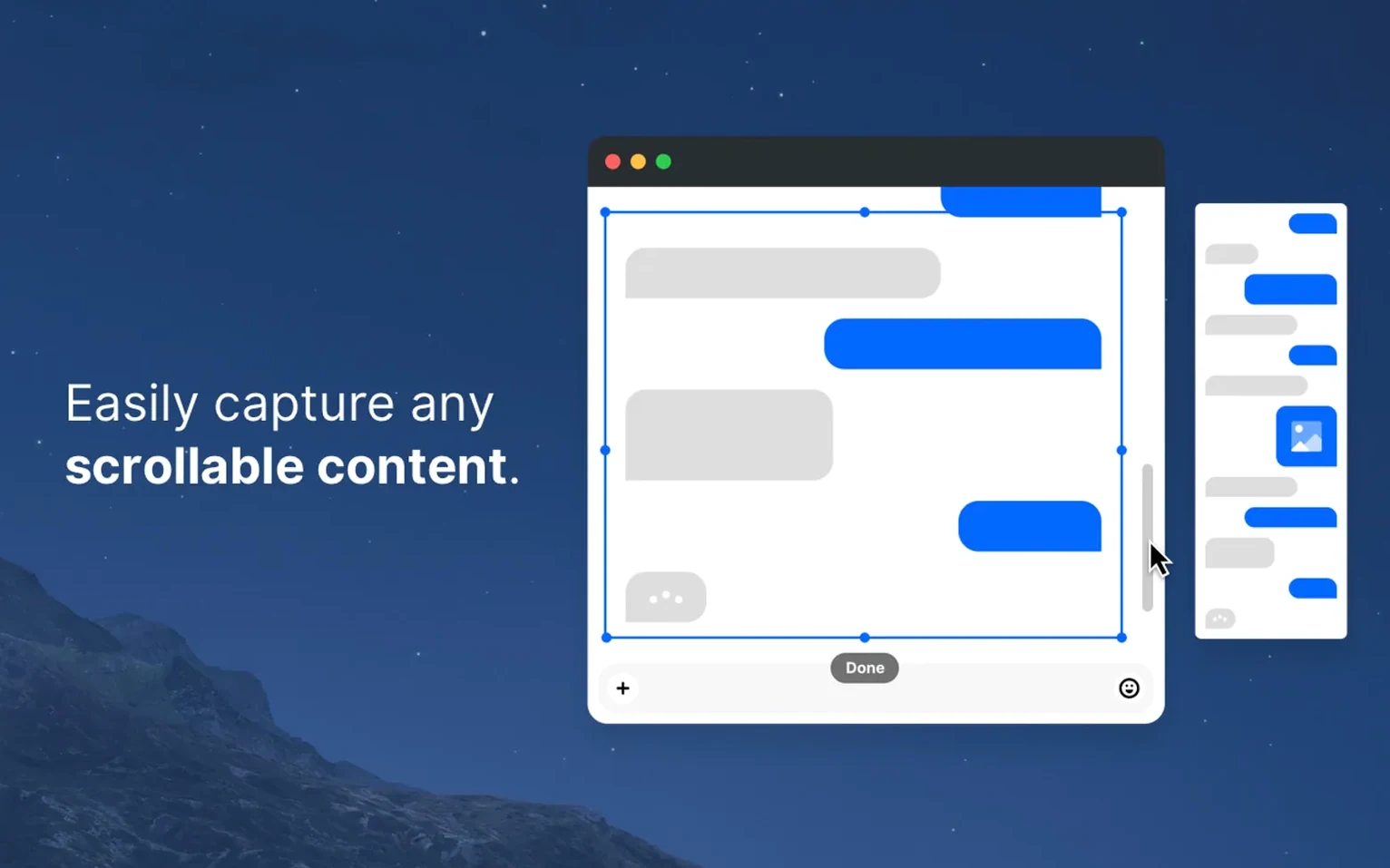
Keyboard shortcuts. The defaults are logical, but they might clash with other tools. The first conflict I hit was Capture Area stealing a shortcut another app used. Reassign it in Preferences > Shortcuts. The scrolling capture shortcut is worth learning early — once you use it for a long webpage, you will wonder why other tools still stitch screenshots manually.
Requirements
- macOS 11 or later
- Intel or Apple Silicon Mac
Comments 0
Sign in or create an account to leave a comment.
No comments yet…
If you’ve installed it, say how it went. Mention your Mac and macOS version — it helps the next person more than you’d think.