Carbon Copy Cloner for macOS
Description
CCC 7 dropped three versions of macOS in one go. Catalina, Big Sur and Monterey are no longer supported.
Pick your source and destination without the fuss
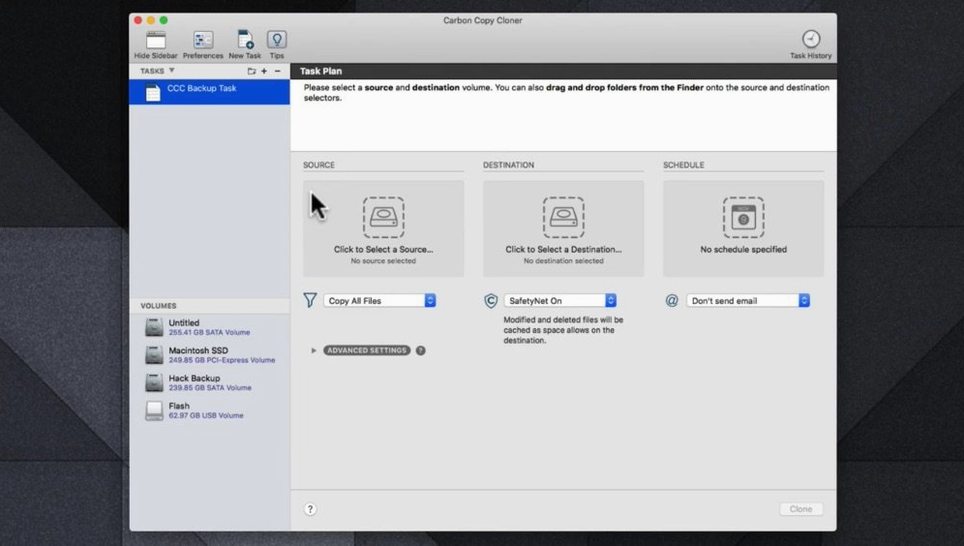
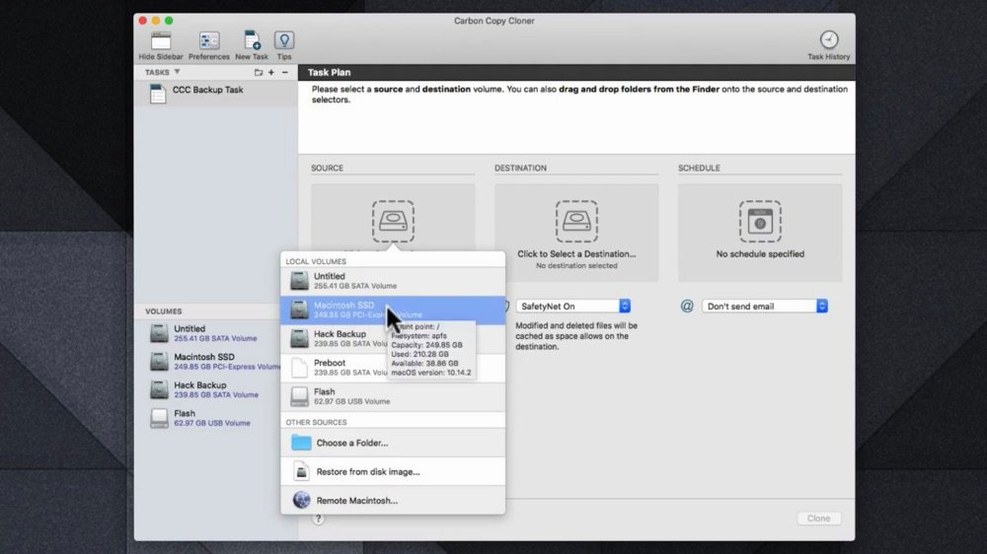
- Pick a source. Choose a whole disk or just a few folders. The interface doesn't fuss — you select it and move on.
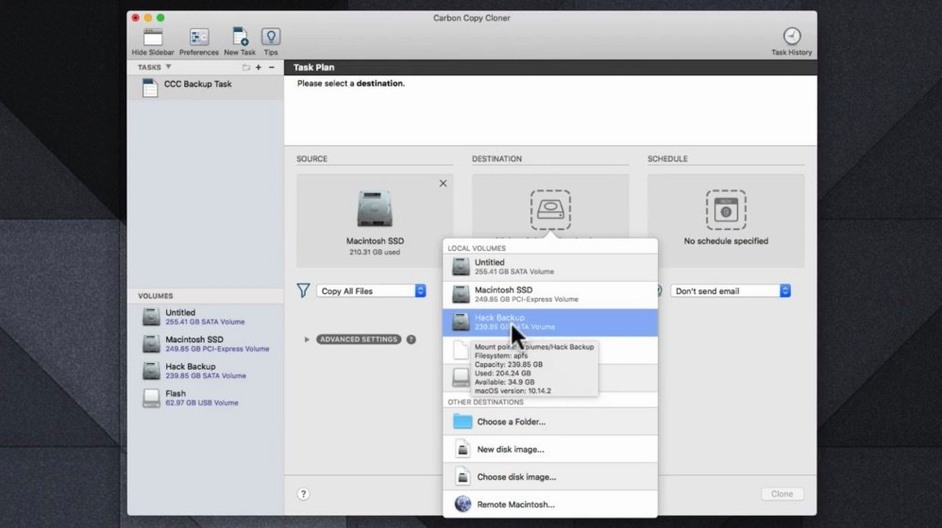
- Point it at a destination. An external drive, a spare internal volume — anything with enough room. CCC calls this a clone, and it means it: the copy is bootable if the source was.
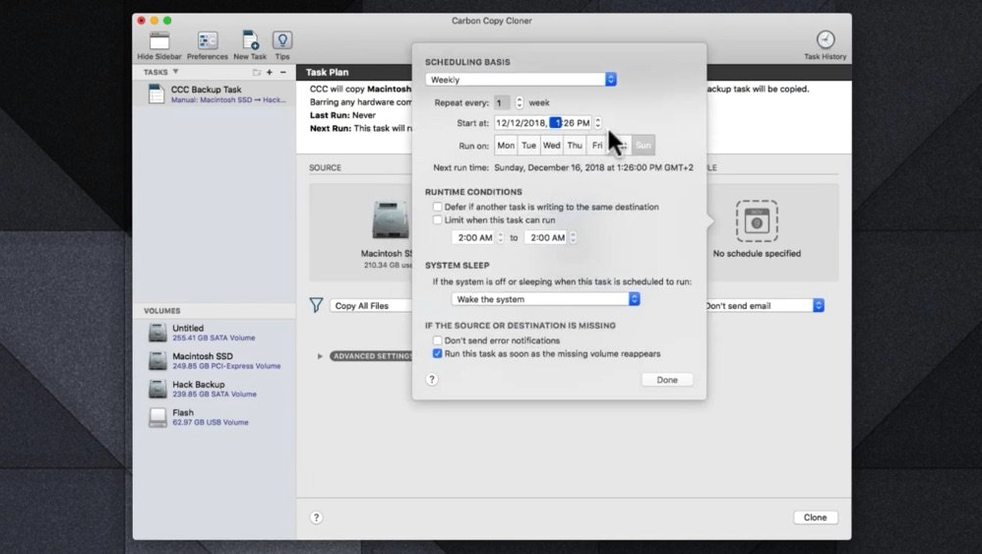
- Set a schedule. Tell it which day and what time. It runs unattended after that. Hourly, daily, weekly — whatever stops you forgetting.
- Let it finish the first run. The initial clone takes the longest. Subsequent backups only copy what changed, so they're quick.
A Universal build means it runs natively on Intel and Apple Silicon Macs. No translation layer, no performance surprises. The scheduling engine is the part worth setting up straight away — a backup you have to remember is one you'll skip.
Scheduling engine that feels built-in, not bolted on
SuperDuper gets mentioned in the same breath, and for good reason. It also makes bootable clones and keeps a simple interface. Where CCC pulls ahead is the scheduling engine. SuperDuper's scheduler feels bolted on; CCC's has been baked in for years and lets you chain tasks, run scripts before and after, and throttle disk I/O so the backup doesn't grind your Mac to a halt while you're working. SuperDuper is the lighter tool. CCC is the one you set once and forget for two years.
Time Machine is the other obvious comparison. It comes with macOS, costs nothing to use, and handles versioned backups well. What it doesn't do is give you a bootable clone you can plug into another Mac and start up from immediately. CCC does that, and it doesn't fill a drive with snapshots until something breaks. If you want to migrate to a new machine by swapping a drive, Time Machine won't help. CCC will.
ChronoSync covers more ground — it syncs folders between Macs, to cloud storage, across networks. It's a sync tool that can do backups. CCC is a backup tool that happens to be good at cloning. For someone who just wants a drive that mirrors their Mac and updates itself, ChronoSync is overkill with a steeper learning curve.
Control tasks straight from the menubar icon
The menubar icon doesn't just sit there. Click it and you see the next scheduled task and when it runs. Right-click and you can start or stop any task without opening the main window. Small thing, but it saves hunting through the app when you're about to eject a backup drive.
Task grouping sits under the Tasks menu. If you run three backups to different destinations, group them and they run sequentially with one click. No waiting for one to finish before you manually start the next.
The SafetyNet toggle is easy to overlook. When it's on, CCC keeps older versions of files that got deleted or overwritten on the source. It's not as deep as Time Machine's version browsing, but it has saved me from the "I deleted that folder three backups ago" panic more than once. It lives in the advanced settings for each task — buried, but worth finding.
Snapshots on APFS volumes are another quiet feature. If your destination is APFS, CCC can keep a snapshot after each backup. You browse them in Finder like any other folder. The space overhead is tiny until files diverge.
APFS snapshots spot file changes in seconds
First run copies everything, so it's bound by the speed of the slowest drive in the chain. After that, CCC leans on APFS snapshots and FSEvents to spot changes fast. On a 500 GB internal SSD where a few hundred megabytes changed, the delta copy finishes in under a minute. Spinning drives take longer, but most of the time is spent reading the filesystem, not the app thinking.
Memory use sits around 120 MB during a backup and drops to 30 MB when idle. CPU barely registers unless you tick the box for post-clone checksum verification — that ramps up a single core while it reads every copied block. Day to day, the background scheduler uses so little energy that it doesn't show up in the battery menu.
Stability is what you'd expect from a tool that's been in development since the PowerPC days. Crashes are rare. When macOS updates break something — usually a new security prompt — Bombich posts a build note within days. Version 7.1.6 hummed along through the Golden Gate release cycle without a hiccup.
Leah offloads 80 GB raw shoots to a Samsung T7
Leah shoots tethered on location and comes home with 80 GB of raw files per job. Her MacBook Pro has a 1 TB internal drive that fills up fast. She keeps a 2 TB Samsung T7 in the bag.
Before CCC, she dragged folders by hand and hoped she hadn't missed a subfolder from the morning session. Now she plugs in the T7, CCC sees the drive appear and fires the scheduled task. It copies only the new raws and the Lightroom catalogue changes — three minutes, tops. She starts culling while the backup runs in the background. When the job is delivered, she wipes the working folders from the MacBook. The clone on the T7 stays untouched until the whole project is archived.
Once a quarter she swaps the T7 for a bare SATA drive in a dock, clones the whole internal volume, and shelves it. If the MacBook dies the day before a shoot, she can boot a loaner Mac from that drive and keep working. That's the bit Time Machine never solved.
Requirements
- macOS 10.15 Catalina or newer
- Intel or Apple Silicon Mac
- English interface
Comments 0
Sign in or create an account to leave a comment.
No comments yet…
If you’ve installed it, say how it went. Mention your Mac and macOS version — it helps the next person more than you’d think.