CCleaner Pro for macOS
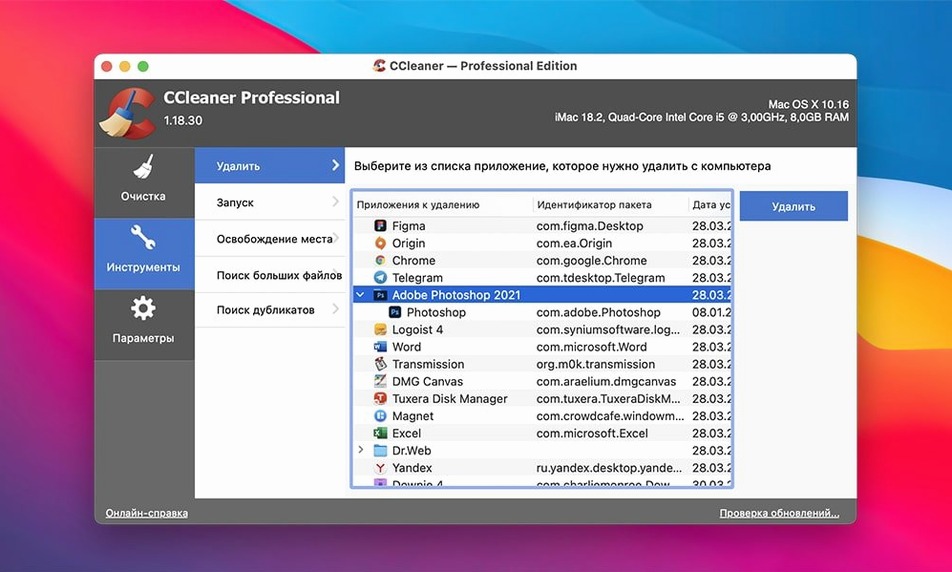
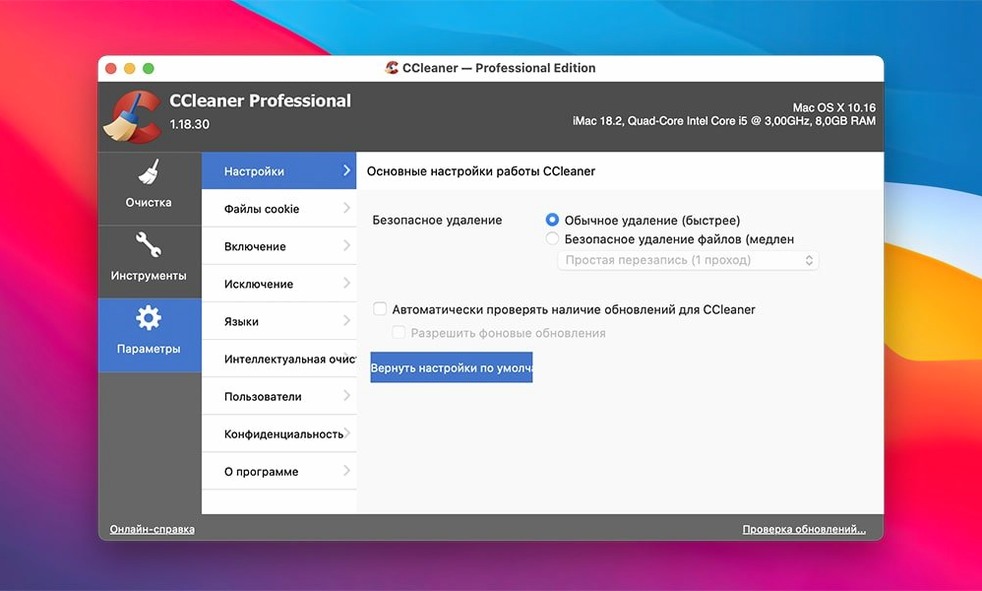
Description
People who share a Mac or inherited someone else's old machine. They don't want a forensic deep-clean, just a straightforward way to clear out app leftovers, temp files and recent-item lists without digging through Library folders.
Clearing app caches and wiping files before selling a drive
- Clearing recent-file lists and caches from apps you already own — browsers, media players, Office.
- A file wiper with multiple overwrite cycles, useful before you sell or pass on an external drive.
- Several verification levels before it deletes anything, so it suits users who are nervous about cleanup tools.
Intel-only app that won’t carry over old CCleaner settings
- This is the newer CCleaner for Mac (v2.3 and later). It won't recognise settings from the old, separate version.
- Intel-only. No Apple Silicon native build.
- Cleans what it knows about. It won't replace manual checks in obscure preference folders.
Run one scan and uncheck what you want to keep
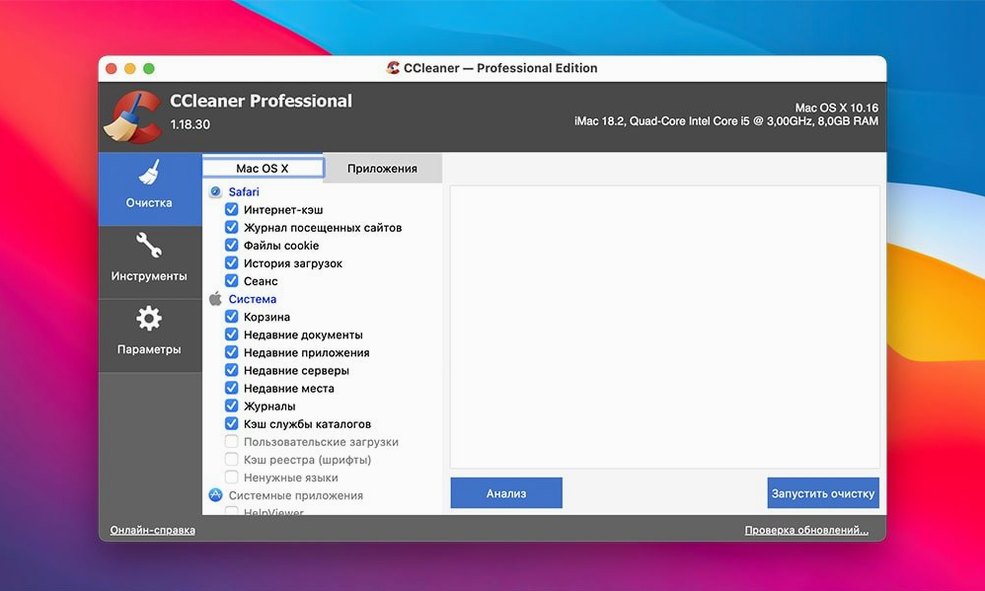
After installing, run a full scan once and watch what it finds. Don't hit Clean immediately. Scroll through the list. Some items — browser session data, recent-document shortcuts — you may want to keep. The tick boxes are per-category, not all-or-nothing.
One job worth doing early: open the wipe function on a spare USB stick. Set it to a single-pass overwrite and time it. Knowing how long a full drive wipe takes stops you starting one at 10 p.m. and regretting it.
Right-click a category to exclude it from future scans
- Right-click a category in the scan results to exclude it permanently. Handy for that one browser cache you never want touched.
- The file wiper's multi-pass mode uses several overwrite cycles. Use it for drives you're disposing of. For day-to-day deletions, a single pass is plenty and much faster.
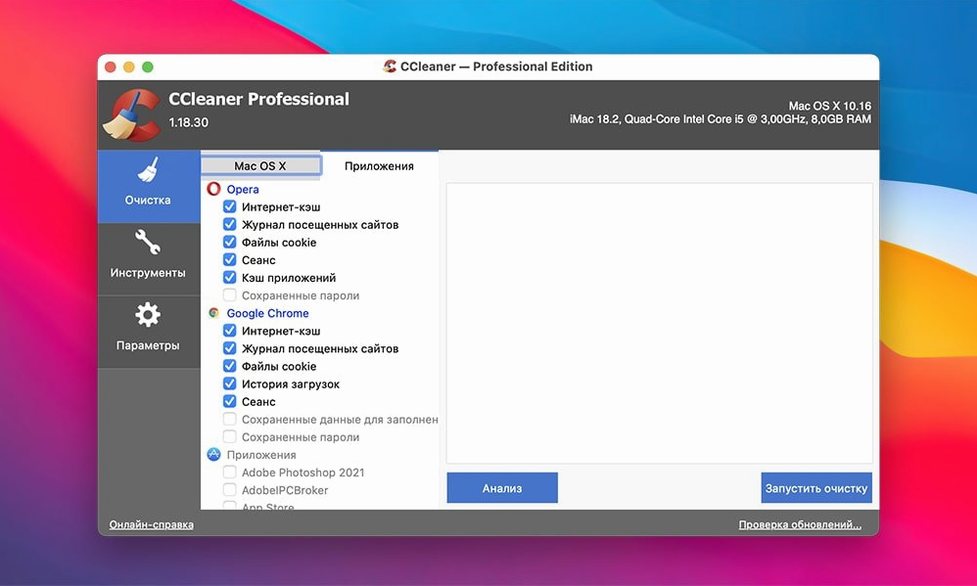
- If you use Opera alongside Chrome and Firefox, CCleaner cleans all four — but each browser has its own tick box under the Applications tab. Safari cleaning is separate too.
- The app remembers your last-used settings. Next time you open it, the same boxes are ticked. That's a small convenience until you add a new browser — then you need to check the list again.
Pair it with macOS storage tools for browser junk Apple skips
CCleaner works alongside macOS's built-in storage management, not instead of it. Use System Settings to offload large files and iCloud content, then switch to CCleaner for browser junk and app caches that Apple's tools skip.
If you use a clipboard manager or a recent-files launcher, run a CCleaner scan first. Some of those tools pull from the same recent-item lists that CCleaner clears. Cleaning first means your launcher isn't showing shortcuts to files you've already deleted.
People who grab a cleaner mac torrent often pair it with a duplicate-file finder or a large-file scanner. That's a sensible combo: CCleaner handles the small, scattered junk; the other tool hunts down space-hogging videos and disk images. The two jobs don't overlap much.
The app also sits well alongside Time Machine. A quick CCleaner pass before a scheduled backup trims a few hundred megabytes of disposable caches, so your backup doesn't waste space on files that'll be recreated anyway. Not essential, but neat if your backup drive is tight.
For anyone who's grabbed a ccleaner for mac crack or a ccleaner pro download torrent, the utility itself is straightforward: no background daemons, no menubar icon, no launch agents. It runs when you open it and quits when you're done. That keeps it from conflicting with other maintenance tools you might run — Onyx, CleanMyMac, DaisyDisk — because nothing lingers in memory.
Requirements
- OS X 10.10 or later
- Intel 64-bit processor
FAQ
Does CCleaner for Mac wipe files securely?
Yes. The file-wiping function runs multiple overwrite cycles so data can't be recovered with basic tools.
Can I use my old CCleaner settings on the newer Mac app?
No. The older CCleaner for Mac and the current app from version 2.3 onward are separate; settings don't carry over.
Which languages does the interface support?
Russian, English, German, Spanish, Italian, Dutch, Polish, Portuguese, French, Czech, and Japanese.
Comments 0
Sign in or create an account to leave a comment.
No comments yet…
If you’ve installed it, say how it went. Mention your Mac and macOS version — it helps the next person more than you’d think.