Clip Studio Paint for macOS
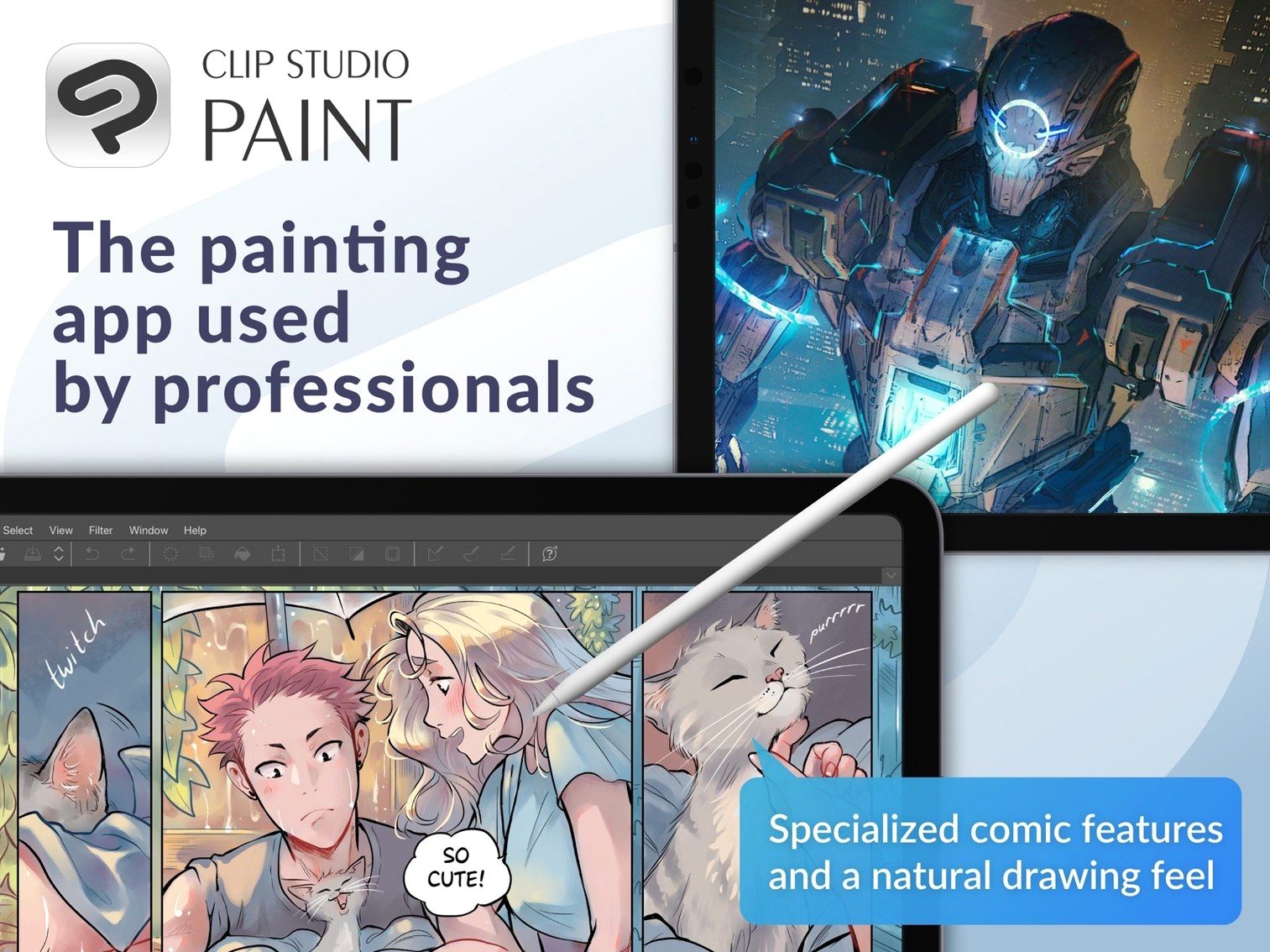
Description
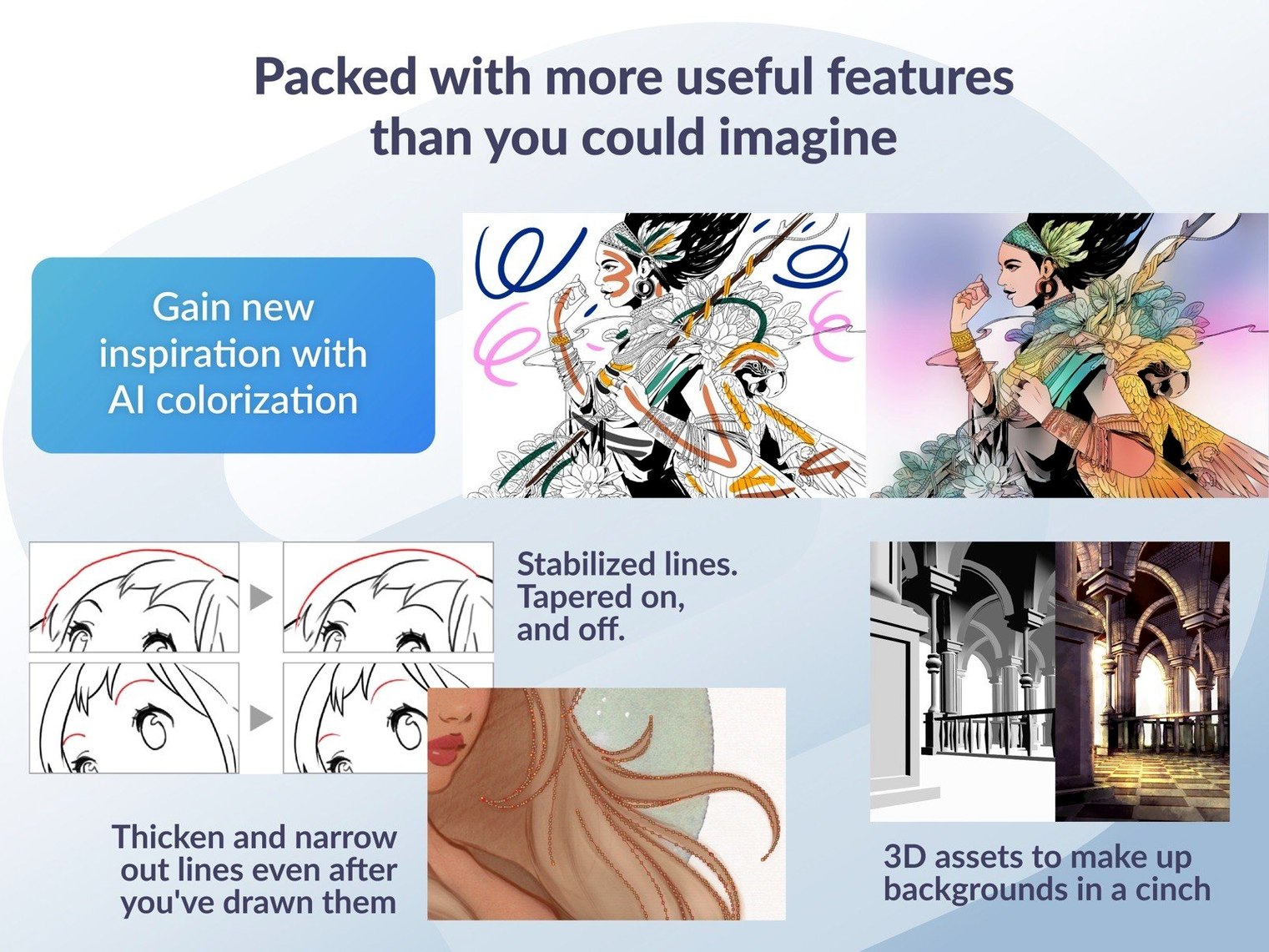
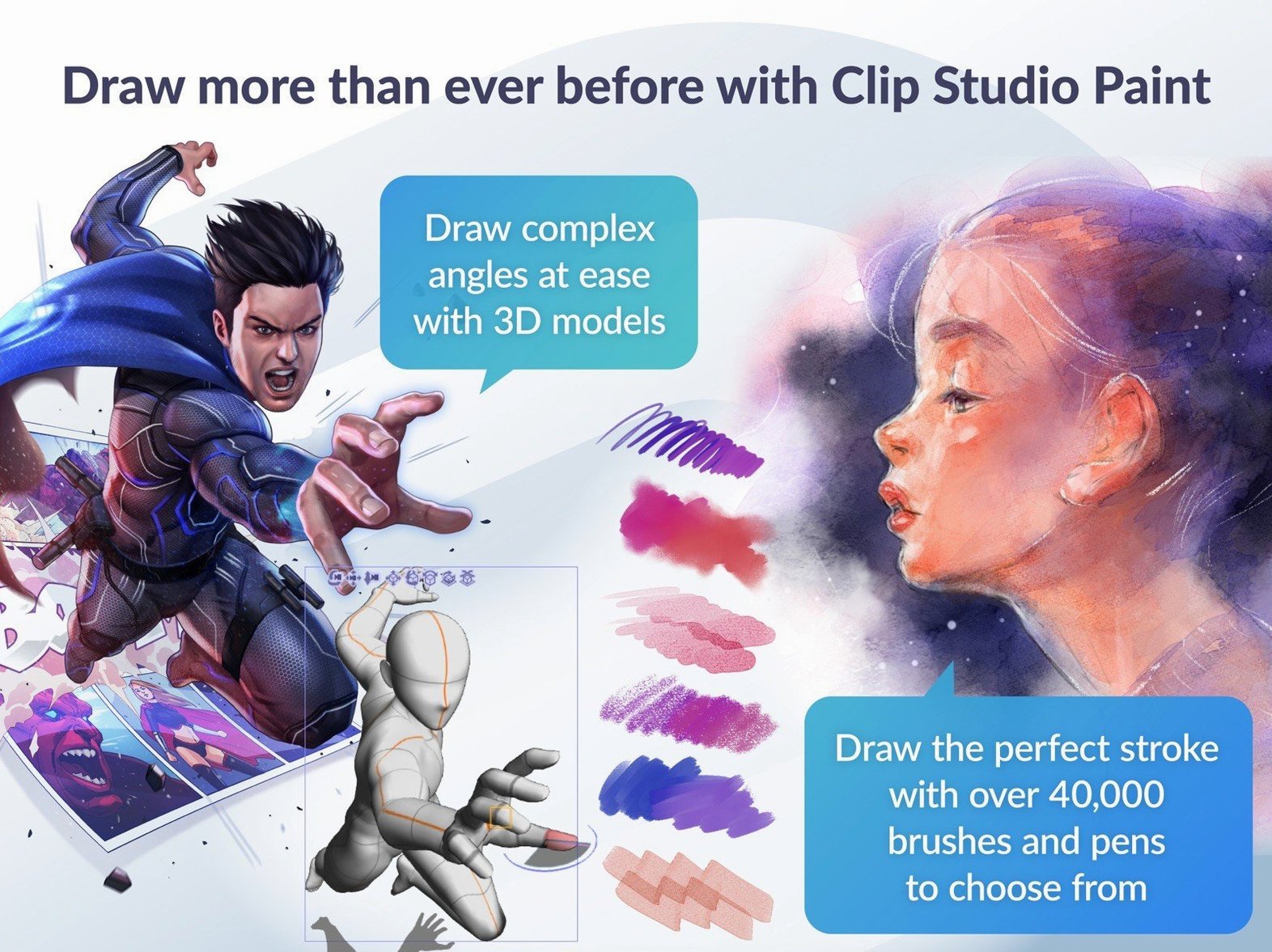
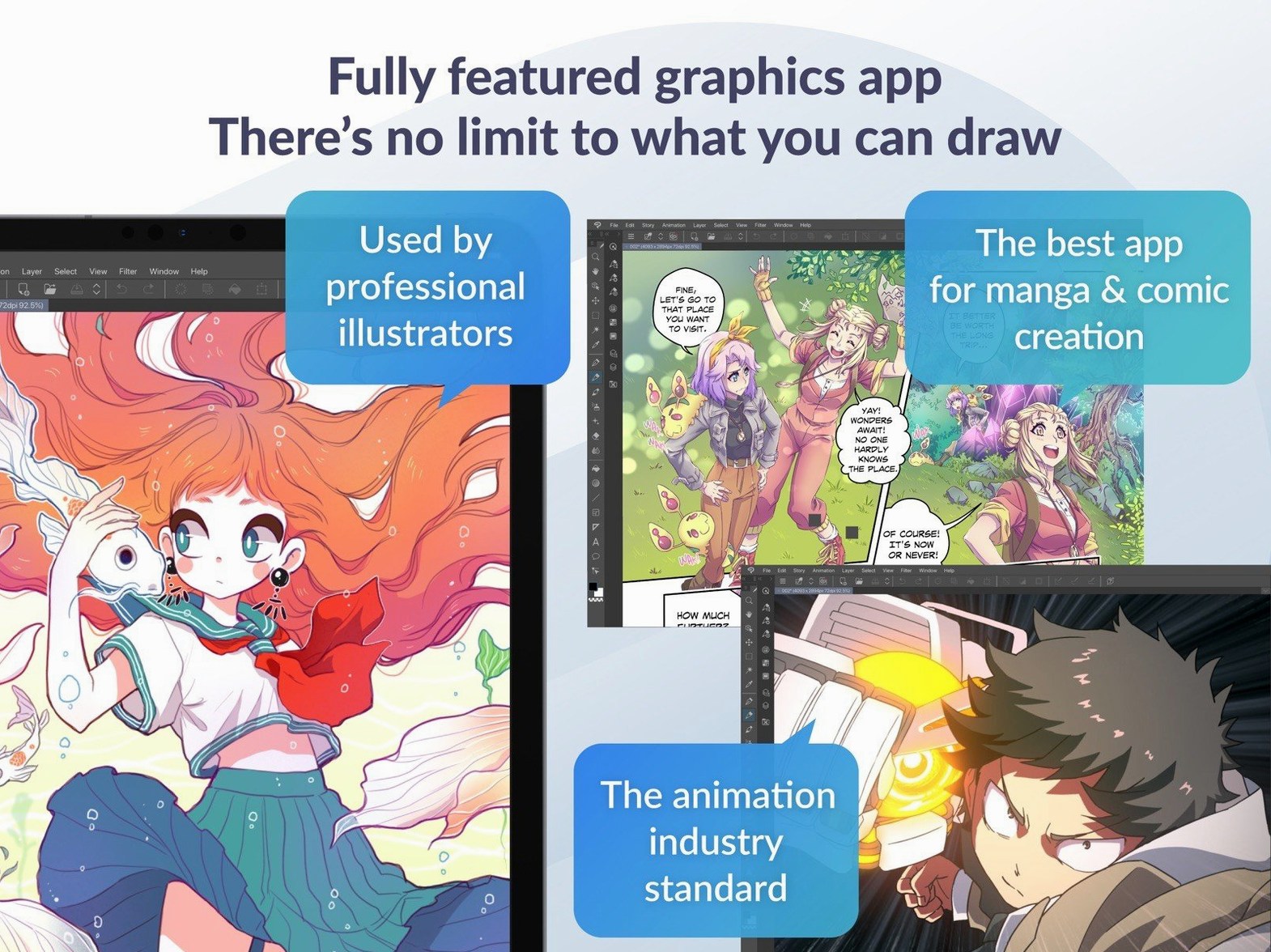
Clip Studio Paint is a drawing application aimed at illustrators, comic artists, and animators who need more than a basic sketchpad. It handles raster and vector work, 3D figure posing, and frame-by-frame animation in a single file.
Your Photoshop files arrive with layers intact
- Layered PSD import and export. Move work between Clip Studio and Photoshop without flattening. Layer structure and names stay intact.
- Manga Studio 4 files. The app can open old Manga Studio 4 EX and Debut documents, so archives from earlier projects aren't locked away.
- Pen tablet response. Pressure sensitivity works straight away with most Wacom, Xencelabs and similar tablets. No third-party driver fiddling.
- Animation alongside illustration. Onion skinning and a timeline sit in the same interface, not a separate module. Handy if you switch between storyboards and final art.
Comics and story tools
The EX edition layers on story management features that go beyond the PRO version. Multi-page documents, batch export, and dedicated panel-cutting tools make it a practical choice if you produce full issues or long-form manga. The 64-bit architecture means large multi-page files don't choke on memory the way older 32-bit apps can. It also supports 3D objects and figures for blocking out scenes or checking perspective before you commit to line art.
A typical drawing session
You open a multi-page comic file from yesterday. The Story Manager in EX shows all pages as thumbnails across the top — click page six, the one you left half-inked. The pencil layer is already set to blue, so the new vector ink layer above it stands out clearly.
G-pen tool, 5 px stabilisation. The first few strokes wobble, then your hand settles. You zoom in on a face with a quick pinch on the tablet, ink three expressions across six panels, then switch to the Fill tool to drop flat colours onto a separate layer beneath the inks. The Close Gap setting catches most leaks around the chin line. Two spots need manual cleanup with the Paint Unfilled Area tool.
Mid-session, you need a tricky hand pose. Drag a 3D figure from the Materials palette onto the canvas. Rotate the wrist, adjust fingers with the pose sliders, then set the layer to Extract Line. A clean, light-blue line art of the hand pops onto a new raster layer. You ink over it, hide the 3D layer, and keep going. No switching apps, no photographing your own hand.
You save, then open the Timeline window to check an animation loop on page twelve. Onion skin shows the four previous frames in pale red. You nudge two cels, scrub the playhead, export a quick GIF to preview in Finder. The whole session stays inside one window, one file.
macOS 14 is a hard floor
Does it really need macOS 14 or later? Yes. Version 4.1.4 will not launch on older systems. If you are still on Ventura or earlier, this build is not for you. The installer checks the macOS version early.
Is the animation side a separate download? No. The timeline, onion skin, light table and export options ship with the main app. You do not install a plug-in or a separate module. The EX edition adds longer timelines and more export formats, but the animation engine itself is there in PRO as well.
How does it handle an older Wacom tablet? Most pens work with pressure sensitivity out of the box. If your tablet is supported at the macOS level, Clip Studio picks it up. Occasionally you need to toggle Tablet PC mode in the pen settings, but that takes less than a minute.
Can I open it without an internet connection? For most drawing work, yes. Some material downloads and the initial licence check need a connection, but daily sketching does not. You can work offline once it has verified itself.
A colourist’s afternoon
A freelance colourist picks up a 28-page comic from a writer-artist who works entirely in scanned pencils. Each page arrives as a 600 dpi TIFF. The brief asks for flat colours — no rendering, no gradients — with consistent palette across all pages.
She opens the first page in Clip Studio Paint, sets the pencil layer to Multiply, and starts dropping flats onto layers below. The Paint Bucket tool with Area Scaling catches most of the gaps. She saves a palette file from page one and loads it for every subsequent page, so the hero’s jacket stays the same olive green throughout. For the three pages that need a crowd scene, she drags posed 3D figures into the background, extracts lines, fills them with muted tones, and flattens them. No need to hand-draw thirty extras.
Batch export handles the final delivery. All 28 pages render as layered PSDs in one go, ready for the artist to drop into InDesign. The colourist keeps a single .clip file with every page, every palette, and a few 3D pose presets for the next issue.
What’s new
Adds Simplified Chinese as a display language. Improves Quick Look previews for .clip files on macOS 15. Fixes several macOS, animation and export issues, including a PSD export bug where certain sizes wouldn't show correctly in Finder on macOS 15.
Requirements
- macOS 14 or later
- 2 GB memory (8 GB or more recommended)
- OpenGL 3.3 compatible GPU
- Pen tablet with pressure sensitivity supported
- Internet connection needed for licence verification and some features
FAQ
Can Clip Studio Paint open Photoshop files properly?
Yes. It imports and exports layered PSD files, keeping the layer structure and names intact.
Comments 0
Sign in or create an account to leave a comment.
No comments yet…
If you’ve installed it, say how it went. Mention your Mac and macOS version — it helps the next person more than you’d think.