CloudMounter for macOS
Description
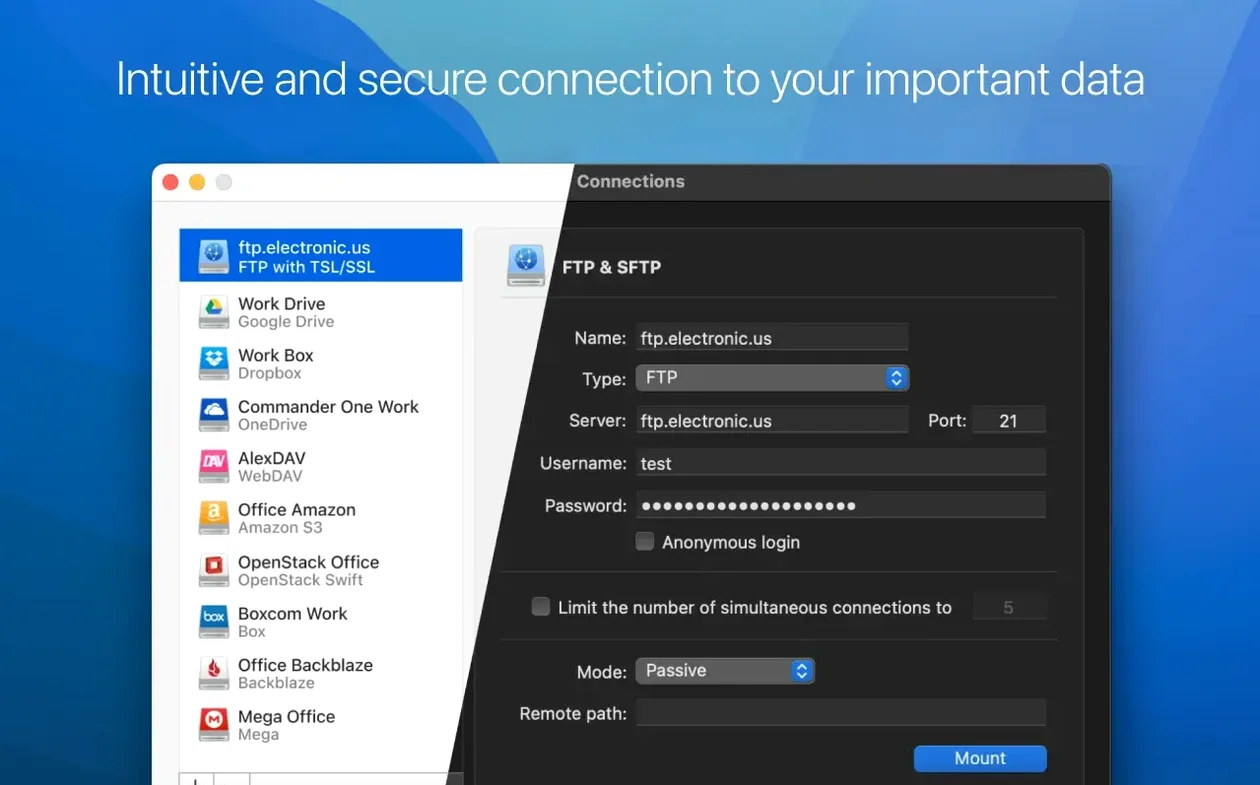
You already keep local folders tidy in Finder. CloudMounter lets you treat cloud storage the same way, without yet another sync app eating your disk space. It mounts services like Google Drive, Dropbox, OneDrive and Amazon S3 as ordinary volumes, so you can browse, copy and open files directly.
What it connects to
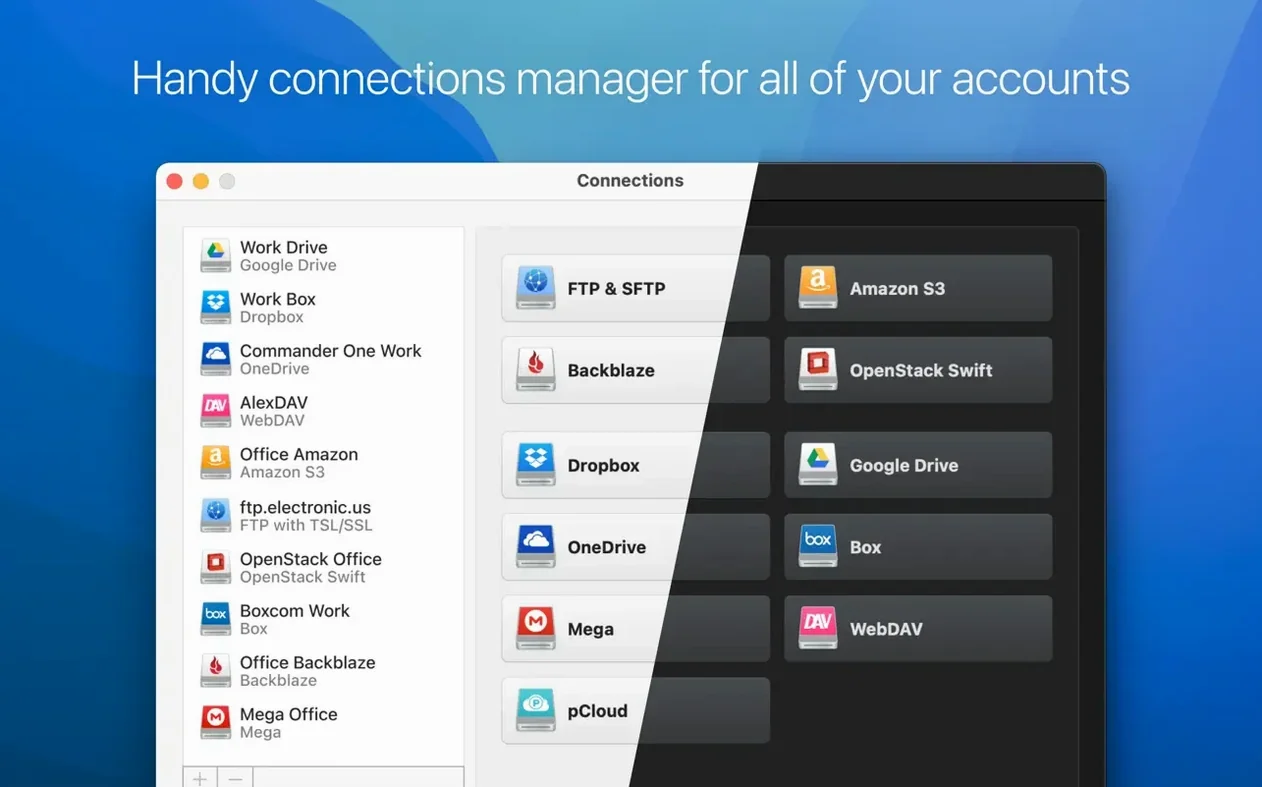
- Google Drive, Dropbox, OneDrive, Box
- Amazon S3, Backblaze B2, OpenStack Swift
- FTP, SFTP, FTPS and WebDAV servers
- MEGA connections (improved in this release)
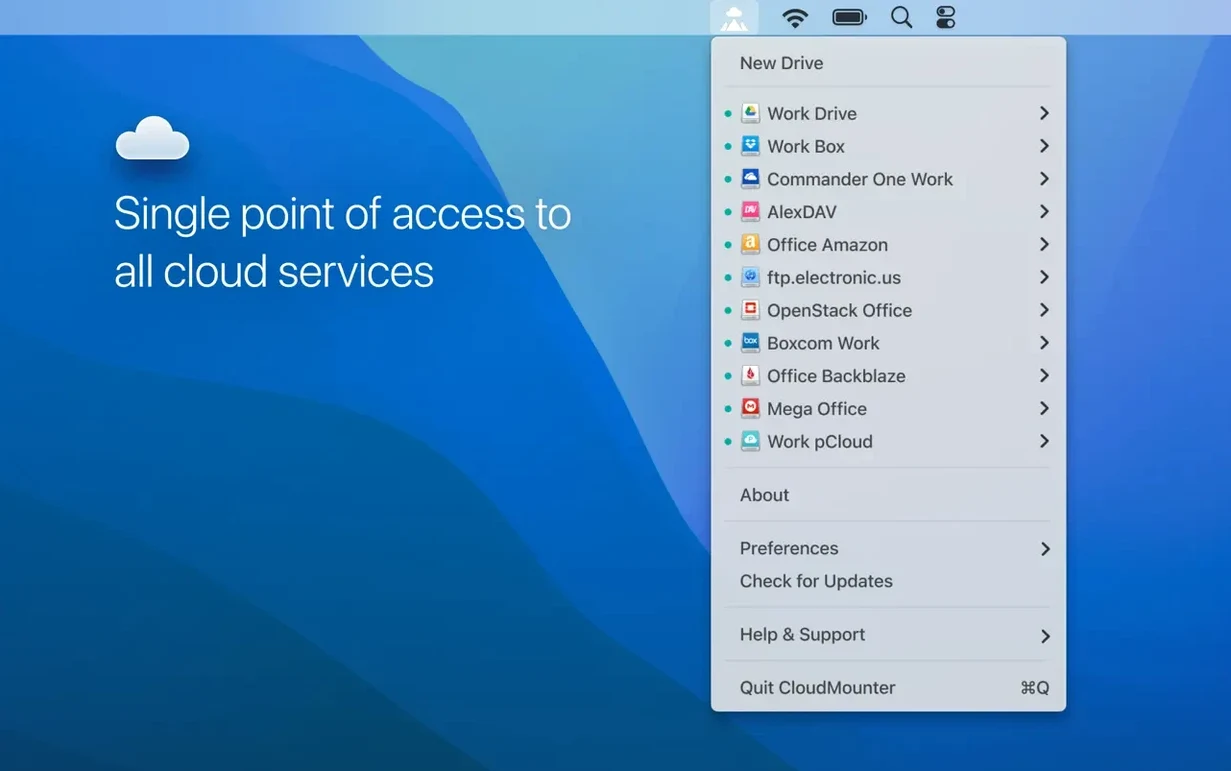
Mount all your cloud accounts in Finder without syncing files locally
If you juggle several cloud accounts, CloudMounter keeps them in your Finder sidebar instead of scattering them across browser tabs and sync clients. It acts as a single cloud storage manager, not a mirror. Files stay online until you open them, which helps on a 256 GB MacBook. The app runs on Intel Macs with macOS 10.14 or later. Version 4.18 arrived on 18 June 2026 with smoother large-file uploads and a fix for cancelled SFTP downloads that previously left temp files behind.
Large uploads no longer stall or lose progress
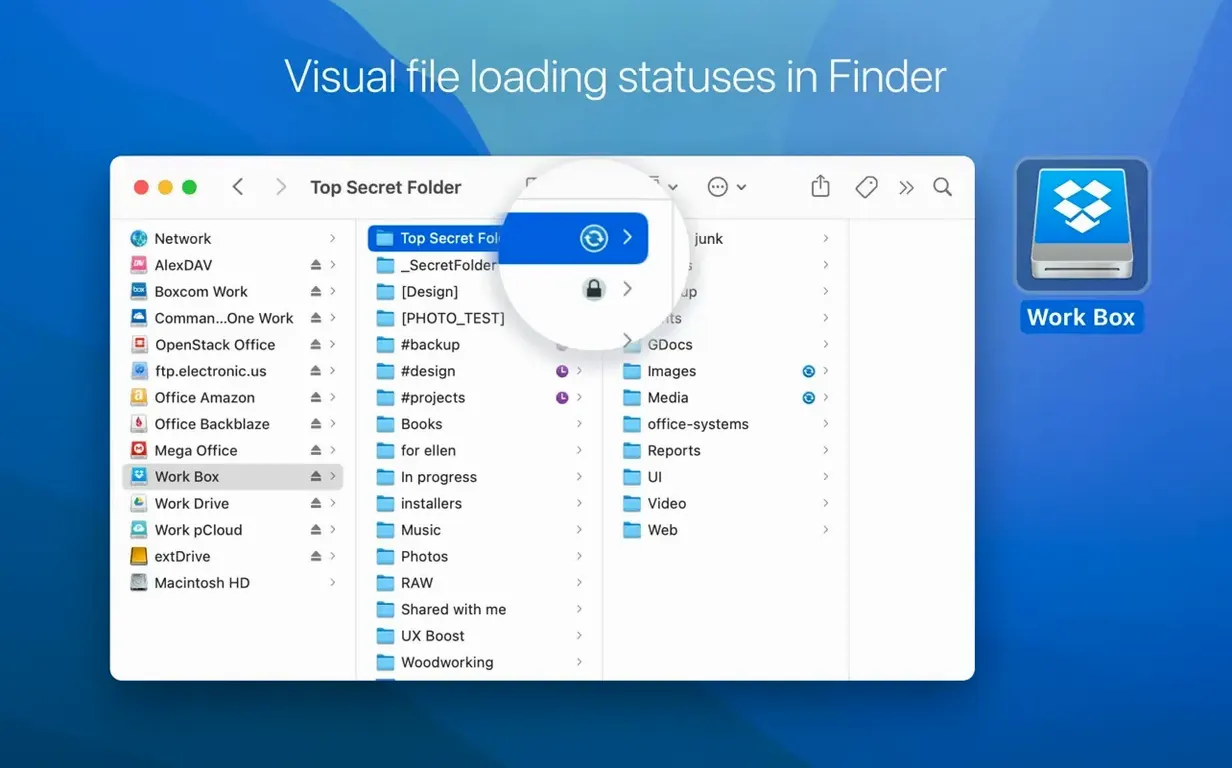
Version 4.18 isn't a flashy rewrite. It tidies up the rough edges that help-desk tickets are made of. The big one for most people is how it handles large files. Earlier builds could stall or lose progress on uploads over 2 GB, especially on slower connections. Now the progress bar actually finishes where you'd expect it to, and the status icons — those little green ticks and orange arrows — update more honestly.
Folder listings load faster. When you open a remote directory with hundreds of items, the list populates in fewer Finder refresh cycles. It's not instant, but the lag is visibly shorter than in 4.17. MEGA connections, which used to drop after sleep, reconnect without needing a manual remount. And if you've ever cancelled an SFTP download mid-transfer and found a phantom .part file cluttering your desktop, that's fixed.
There's also a quiet improvement for anyone who's changed the cache volume location: the app no longer loses track of half-downloaded files when you point it at a different drive. Storage usage info for online connections shows accurate numbers now, not the "calculating…" spinner that sometimes stuck around for minutes.
Mount one account first and expect a brief pause when opening files
Start with one account, not all five. Mount your primary Google Drive or Dropbox, then use it for an afternoon before adding more. CloudMounter doesn't sync in the background, so you'll notice a brief pause the first time you double-click a file while it fetches from the server. That pause shrinks after the first access because the app caches what it can.
If you're setting up an SFTP or WebDAV connection, save the bookmark with a name that makes sense in your Finder sidebar. "Work server 3" gets confusing fast. Use the server's actual hostname or a short label you'll recognise three months later.
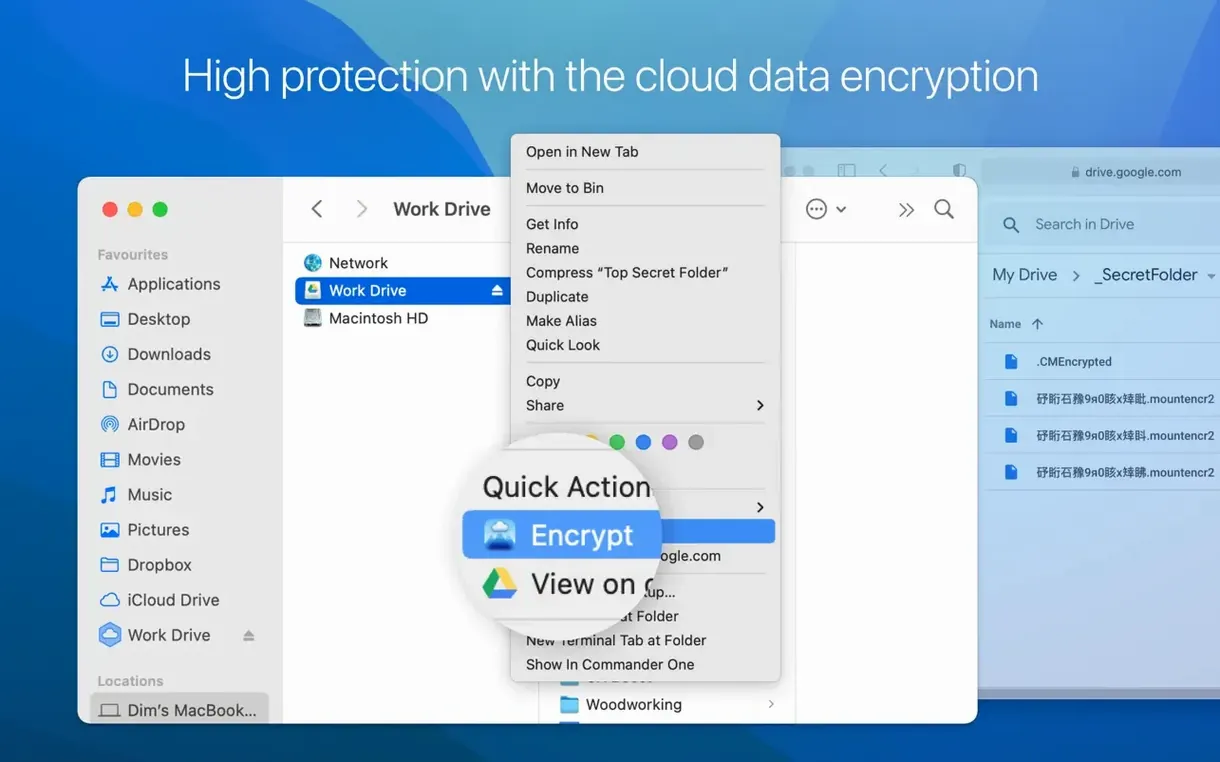
Turn on encryption before you upload anything sensitive. CloudMounter uses AES-256, but it won't prompt you to enable it. Find the checkbox when you add a new connection, not after. Encrypted folders look normal in Finder, but anyone snooping the cloud account only sees scrambled blobs. Just don't lose the password — there is no reset.
Keep an eye on the menu bar icon for the first week. It shows active transfers with a small progress indicator, and it's the fastest way to unmount a volume when you're done. Dragging a mounted drive to the Trash works, but the menu bar action is cleaner and less likely to confuse Finder.
Mounts multiple accounts in Finder unlike single-account sync clients
CloudMounter sits between two categories: the sync clients that come with each service, and heavier-duty tools like Mountain Duck. Google's own Drive for Desktop syncs everything locally or streams on demand, but it's locked to one account per login. If you run two Google Workspace accounts and a personal Gmail, CloudMounter mounts all three without fuss. The trade-off? You won't get offline access to everything unless you manually copy files to your Mac. For people who need fresh files on a plane, that matters.
Mountain Duck does a similar job — it mounts remote storage as volumes and supports most of the same protocols. It feels more enterprise-focused, with deeper configuration menus and logging. CloudMounter is lighter on system resources and simpler to set up, but Mountain Duck's bookmark system scales better if you manage dozens of servers. For everyday FTP work or a couple of S3 buckets, CloudMounter adds less friction.
ExpanDrive is the other name that comes up. It's been around longer and covers more niche services (Wasabi, DigitalOcean Spaces), but its Finder integration can lag on older Intel hardware. CloudMounter's 4.18 improvements make folder browsing feel snappier on the same machine. Neither app is a sync tool. Both assume you're online and treat the cloud like a big external drive.
What’s new
Improves uploading of large files.
Improves work with MEGA connections.
Fixes download cancellation for files on SFTP connections.
Fixes file downloading issues when cache volume is changed.
Fixes displaying of storage usage information for online connections.
Requirements
- macOS 10.14 or later
- 64-bit Intel processor
FAQ
Does CloudMounter sync files to my Mac?
No. It mounts cloud storage as a local drive, so files are accessed on demand rather than synced and stored locally by default.
Comments 0
Sign in or create an account to leave a comment.
No comments yet…
If you’ve installed it, say how it went. Mention your Mac and macOS version — it helps the next person more than you’d think.