Camtasia for macOS
Description
Camtasia 2026.2.3 is the Mac screen recording and video editing app from TechSmith. Before you get it, the first question is whether your Mac can actually run it. It needs macOS 14.0 or later, and works on both Apple Silicon and Intel machines.
Requirements and compatibility
If you're still on macOS 13, it won't launch. That's the line. The app runs natively on Apple Silicon and Intel, so there's no Rosetta guessing game. The interface comes in English, German, Spanish, French, Japanese, Portuguese and Simplified Chinese — not every language is covered, but the main ones are. A Camtasia Mac torrent won't change the system requirements. If your OS is too old, it simply won't open.
Screen recorder and timeline editor in one download
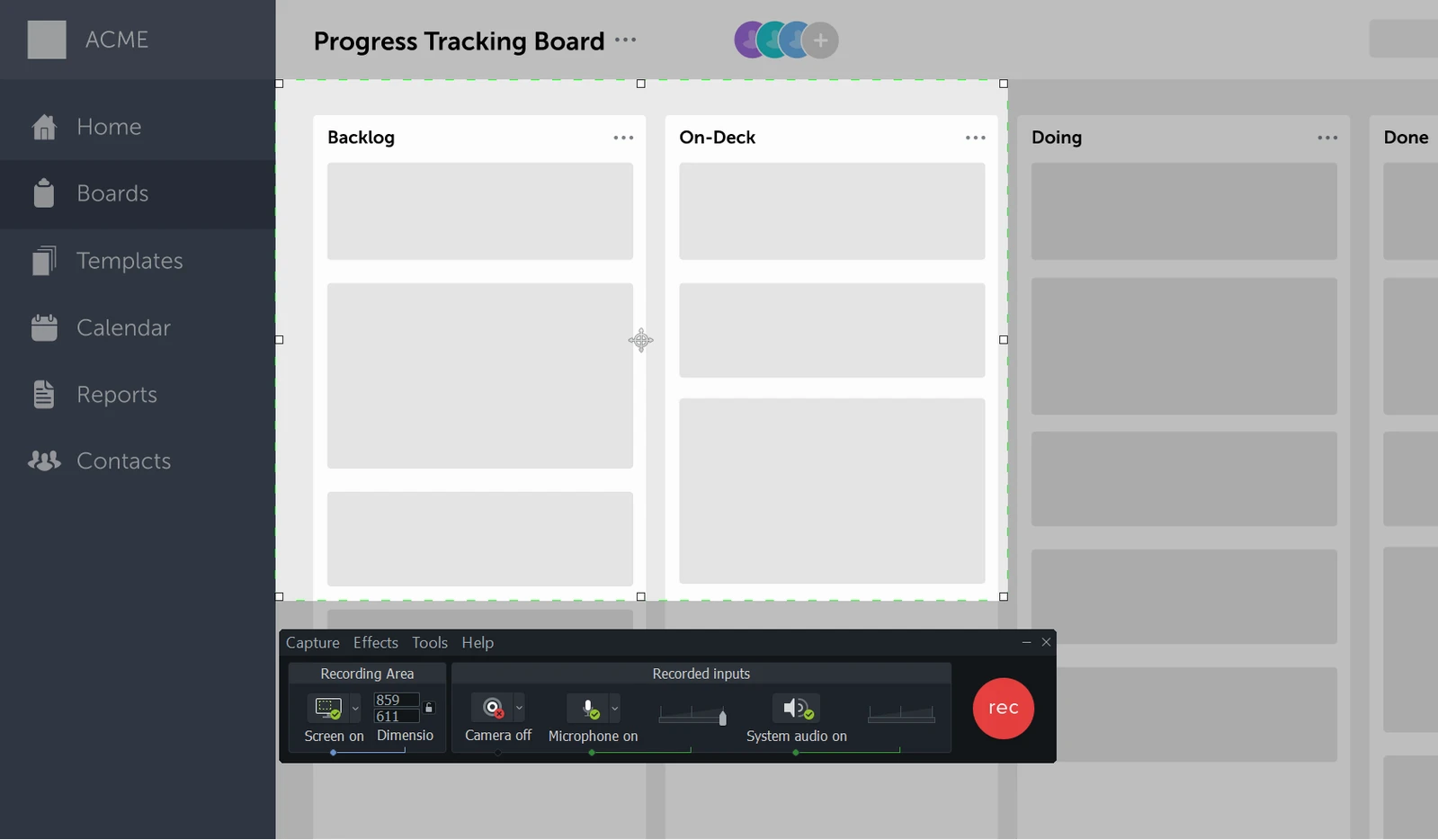
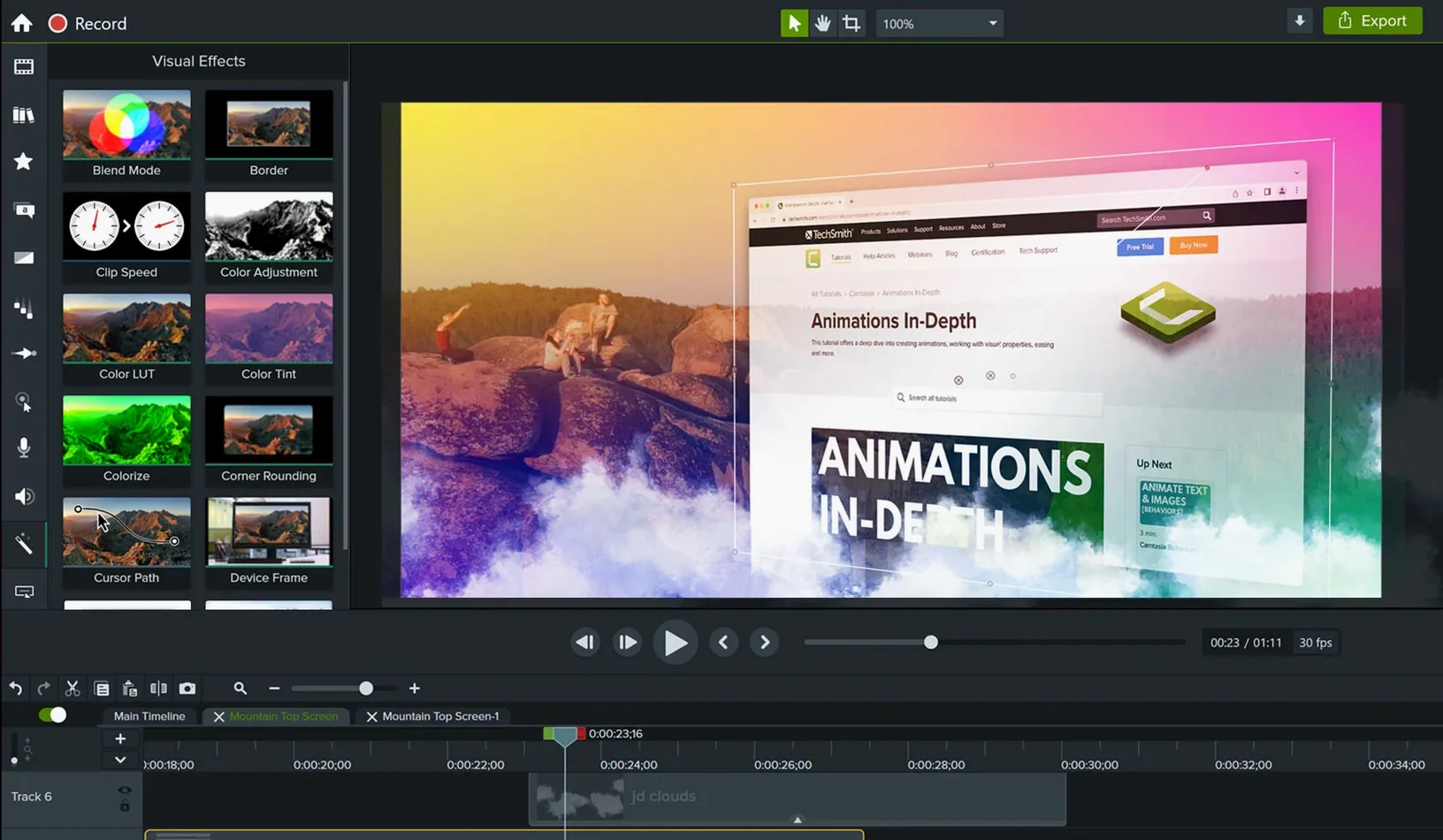
You're getting a screen recorder and a timeline editor in one package. Record your screen, then cut, trim and arrange clips. Drag-and-drop effects, ready-made templates and the ability to import PowerPoint slides make it geared towards software demos, product tutorials and online lessons. The editor is not Final Cut Pro, but it doesn't pretend to be. It's built for people who need to show how something works on screen and get the video out without a post-production headache.
Set 30 fps before you hit record
Don't open the recorder the moment the app launches. You'll save yourself a morning of re-dos if you spend twenty minutes on preferences first.
Set your recording frame rate to 30 fps in the capture settings. The default is often lower, and choppy cursor movement in a software demo makes the whole thing look unpolished. While you're there, disable system audio recording unless your tutorial actually needs it — most don't, and you'll just pick up notification pings mid-take.
Create a project template with your standard intro and outro. Even something as basic as a five-second title card and a fade-to-black at the end. Save it as a template file. Every video you make will start from that, and you won't have to rebuild the bookends each time. It takes three minutes and you'll use it hundreds of times.
Set the autosave interval to five minutes. The default is longer than you think, and screen recording projects eat RAM. A crash on export was the exact bug fixed in 2026.2.3, but no app is crash-proof when you're pushing an hour-long timeline.
A software demo, from blank canvas to finished video
Here's a workflow for recording a feature walkthrough — the most common job people throw at Camtasia.
1. Script the clicks. Write down the exact menu path or button sequence before you hit record. Improvising leads to hesitation, and hesitation on a cursor looks like the app is broken. A half-page of bullet points is all you need.
2. Record in short takes. Don't try to capture a ten-minute run in one go. Record one feature per take — thirty to ninety seconds each. Stop between takes. This gives you clean break points in the media bin, and if you flub a line you're only re-recording that segment, not the whole thing.
3. Trim first, effects later. Drop all your takes onto the timeline in order. Use the playhead and the split tool to cut dead air and mistakes. Don't touch transitions, callouts or zooms until the bare edit flows. A common trap is spending ten minutes animating a cursor highlight on a clip you later cut entirely.
4. Add zooms to the interesting bits. When you're showing a specific menu or a settings panel, drop a zoom-and-pan animation to bring it full-frame. Keep the zoom duration under two seconds. Anything slower makes the viewer seasick. Set the easing to linear — the default ease-in-out curve looks soft, but for a screen recording it just feels laggy.
5. Audio cleanup. Select your voiceover track, open the audio effects panel, and apply noise removal. Then add a touch of compression. The built-in presets are fine for this — you're not mixing an album. Normalise the audio to -3 dB so it's consistent across all the takes. The difference between raw mic audio and a thirty-second cleanup is the difference between amateur and professional.
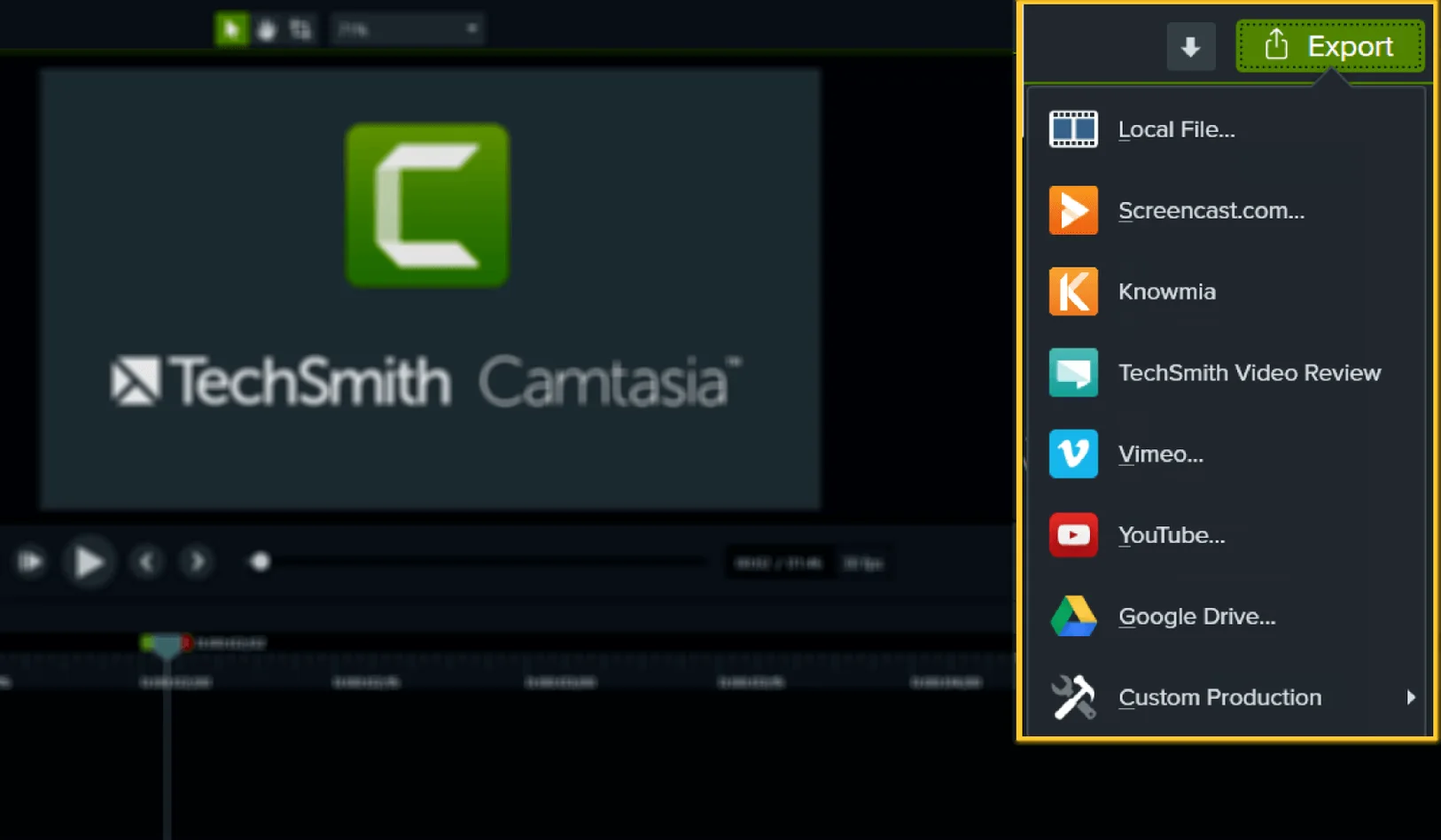
6. Export a draft. Render to a local MP4 at 1080p and watch it once through, full screen, without pausing. You'll spot three things you want to tweak. That's normal.
Full-resolution Retina recordings create massive files
Most of the trouble comes from habits carried over from other editors, or from skipping the manual entirely.
Recording at the wrong resolution. If your display is a Retina screen and you record at full resolution, you'll get a massive canvas that's impossible to edit smoothly on anything but a maxed-out machine. Set the recording area to 1920×1080, or scale the canvas down after recording. If you're using a Camtasia Studio torrent, dropping the preview quality to half or quarter will keep things moving when you're scrubbing through a 5K timeline.
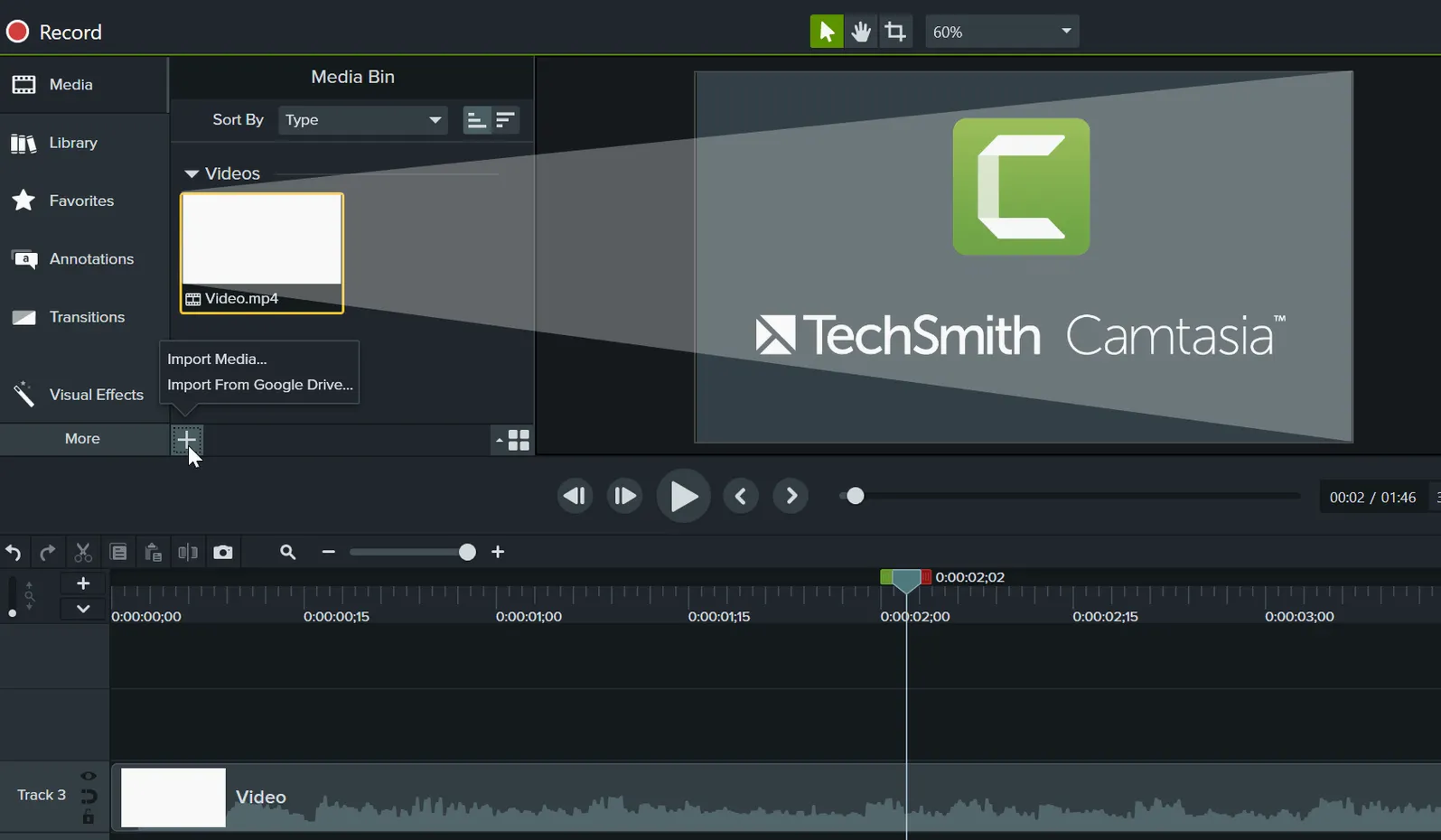
Ignoring the media bin. Every imported file, every recording take, every image gets dumped there. People let it pile up with thirty unnamed clips and then can't find anything. Name your takes as you record them. "recording_1" is useless six hours later. "settings_panel_take2" is not.
Overusing transitions. A dissolve between two clips is fine. A page curl is not. The built-in library has dozens of transitions, and most of them look like a PowerPoint presentation from 2007. Stick to cross-dissolve and maybe a dip to black for chapter breaks. Your audience is watching to learn something, not to admire your transition choices.
Exporting too early. The timeline preview is lower quality than the final render. A freeze-frame that looks fine in the editor might have a dropped frame in the export. Watch the rendered file before you send it anywhere. The fix for the startup and export crash in 2026.2.3 helps, but no export is guaranteed clean until you've watched it back.
Thinking templates do the work. The ready-made templates are a starting point, not a finished video. They give you placeholder structure — you still need to replace every bit of placeholder content, and the stock music in the templates is overused. If you're distributing your video publicly, swap it out for something less recognisable.
What’s new
Camtasia 2026.2.4 arrives with the latest round of bug fixes and under-the-hood improvements.
Requirements
- macOS 13 or later
- Apple Silicon or Intel 64-bit
FAQ
Can I import PowerPoint slides into Camtasia for Mac?
Yes, Camtasia lets you import PowerPoint presentations directly into your project for use in tutorials and lessons.
Comments 0
Sign in or create an account to leave a comment.
No comments yet…
If you’ve installed it, say how it went. Mention your Mac and macOS version — it helps the next person more than you’d think.