Bootstrap Studio for macOS
Description
The Sticky On option landed in a recent update, and it’s the sort of detail that saves you a trip to the docs. I set a navbar to stick only on large screens, keeping things tidy on mobile without writing a media query by hand.
Building a landing page from scratch
- Dragged a Navigation component onto a blank canvas. Nested a dropdown inside it without the usual DOM guesswork — the app handles the structure.
- Pulled in a Hero section, swapped the placeholder image, and tweaked the button text. The live preview refreshed across a connected phone and a second browser tab as I worked.
- Added a Modal with the new Click Outside to Close option turned on. Tested it directly in the preview. No surprises.
- Exported the page. The output was clean, semantic HTML with no leftover inline styles. Dropped it straight into a project folder.
What you’re working with
Bootstrap Studio supports Bootstrap 3.4, 4.6, and 5.3, so you can match the framework version your project needs. You import and edit your own CSS, JavaScript, and HTML alongside the visual tools. The AI Assistant now includes gpt-4o-mini and gpt-4o, which is handy for generating placeholder text or debugging a snippet without leaving the app. It’s a focused environment — no battling a CMS interface, just a direct line to the markup.
Three preferences to change before your first project
A few defaults are worth a look before you start a real project. Head to the preferences panel. Not everything needs changing, but these three will save you minor headaches later.
- Set your default Bootstrap version. The app ships with a default that may not match your current work. If you spend all day in Bootstrap 5.3, switch the default under New Project Settings so every new canvas starts with the right version. Switching later on a page-by-page basis still works, but a sensible default stops a 4.6 project sneaking in by accident.
- Choose your export paths. By default, the app exports to a folder inside your project directory. If you prefer a single clean HTML file or direct output into an existing site folder, set that path now. Doing it once beats hunting through Finder every time you export a quick placeholder for a client.
- Turn off automatic class prefixing if you hand-write a lot of CSS. Bootstrap Studio adds some helper classes automatically when you drag components. That's useful early on, but it can clutter your stylesheet once you're deep into custom work. Untick it under CSS Options and you get a leaner output from day one.
While you're in preferences, check that the live preview browser list matches what you actually test with. A few people running bootstrap studio on a Mac will already have a testing routine — the app just needs to know which browsers you use.
Building a services page from a blank canvas
Here's how a working hour often goes. You open a project for a small business site that needs a new services page.
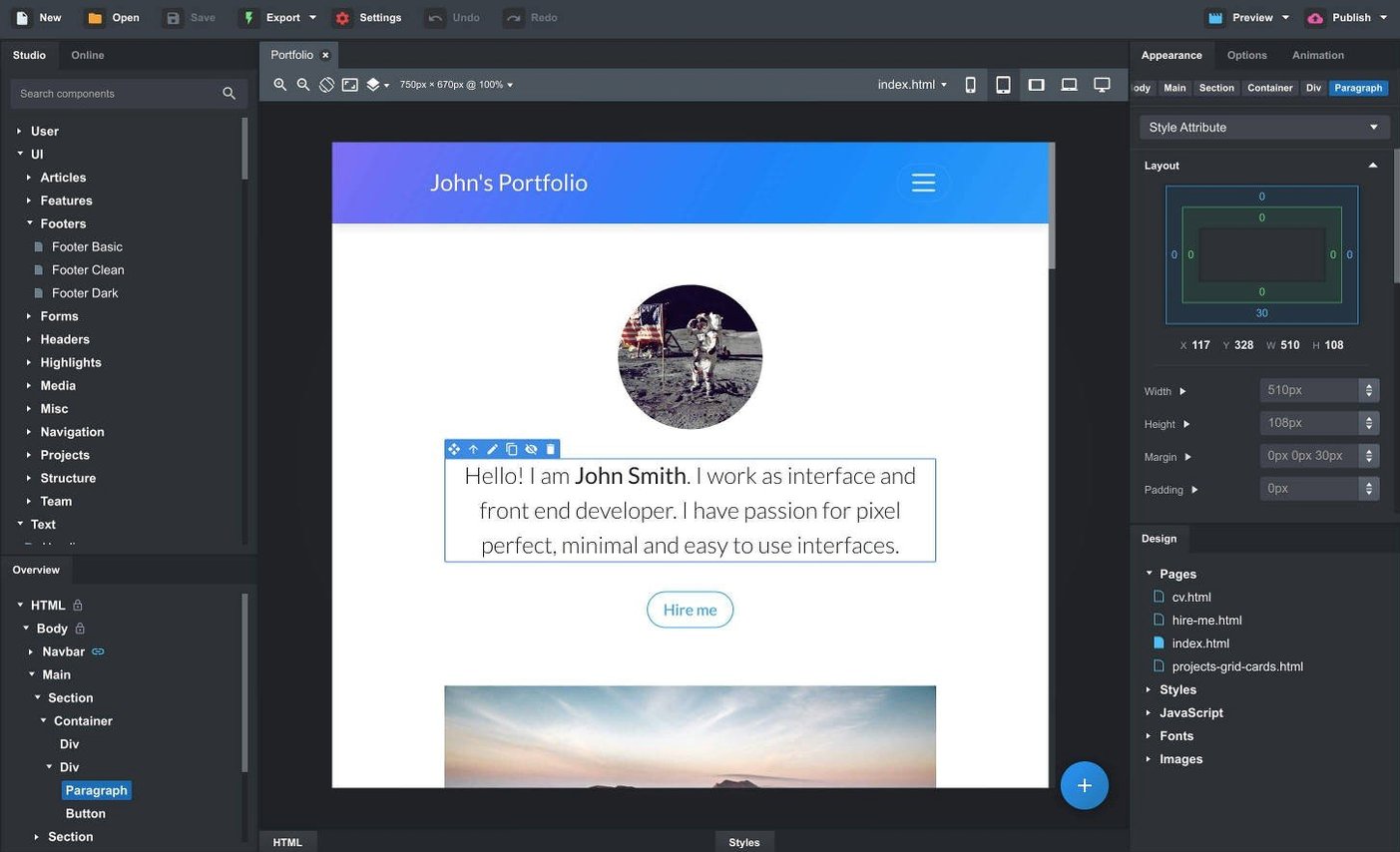
You start with a blank page. The Component panel sits on the left, the canvas in the centre, and the Overview panel on the right showing the DOM tree. You drag a Container onto the canvas, then drop a Row inside it. Two Columns follow, split 8/4. The drag-and-drop nesting works intuitively — you feel the snap when a component slots into a valid parent. No error messages, just a visual refusal if you try something impossible.
Into the wider column you drag a Card component, then a second one beneath it. You select the first card's image placeholder and point it at a local PNG. The live preview updates on your external monitor within a second. You switch the text in both cards and add a subtle shadow class from the Options pane. The narrower column gets a List Group with links to other service pages.
Mid-session you hit a small snag — the card images look odd at tablet width. You open the Responsive tab, pick the medium breakpoint, and adjust the column widths. The change applies instantly in the live preview on a connected iPad. You export the page, check the HTML in your editor, and find no surprises. The markup is exactly what you'd have hand-coded, just written faster.
Save a custom hero or footer by Friday
- Save a component to your library early. When you build a well-tuned hero or footer, right-click and save it as a custom component. By Friday you'll have a small kit that speeds up every new project. The online library is fine, but your own components match your exact taste.
- Use linked components for repeated elements. If a nav appears on six pages, make it a linked component. Edit it once, and the change ripples across every instance. That alone saves twenty minutes of tedious copy-paste.
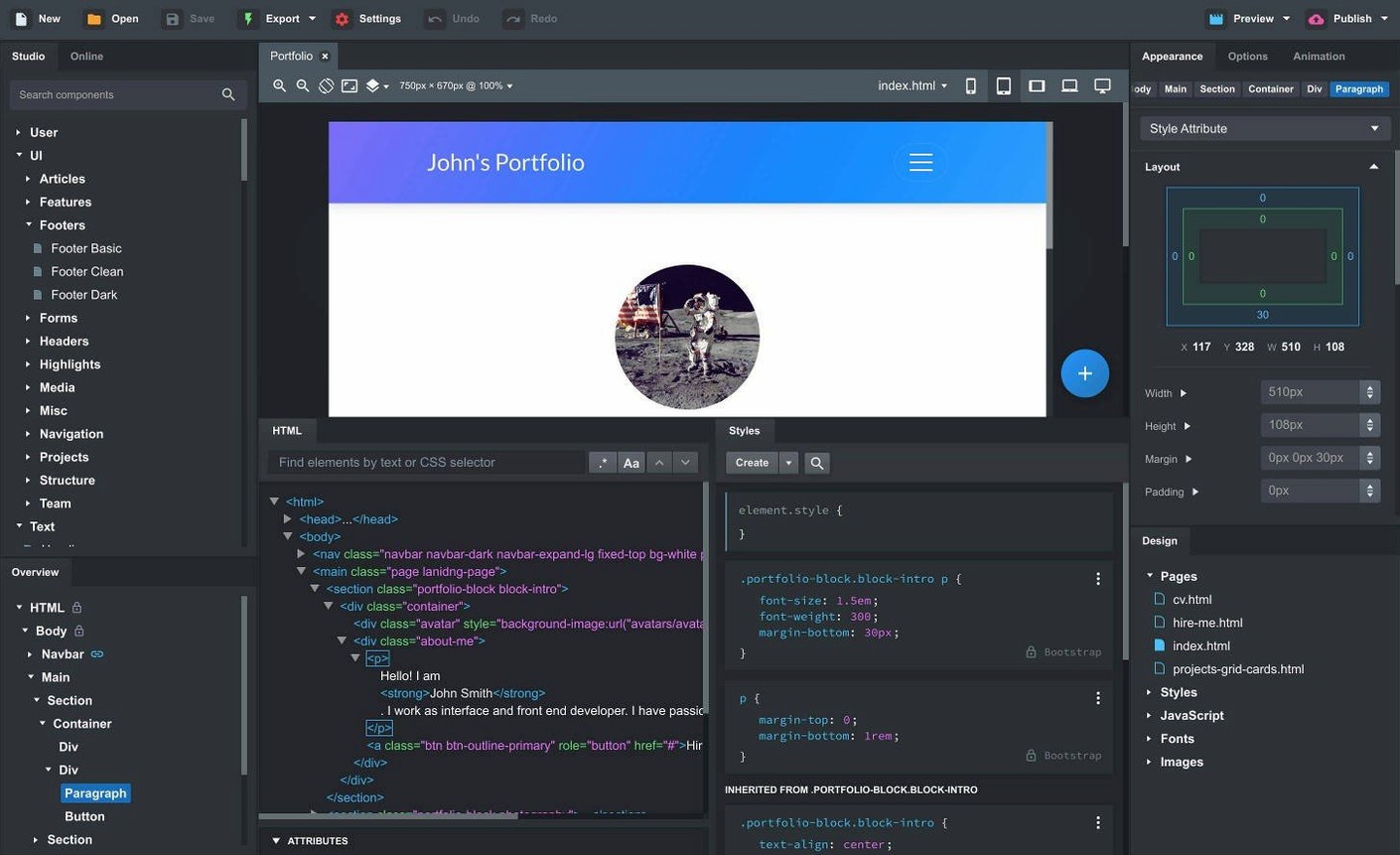
- Don't fight the CSS panel. You can edit SCSS directly inside the app, and it compiles on the fly. For quick adjustments, the visual options are great. For anything nuanced, open the Styles tab and type your own rules. The two approaches coexist without conflict.
- Drag an existing site in to learn the tool. If you're still finding your way around bootstrap studio mac, drag in a simple HTML page you built elsewhere. The app parses it into components. Seeing your own familiar markup represented visually is faster than any tutorial.
What’s new
Fixes an issue with the OpenAI API key entry dialog not accepting some keys. The Icon Dialog now lists the number of icons and type for each icon set. Adds a Sticky On option for sticky navbars. Adds a Click Outside to Close option for Bootstrap modals. Adds gpt-4o-mini and gpt-4o to the AI Assistant.
Requirements
- macOS 10.13 or later
- Intel or Apple Silicon Mac
FAQ
Can I use Bootstrap Studio with different Bootstrap versions?
Yes. It supports Bootstrap 3.4, Bootstrap 4.6, and Bootstrap 5.3, so you can pick the version your project requires.
Does the app produce clean code when I export?
It exports clean, semantic HTML. You can also import and edit your own CSS, JavaScript, and HTML files within the app.
Comments 0
Sign in or create an account to leave a comment.
No comments yet…
If you’ve installed it, say how it went. Mention your Mac and macOS version — it helps the next person more than you’d think.