
Bloom for macOS
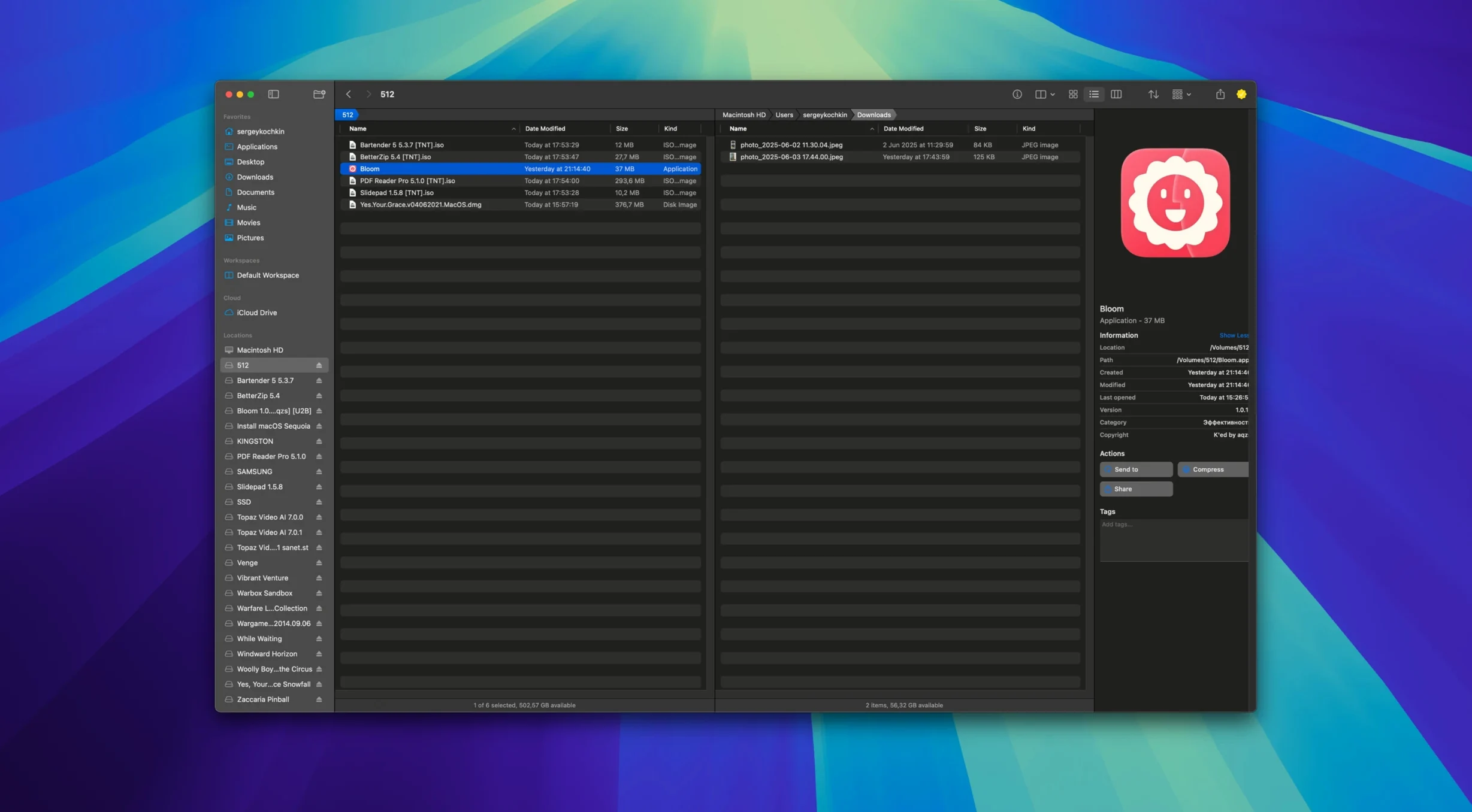
Description
What it runs on
Bloom 1.5.42 needs macOS 14 or later. It's built for both Intel and Apple Silicon Macs. The interface is English.
A search-and-organise workflow
Bloom sells itself as a Finder replacement, so here's what a typical sort-out looks like.
- Gather the mess. Set a few predefined locations for keyword searches. Bloom pulls results from those folders fast, no need to hunt around.
- Sort by type or date. Group everything that's landed. Images in one block, spreadsheets in another. Quick visual tidy before you rename.
- Rename with precision. The advanced renaming tool handles regular expressions. Strip prefixes, add dates, or renumber a batch in one go.
- Convert on the spot. If the images are the wrong format or too large, use the built-in converter. Resize and optimise without opening another app.
- Schedule the repeat bits. For jobs you do every week, the task scheduler runs file operations later. Set it and close the lid.
Each step records an undo, so a mistake with a regex rename is one click to reverse. If you need a Terminal at any point, launch it straight from the current folder. For distraction-free work, Portal mode shrinks the window down to a compact list—no sidebar, no preview.
Clicking around folders the old way misses half of Bloom
Most new users treat Bloom like a Finder clone and ignore half of what it can do. They click around folders the old way, drag files manually, and never touch the keyboard shortcuts. That's fine for day one, but it misses the point.
The biggest slip is skipping the predefined search locations. People open Bloom, type a keyword, and get nothing. Then they assume search is broken. It isn't. Bloom only searches inside locations you've set up. Spend two minutes adding your main working folders in the settings and search becomes the fastest tool on the Mac.
Another common one: using manual columns when auto-resize is waiting. Drag a column edge, then remember ⌘⇧⏎ would have jumped you there instantly anyway. Beginners also forget Portal mode exists. They keep the full window open with sidebar and preview, then complain it's busy. Pin a Portal window above everything else and you'll wonder why Finder never copied that idea.
Regex renaming trips people up too. Typing a sloppy pattern that matches more files than intended, then hitting apply. The undo queue saves you, but it's a jolt the first time. Preview the rename results before committing—the app shows you exactly what changes.
Finder stays for AirDrop and system dialogues
Does it replace Finder completely? No, and it shouldn't. Finder is baked into macOS at a level no third-party app can touch. Bloom sits alongside it. You'll still use Finder for iCloud file sharing invitations, AirDrop, and some system-integrated dialogues. Bloom takes over the browsing, searching, and organising you do voluntarily.
Will it slow down an older Mac? If it runs macOS 14, Bloom keeps up. The treemap disk scan is the heaviest operation, and that runs on demand. The rest of the app stays lightweight. Portal mode is especially lean—just a list window, no thumbnails or preview caches eating RAM.
Does it mess with iCloud Drive? It integrates directly, same as Finder. Files you move or rename in Bloom sync normally. The difference is Bloom lets you work across local and iCloud folders without switching contexts.
Is learning regex mandatory? No. The renaming tool has simpler options for numbering and text replacement. Regex is there when you need power, not as a gatekeeper.
Designers buried in raw images and client revisions
Bloom suits anyone who handles a lot of files and resents how long Finder takes to deal with them. That sounds broad, but three groups stand out.
Designers and photographers with folders full of raw images, exports, and client revisions. The inline preview for images and PDFs (under 10 MB) means less time bouncing between Finder and Preview.app. The image converter handles quick resizes and format changes without launching a heavy editor. Grouping by type and date makes cleaning up after a shoot straightforward.
Developers and writers who manage projects with dozens of text files, configs, and archives. Launching Terminal from any folder removes a step they repeat fifty times a day. Previewing archive contents without extracting saves clutter. And the task scheduler handles timed backups or log rotation without a script.
Anyone drowning in a Downloads folder. Set that as a search location, sort by type, convert the images, rename the screenshots, and archive the rest. Ten minutes, done. Portal mode pinned to the screen edge turns Bloom into a persistent drop zone for incoming files.
Requirements
- macOS 14 or later
- Apple Silicon and Intel 64-bit
FAQ
Can Bloom insert images from the internet into folders?
Yes, it can pull images directly from a URL, so you don't need to download them via a browser first.
What is Portal mode?
Portal mode is a compact window view without a sidebar or preview pane, useful for quick drag-and-drop tasks without clutter.
Comments 0
Sign in or create an account to leave a comment.
No comments yet…
If you’ve installed it, say how it went. Mention your Mac and macOS version — it helps the next person more than you’d think.