
BetterZip for macOS
Description
Macs have built-in zip tools, but they fall apart the moment you need to change a filename inside an archive or pull out a single broken file without unpacking the whole thing. BetterZip steps in for jobs the Finder can't handle.
| What | Details |
|---|---|
| App | BetterZip 6.0.6 |
| From | Macitbetter |
| Runs on | macOS 13.5 or later, Apple Silicon & Intel |
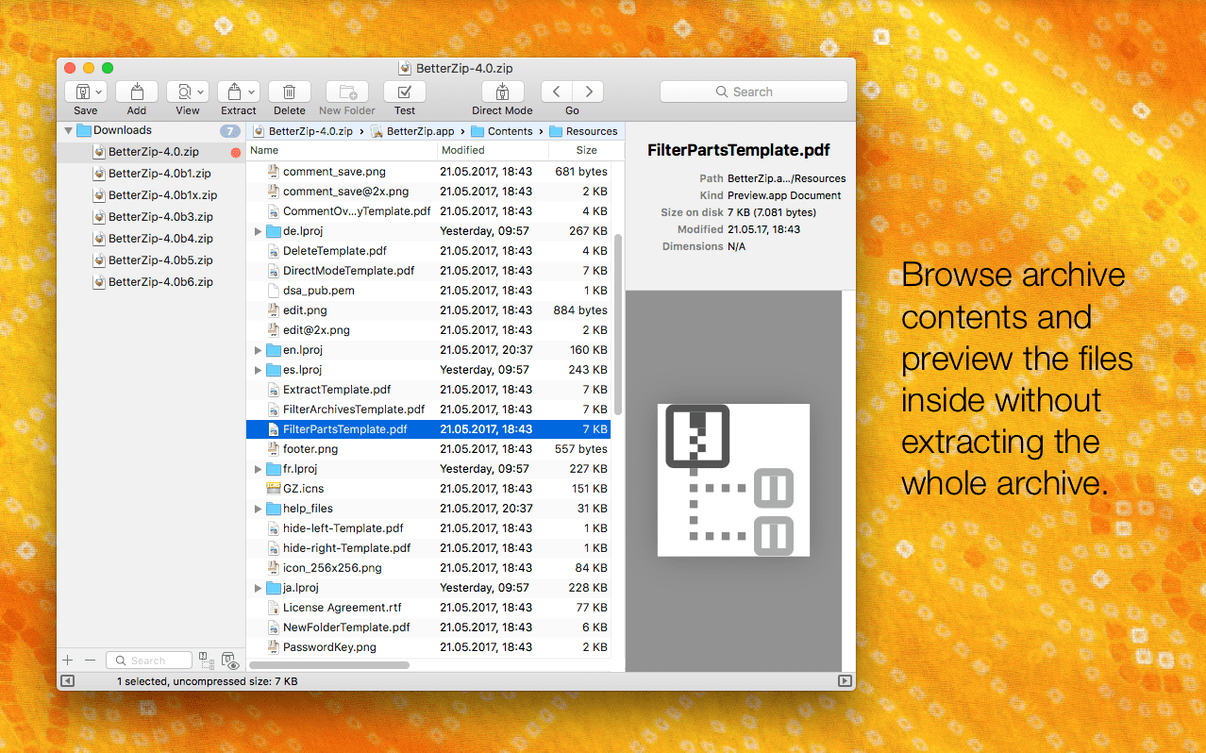
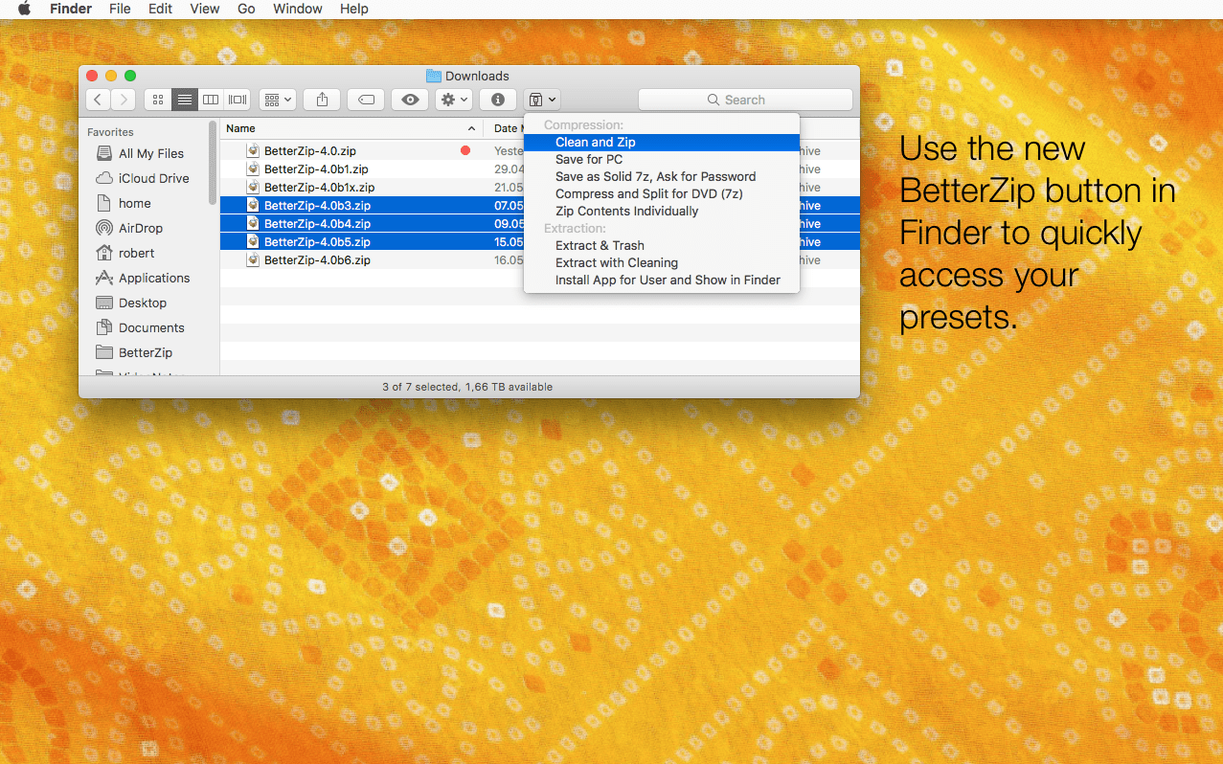
The standout feature is editing archives in place. You can rename or move files and folders inside a ZIP or 7z archive without repacking the whole thing. Deleting one or more files directly from an archive works the same way — no temporary folders, no mess. Quick Look previews let you check a file's contents before you extract it, which saves time when you're hunting for one document in a pile of backups. The Finder extension puts these controls right into the right-click menu, so you rarely need to open the main window.
For password-protected archives, the built-in generator creates strong passwords instead of leaving you to invent something memorable and weak. Version 6.0.6 also adds an option to strip macOS metadata during extraction, which stops those invisible ._ files littering Windows shares or upload folders. The 7z helper got an update to v26.03 with Apple Silicon assembler optimizations, so 7z operations feel noticeably quicker on M-series Macs.
Settings worth changing early
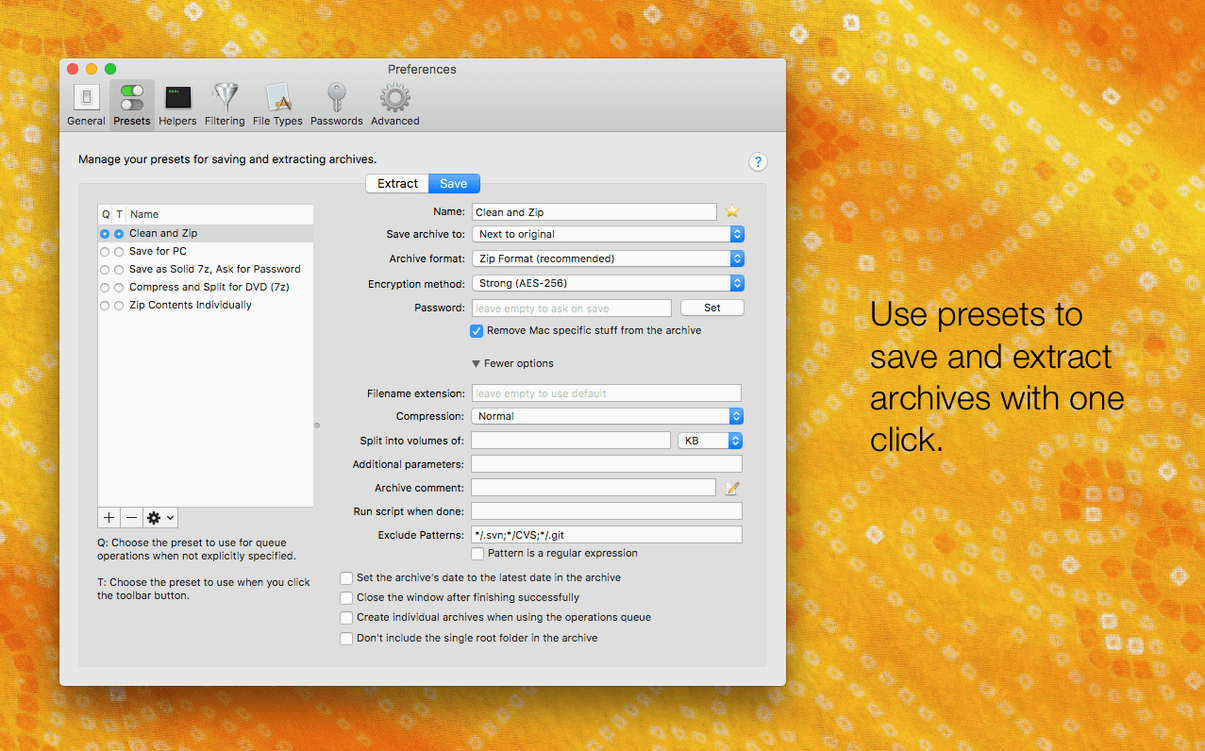
Open the main window and head to BetterZip > Settings before you archive anything. A few defaults make sense for the developer but not for a help desk veteran who wants things tidy.
Under General, switch on Always expand archives into a folder. Without it, BetterZip can spray files across your desktop when you double-click a zip, and nobody enjoys cleaning that up. While you're there, uncheck Play sound after long operations unless you genuinely need applause for extracting forty text files.
The Quick Look tab lets you pick which formats get a preview. The full list is on by default, which is fine, but if you handle password-protected 7z files more than anything else, bump that format to the top of the list so previews load faster. The Finder tab controls the right-click menu. You can trim it down to just Extract Here and Add to Zip if the ten-item submenu feels like a kitchen drawer of tools you never touch.
If you collaborate with Windows users, visit Compression and tick Strip macOS resource forks as the default. That one checkbox stops those invisible ._ files appearing in shared folders. Version 6.0.6 also added the reverse option during extraction, so you can keep metadata when it matters and bin it when it doesn't.
How 7z handles on Apple Silicon
Does BetterZip handle 7z files properly on a Mac? Yes, and it does a better job than most. The 7z helper was updated to v26.03 with optimisations for Apple Silicon, so opening and compressing 7z archives feels snappier on M1 and M2 machines. Betterzip mac users who deal with large 7z files from colleagues on Windows will notice the difference compared to older versions.
Can I peek inside an archive without unpacking it? Quick Look integration means you select a file inside the archive, tap the space bar, and see the contents. It's the same preview you get in Finder, but from inside a zip, rar, or 7z. For anyone searching through old backups or downloaded project folders, this alone justifies keeping Betterzip for mac around.
Will it leave junk files everywhere after extraction? Only if you let it. Turning off metadata restoration in settings stops the ._ and .DS_Store clutter. The macOS metadata is useful on your own machine but becomes noise on a NAS or a thumb drive you hand to someone else. Version 6.0.6 added the extraction-side option specifically because people kept asking for it.
Does BetterZip play nicely with older formats? It reads over 30 archive types, including ISO disk images. That means you can pull files out of a downloaded Linux ISO without mounting it first. The unrar library got updated in this release too, so password-protected RAR files from less official corners of the internet still open without complaint.
Batch processing without dialogue interruptions
The operations queue sits in the main window and does its job without fuss. Drag several archives onto it, choose different actions for each one, and BetterZip processes them in order. No dialogue boxes interrupt you halfway through. It's the kind of thing you set up before making tea and find finished when you return.
Right-click a filename inside an archive and you can rename it inline, just like Finder. The archive doesn't need repacking — the change writes directly into the container. Move a file between folders inside the same archive the same way. It sounds minor, but when a client sends a zip with final_v3_revised (1).pdf buried three folders deep, fixing it without extracting everything feels like a superpower.
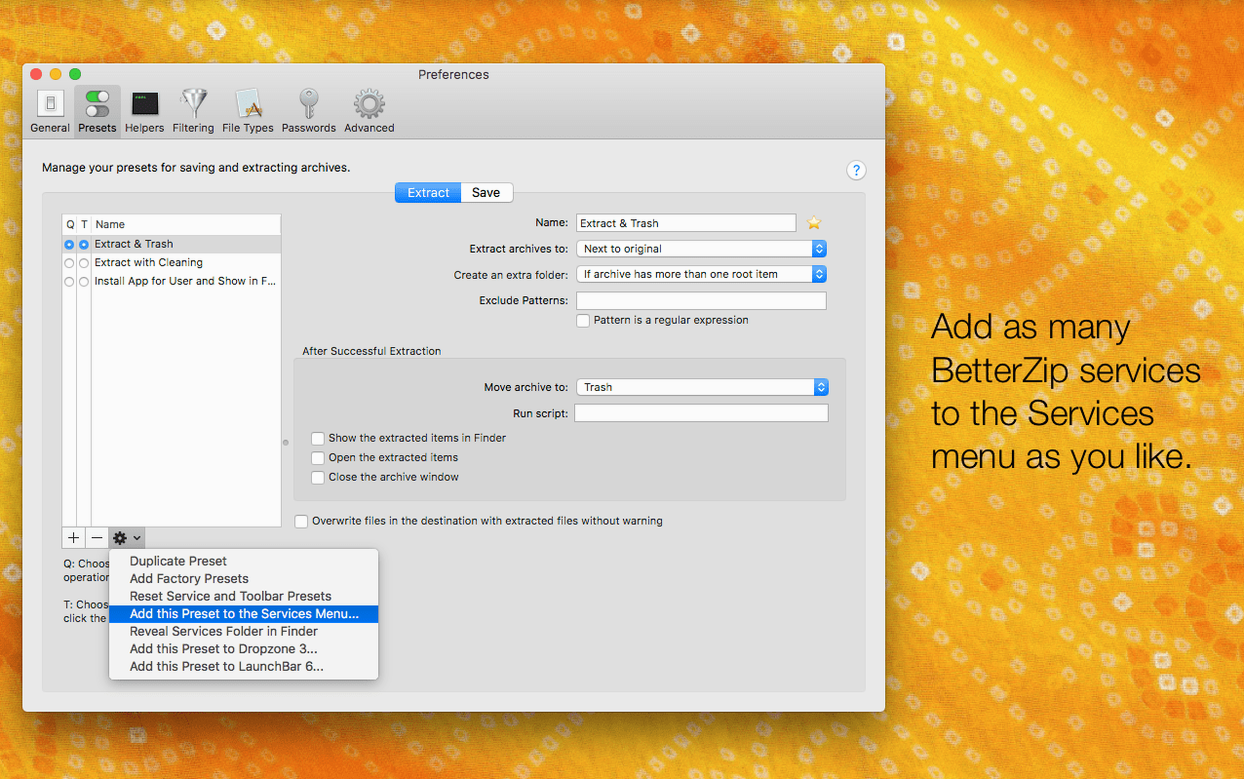
AppleScript hooks let you build archive workflows that run without touching the interface. If you have a folder that collects daily reports, a short script can zip its contents at 5pm and add a password from the built-in generator. The script saves the password to your keychain, so you don't have to type it or remember it later.
The language selector, new in 6.0.6, hides in the General settings. If your system runs in French but you prefer English for tools, BetterZip follows your choice instead of the system's. A small addition, but one that stops you squinting at menu items translated into a language you don't use for technical work.
What’s new
Adds an option to set a language different from your system language.
Adds an option to skip restoring macOS metadata during extraction.
Updates the 7z helper to v26.03 with Apple Silicon assembler optimizations.
Fixes a rare crash when communicating with external helper tools.
Requirements
- macOS 13.5 or later
- Runs on both Intel and Apple Silicon Macs
FAQ
Can BetterZip edit files inside an archive?
Yes. You can rename, move or delete files and folders inside a ZIP or 7z archive without extracting and repacking it.
Comments 0
Sign in or create an account to leave a comment.
No comments yet…
If you’ve installed it, say how it went. Mention your Mac and macOS version — it helps the next person more than you’d think.