BetterTouchTool for macOS
Description
BetterTouchTool 6.726 needs macOS 10.15 (Catalina) or later, and it runs natively on both Apple Silicon and Intel Macs. If your machine is still on Mojave, this version won't install.
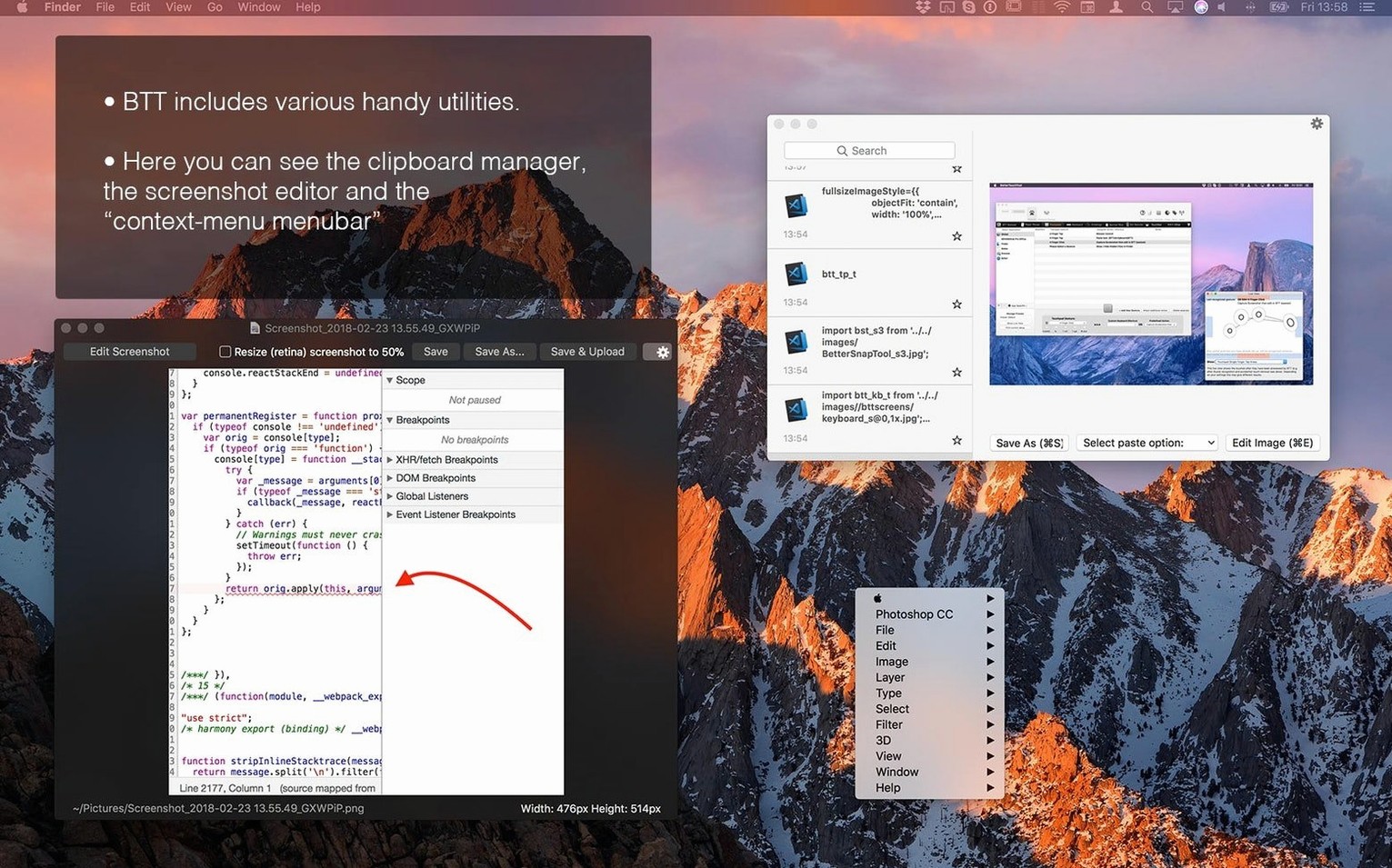
Once it's running, the clipboard manager is the first thing to switch on. Go to the BetterTouchTool settings, enable it, and set a shortcut. It holds your last few copied items, so you stop losing the thing you copied thirty seconds ago. A small quality-of-life upgrade that takes about a minute.
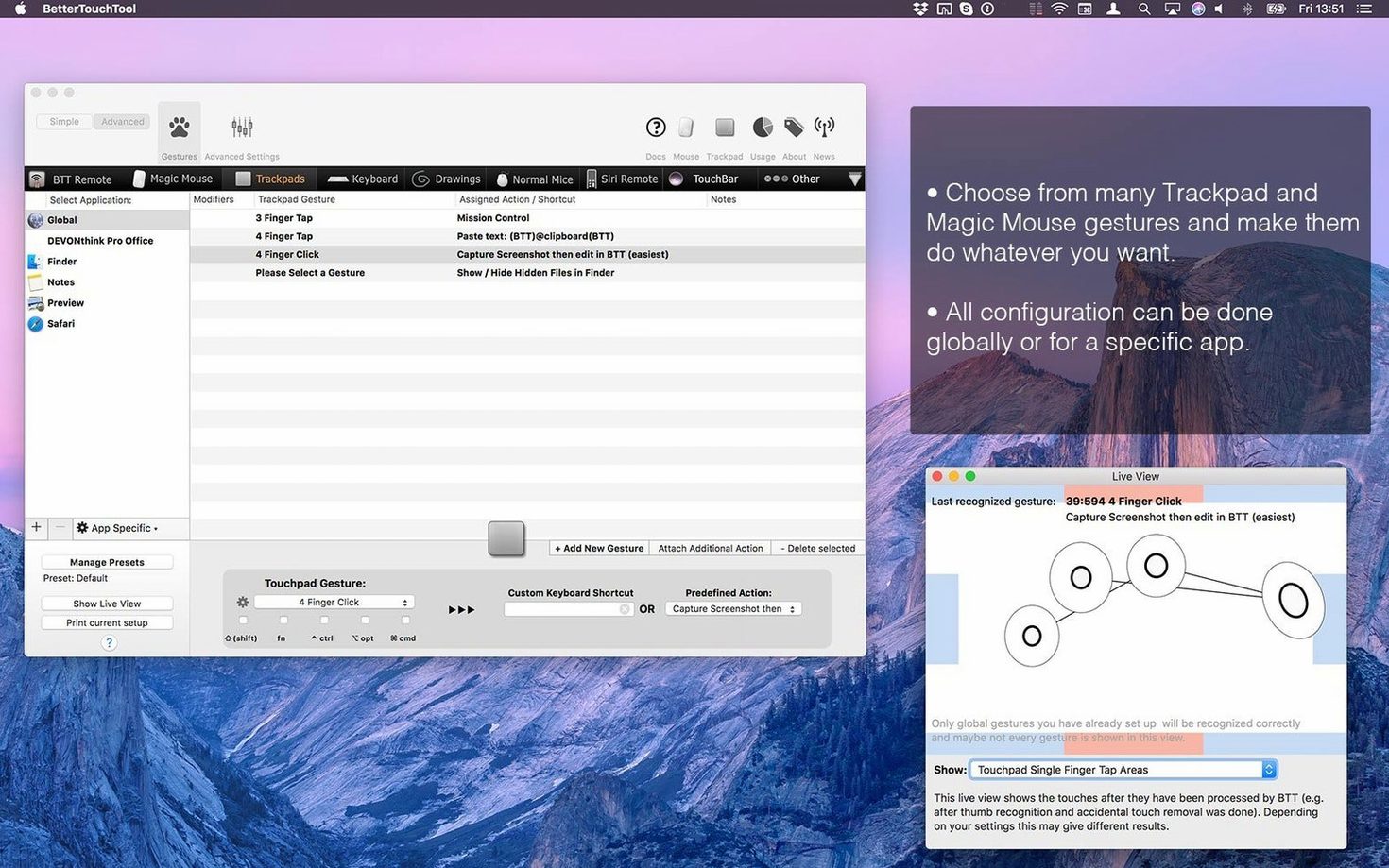
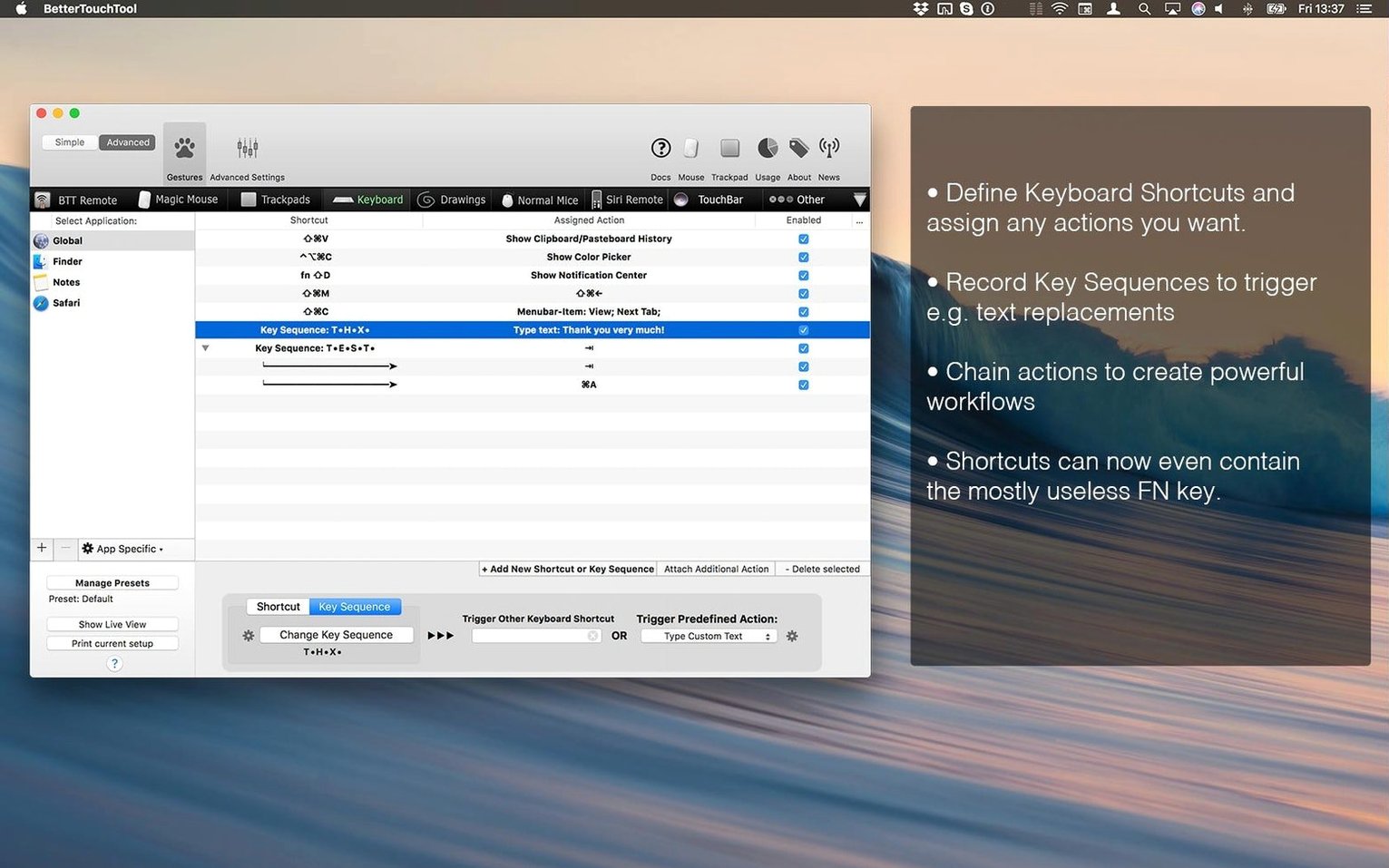
Next, pick one repetitive click or key combo you do all day and assign a trackpad gesture to it. A three-finger tap to close a tab, or a force-click to paste plain text. The gesture-recognition engine reads drawings and movement shapes, not just simple swipes. Start with one gesture, get the feel, then add more. The app also handles normal mice, Magic Mouse, keyboard shortcuts, Siri Remote, and Apple Remote — but trackpad gestures tend to stick first.
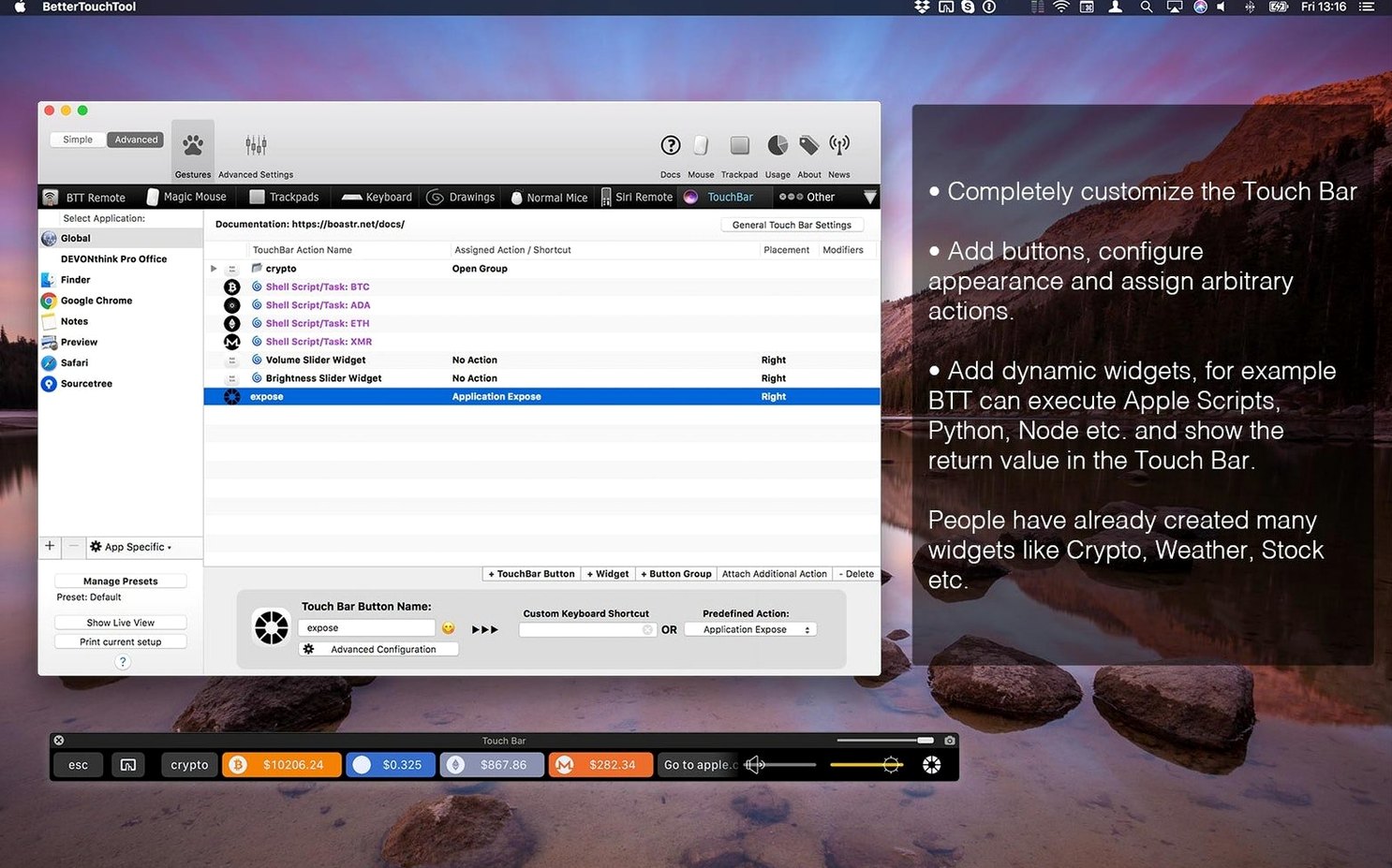
If your Mac has a Touch Bar, spend ten minutes building a couple of custom widgets. A button that runs a Shortcut, or a small display showing battery percentage. It beats the default strip. The screenshot tool with quick annotation is also tucked in there, useful when you need an arrow on an image before sending it to someone.
One journalist's Trackpad survival kit
A news editor I know lives inside two apps: a CMS in Chrome and a feed reader. Their day is cmd-tab, scroll, copy, paste, repeat. They set up two BetterTouchTool gestures and stopped hating Tuesday afternoons. A four-finger swipe down on the trackpad acts as cmd-w — close the current tab. A four-finger swipe left triggers a sequence: cmd-shift-t to reopen the last closed tab, because newsrooms are chaos and you close things you need. The gestures are app-specific, so the same swipes do nothing in Slack or Preview.
They also mapped a corner-click — tap the bottom-left corner of the trackpad — to paste as plain text. No more stripping formatting from agency copy before pasting into the CMS. Three days in, muscle memory took over. They now flinch when using a Mac that doesn't have the gestures.
Launch at login and the three green permissions lights
- Launch at login. In the General tab. Without this, you'll forget to open it and wonder why your shortcuts stopped working.
- Permissions check. The window that lists Accessibility, Automation, and Input Monitoring. Get all three green. If one stays amber, nothing you configure will fire reliably.
- Snap-to-area sensitivity. Under Trackpad settings, turn it down from the default. A corner swipe shouldn't need surgical precision. Find the slider and back it off by about twenty percent.
- Clipboard history size. The default stores 20 items. Bump it to at least 50. RAM is cheap and the manager trims duplicates automatically.
- Global vs app-specific assignments. When you create a new trigger, the top-right dropdown lets you restrict it to one application. Use it. A gesture that closes Finder windows shouldn't fire when you're in Photoshop.
Dragging a screenshot area, then editing and pasting it
You're writing documentation. You need three screenshots of a settings panel, each with a different menu open. Here's how twenty minutes actually goes.
Hit the BetterTouchTool screenshot shortcut. Crosshairs appear. You drag the area, release, and the image opens in the quick annotation overlay — no saving to the desktop first. Rectangle tool around the relevant button. Arrow pointing to the dropdown. Type a label in the text box. Click Done. The image is now on your clipboard and also saved to whatever folder you set.
Paste the first screenshot into your document. While writing the caption, remember you forgot the second state. Screenshot again. Annotate again. Paste again. Now you need the first image back for a before-and-after comparison. Don't hunt the Finder — open the clipboard manager with its shortcut. A vertical list of recent entries appears. The first screenshot is sitting three items down. Click it, it's on the clipboard, paste it. You didn't open a single Finder window or launch Preview. The whole sequence stays keyboard-and-click continuous. That's the rhythm the tool builds.
Filling the gaps Apple's shortcuts leave open
BetterTouchTool doesn't fight Apple's own shortcuts — it fills the gaps they leave. Spotlight's cmd-space stays untouched. Mission Control gestures remain. The app adds an extra layer for muscle-memory tasks that Apple never assigned a default to.
With Shortcuts.app, the fit gets tighter. A Touch Bar button or trackpad gesture can run any Shortcut you've built. That means a single gesture can fire off a chain that includes shell scripts, folder actions, and app launches. BTT handles the input trigger; Shortcuts handles the logic. The two don't overlap — they pass the baton.
For people who use window managers like Rectangle or Magnet, BTT can replace the keyboard-shortcut half of those tools entirely. Define your own snap-left, snap-right, and maximise triggers, and you can uninstall the extra utility. Fewer menu bar icons, same result. The clipboard manager also means some users stop running a separate clipboard tool like Maccy or CopyClip — again, one app absorbs two others.
If you spend time in Terminal, BTT's ability to execute shell commands and AppleScript from a gesture is worth exploring. A corner-click that runs a git status script, a Touch Bar widget showing the current branch name. Small things. They accumulate. The tool is a framework more than a finished product — it gives you the wiring and expects you to decide what to connect. That's why it sticks with people who find default macOS input too slow, and why searching for bettertouchtool tips tends to lead down a rabbit hole of other users' custom setups.
Requirements
- macOS: 10.15 (Catalina) or later
- Architecture: Apple Silicon, Intel
- Interface languages: English
Comments 0
Sign in or create an account to leave a comment.
No comments yet…
If you’ve installed it, say how it went. Mention your Mac and macOS version — it helps the next person more than you’d think.