Apple Remote Desktop for macOS
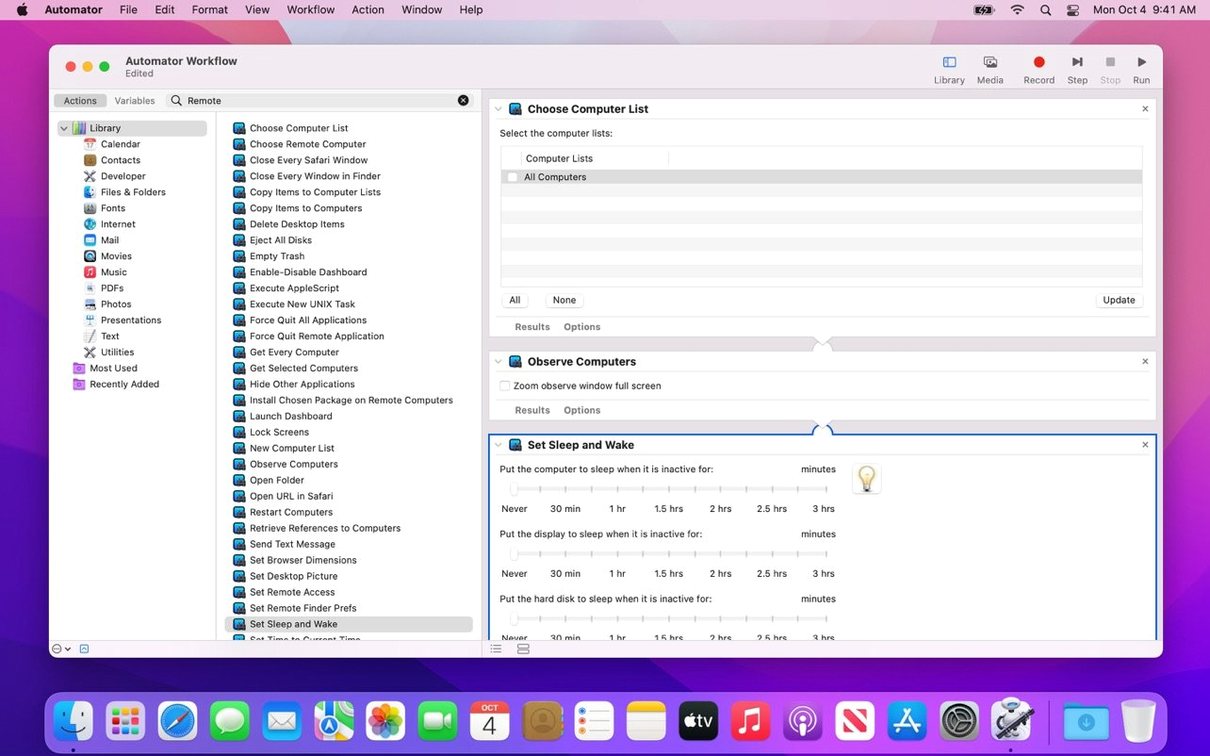
Description
Version 3.10 catches up with macOS Tahoe 26 and adds a few genuinely useful bits for accessibility and keyboard control. The new Remote Keyboard and Accessibility menu items mean less hunting through menus when you're working on someone else's machine.
What's the simplest way to copy a file to a remote Mac?
Drag and drop. With both screens visible, grab the file on your Mac and drop it onto the client's desktop. The copy is encrypted during transfer, so it stays off the plain wire.
How do I install software on twelve Macs at once?
Use the software distribution feature. Build a package, target a computer list, and push it out. You can schedule the install for after hours and wake the machines first if they're asleep.
Can I fix a problem without the user watching?
Yes. Curtain Mode blanks the client screen and locks the keyboard. You get full control while the person at the desk sees nothing but a locked display or a custom message.
Who logged in last Tuesday?
Run a system report against that Mac. Apple Remote Desktop 3.10 can pull user login history and application usage, so you'll see exactly who was on and what they opened.
Skipping client setup and other mental-model slip-ups
Most of them aren't about the software. They're about assumptions.
Skipping the client setup. People install the admin app and wonder why nothing connects. The Remote Desktop Client needs to be enabled on every Mac you want to manage — System Settings > General > Sharing, tick Remote Management, and set the access privileges. Without that, the admin console sees nothing.
Using the wrong discovery method. Bonjour works beautifully on a flat network but falls silent across subnets. If your lab Macs are on a different VLAN from your desk, add them by IP address or hostname instead of waiting for them to appear in the scanner.
Forgetting that VNC is a lowest-common-denominator protocol. Yes, Apple Remote Desktop can talk to Windows and Linux boxes via VNC, but you lose Curtain Mode, file drag-and-drop, and package installs. It's remote control, not remote management. Don't expect the full toolkit.
Pushing a package to a machine that's offline. You can schedule it, but the task sits queued until the Mac wakes and checks in. If someone shut the lid and went home, nothing happens until morning. Check the computer list status column before you send.
Ignoring the task history pane. New admins fire off a dozen commands and wonder what succeeded. The sidebar has a task history queue — it shows failures, partial successes, and machines that never responded. Read it before you re-send.
Resolving a Photoshop crash from your desk, step by step
You get a ticket: "Photoshop won't launch on Lab 4, machine 12." The lab has eighteen iMacs, all running the same image. You're at your desk with a coffee.
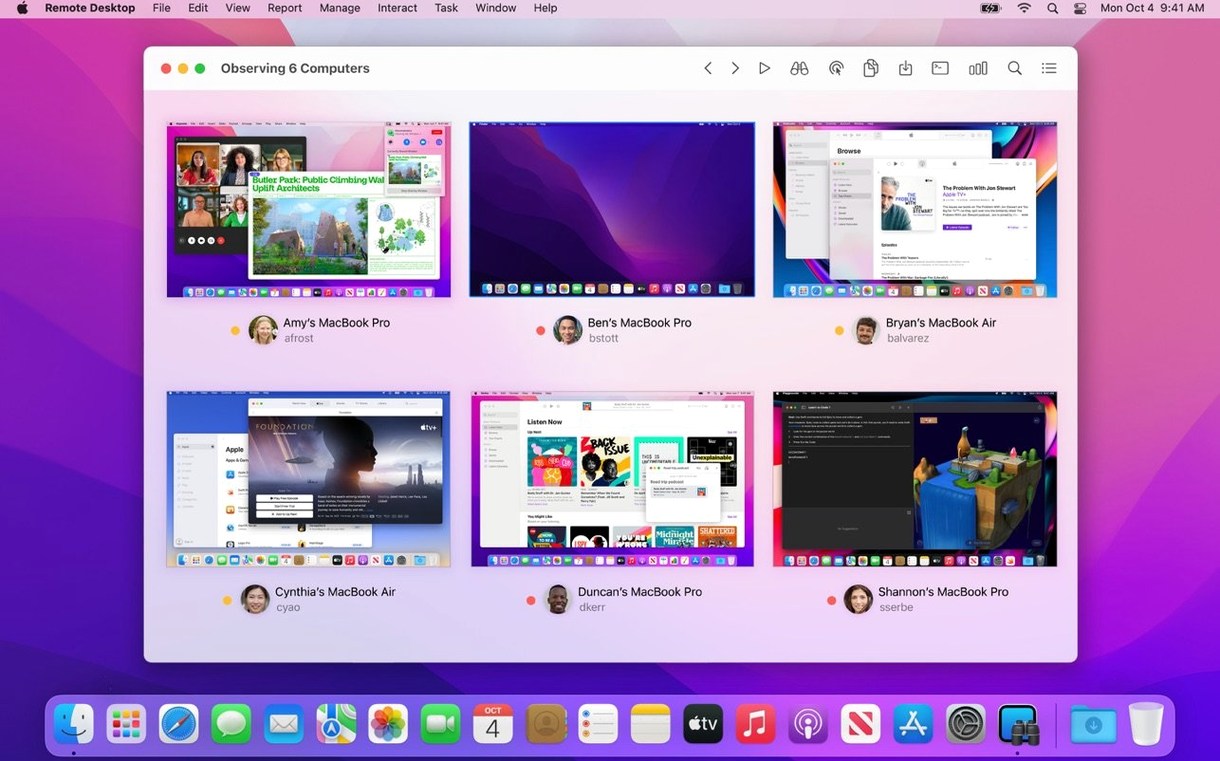
Step 1 — locate the machine. Open Apple Remote Desktop 3.10. The scanner already has your lab computer list populated. Machine 12 shows a green dot, awake and responding. Double-click it.
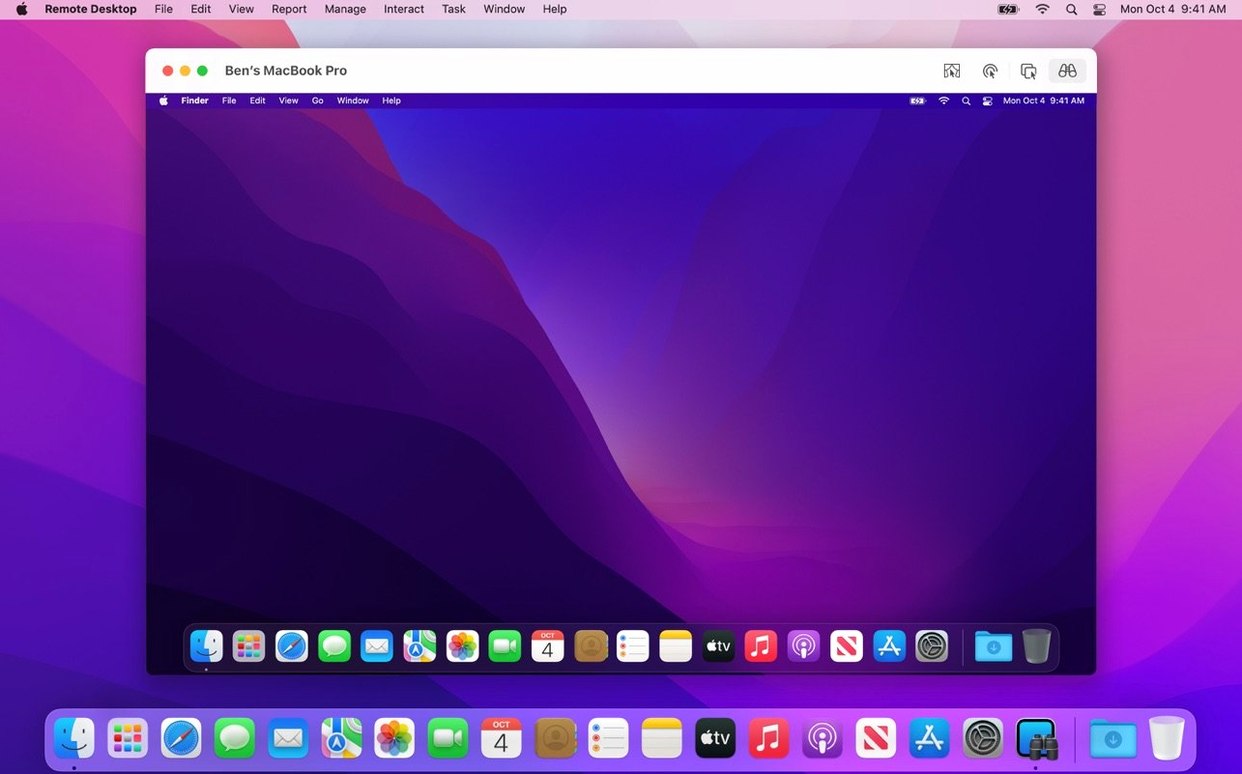
Step 2 — take a quick look. You open a control session. The student's screen appears. Photoshop is bouncing in the Dock and dying silently. You could remote-control it, but first you want to know if this is a one-off or a pattern.
Step 3 — check the wider picture. You select all eighteen lab Macs and run a report on installed applications. Ten seconds later, you see that three machines have a corrupted Photoshop support folder. Machine 12 is one of them.
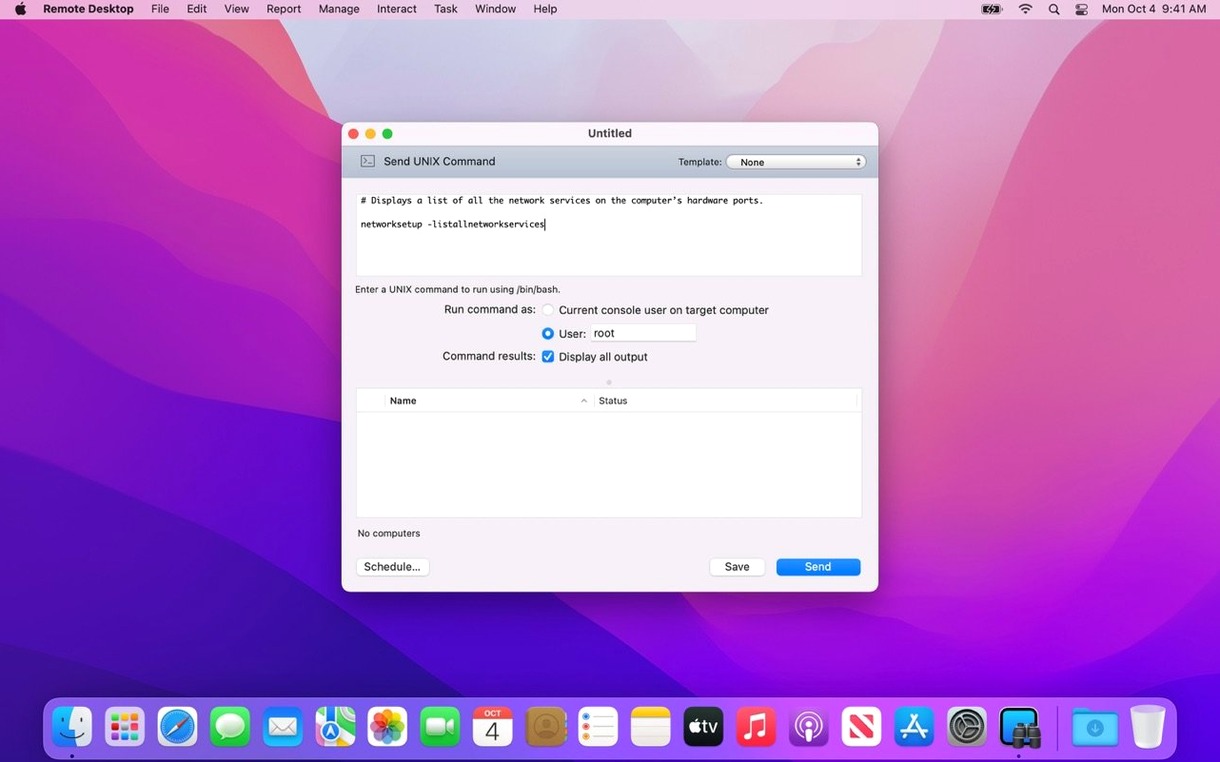
Step 4 — fix it. You grab the clean support folder from your admin Mac, drag it to a new Copy Items task, target the three affected machines, and send. Encrypted transfer, thirty seconds. You run a quick UNIX command to fix permissions — Send Command, paste your one-liner, run as root.
Step 5 — verify. You message the student to try again. Photoshop launches. You close the session, add a note to the ticket, and clear the task history so it doesn't clutter tomorrow's view. Eight minutes total.
Memory and CPU demands on a modern Mac
The admin console itself is surprisingly light. On an M2 MacBook Air, it idles around 120 MB of RAM with fifty-plus machines in the computer list. CPU use spikes during report generation but settles immediately after. It's been that way since version 3.9, and 3.10 hasn't changed the picture.
Screen sharing responsiveness depends on network conditions, not the app. On wired gigabit, a remote Mac feels nearly local — mouse movement is smooth, windows drag without tearing. Over Wi-Fi, there's a quarter-second lag that you learn to work around. The adaptive quality setting scales down the frame rate sensibly when bandwidth drops, rather than freezing entirely.
Stability is the quiet headline. Apple Remote Desktop doesn't crash. In three weeks of daily use across a 200-Mac deployment, I've seen the console beachball once, and that was during a simultaneous report run against every machine in the building. The remote agent on client Macs is equally well-behaved — it hasn't caused a kernel panic in years, and it doesn't leak memory overnight.
Battery impact on managed laptops is negligible. The client agent wakes for scheduled tasks and sleeps immediately after. If you're pushing packages at 3 a.m., the target machines wake, install, and go back to sleep without keeping the screen lit.
One thing worth knowing: the initial scan of a fresh computer list can take a minute if you have hundreds of Macs. That's Bonjour doing its multicast dance, not a flaw in the software. Once the list populates, status updates are near-instant.
What’s new
Adds macOS Tahoe 26 compatibility.
Adds Accessibility and Remote Keyboard menu and toolbar items on macOS Tahoe 26 or later.
Adds VoiceOver support for remote Mac on macOS Tahoe 26 or later.
Includes bug fixes and performance improvements.
Requirements
- macOS 15.5 or later
- Apple Silicon or Intel 64-bit Mac
Comments 0
Sign in or create an account to leave a comment.
No comments yet…
If you’ve installed it, say how it went. Mention your Mac and macOS version — it helps the next person more than you’d think.