AnyTrans for iOS for macOS
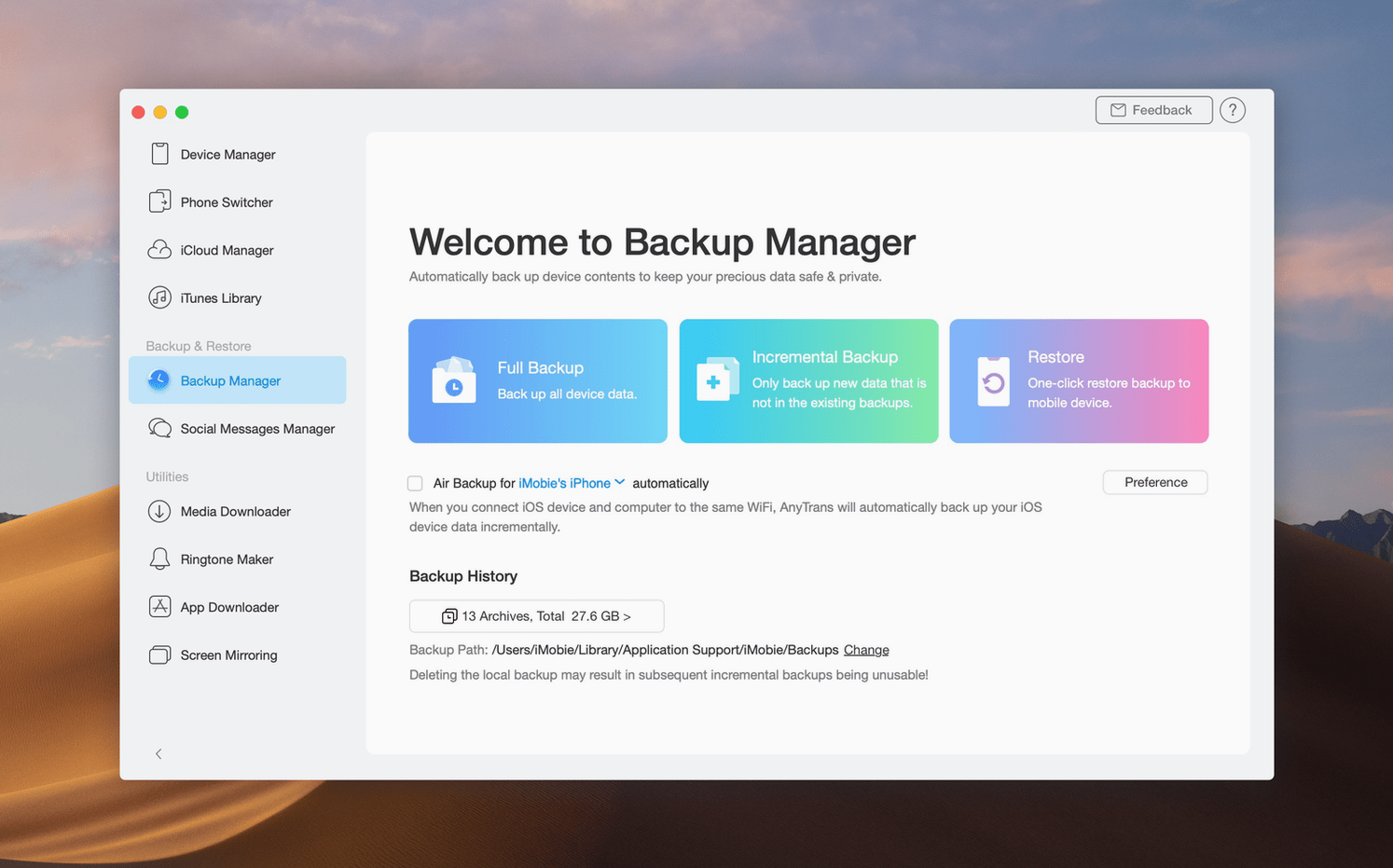
Description
The iCloud-to-iCloud transfer is the feature that surprises most newcomers, and it is where you should start. If you have been juggling two Apple IDs, AnyTrans can move photos, contacts, and notes between them without dragging everything through a Mac first. It handles iPhone, iPad, iPod, iTunes, and iCloud content from one window.
Next, try the one-click iPad backup. Connect the iPad, click once, and the app copies its data to your Mac. No Finder sync, no iCloud upload. It also pulls iTunes library content out to a Mac or an iPhone, which is handy if your old library predates Apple Music.
For iCloud, the app saves files directly to your Mac. That means documents, photos, and backups you thought were stuck in the cloud can sit on a local drive instead. The interface is plain and the transfers run in the background.
Plugging in too early blocks device detection
The most common slip is connecting a device before the app has fully launched. AnyTrans needs to detect iOS devices on its own schedule. If you plug in your iPhone while the app is still loading its service, it often sits there unrecognised. Close the app, unplug, launch again, then connect. Annoying but consistent.
Another is assuming a transfer finished when the progress bar disappeared. AnyTrans can complete a file copy and spend another thirty seconds updating its local database. Yanking the cable during that quiet window sometimes leaves the destination library in a state iTunes does not like. Wait until the device icon stops spinning.
People also try to push a full 128 GB photo library in one go. The app can handle it, but a single enormous batch over USB 2 on an older Mac is a recipe for a stalled transfer. Split large libraries into chunks — one year at a time, for instance. The same logic applies to music collections.
Finally, do not treat AnyTrans as a live sync tool. It is a transfer and backup utility, not a mirror. If you add photos on your iPhone after a backup, the Mac copy does not know about them until you run the job again. Confusion about that point leads to misplaced trust in a backup that is older than you think.
Moving weekend clips and drawings between two devices
Imagine a Friday evening. You have an iPhone full of footage from a family weekend and an iPad your kid uses for drawing. Both devices hold stuff you want on the Mac, and you also need to shift a batch of old voice memos to an archive folder.
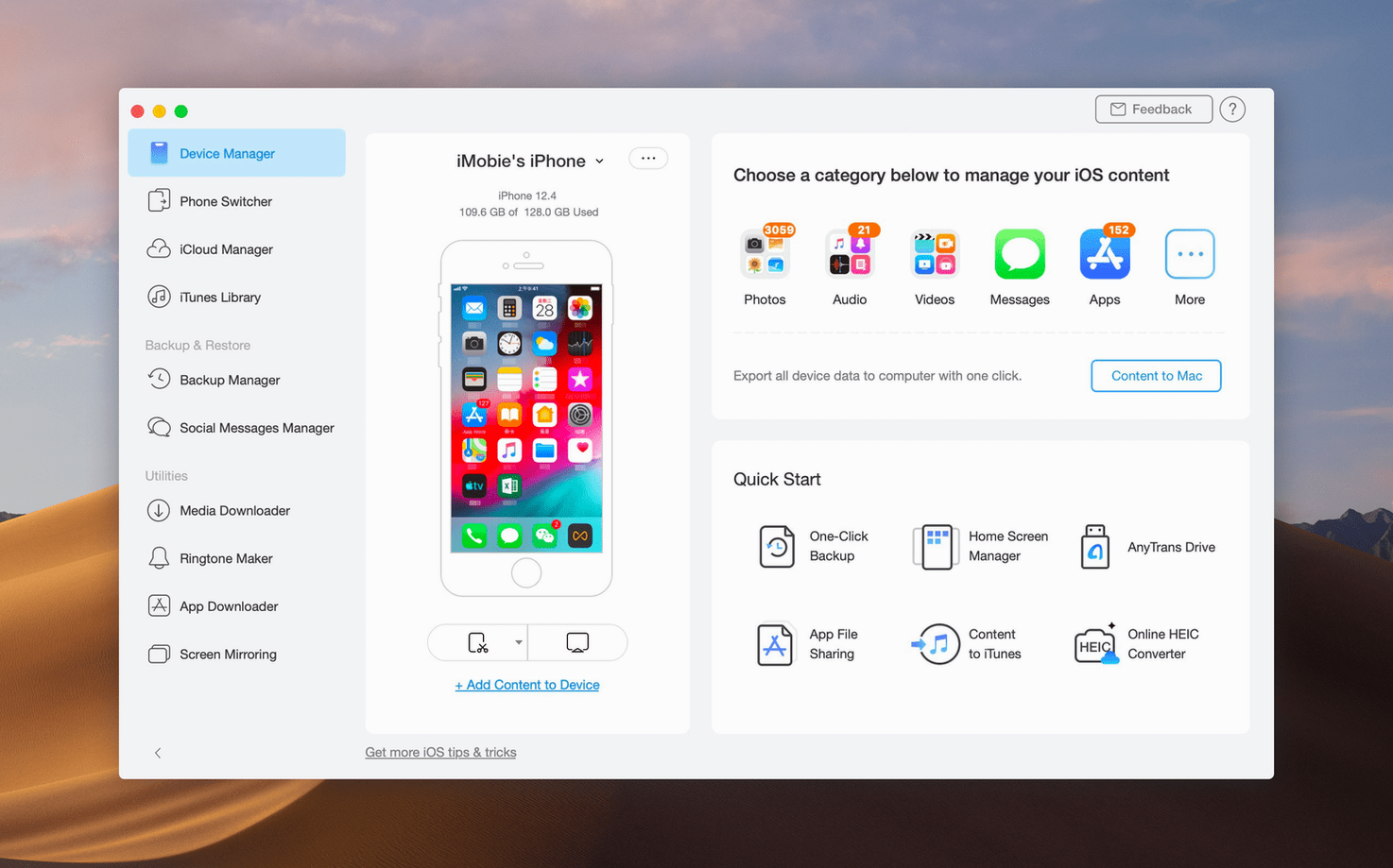
You launch AnyTrans and let it settle. The home screen shows four tiles: Device Manager, iTunes Library, iCloud Manager, and Social Messages. You click Device Manager.
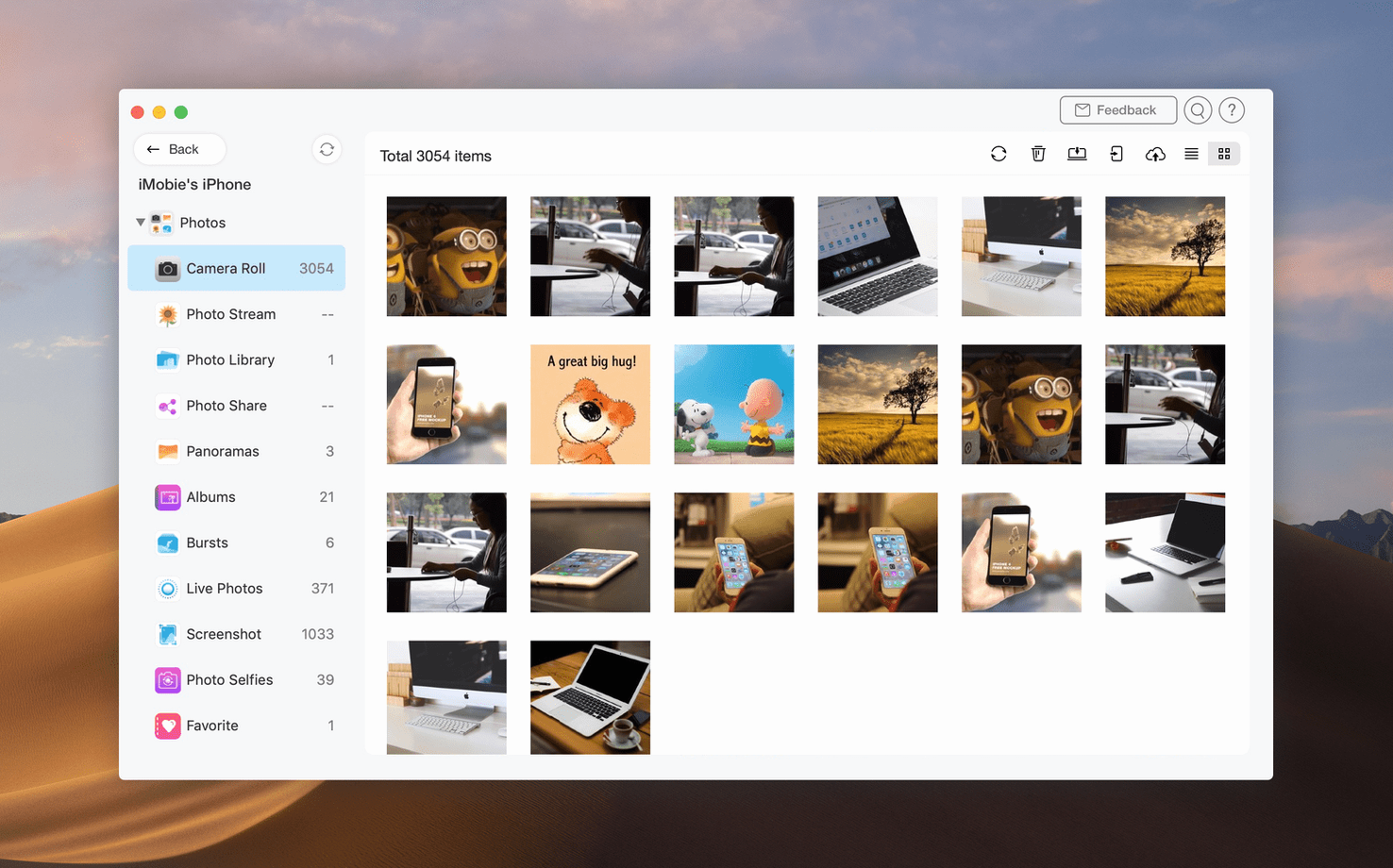
You connect the iPhone via USB. The app recognises it within a few seconds and shows a colour-coded breakdown of storage — photos in blue, audio in orange, apps in green. You select Photos from the category list, tick the weekend album, and choose Send to Mac. A Finder-style save dialog appears; you point it at an external drive. The transfer runs at USB speed, showing file names as they land.
While that finishes, you switch to the iPad. You click Content to Mac, check Voice Memos and Drawings, and hit start. The app copies both categories into separate dated folders on the desktop.
With both local jobs done, you open iCloud Manager. You sign into a secondary Apple ID — the one holding old documents from a previous job — and drag a folder of Pages files straight to the Mac. No browser, no iCloud Drive sync delays. The session took about twenty minutes, and nothing touched iTunes.
One app for a personal and work Apple ID
Users straddling two Apple IDs gain the most. If you have a personal iCloud account and a work one, or you inherited an old ID from a family member, AnyTrans removes the friction of moving data between them. Apple's own tools make that intentionally difficult.
People with large local iTunes libraries — especially those built before Apple Music — are the second group. AnyTrans pulls playlists, ratings, and files out of an iTunes library and onto a device without forcing a full sync. That matters when your library lives on an external drive and you do not want to merge it with iCloud Music Library.
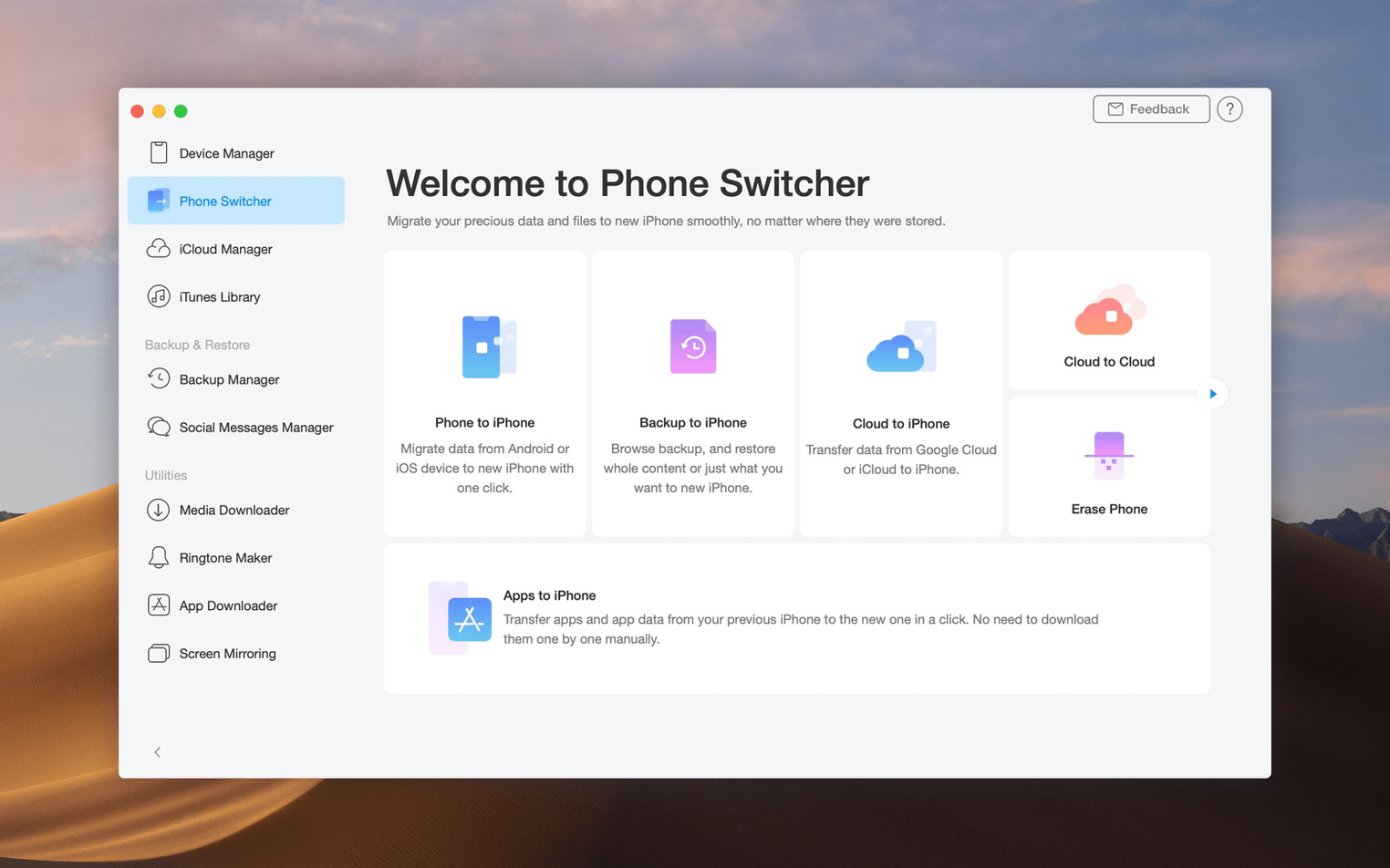
Mac users migrating from Android to iPhone also benefit. The Android-to-iPhone transfer path is something Apple does not offer directly, and AnyTrans handles contacts, messages, photos, and music in one guided flow. It is not flawless — WhatsApp data still needs a separate method — but for the basics it saves hours.
Finally, anyone who keeps local backups rather than trusting iCloud alone. The one-click backup to Mac is not incremental, so it is best for periodic snapshots rather than daily use. But for an end-of-month archive you can store wherever you like, it is hard to beat for simplicity.
Start with those three moves. They cover the most common reasons people install AnyTrans in the first place.
Requirements
- macOS 10.13 High Sierra or later
- Intel Mac
- Interface: English, German, Arabic, Spanish, Simplified Chinese, French, Japanese
FAQ
Was AnyTrans for iOS renamed?
Yes. AnyTrans was formerly named AnyTrans for iOS.
What can AnyTrans transfer between?
It transfers content between iPhone, iPad, iPod, iTunes, iCloud, and a computer.
Comments 0
Sign in or create an account to leave a comment.
No comments yet…
If you’ve installed it, say how it went. Mention your Mac and macOS version — it helps the next person more than you’d think.