
Apple Keynote for macOS

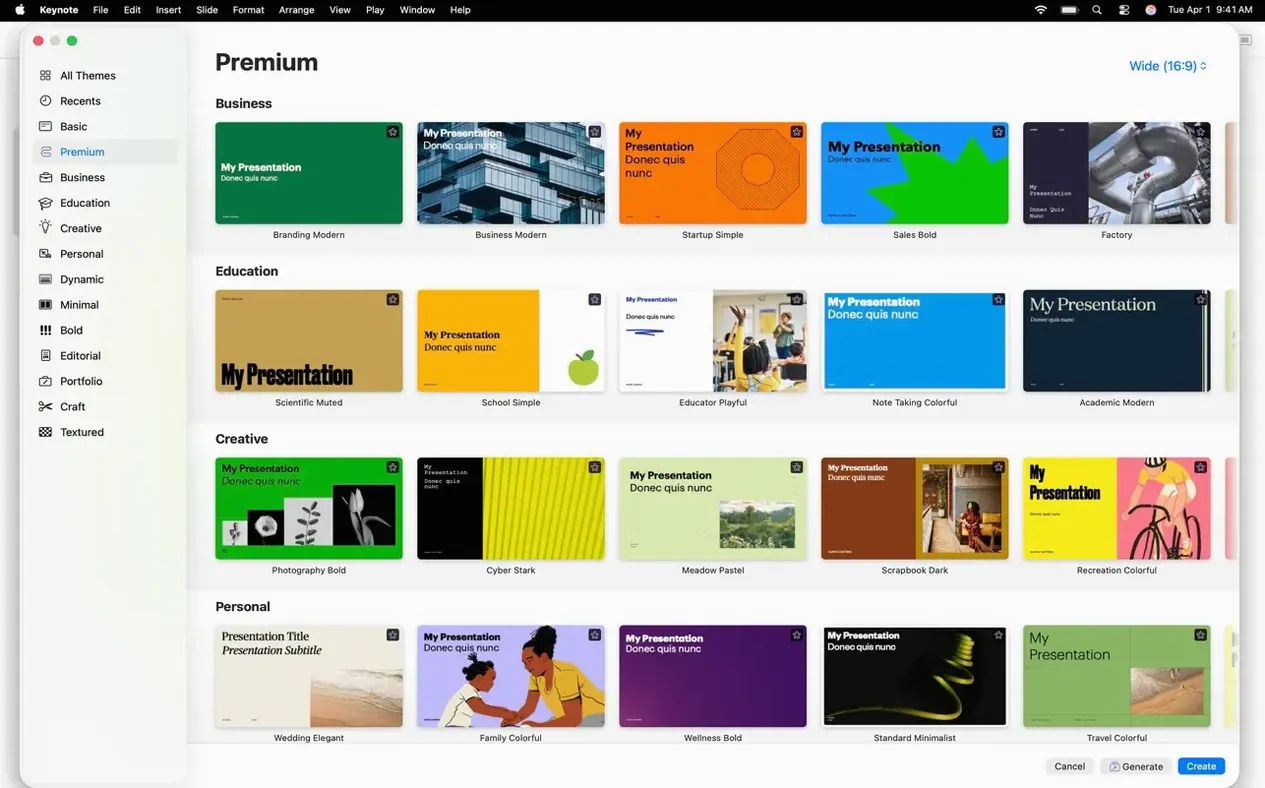
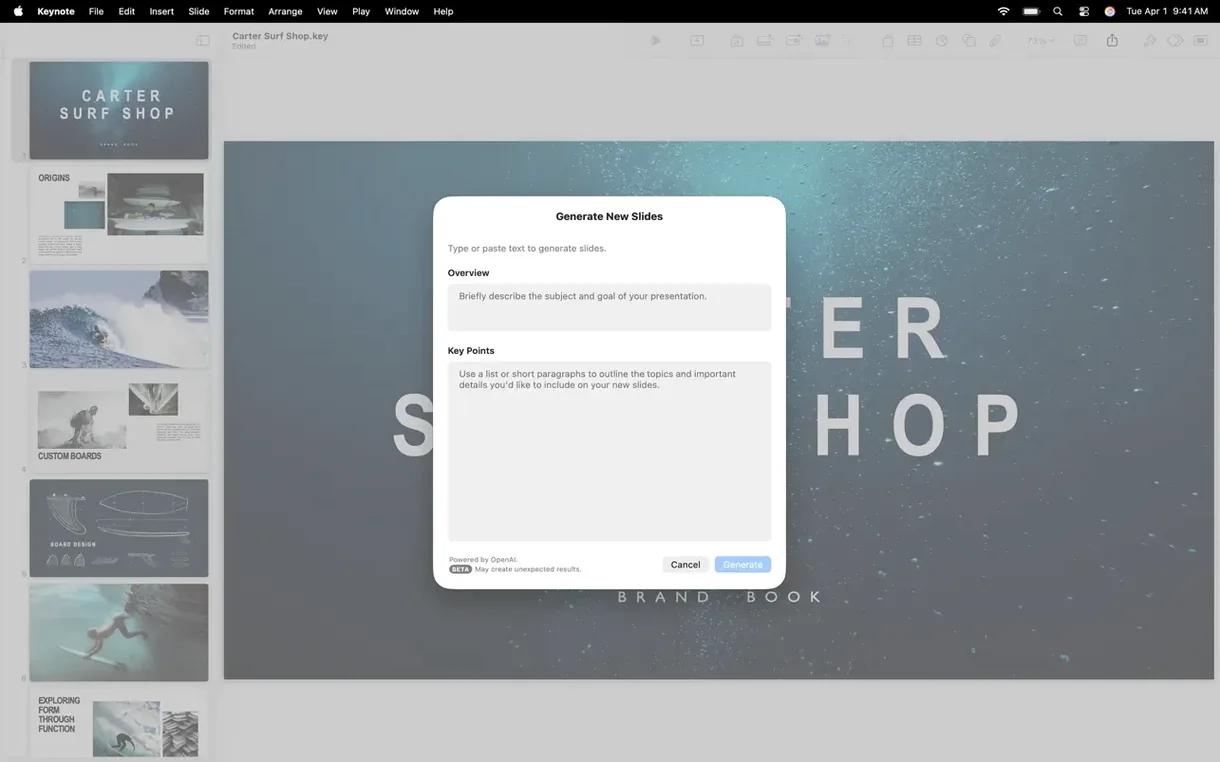
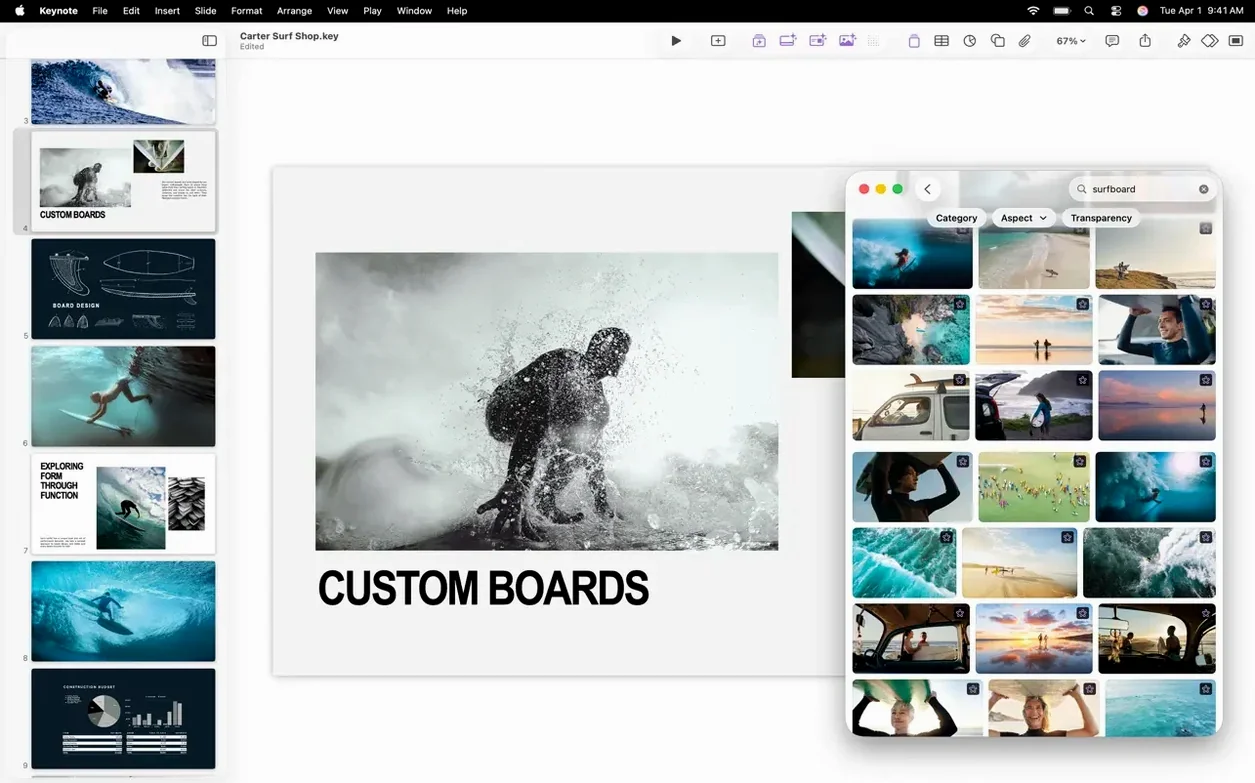
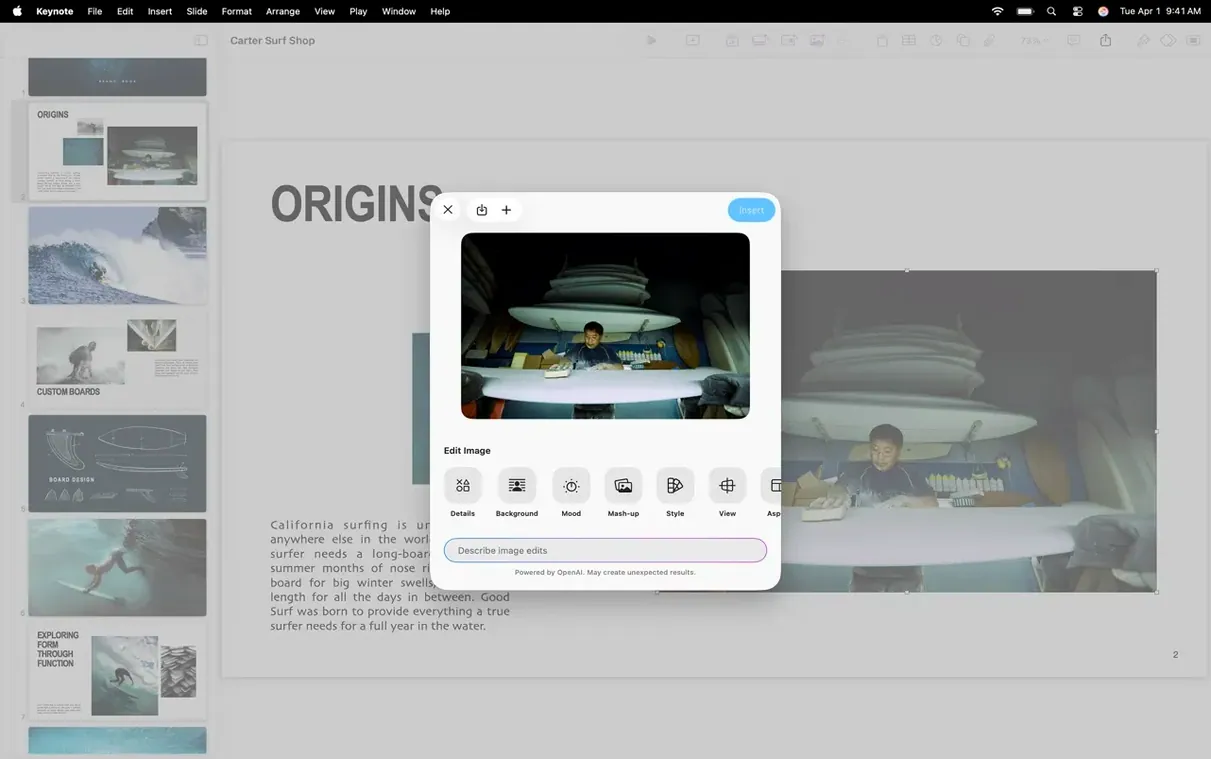
Description
Version 15.3.1 adds three new slide transitions, including a radial wipe that expands from a corner point rather than the centre.
What can Magic Move actually do?
Magic Move is a transition that animates matching objects between two consecutive slides. It works best when you duplicate a slide and reposition, resize or rotate elements — Keynote calculates the in-betweens so you don’t have to keyframe a thing.
How does the annotation work during a live presentation?
On an iPad you can draw directly on slides with an Apple Pencil while presenting. The marks live on a transparent overlay, so your original slides stay clean and the annotations vanish when you move on.
What’s the point of real-time editing across devices?
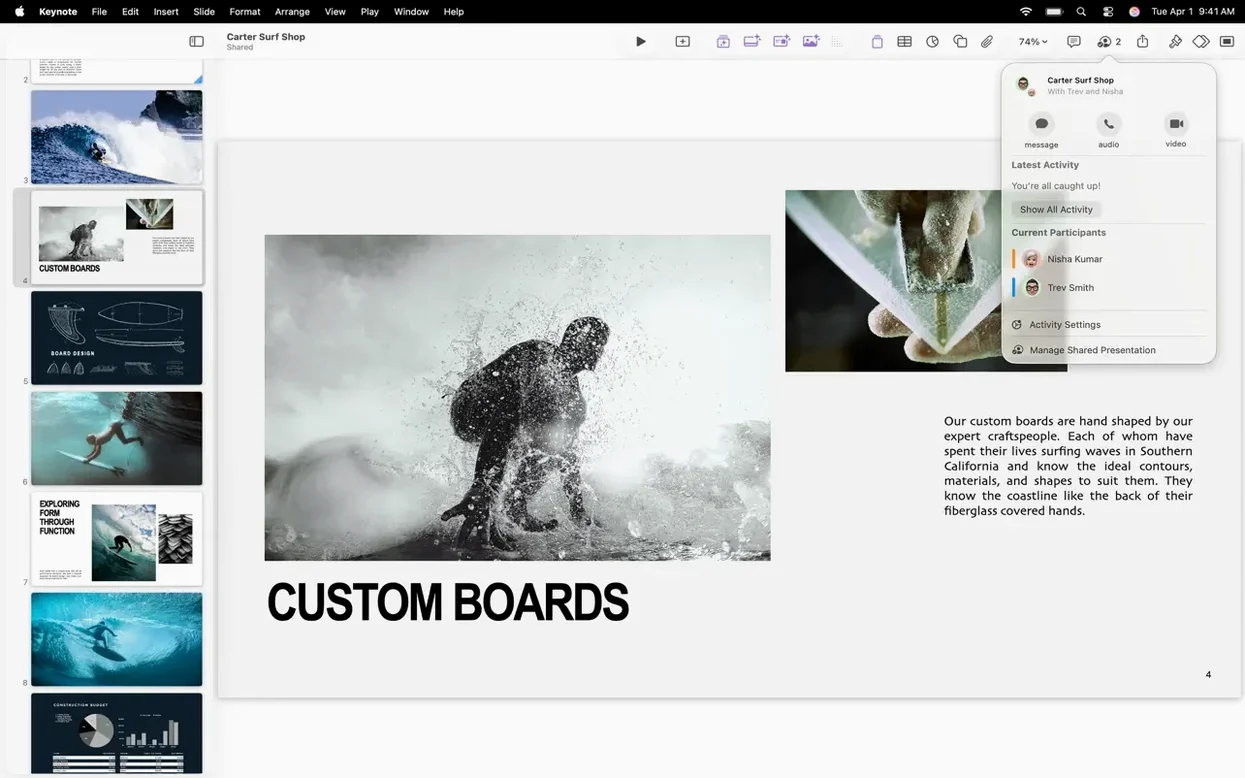
You can open the same presentation on a Mac and an iPad, and changes appear as they’re made. It’s not just cloud storage — if someone edits slide seven on an iPhone, the thumbnail updates on your Mac without a refresh.
How do the new build animations work?
The character blur build breaks text into individual letters that soften and sharpen in sequence. It’s subtler than a typewriter effect and works well for quotes you want to reveal a beat at a time.
Opening PowerPoint files without font or transition chaos
Does Keynote open old PowerPoint files properly? Yes, and it's been doing it long enough that the rough edges are mostly gone. Embedded charts come across, fonts map reasonably well, and transition types that don't exist in Keynote fall back to a fade rather than breaking anything. You can also export back to PPTX when you're done — just expect to check alignment on a Windows machine if the recipient is picky.
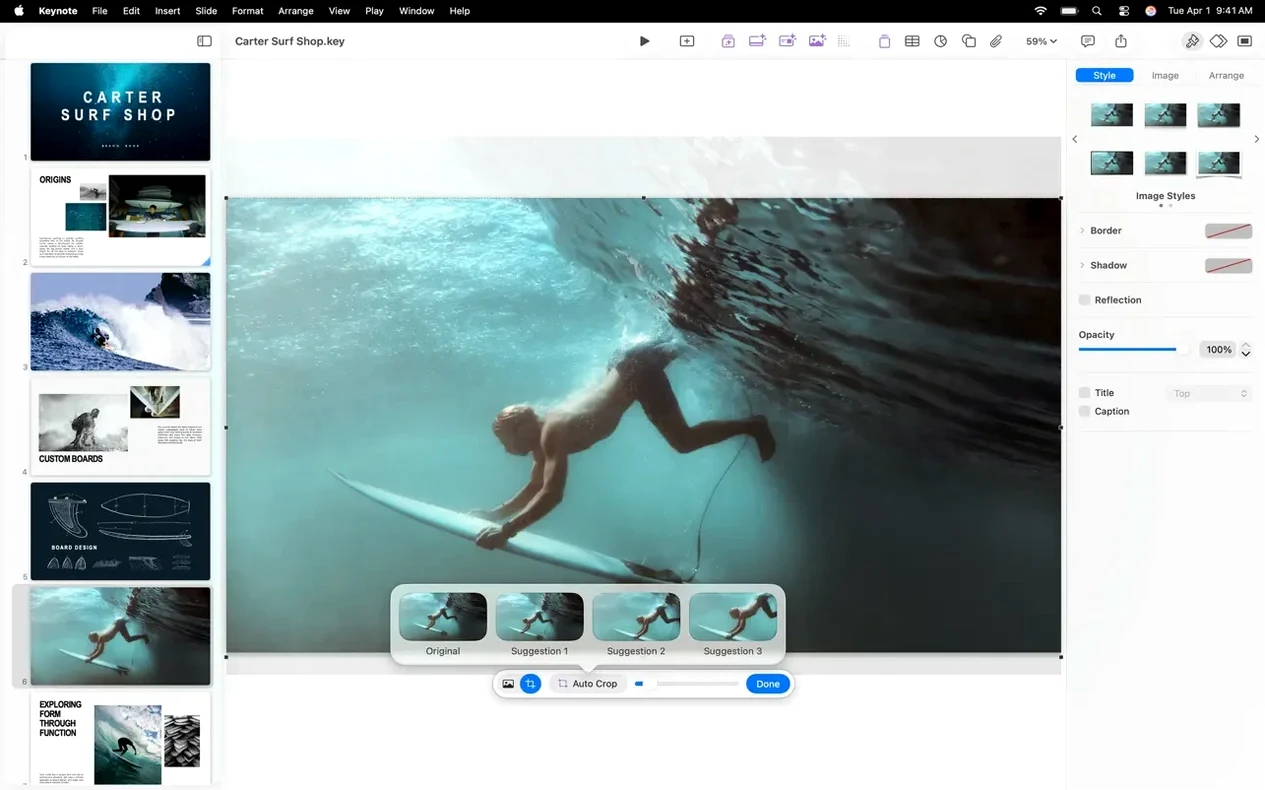
Will it slow down on a large deck with lots of images? Not if the images are sensibly sized. Keynote handles full-resolution photos better than it did five years ago, but dropping fifty 20 MB TIFFs onto consecutive slides will make anything stagger. Use the new Content Hub image replacement to swap in optimised versions without redoing your layouts.
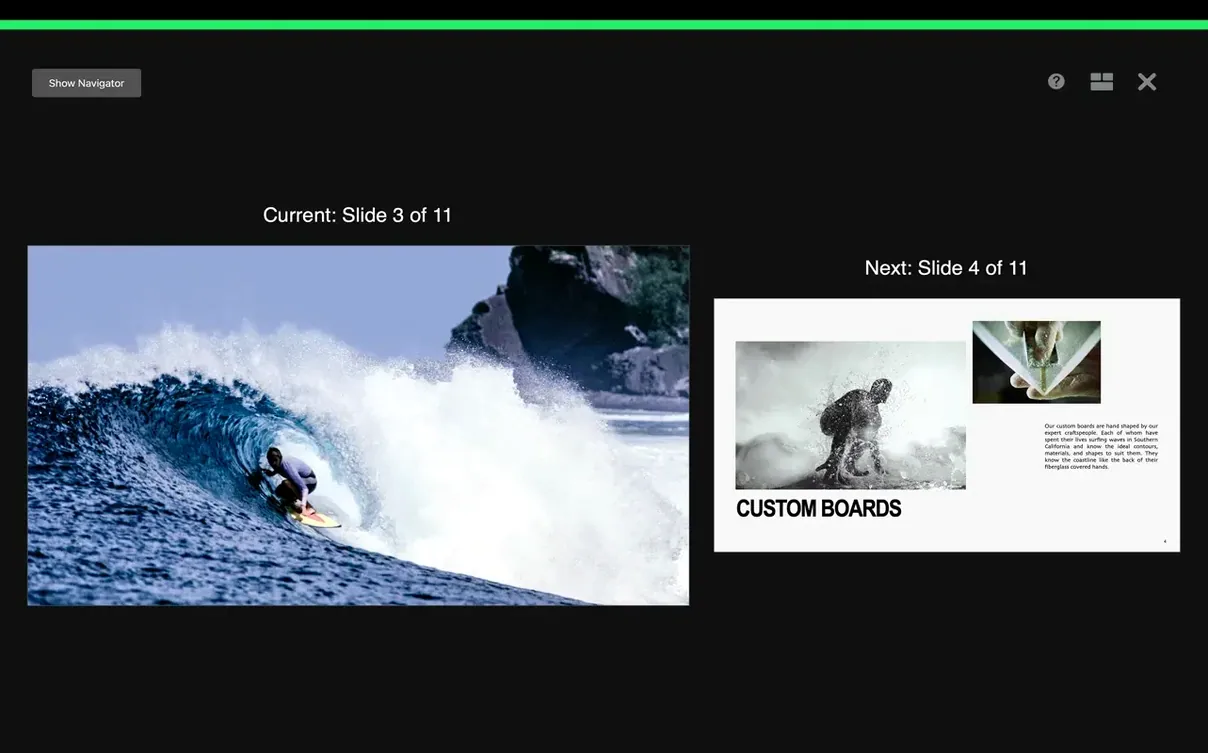
How do I add notes to Keynote without them showing on the projector? The presenter display handles this. You type notes into the white field below each slide in the editor — they never appear in the projected view. During a presentation, your Mac screen shows the current slide, the next slide, a timer, and your notes. You can customise which of those appear and how large the notes text is.
Does it need an internet connection? Only if you're using iCloud collaboration or pulling images from a shared library. Everything else — themes, transitions, exports, presenter display — works offline. The app itself doesn't phone home to function.
Dragging in Photos and pasting live Numbers charts
Keynote sits tightly inside Apple's ecosystem, but it's not a walled garden. You can drag images straight from Photos or Finder onto a slide. Charts copy out of Numbers and paste directly into Keynote without becoming static images — they stay editable. Same with tables from Pages.
For video, you can drop a movie file onto a slide and trim it inside the app without opening QuickTime. Audio recordings you make on an iPhone sync through iCloud and appear in the media browser on your Mac. If you use Handoff, a presentation open on your iPad shows up in the Mac dock with a single click to continue editing.
The export options cover most needs: PDF for print shops, PowerPoint for corporate recipients, HTML for embedding in a blog post, and movie format for uploading to video platforms. The movie export respects your slide timings and builds, so a self-advancing deck becomes a video file with no extra work.
Spotlight indexes Keynote files, so searching for a phrase that appears in your speaker notes or on a slide title will surface the right document. And because the file format is a package — essentially a folder macOS treats as a single file — you can right-click and choose Show Package Contents to pull out individual images or video files you've long since lost the originals for.
Tweaking slides on an iPad then opening backstage on a MacBook
You've got a twenty-minute slot at a design conference. The deck started on your Mac, but you've been tweaking it on an iPad in hotel lobbies for three days. You open it on the MacBook backstage and everything is current — no exporting, no USB stick, no wondering which version is the right one.
You plug into the venue projector. The presenter display kicks in automatically: current slide on the big screen, next slide and notes on your laptop. The rehearsal mode you ran earlier means your timing is solid, and you've set up a few Magic Move transitions between slides that trace a user journey — objects slide and scale across the screen without a single manual keyframe.
During Q&A, someone asks a question that needs a diagram you didn't include. You pull out the iPad, scribble a quick sketch over the current slide with Apple Pencil, and carry on. The annotations disappear when you advance. Afterwards you export the deck as a movie file for the organisers and a PDF for the attendees, both from the same File menu, before heading to the pub.
What’s new
Adds shift, radial wipe and character blur transitions. The Content Hub now lets you replace images in a presentation more easily. Includes bug fixes and performance improvements.
Requirements
- macOS 15.6 or later
- Works on Intel and Apple Silicon Macs
FAQ
Can you add notes to Keynote slides?
Yes, a presenter notes panel sits below each slide in the editor. You can format the notes and view them on your Mac while the audience sees only the slide on an external display.
Comments 0
Sign in or create an account to leave a comment.
No comments yet…
If you’ve installed it, say how it went. Mention your Mac and macOS version — it helps the next person more than you’d think.