App Cleaner & Uninstaller for macOS
Description
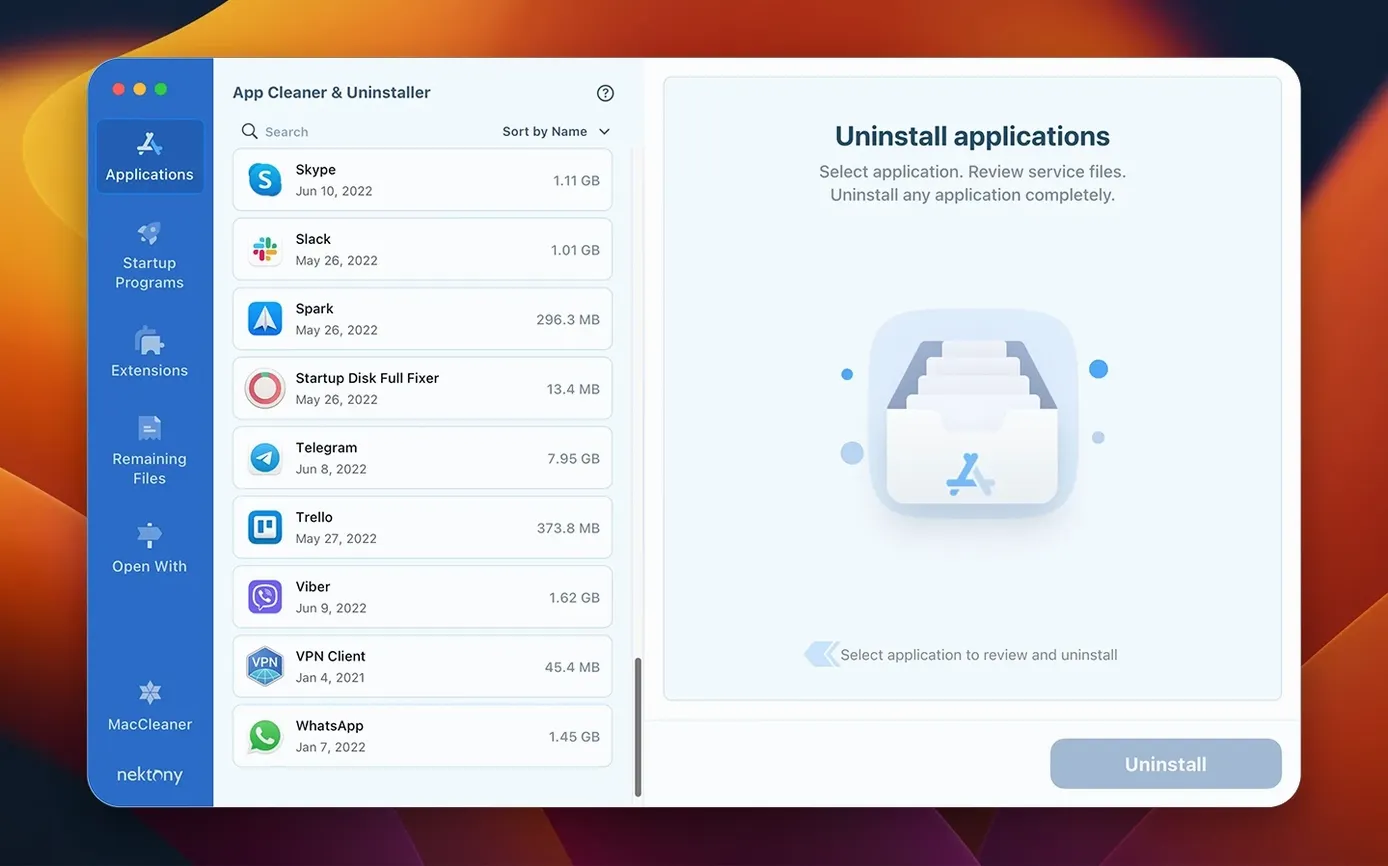
App Cleaner & Uninstaller is a macOS app manager that does the removal job properly instead of leaving half the application behind.
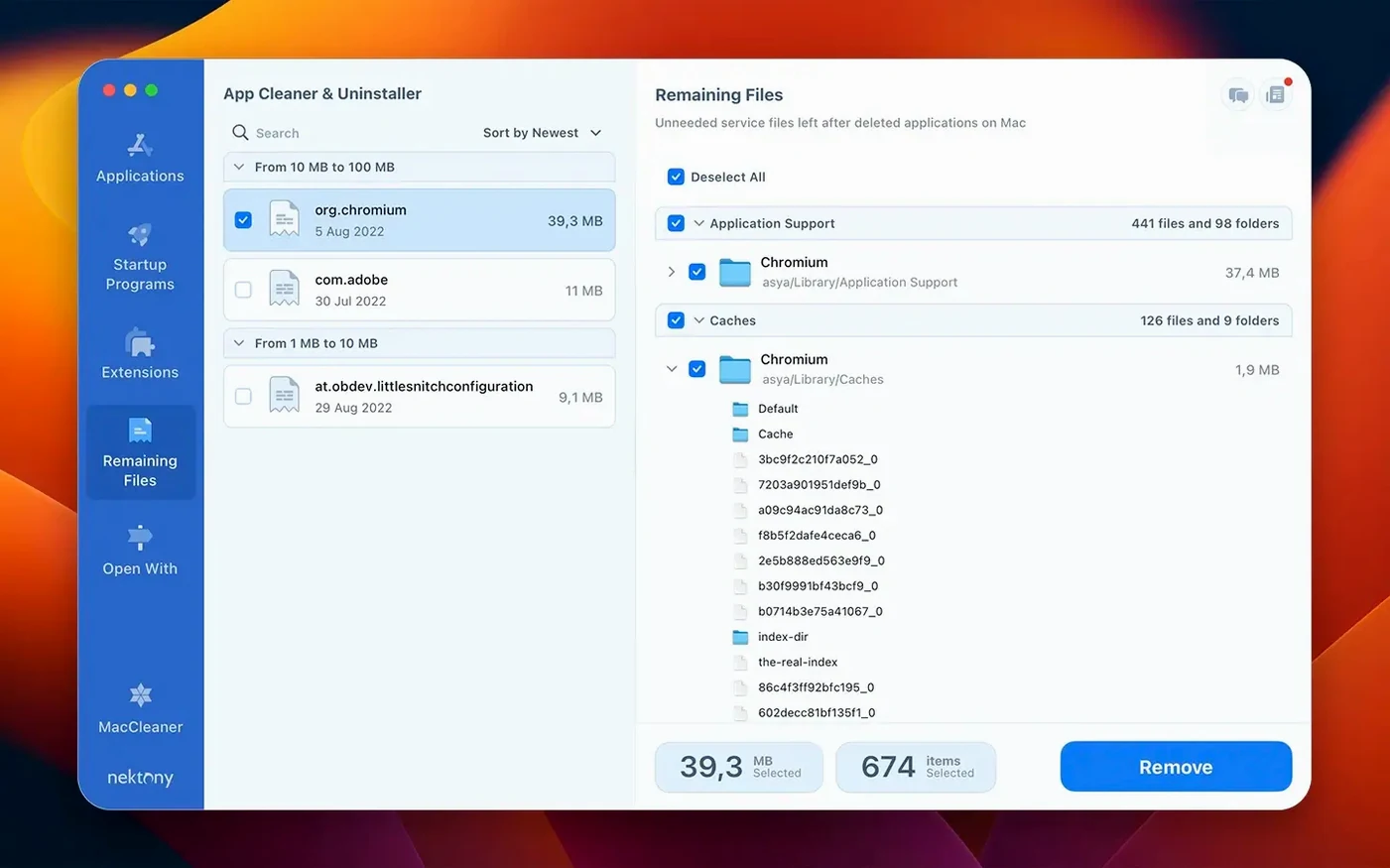
Deletes every leftover file an app leaves behind
- Completely removes applications. Dragging an app to the Bin leaves its service files scattered across the Library. This finds and deletes the lot.
- Tracks updates for installed apps. The updates database now covers Safari extensions and Homebrew command-line tools as well as regular applications.
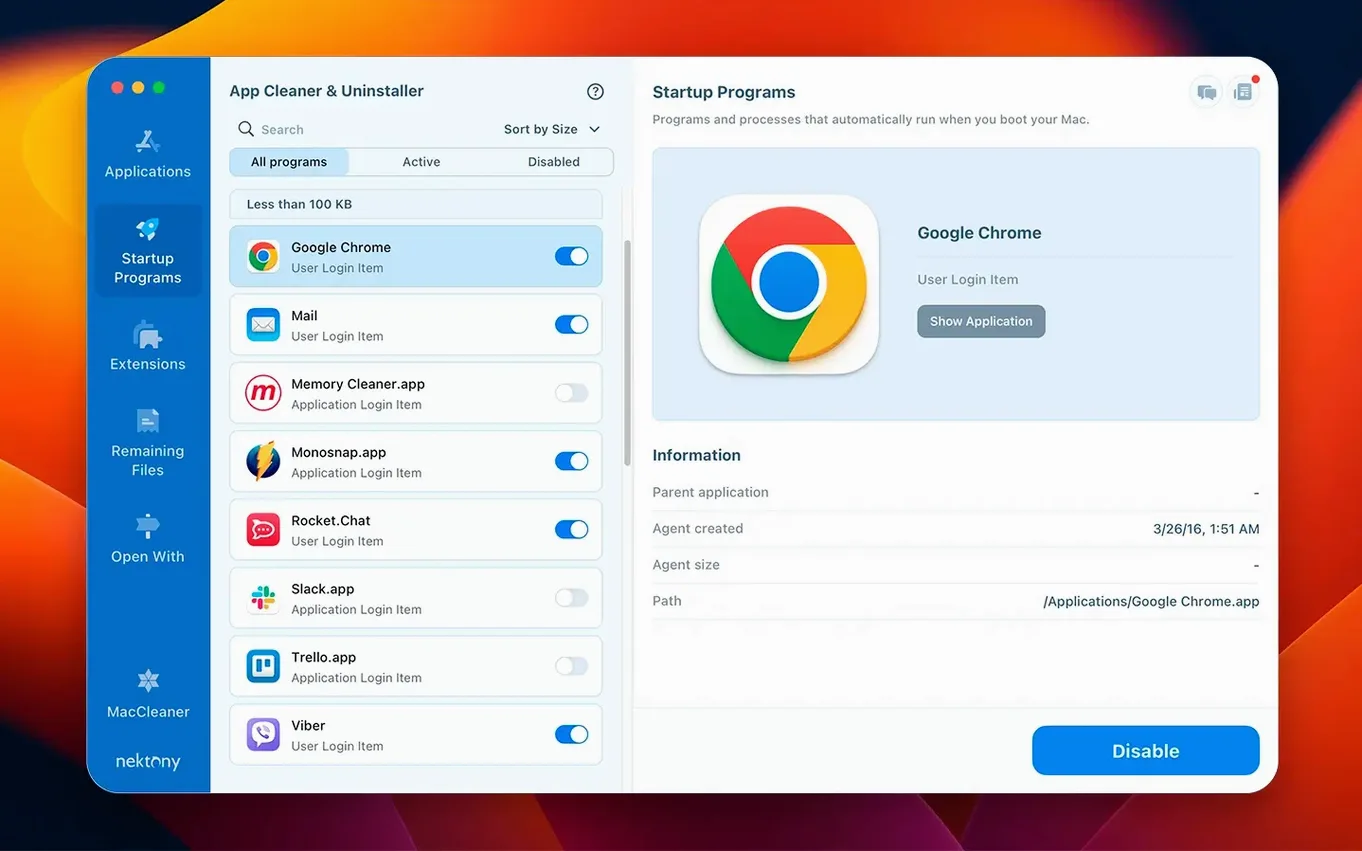
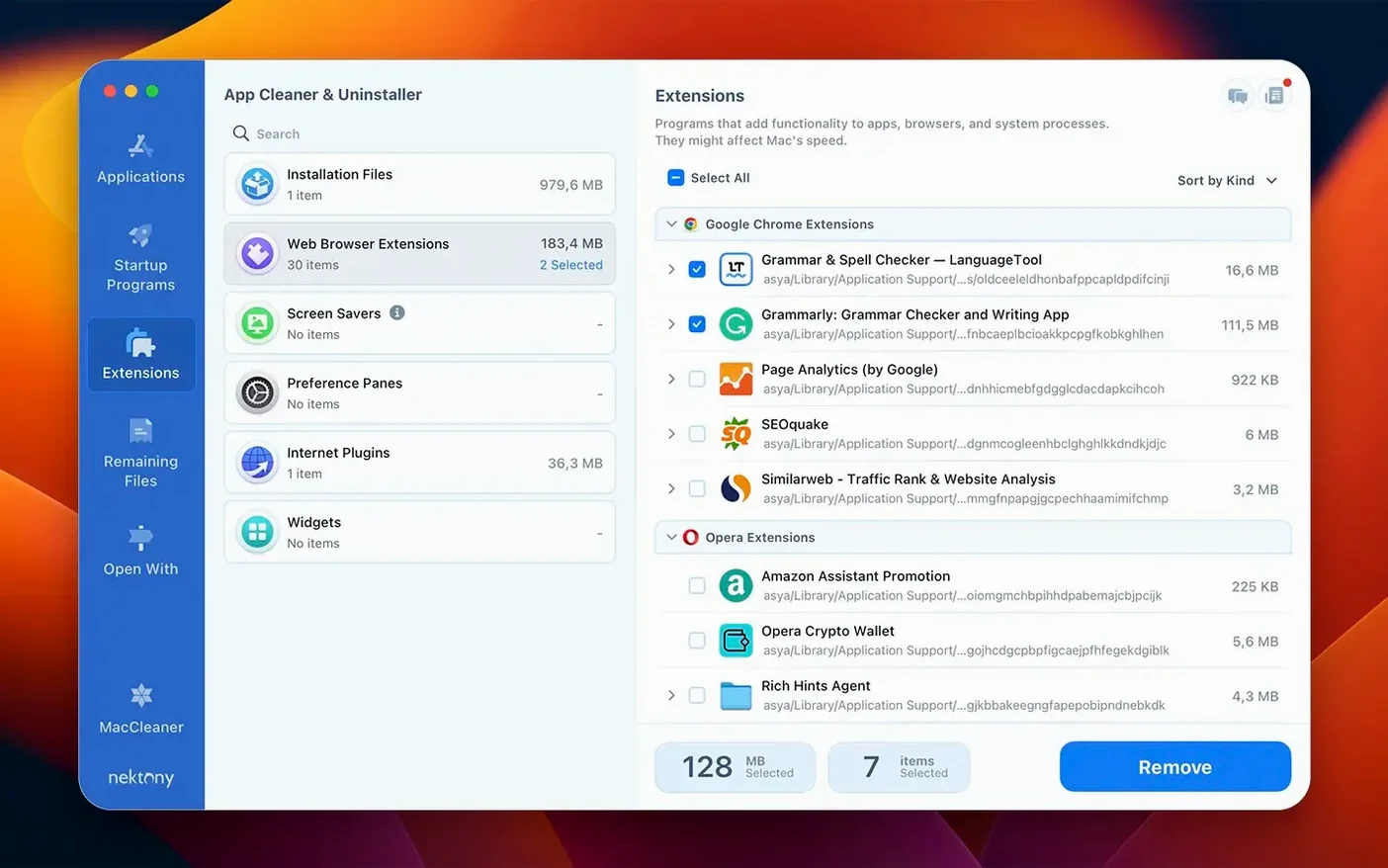
- Manages extensions. You can delete or disable Login Items, Launch Agents, and other extension files from one place without hunting through System Settings.
Why it is more than an uninstaller
The network access tab added in version 10.0 gives you a quick look at which apps are phoning home. The redesigned menu bar app includes network traffic control, and an incompatible applications filter helps you spot software that won't run on your current macOS. It works on Intel and Apple Silicon Macs running macOS 12 or later.
Reveal apps in Finder with a right-click
The app does a few things that aren't shouted about in the main window. Right-click any app in the list and you get a Reveal in Finder command — quicker than digging through /Applications yourself. The search field accepts partial names, so typing "adobe" pulls up everything from Acrobat to the Creative Cloud desktop app without fuss.
Another one: when you select an app, the file list shows sizes per folder. You can expand individual directories rather than staring at one lump sum. That matters when you're trying to work out whether an app's cache has ballooned to 12 GB or its preferences file is tiny and not worth worrying about. The Skip Trash toggle in preferences lets you delete files immediately — handy if you're clearing 40 GB of old video-editing leftovers and don't want to empty the Bin afterwards.
The menu bar app, redesigned in this version, shows network activity at a glance. Click it and you can kill a misbehaving upload without opening the full window. It is the sort of thing you ignore for weeks, then use three times in an afternoon when something starts hammering your connection.
Recover gigabytes from apps you deleted months ago
- Run the leftover scan first. Before you uninstall anything, click the Leftovers tab. It finds service files from apps you dragged to the Bin months ago. Most people discover a few gigabytes on the first pass.
- Check the Startup Programs section. macOS makes it easy for apps to sneak launch agents into your Library. Disable anything you don't recognise, but don't delete it straight away — if nothing breaks after two restarts, then remove it.
- Sort your apps by size. Click the Size column header. The top five tend to be the culprits you already suspected, but there is usually one surprise.
- Glance at the incompatible apps filter. If you upgraded macOS recently, this flags software that cannot run on your current system. No point keeping it around.
If macOS blocks the app on first launch, head to System Settings > Privacy & Security and click Open Anyway. Standard gatekeeper behaviour, nothing specific to this tool.
Fills the gap between Finder and System Settings
App Cleaner & Uninstaller does not replace Finder or System Settings — it fills the gap between them. Finder handles files you can see. System Settings handles launch agents buried in a list most people never open. This app sits in the middle, giving you a readable view of what is installed and what it dragged in with it.
It plays well with Homebrew. The expanded updates database means your command-line tools show up alongside GUI apps, so you are not maintaining two separate update checklists. If you use a tool like app cleaner & uninstaller pro 9.1.1 or app cleaner & uninstaller 9.2.4 elsewhere, the version 10.0 interface will feel familiar — just with the network tab and menu bar additions layered on top.
The Privacy Audit and Security Check features tie into macOS permissions. They list apps with camera, microphone, or full disk access, which is information buried several clicks deep in System Settings. You can revoke permissions from the app rather than hunting through Apple's panes.
Clearing space when storage dips below 30 GB
You notice your Mac's storage has dipped under 30 GB free. You open App Cleaner & Uninstaller from the Applications folder. The main window loads with a list of every app, sorted alphabetically by default. You click the Size column and wait two seconds for the sort.
Top of the list is a video editor you tried once and forgot about — 18 GB. You select it. The right panel populates with the app binary, a dozen support files, and a cache folder sitting at 14 GB on its own. You tick everything, click Uninstall, and confirm. The app vanishes, the files go with it, and the free-space counter in the menu bar ticks up before your eyes.
Next you switch to the Leftovers tab. It finds preference plists and caches from three apps you deleted by dragging to the Bin last year. Another 2.3 GB. You select all, click Remove, done.
Finally you open the menu bar app's network section. A cloud-sync tool is uploading at 3 MB/s for no obvious reason. You pause it from the menu bar, make a mental note to check its settings later, and close the app. The whole session took four minutes.
Worth it if you want uninstalling to mean what it says.
What’s new
- Adds a network access tab for monitoring app connections.
- Redesigns the menu bar app and includes network traffic control.
- Expands the updates database to cover Safari extensions and Homebrew command-line tools.
- Adds an incompatible applications filter.
Requirements
- macOS 12 or later
- Apple Silicon or Intel Mac
FAQ
Does it remove the service files that apps leave behind?
Yes. It finds and deletes the caches, preferences, and other support files that stay on your drive when you just drag an app to the Bin.
Can it disable extensions instead of deleting them?
It can. The app lets you disable Login Items, Launch Agents, and other extensions so you can turn them back on later if needed.
Comments 0
Sign in or create an account to leave a comment.
No comments yet…
If you’ve installed it, say how it went. Mention your Mac and macOS version — it helps the next person more than you’d think.