Aiarty Video Enhancer for macOS
Description
The jump to 3.8 brings three changes that matter for long renders. You can now pause and resume an export instead of losing work to a crash. MKV support means you don't have to remux files before processing. And CUDA memory use has been tightened up — useful if your Intel Mac's GPU is short on VRAM.
What an experienced editor looks for
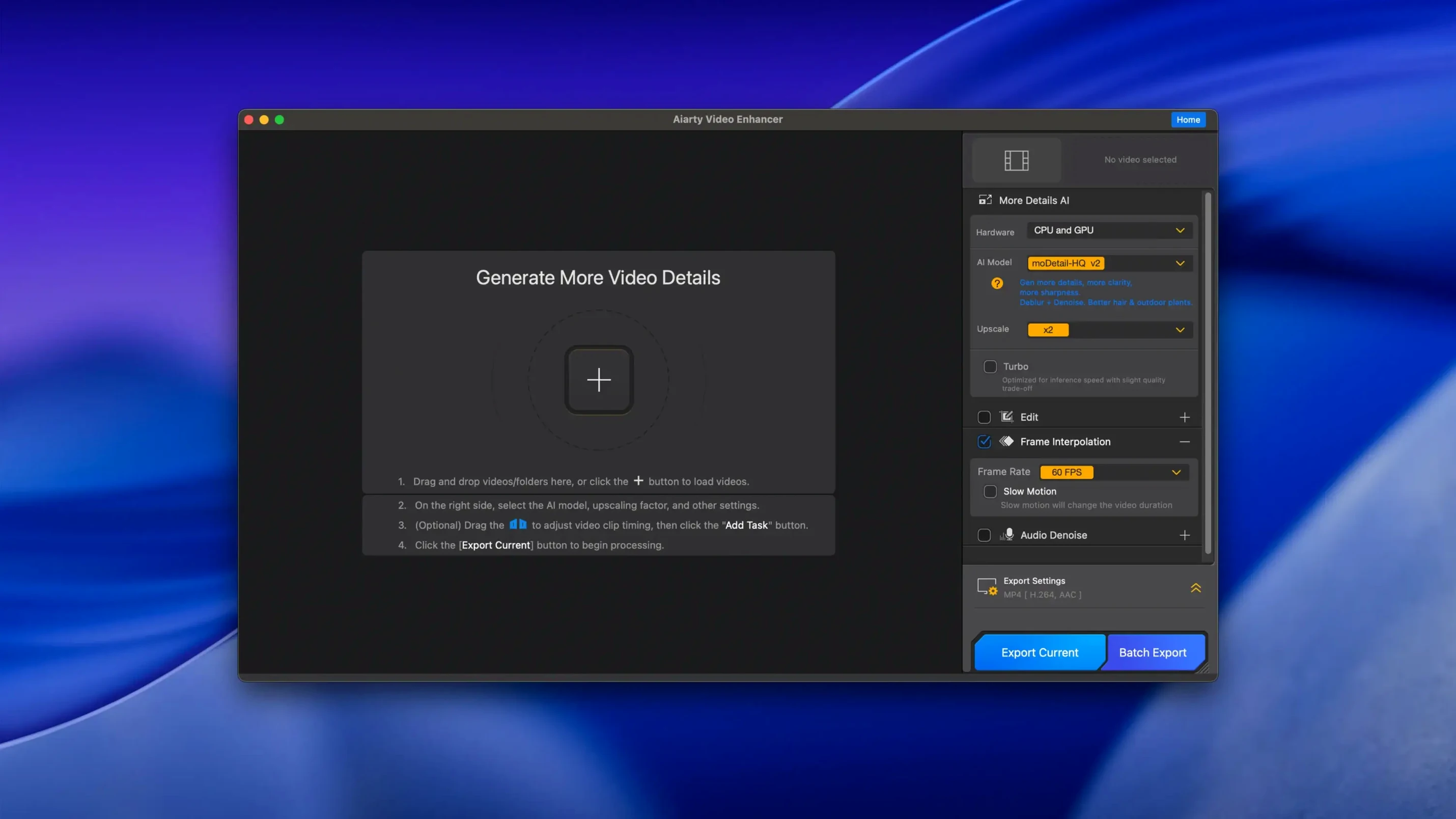
- Frame interpolation. The app generates intermediate frames, which helps when you need smoother slow motion from a low-frame-rate source without stutter.
- Dedicated denoise and deblur passes. These aren't one-slider wonders. You get separate controls for noise grain, motion blur and compression artefacts, so you can clean up old DV tape transfers without turning faces into plastic.
- Batch queue logic. You can stack multiple files with different output settings and let the queue run overnight. The 3.8 memory optimizations make this less likely to choke on long queues.
- Audio passthrough and cleanup. The audio tools handle hum and broadband hiss without forcing a re-encode of the video stream if you only need sound work.
Hardware that keeps up
The Mac version asks for 8 GB RAM and a dedicated GPU with 4 GB VRAM on Intel machines. Apple Silicon Macs share memory, so that 8 GB minimum still applies. Disk space matters — a 512 GB drive fills up fast once you start working with 4K intermediates, so plan your scratch disk before you queue fifty clips.
If your Mac can handle the upscale grind
People ask the same few things when they first look at Aiarty Video Enhancer, and most of them come down to whether their Mac will cope. The short answer: if you're on an Apple Silicon machine with 8 GB RAM or more, it runs. Intel Macs need a dedicated GPU with at least 4 GB VRAM. That last part catches people out — integrated graphics won't cut it for the heavier AI passes.
The other common question is whether it handles the footage you already have. The app accepts a broad range of video files, and with MKV support in 3.8 you can drop in files that used to need remuxing first. If your source is noisy, dark, or soft, the denoise and deblur passes tend to help more than upscaling alone. Start with those before you push resolution.
People also ask if it's a plug-in. It isn't. Aiarty Video Enhancer is a standalone desktop app — you open it, load your clips, set your output, and let it work. No host editor required.
Cleaning up a grainy miniDV transfer in one pass
Say you've got an old family video from a miniDV transfer. It's 720×576, grainy, and the audio has a constant hum from the tape deck. Here's how a typical pass looks.
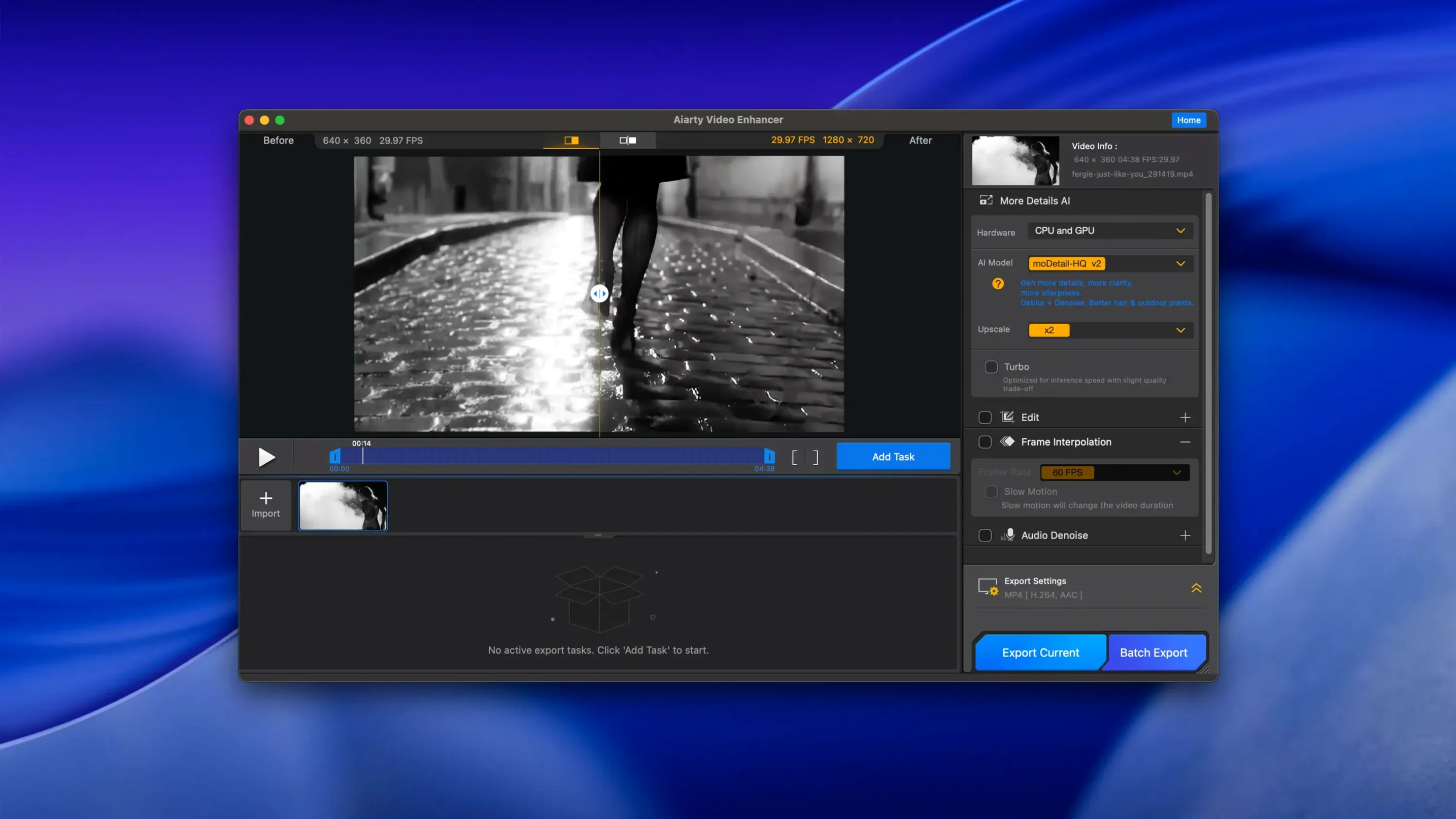
- Open the app and drag the clip into the queue. It appears with its resolution and frame rate already read.
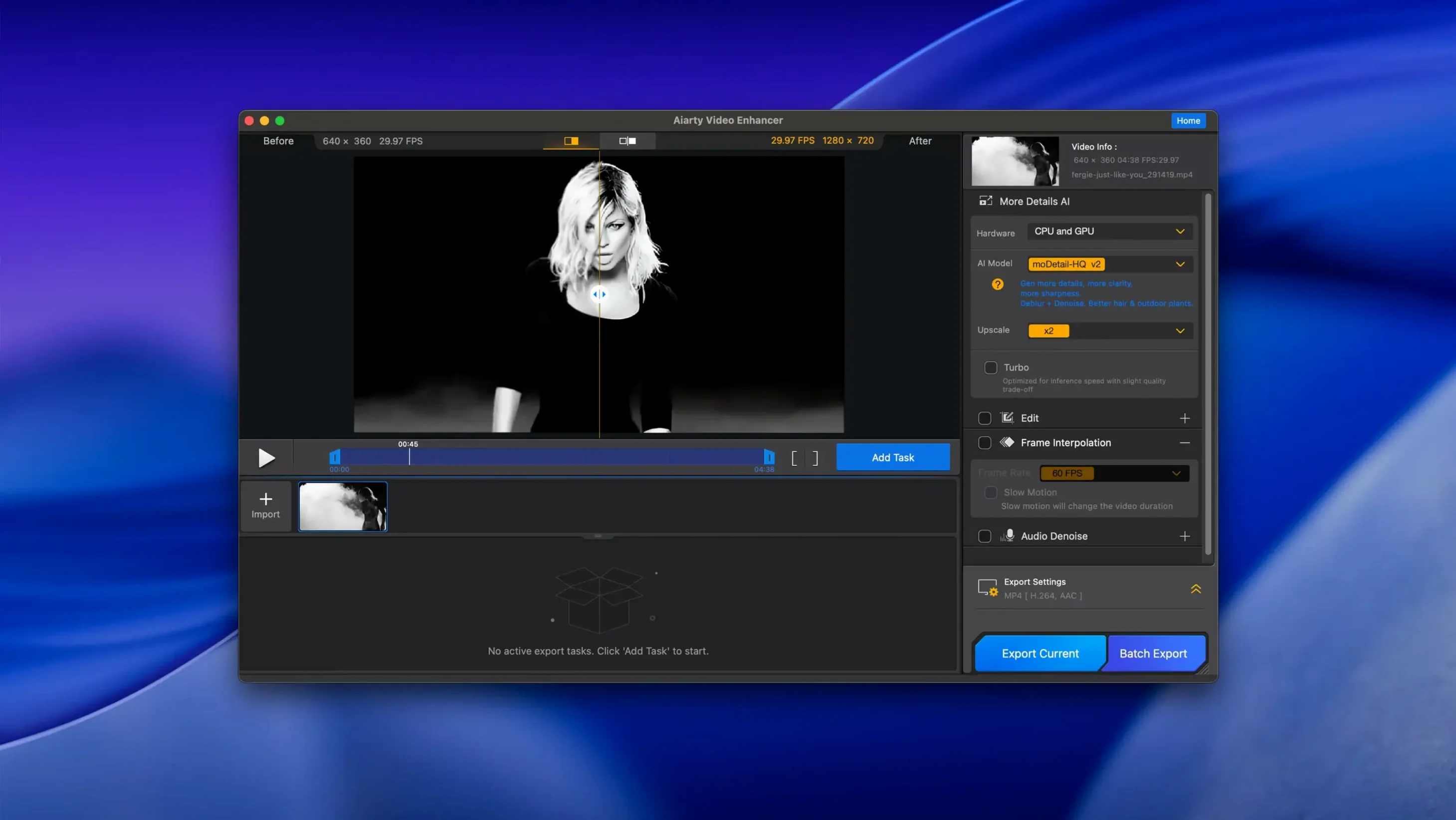
- Set denoise to a medium level first. Check the preview on a dark frame — if faces still look smeared, nudge it up one step.
- Enable the deblur pass only if there's motion smear. Static shots usually don't need it.
- Turn on the Audio Denoise module. Leave the defaults at first; the hum usually disappears without touching anything else.
- Choose your output. If you want slow motion later, enable frame interpolation and set the target rate accordingly.
- Start the export. If it's a long one and you need to stop, use the resumable export — you can pick it up from where it left off.
That last step used to be the worst part of overnight queues. One power cut and the whole render was gone. 3.8 fixed that.
Mid-render pause and other tucked-away conveniences
A few conveniences sit in places people don't always look. The pause button on an active export is one — you'd be surprised how often a mid-render pause beats cancelling and starting over. The queue remembers separate settings per file, so you can mix a denoise-only clip with a full upscale job without changing presets back and forth.
The preview window refreshes faster when you scrub backwards through already-processed frames, which helps when comparing before and after. And if you work with footage that has inconsistent audio levels, the audio cleanup runs independently — you can process a batch of clips for sound only and keep the video untouched.
On Apple Silicon, the app uses the Neural Engine where it can, which keeps the fan noise down compared to Intel Macs running the same task. If you're on an Intel machine, close anything else that touches the GPU before you start a long queue.
What’s new
Adds resumable exports so interrupted renders can restart where they left off. Adds MKV container support for import and export. Improves CUDA memory allocation on Nvidia graphics cards.
Requirements
- macOS 11 or higher
- 8 GB RAM minimum
- 512 GB disk space or more
- Dedicated GPU with 4 GB VRAM (Intel Macs)
- Apple Silicon or Intel processor
FAQ
Does Aiarty Video Enhancer work on Intel Macs?
Yes, it supports Intel Macs with a dedicated GPU that has 4 GB VRAM or more, and requires macOS 11 or higher.
Comments 0
Sign in or create an account to leave a comment.
No comments yet…
If you’ve installed it, say how it went. Mention your Mac and macOS version — it helps the next person more than you’d think.