AI Transcription for macOS
Description
If you have already tried using your Mac’s built-in dictation and found it gets in the way more than it helps, this app takes a different approach. It is not a real-time helper. It is a tool for converting finished audio and video files into text, working entirely offline.
macOS 14.6+, Intel and Apple Silicon, nine interface languages
- Requires macOS 14.6 or later.
- Runs natively on both Intel and Apple Silicon Macs.
- The interface is translated into nine languages: English, German, Spanish, Italian, Simplified Chinese, Korean, Portuguese, French, and Japanese.
Drag audio or video in—MP3, WAV, CAF, AIFC, M4A, MP4
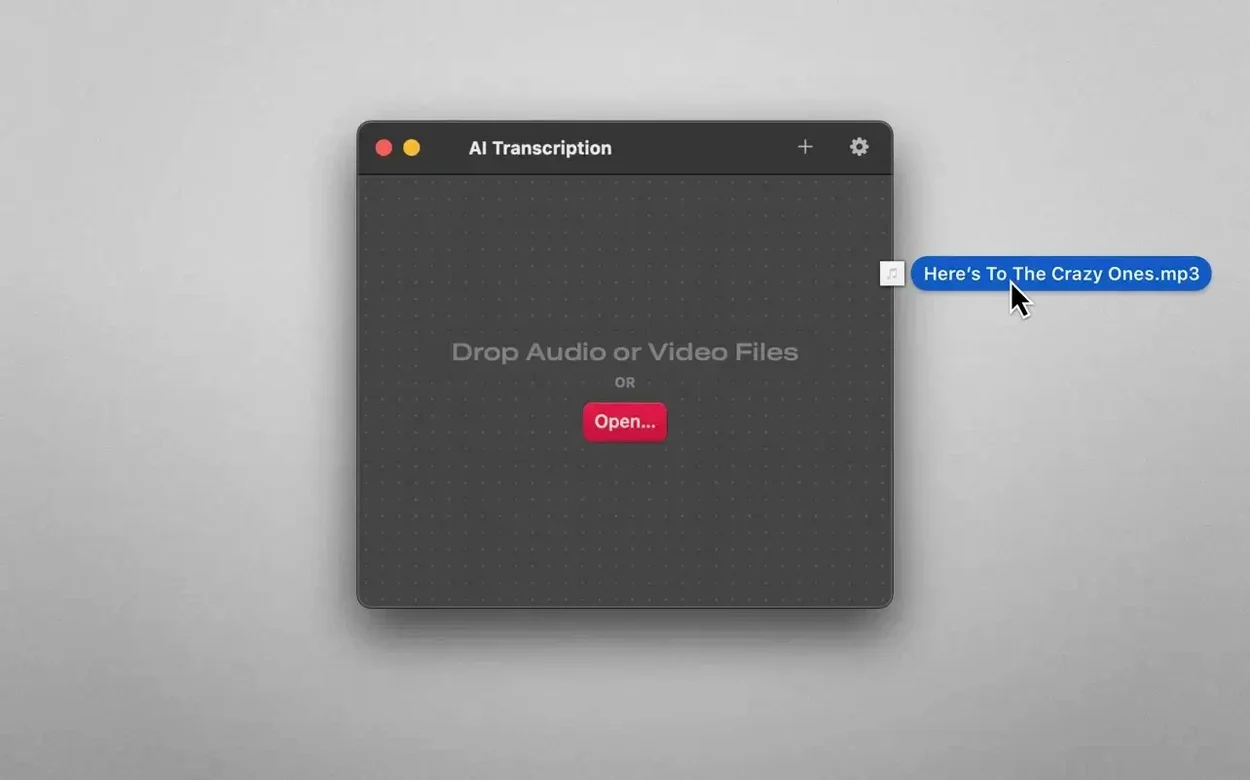
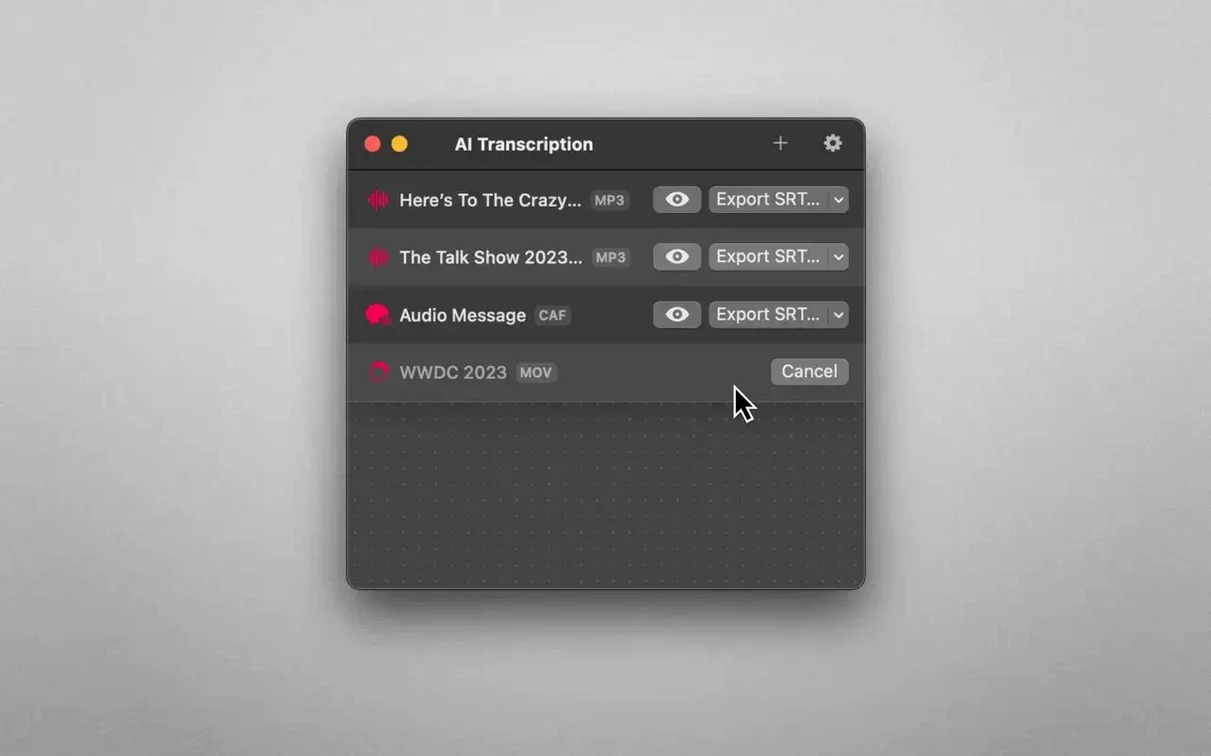
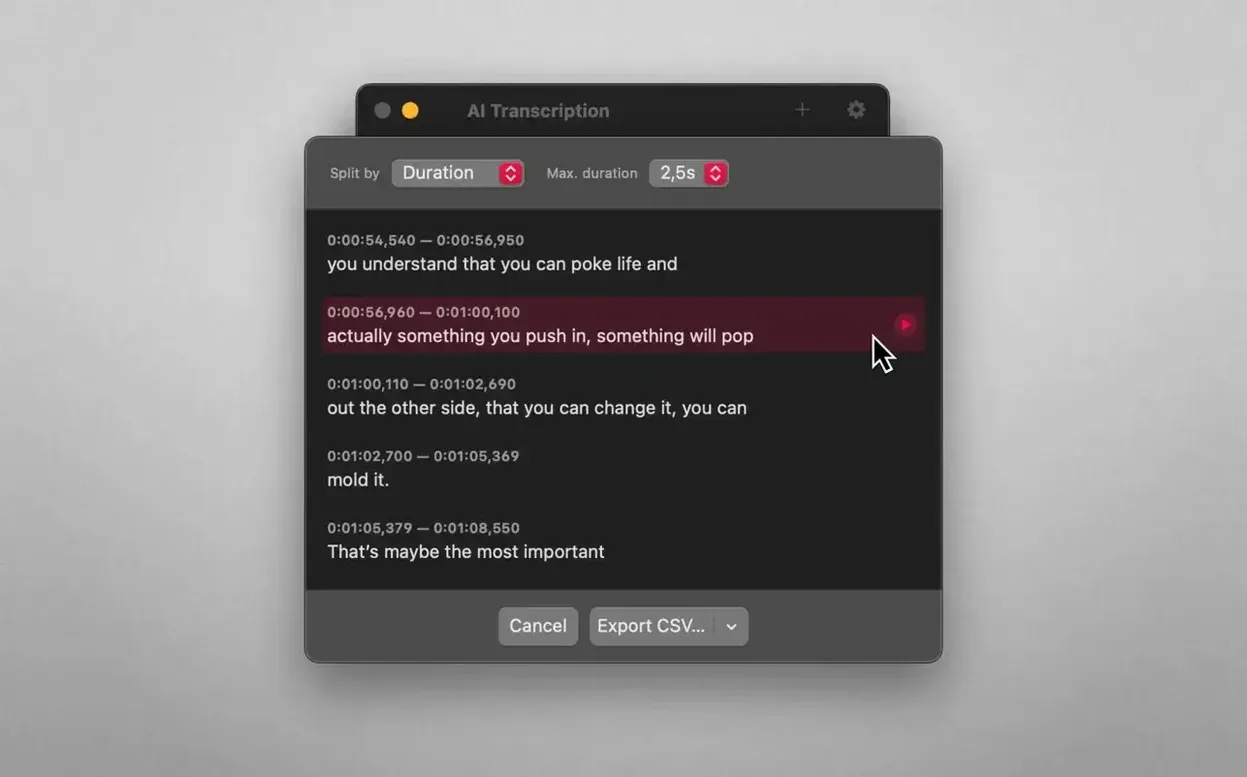
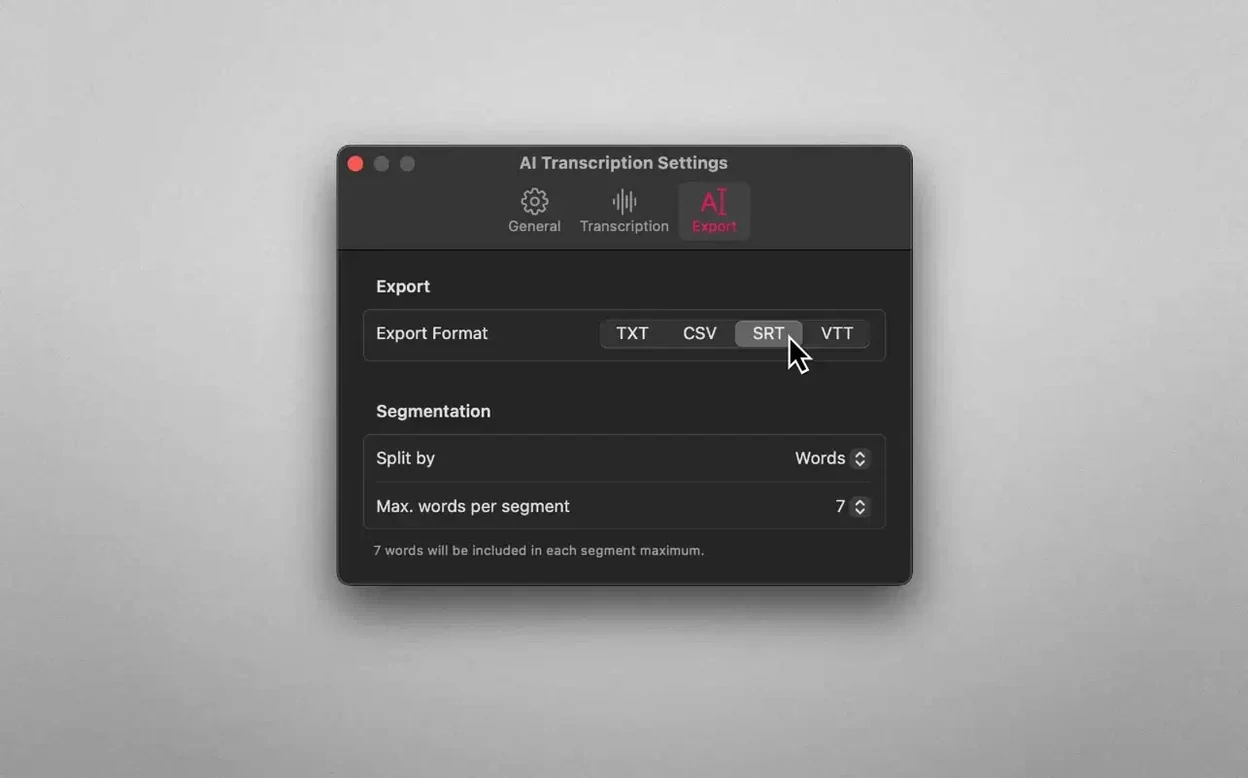
You drag in an audio or video file and the app transcribes it locally. Supported input formats are MP3, WAV, CAF, AIFC, M4A, and MP4. Once you have a transcript, you can split it by word, sentence, or a set duration. Export options are plain text, CSV, SRT, and WEBVTT. No network connection is needed at any point.
Start with a five-minute clip of clear speech
Don't throw a two-hour recording at it right away. Start with a five-minute clip where people speak clearly. It gives you a feel for the transcription quality and the export options without making you wait long.
If the automatic language detection guesses wrong, set the language manually before you drag the file in. The app picks from the nine interface languages it supports. German interviews, for instance, come out cleaner when you tell it rather than let it wonder.
Check the split-by-sentence option before your first export. Sentence chunks make subtitles and quote-pulling far easier than a wall of text. Save the split setting that suits how you work, because the default may not.
Keep your source files tidy. The app remembers the last folder you used, so dropping everything into a single “to transcribe” folder saves you hunting around each time.
Apple Speech Recognition fallback for faster short clips
If you already use MacWhisper, you know its focus is Whisper models and a clean transcription window. AI Transcription adds Apple Speech Recognition as a fallback, which can be faster on short, clear clips. MacWhisper offers more granular control over model size and language prompts. AI Transcription keeps the choices simpler and the export format list slightly shorter. Which one feels right depends on whether you want dials or a one-click job.
Buzz is the open-source alternative. It also runs Whisper locally and handles real-time microphone input, which this app does not. Buzz demands a bit more setup comfort with Python dependencies. AI Transcription just launches and waits for a file. If you need live transcription from a mic, Buzz covers that. If you want a straightforward file-to-text tool that never asks for a terminal, AI Transcription wins on friction.
Otter.ai is the cloud-based elephant in the room. It does speaker identification and collaborative editing, none of which appear here. But Otter sends your audio to a server, requires an account, and costs a subscription. AI Transcription works offline on a machine you already own. For confidential material, that is the difference that makes the others irrelevant.
Drag a forty-minute research M4A and watch the progress bar
You have just finished recording a forty-minute conversation for a piece of research. The file sits on your desktop as an M4A.
- You launch the app and drag the M4A onto the window. A progress bar fills from left to right. The fans stay quiet because the work happens on the Neural Engine on an Apple Silicon Mac, or efficiently on a recent Intel chip.
- About three minutes later, the transcript appears. You scroll through, skimming for sections where the speaker mumbled. The text is raw but accurate enough that corrections are spot fixes, not retyping.
- You switch the split mode from “none” to sentence. The block of text breaks into numbered lines, each one a sentence. That is the shape you need for the analysis software you use.
- You export as CSV, name the file after the interview date, and save it to the project folder.
- One passage needs a verbatim quote for a slide deck. You select the three sentences, copy them, and paste them into your notes. The audio never left your Mac, and the transcript is already filed.
The whole process took under five minutes. No upload. No login. Just a file in, a text file out.
Requirements
- macOS 14.6 or later
- Apple Silicon and Intel 64-bit Macs
FAQ
Does it need an internet connection?
No, AI Transcription runs entirely offline on your Mac.
What file formats can it handle?
It transcribes MP3, WAV, CAF, AIFC, M4A, and MP4 audio and video files.
Comments 0
Sign in or create an account to leave a comment.
No comments yet…
If you’ve installed it, say how it went. Mention your Mac and macOS version — it helps the next person more than you’d think.