
Affinity Publisher for macOS
Description
Version 2.6 supports up to 10,000 pages per document. That's overkill for a start. Here are five things to try first.
- Place an image and a PDF together. Affinity Publisher imports PSD, AI, PDF, JPG, TIFF and PNG without fuss. Drag one of each onto a spread. They land as linked or embedded, your choice.
- Set up a baseline grid. Go to View > Grid and Axis Manager. A 12 pt baseline grid keeps body text aligned across columns. The snapping options under View > Snapping Manager make sure frames hit the marks.
- Wrap text around an irregular shape. Select an image, open the Text Wrap panel, and pick a tight wrap. The fill controls let you pull text closer or push it out. Works on placed graphics too.
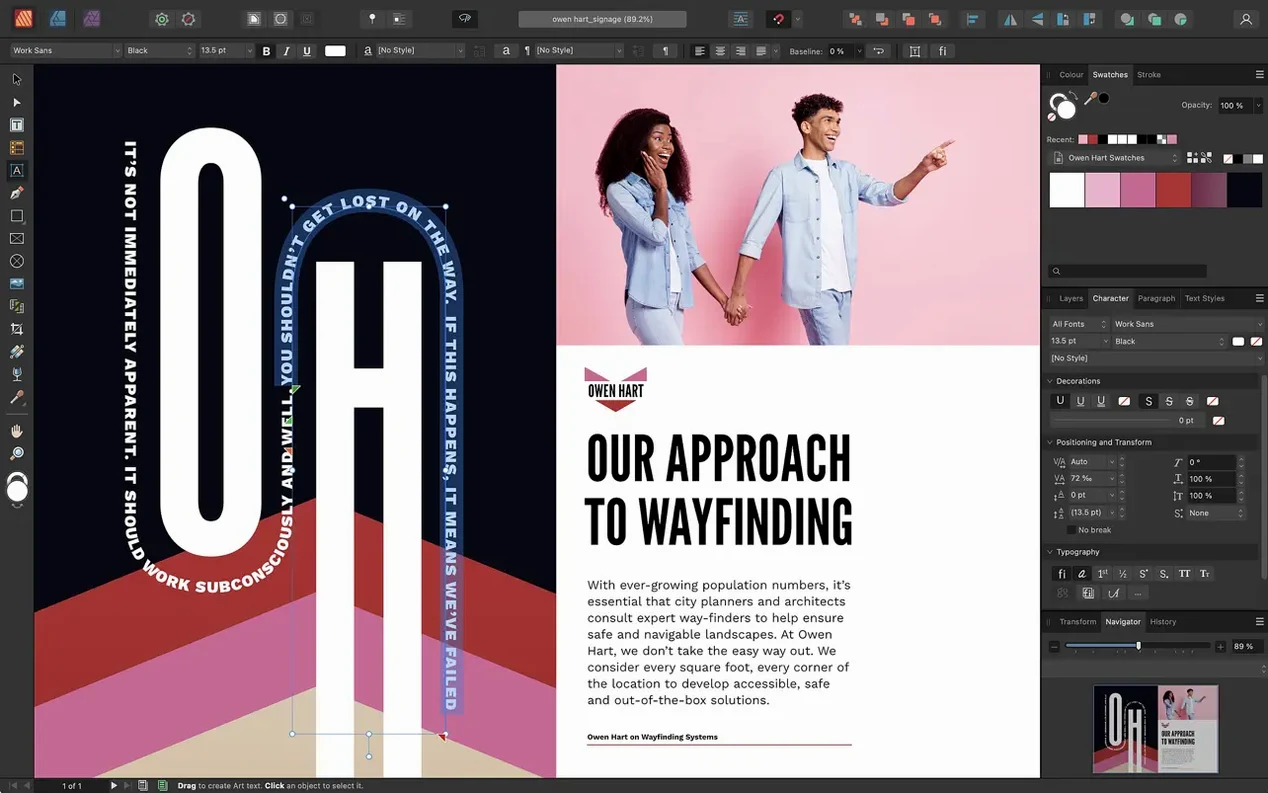
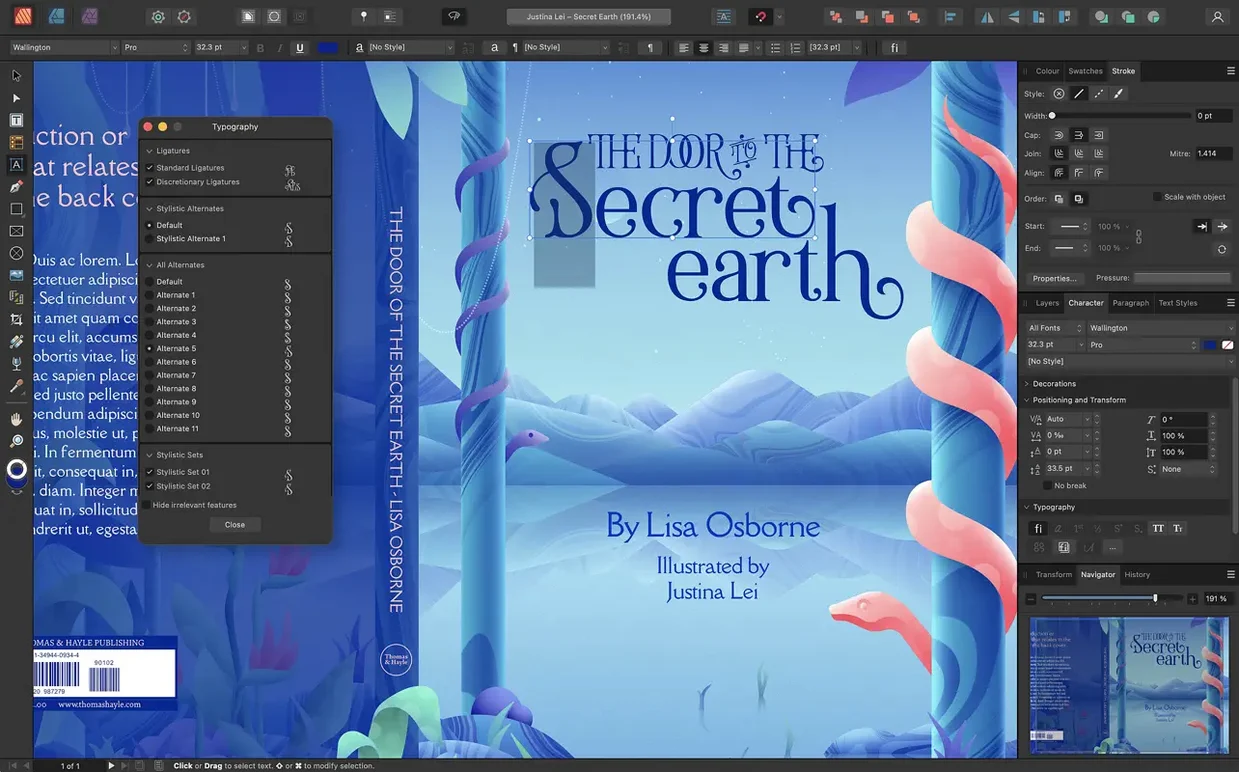
- Place text along a curved path. Draw a path with the Pen tool, then click on it with the Artistic Text tool and start typing. OpenType features like ligatures and swashes hold up on the curve.
- Add a non-destructive adjustment layer. Drop a Levels or HSL adjustment onto an image from the Layers panel. Tweak the settings; the original pixels stay untouched underneath.
Those five moves cover the core loop: bring assets in, set a structure, refine the layout, and keep edits reversible. Once you have the rhythm, the advanced guides and Pantone support make more sense.
An editor's Friday afternoon
A magazine section editor has three feature spreads due by six. The text is final, the photos are in a Dropbox folder, and the ad team just sent a last-minute quarter-page that needs slotting into page five. No time to rebuild the layout from scratch.
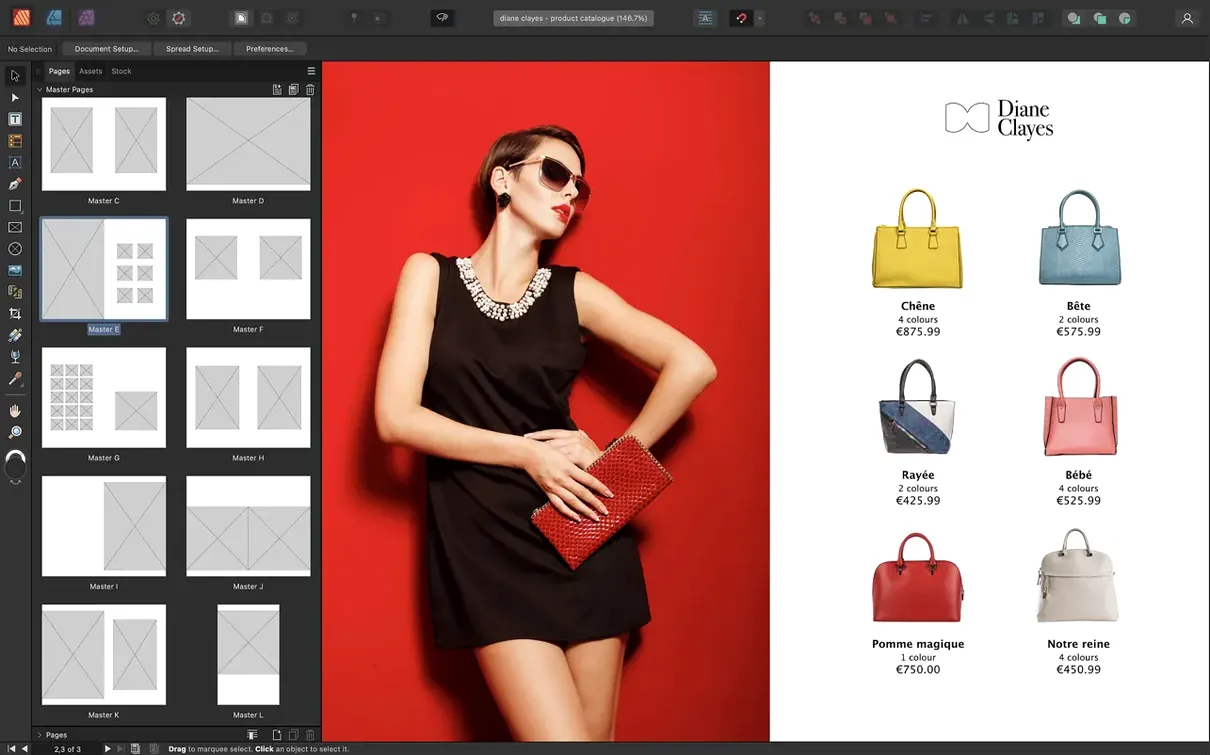
She opens the master page for the section front and drops the new ad into a pre-sized picture frame on the B-master. Because the frame uses a placeholder that inherits from the master, every page based on that spread updates in one go. She then places the three feature articles into linked text frames across the spreads, checks the hyphenation against the style guide, and exports a PDF/X-4 for the printer with six minutes to spare. The whole session never leaves Affinity Publisher — StudioLink means she adjusts a photo's exposure in the Photo persona without once switching apps.
Starting a facing-pages document with bleed
Open a new document and pick a facing-pages preset. The New Document window asks for page size, margins and bleed. Set the bleed to 3 mm if it is going to print. Click Create.
The workspace shows a blank spread with column guides already drawn. The Pages panel on the left lists one master page and the first spread. Right-click the master, choose Edit Master, and place running headers in the margin area — page numbers go into text frames with the Insert Page Number command from the Text menu.
Switch back to page view. Draw a picture frame on the left page with the Rectangle Picture Frame tool. Drag a high-res PNG from Finder straight into the frame. Publisher scales it to fit by default; use the toolbar dropdown to switch between None, Stretch and Scale to Max Fit. Place a second image on the right page the same way.
Now add body text. Draw two text frames on each page, roughly where the columns sit. With the first frame selected, click the red overflow triangle near its bottom-right handle, then click inside the second frame to link them. Repeat for the third and fourth. Paste the article text into the first frame and watch it flow through the chain. Apply a paragraph style from the Text Styles panel — body copy jumps to the correct font, size and leading instantly.
One photo needs a colour tweak. Double-click it to enter the Photo persona. Add a Black & White adjustment layer, mask out the product shot so only the background goes monochrome, then click Close to return to the layout. The document updates live.
Exporting wraps the session. Choose File > Export, pick PDF/X-4, check Include Bleed and Crop Marks, then hit Export. The whole thing from blank canvas to print-ready file runs about twenty minutes.
Drag an object into the Assets panel for reuse anywhere
- Asset reuse via drag and drop. Drag any object from the page into the Assets panel. It stays there across documents. Pull it back onto a spread later — formatting, text wrap and all.
- Quick grid toggle. Press
Cmd+'to show or hide the grid without opening a single menu. Same shortcut works for guides if you set it in Preferences. - Text frame scaling. Grab the bottom-right handle of a text frame and start dragging, then hold
Cmd. The frame and the text inside scale together. No need to resize the frame then bump the point size separately. - StudioLink right-click. Right-click any placed image and choose Edit in Photo or Edit in Designer. The persona switch happens on that single asset, leaving the rest of the layout alone. Faster than double-clicking and waiting for the full persona to load.
- Find and Replace with formatting. The Find and Replace panel has a cog menu. Tick Format and you can search for text set in a specific style or font — handy when a client suddenly hates Calibri and wants it gone from 200 pages.
- Constraints for repeating elements. Select a frame on a master page, open the Constraints panel, and anchor it to the top-right corner. When a live page uses a different page size, that frame stays pinned where it belongs.
Multi-page spreads let you build a gatefold cover
The shift to multiple-page spreads rewrites how long documents behave. Before 2.6, a spread meant two facing pages and nothing else. Now you can build a gatefold cover as one continuous spread, place artwork across all three panels, and fold lines appear automatically in the export. Trifold brochures work the same way — set up a three-page spread, design the inside and outside in one view, and the panels align without manual measuring.
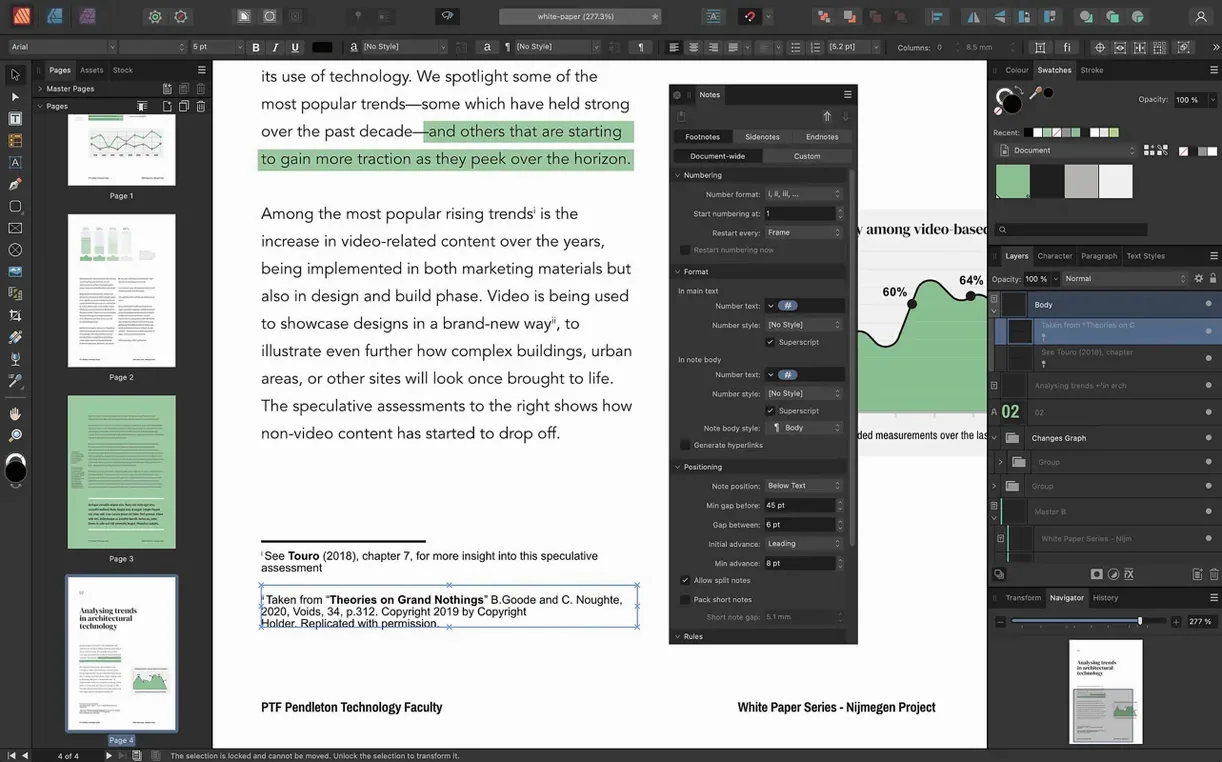
The Reading Order panel sits quietly in the Window menu until you need to tag a document for screen readers. Drag headings into the H1 or H2 slots, mark body text as P, and tag images with alt text through the same panel. The order reads top to bottom by default, but you can reshuffle it with drag and drop. For anyone sending PDF reports to public-sector clients, this panel turns a half-hour of manual tagging in Acrobat into five minutes inside Publisher.
Foldable spreads and the accessibility panel together make the 2.6 release feel less like a dot-update and more like a second launch. The everyday workflow of placing text, adjusting wraps and exporting PDFs stays the same — these additions layer on top without pushing the basic tools out of reach.
What’s new
Adds multiple-page spreads. Adds foldable spreads: gatefolds, trifolds and accordion folds. Adds a Reading Order panel for PDF accessibility.
Requirements
- macOS 10.15 or later
- Intel or Apple Silicon Mac
- 8 GB RAM recommended
- Up to 2.8 GB free disk space
- Display 1280×768 or larger
FAQ
Can I open Adobe InDesign files in Affinity Publisher?
No. Affinity Publisher can import IDML files (InDesign Markup Language) but not native INDD documents.
Does Affinity Publisher support right-to-left text?
Not natively. The app does not include full RTL text engine support for scripts like Arabic or Hebrew.
What file formats can I export from Affinity Publisher?
You can export to PDF, EPS, SVG, and common raster formats like JPG, PNG and TIFF.
Comments 0
Sign in or create an account to leave a comment.
No comments yet…
If you’ve installed it, say how it went. Mention your Mac and macOS version — it helps the next person more than you’d think.