
AirBuddy for macOS
Description
AirBuddy 3 runs on Intel and Apple silicon Macs. You'll need macOS 14 or later — the developer has stated that the final release will drop support for anything older, so it won't launch on Ventura.
What's in the current build:
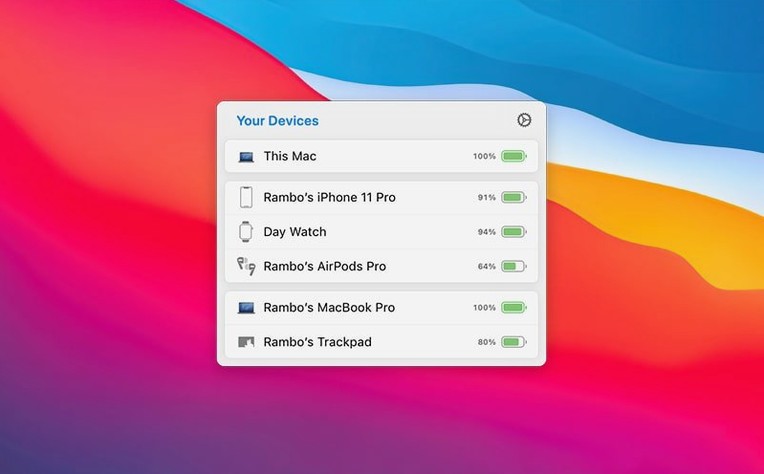
- Battery status for AirPods, Beats, iPhone, iPad and other Macs, grouped by how the devices relate to each other.
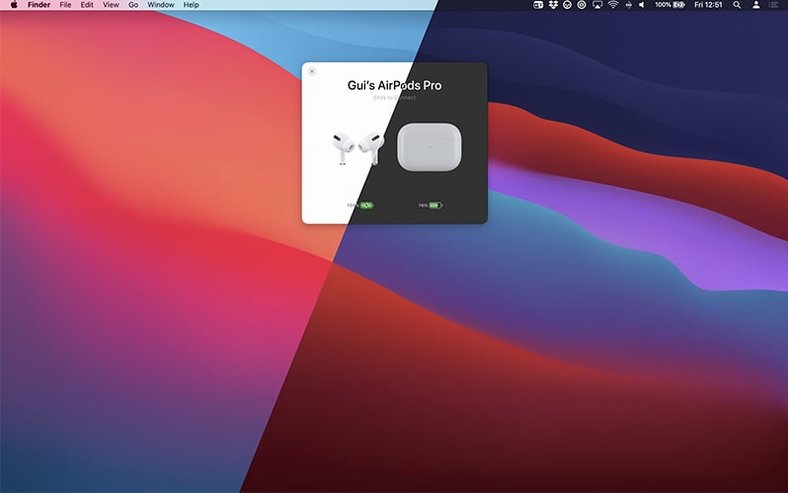
- One-click connection that also lets you swap listening mode, volume and mic state in a single action.
- Playback control and the ability to move peripherals between Macs.
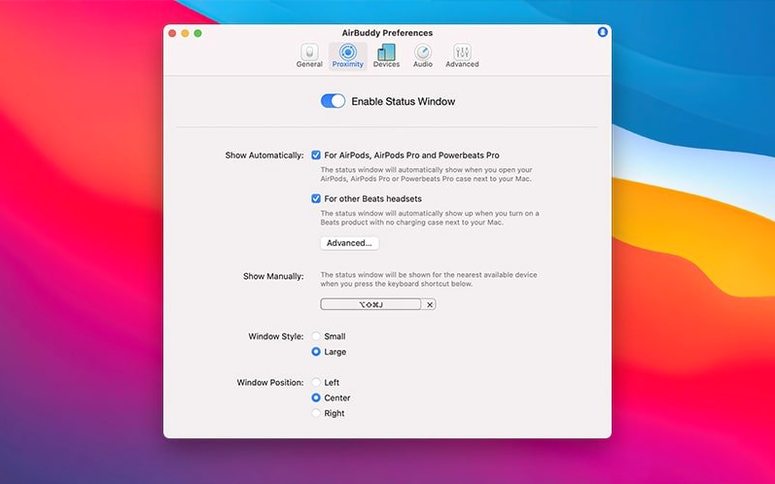
- A menu bar icon you can set to show the app icon, a battery indicator, or nothing at all.
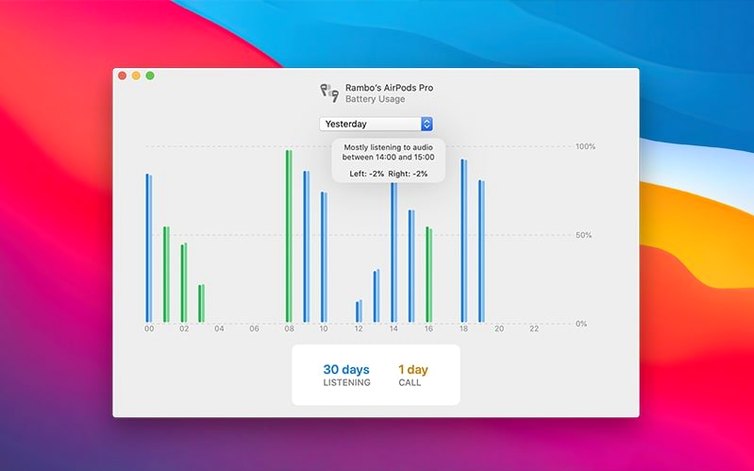
- Usage history for the past 12 hours, 24 hours, or the previous day, with separate figures for listening time and talk time.
The interface sticks to English, and the core idea hasn't changed since earlier versions: it's still about seeing what's nearby and getting connected without digging through Bluetooth settings. The device grouping and the menu bar options are the main things that have moved forward in this release.
Configurable menu bar icon and quick device switching
The jump to AirBuddy 3 brought two things I notice every day. The menu bar icon is now configurable — pick the full app icon, a simple battery gauge, or hide it entirely. That sounds small, but on a cluttered menu bar it's the difference between using the app and forgetting it's there.
The other shift is how devices group themselves. An iPhone with paired AirPods now appears as a single block rather than two separate entries. Your Mac recognises that relationship and shows the headphone battery tucked under the phone it belongs to. Same logic applies to iPads with Apple Pencil, or a Mac with a paired Magic Keyboard. Less scrolling, less thinking.
Connection modes also got smarter. You can set a rule so that when your AirPods Max connect, they switch to noise cancellation and drop the mic to mute. When your AirPods Pro connect to a different Mac, they go to transparency mode with volume at 40%. It happens in the background without a script or a shortcut.
How a student might use it
Imagine a design student who works between an iMac in the studio and a MacBook at home. They have AirPods Pro and a Magic Mouse that follows them between desks. Before AirBuddy, switching meant opening Bluetooth settings on each Mac, waiting for the popup that sometimes didn't arrive, or grabbing the mouse and pairing it again.
With AirBuddy 3 installed, the student opens the MacBook at home. The status window — triggered by a keyboard shortcut or a click on the battery icon — shows the AirPods Pro are nearby and at 72%. One click connects them and sets the listening mode to transparency, because that's the custom mode they assigned to this Mac. The Magic Mouse appears in the same panel. Magic Handoff moves it from the iMac to the MacBook without unpairing. The student barely thinks about it. The usage history later shows three hours of listening and forty minutes of talk time, with the right AirPod draining slightly faster — a detail that might prompt a tip about mic settings, but mostly it's just there if you want it.
Handles battery checks and headphone routing, not system audio settings
AirBuddy doesn't replace the Bluetooth menu or the Sound pane in System Settings. It sits on top of them. You'll still use macOS's own controls for multi-output audio or accessibility hearing adjustments. AirBuddy handles the repetitive stuff: seeing battery levels at a glance, connecting a known device, switching modes.
It plays well with the AirBuddy beta builds that the developer pushes between releases, if you're the sort who likes testing new features early. The beta has its own update channel and the same menu bar icon options the stable build introduced.
In a workflow with Affinity Designer or the Affinity beta, where you might be focused on the canvas and not on system controls, the keyboard shortcut for connecting AirPods means you don't leave the app. Same goes for anyone running the Adobe beta for generative fill — you're in a full-screen Photoshop window, you put your AirPods in, and a quick shortcut connects them without pulling you out of your work. AirBuddy's playback controls also hand off cleanly to whatever you're listening to, whether it's Spotify, Music, or a YouTube tutorial running in the background.
What’s new
- Adds a menu bar icon with options for the app icon, battery indicator, or no icon.
- Introduces device grouping based on relationships between your Apple gear.
- Shows battery and connection state for iPhone, iPad and other Macs alongside audio devices.
- Adds usage history with listening and talk time for the past 12 hours, 24 hours, or previous day.
Requirements
- macOS 14 or later
- Intel or Apple silicon Mac
- Interface language: English
Comments 0
Sign in or create an account to leave a comment.
No comments yet…
If you’ve installed it, say how it went. Mention your Mac and macOS version — it helps the next person more than you’d think.