
Aiarty Image Enhancer for macOS
Description
A scan of a 1970s family snapshot lands on the desktop — soft focus, film grain, a crease across the corner. Aiarty Image Enhancer is a desktop AI app that promises noise reduction, deblurring and upscaling in one pass. Here is what happens when you feed it a damaged print.
Denoise and deblur toggles plus 4x upscaling for print-ready files
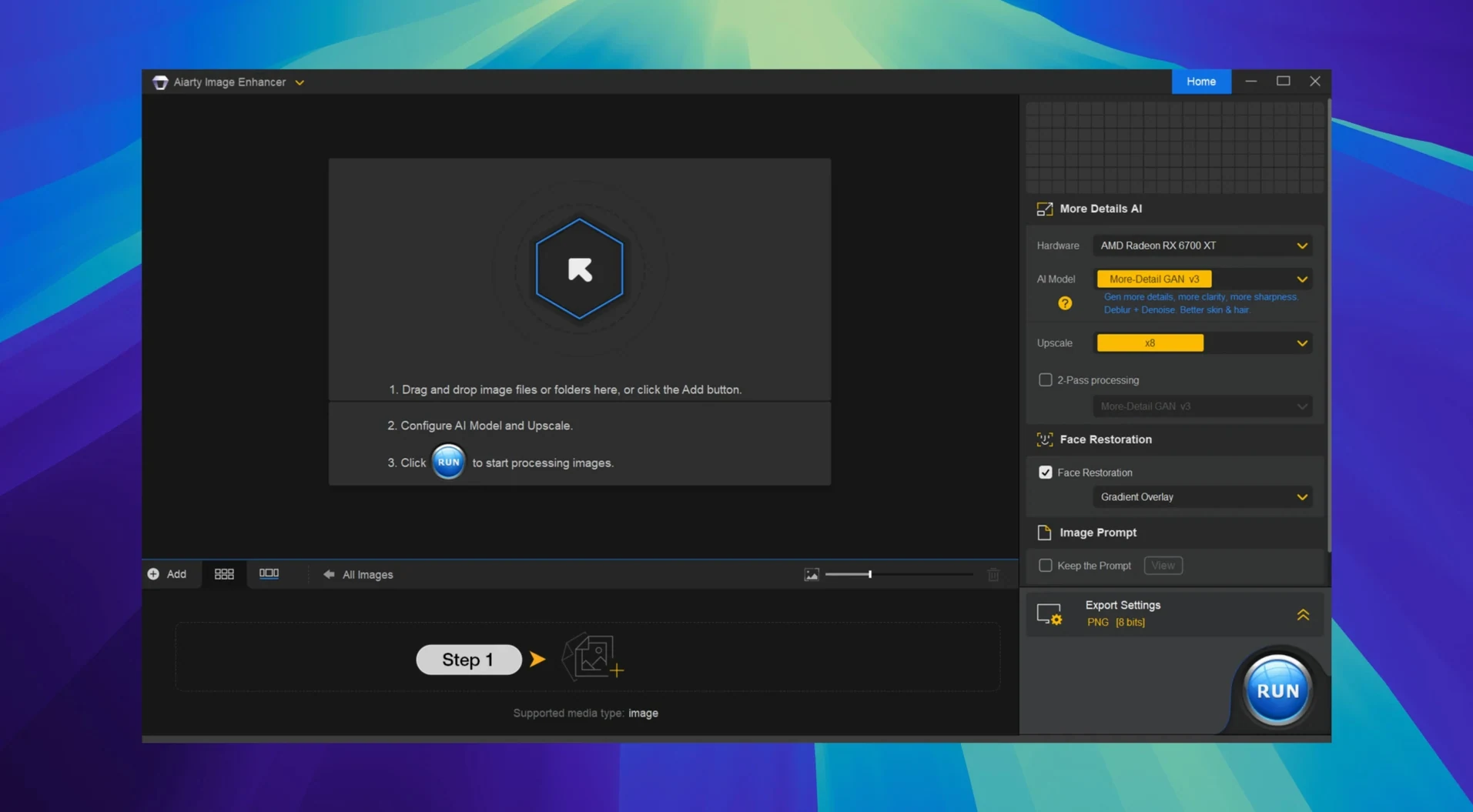
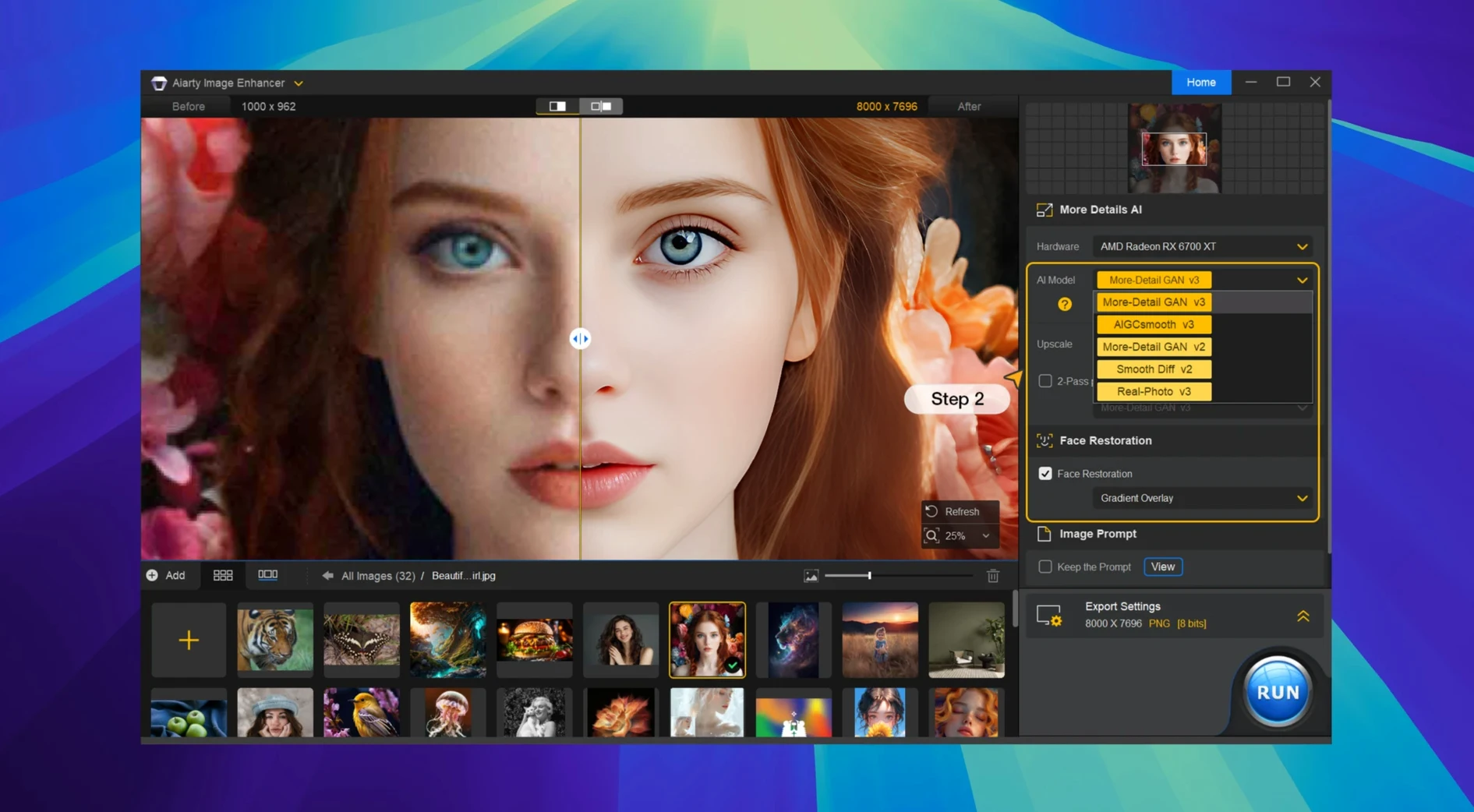
Open the image. Turn on the denoise and deblur toggles, set the output size — 4x takes a 6-megapixel file into comfortable print territory. The AI model works out what is noise, what is texture, and what is meant to be a face. Processing is local; no upload. On an Apple Silicon Mac, a 4x upscale and restore takes under thirty seconds. The crease gets smoothed, lapel fabric stays visible, and eyes look like eyes, not smeared plastic.
What comes out the other end
Result is a clean TIFF or PNG. Colours hold; no heavy-handed smoothing unless you push the sliders too far. RAW files from a modern camera get the same treatment — noise reduction mixed with edge recovery. Not every image survives the process without a slightly painterly look in shadow areas, but for old prints and under-exposed shots it earns its place. Works on macOS 11 and later, Intel and Apple Silicon.
Why cranking every slider to maximum backfires on old scans
Most first-run problems come from three settings, not from the app misbehaving. The first is cranking every slider to maximum before checking what the defaults do. Aiarty's baseline is already aggressive on old scans. Pushing denoise to full on a JPEG that has been saved three times turns skin into porcelain and hair into a helmet.
The second mistake is upscaling before cropping. A 2x upscale of a photo with a tilted horizon and a thumb in the corner just gives you a larger tilted thumb. Crop first, straighten second, enhance third. The third is ignoring the file format. Saving a restored TIFF back out as a low-quality JPEG undoes half the work. Keep the master as TIFF or PNG.
- Leave sliders at default until you have seen one full pass
- Crop and rotate before upscaling
- Export as TIFF or PNG, not JPEG, for anything you plan to print
- Process one image at a time until you learn what the AI does to fabric and foliage
Drag in a slide scan, zoom a face to 100%, check the AI's guess
You have six scans from a box of slides. You drag the first one in. The preview shows the original on the left and the AI's guess on the right. You zoom to 100% on a face. The default denoise is fine. You nudge the deblur up slightly because the slide was slightly out of focus when it was taken forty years ago.
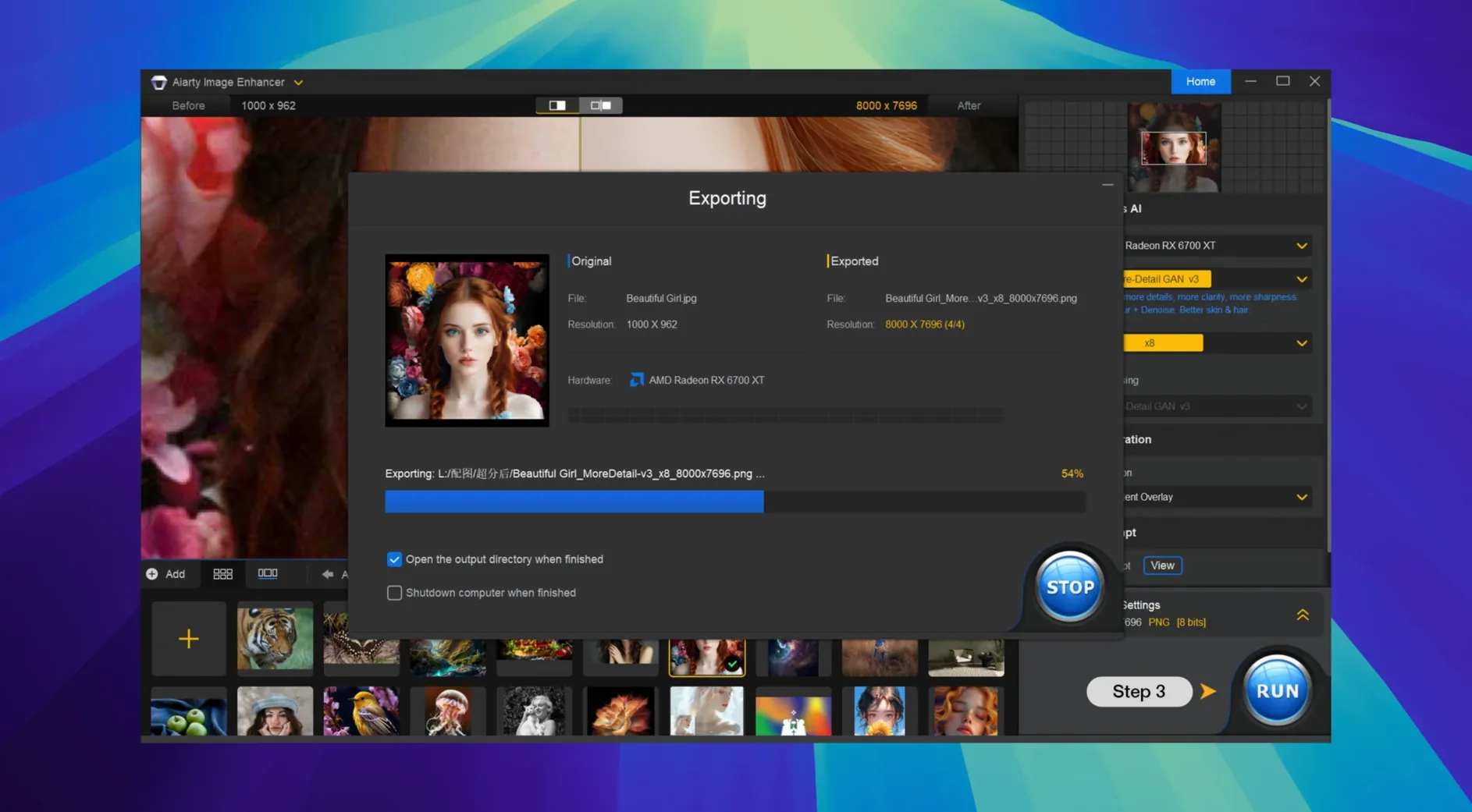
You set the output to 4x, pick PNG, and hit process. While it runs — about twenty seconds on an M-series Mac — you drag the next slide into the queue. By the time you have checked the first result and decided the hair texture looks convincing, the second is done. You export the whole batch, then open the folder and compare against the originals side by side. One image gets sent through again with lower denoise because the AI smoothed a patterned jumper. The rest go straight to the archive.
Pick one old scan, one noisy phone shot, one soft portrait, one landscape
Start with three or four test images, not your entire photo library. Pick one old scan, one noisy phone photo, one slightly soft portrait, and one landscape with fine detail. Run each at 2x first. This gives you a feel for where the app overreaches and where it is invisible.
Check the EXIF panel on anything from a digital camera. It is useful to see the original ISO before deciding how much denoise a shot needs. A photo taken at ISO 6400 needs a different hand than one at ISO 400.
If you work in Lightroom Classic, spend ten minutes setting the export preset so processed files land back in the catalogue without a manual import. And if the app feels slow on an older Intel Mac, close other applications — the AI model wants RAM.
Requirements
- macOS 11 or later
- Apple Silicon or Intel 64-bit processor
FAQ
What file formats does Aiarty Image Enhancer handle?
It supports standard image formats along with RAW files from digital cameras, so you can work directly with unprocessed sensor data.
Which Macs can run Aiarty Image Enhancer?
It runs on Intel 64-bit Macs and Apple Silicon Macs, requiring macOS 11 or later.
Comments 0
Sign in or create an account to leave a comment.
No comments yet…
If you’ve installed it, say how it went. Mention your Mac and macOS version — it helps the next person more than you’d think.