
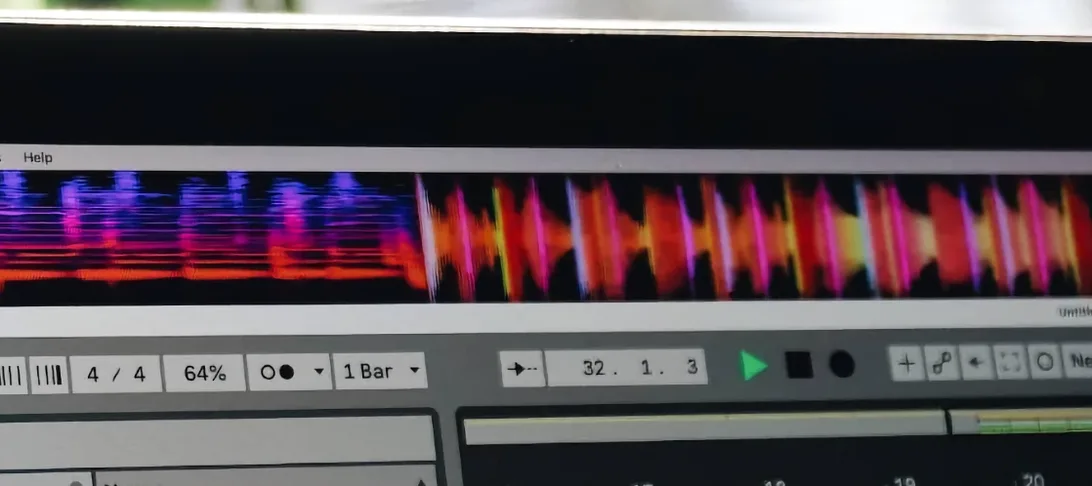
MiniMeters for macOS
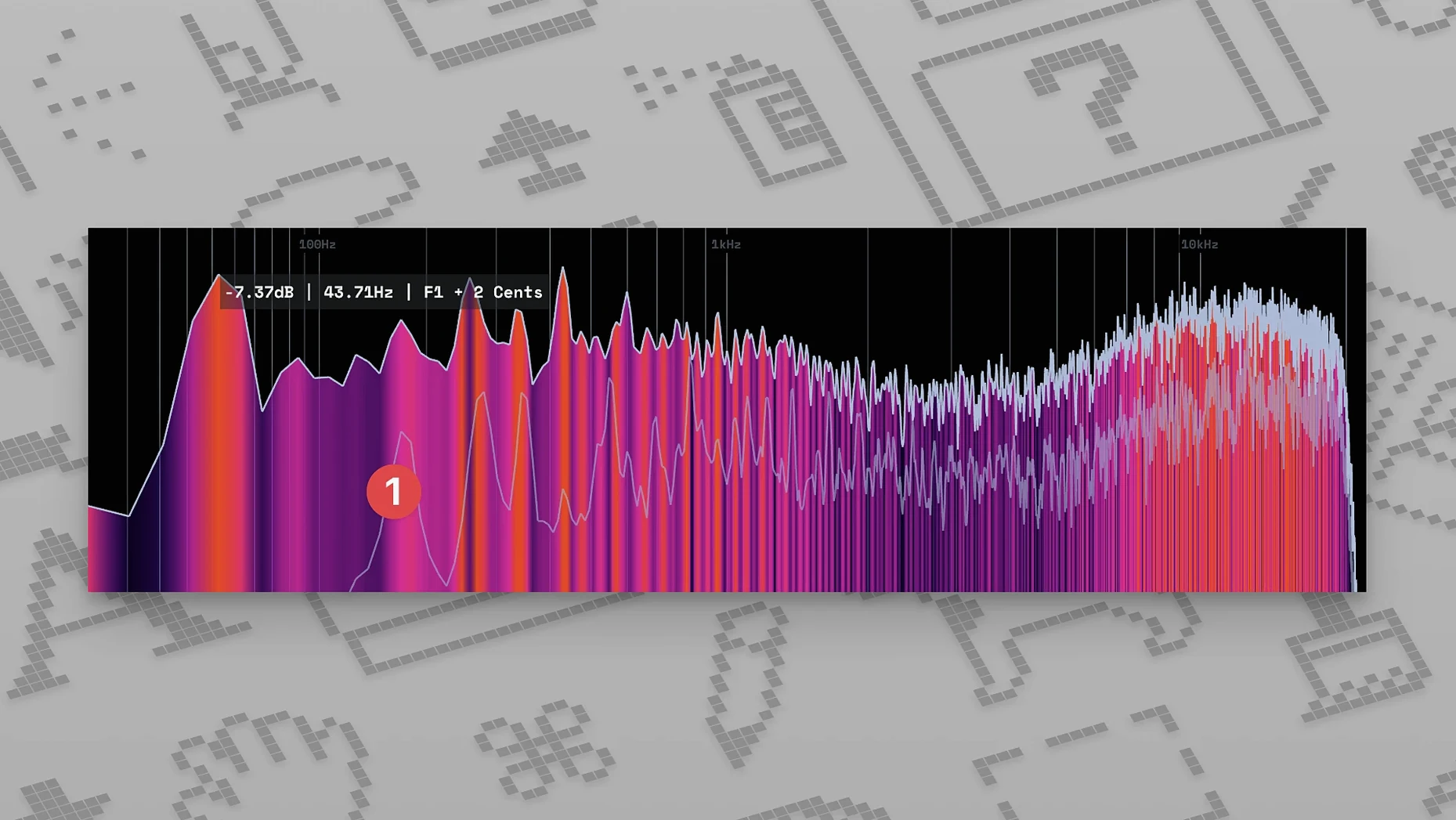
Description
You've finished a rough mix and want to check how hard the limiter is actually working. Instead of squinting at a tiny channel strip readout, you open MiniMeters and see the short-term LUFS dancing around -9, with the true peak just kissing -1 dB. The stereo meter confirms your panning isn't lopsided.
| What it is | Current version |
|---|---|
| Audio metering app and plug-in suite | 1.0.30.358 |
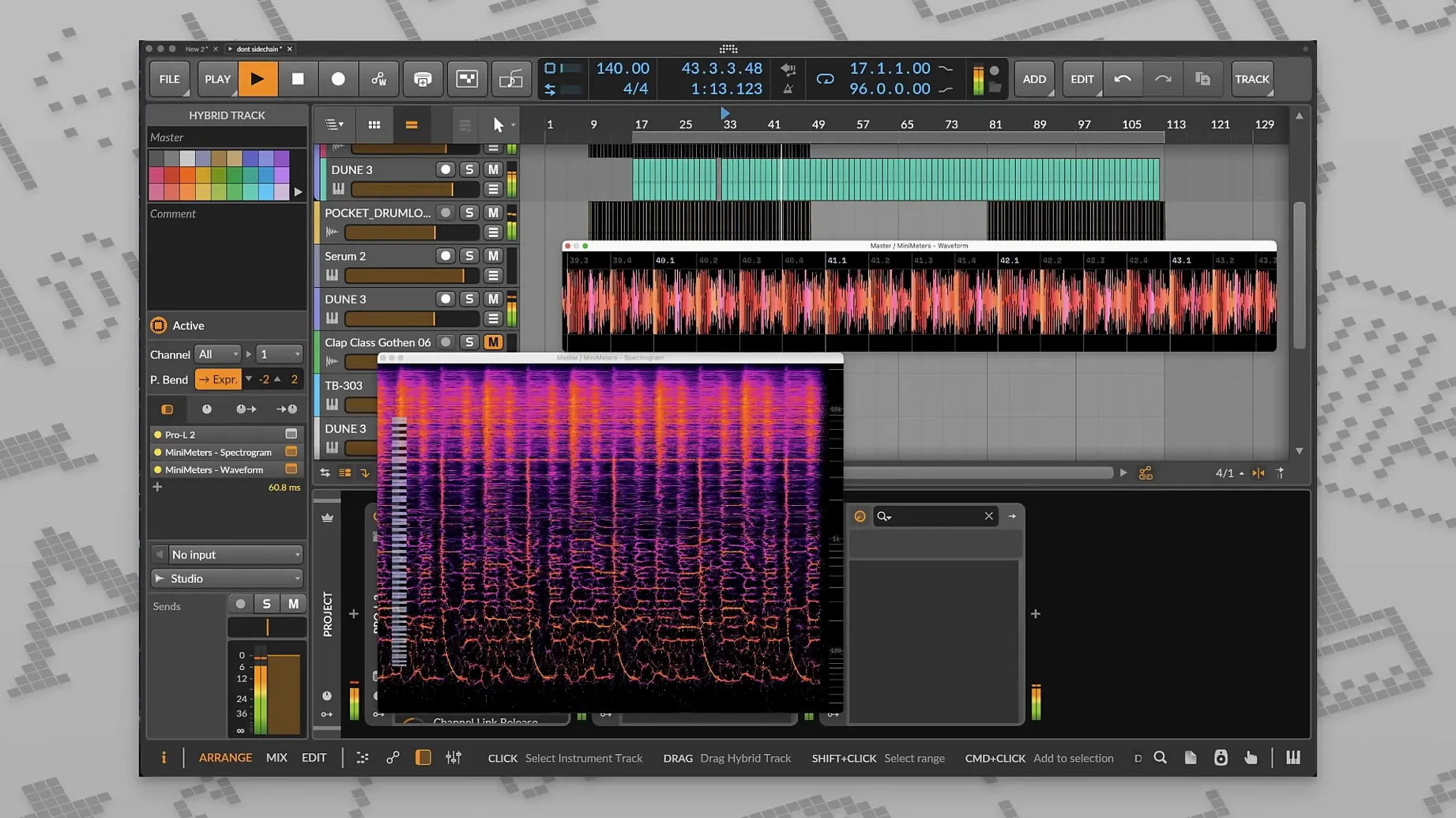
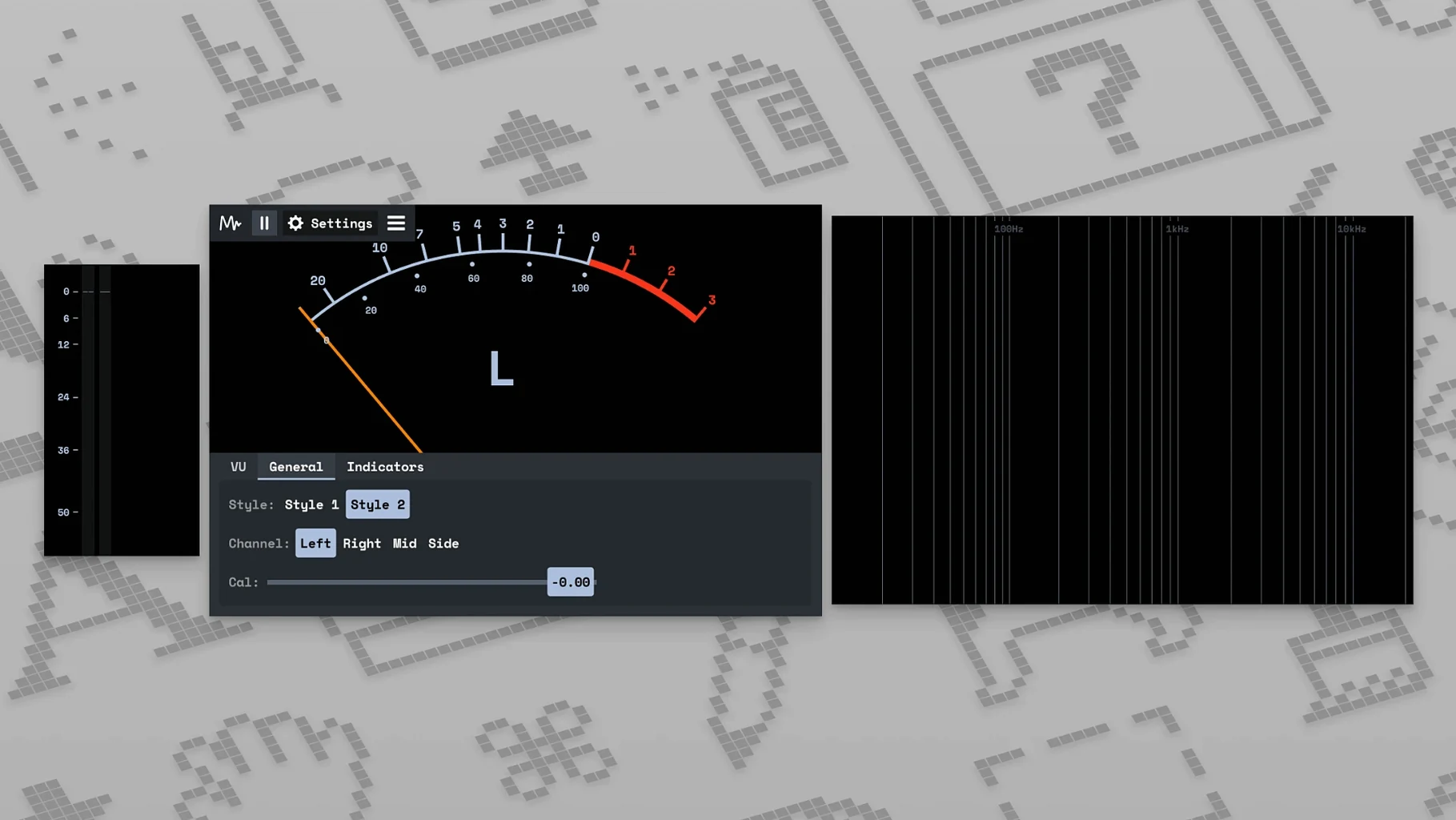
MiniMeters gives you a set of visual monitoring tools in one compact window. You get loudness readouts — integrated and short-term LUFS — plus a true peak meter and a stereo balance display. The layout is yours to arrange: pick the tools you need, set the colours, and resize the panel so it sits where you can glance at it. A dedicated server app, MiniMetersServer, pipes audio from your DAW to the display. That means it works alongside whatever you're mixing or mastering in, as long as you can route signal to it. It's useful for referencing tracks too — drop a commercial mix into a session and watch the meters react differently to yours.
Staring at a blank window after launch
Most mistakes come from rushing the setup, not from the app itself. The first one I see repeatedly: someone launches MiniMeters, opens their DAW, and stares at a blank window. They forgot to start MiniMetersServer. The standalone app listens for the server — no server, no signal. Start it before you load a session and the meters spring to life.
Another classic: routing the wrong output bus. You've told your DAW to send audio to MiniMetersServer on channels 1–2, but the track you're checking is playing through a different output. Double-check the routing in your DAW's master fader or a dedicated send. If the stereo meter shows signal on the left but the loudness readout stays frozen, you're probably sending a mono signal to only one channel of the server.
Beginners also tend to leave every meter module active from day one. All that information at once is distracting. Start with just the LUFS meter and the stereo balance display. Learn to read those before adding the spectrogram and waveform. Adding too many visual elements early on trains you to mix with your eyes, not your ears — exactly what metering tools should stop you doing.
And don't ignore the colour settings. The default palette works fine on a calibrated studio display, but a dark grey waveform on a near-black background gets invisible fast on a MacBook screen at half brightness. Spend five minutes setting contrast levels you can read at a glance.
Tick “Float on top” to keep the meter visible
Set the window behaviour first. Right-click the MiniMeters title bar and tick "Float on top" — it's not in the preferences, but macOS window management handles it. Now the meter stays visible above your DAW's mixer. On a single-screen setup, this small change makes the difference between using the app and forgetting you installed it.
Next, route system audio through it for a day. Open MiniMeters standalone, set your system output to the MiniMetersServer virtual device, and play music from the Music app or a browser. Watch how different commercial tracks hit the LUFS meter. You'll notice mastered pop sits around -8 to -10 LUFS short-term during the chorus, while jazz or classical floats closer to -14. This builds a mental reference before you ever check your own work.
If you use Logic Pro, create a template patch that includes a post-fader send to MiniMetersServer on bus 64. Call it "Meters" and save it as a default track preset. Every new project loads with the routing already in place. In Ableton Live, drop the send onto your default master track template instead. The goal is zero friction: you shouldn't be configuring audio routing every time you want to check a level.
Splitting audio with BlackHole or Loopback
MiniMeters plays well with BlackHole or Loopback. Route your DAW output to a virtual device, then split the signal — one path to your interface for monitoring, another to MiniMetersServer for metering. This avoids tying up a physical output or creating feedback loops. The server app appears as a standard Core Audio destination, so anything that outputs audio on macOS can feed it.
If you use OBS for streaming or recording sessions, MiniMeters can sit as a window capture source. Resize it to a slim horizontal strip and position it along the bottom of your stream layout. Viewers get a live loudness and waveform readout of whatever you're playing — much cleaner than pointing a camera at a plugin window.
It also complements the stock metering in most DAWs rather than replacing it. Logic's loudness meter plug-in shows integrated LUFS but only for offline analysis. MiniMeters gives you short-term readings in real time, which is more useful during gain staging. Keep the DAW's native peak meter on the master channel for clipping warnings, and use MiniMeters for everything else.
The 0.8.0 spectrogram made frequency analysis usable
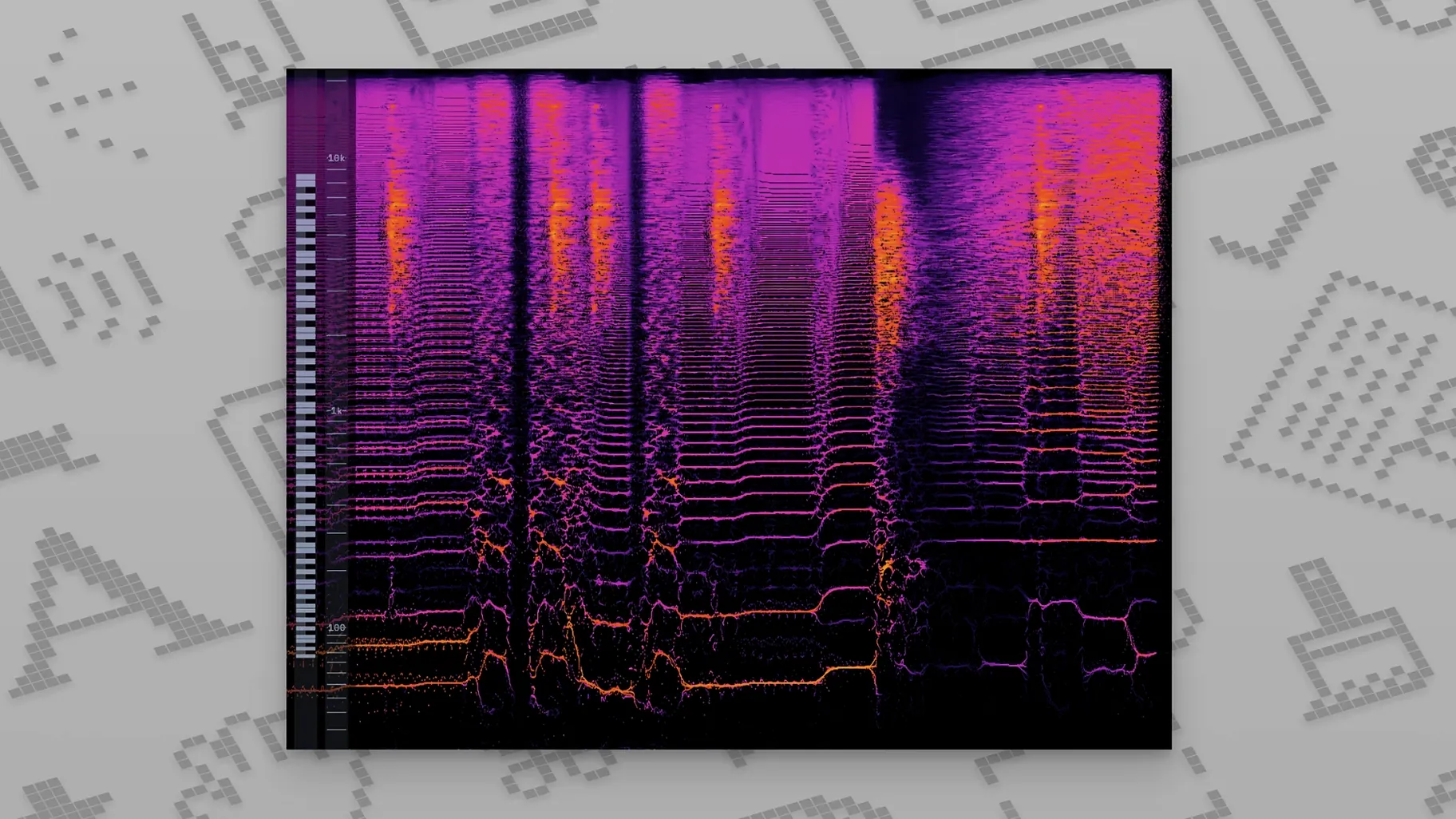
The jump to version 1.0 in August 2025 wasn't just a number change. The developer had been quietly stabilising things through the 0.8 and 0.7 releases. The 0.8.0 spectrogram update made frequency analysis genuinely usable — before that, the refresh rate was too slow to catch transient-heavy material. Now you can see a hi-hat pattern clearly against a bassline, which matters when you're checking for low-end masking.
The 0.7.0 LUFS spec compliance fix was important if you need numbers that match other metering tools. Earlier versions drifted slightly on integrated loudness calculations over long measurement windows. If you were cross-checking against a TC Electronic hardware meter or Youlean Loudness Meter, the discrepancy was noticeable after a three-minute track. That's gone now.
Version 1.0.30.358, the current build, is mostly a cleanup release. Small UI glitches that had been around since the early builds — a flicker when resizing the window, the occasional unresponsive colour picker on Apple Silicon — have been addressed. Nothing dramatic, but the app feels less like a beta and more like a tool you can rely on during a session with a client looking over your shoulder.
What’s new
v1.0.30 fixes several long-standing bugs and tidies up small interface glitches.
Requirements
- macOS 10.15 or later
- Intel or Apple Silicon Mac
Comments 0
Sign in or create an account to leave a comment.
No comments yet…
If you’ve installed it, say how it went. Mention your Mac and macOS version — it helps the next person more than you’d think.
More in VST Plugins
All in VST Plugins-
 Minuit Solstice
1.2.0
Apple Silicon
Minuit Solstice
1.2.0
Apple Silicon
-
 Metric Halo Production Bundle
2025.05
Apple Silicon
Metric Halo Production Bundle
2025.05
Apple Silicon
-
 Melodyne
5.4.2.006
Apple Silicon
Melodyne
5.4.2.006
Apple Silicon
-
 Native Instruments Massive X
1.7.1
Apple Silicon
Native Instruments Massive X
1.7.1
Apple Silicon
-
 Neural DSP Archetype Cory Wong X
1.0.1
Apple Silicon
Neural DSP Archetype Cory Wong X
1.0.1
Apple Silicon
-
 Neural DSP Archetype Petrucci
1.0.0
Apple Silicon
Neural DSP Archetype Petrucci
1.0.0
Apple Silicon
-
 Neural DSP Archetype Rabea X
1.0.1
Apple Silicon
Neural DSP Archetype Rabea X
1.0.1
Apple Silicon
-
 Neural DSP Mantra
1.0.1
Apple Silicon
Neural DSP Mantra
1.0.1
Apple Silicon