ABBYY FineReader PDF for macOS
Description
Accountants who get sent a photo of a receipt. Researchers dealing with a photocopy of a photocopy. Anyone who has ever stared at a PDF and wished it was a Word document. That is the crowd for ABBYY FineReader PDF.
OCR engine — optical character recognition. The bit that looks at pixels and finds letters. It is the part people install FineReader for.
PDF editor — you can fix typos, reflow text blocks and adjust tables right inside a PDF without round-tripping through Word.
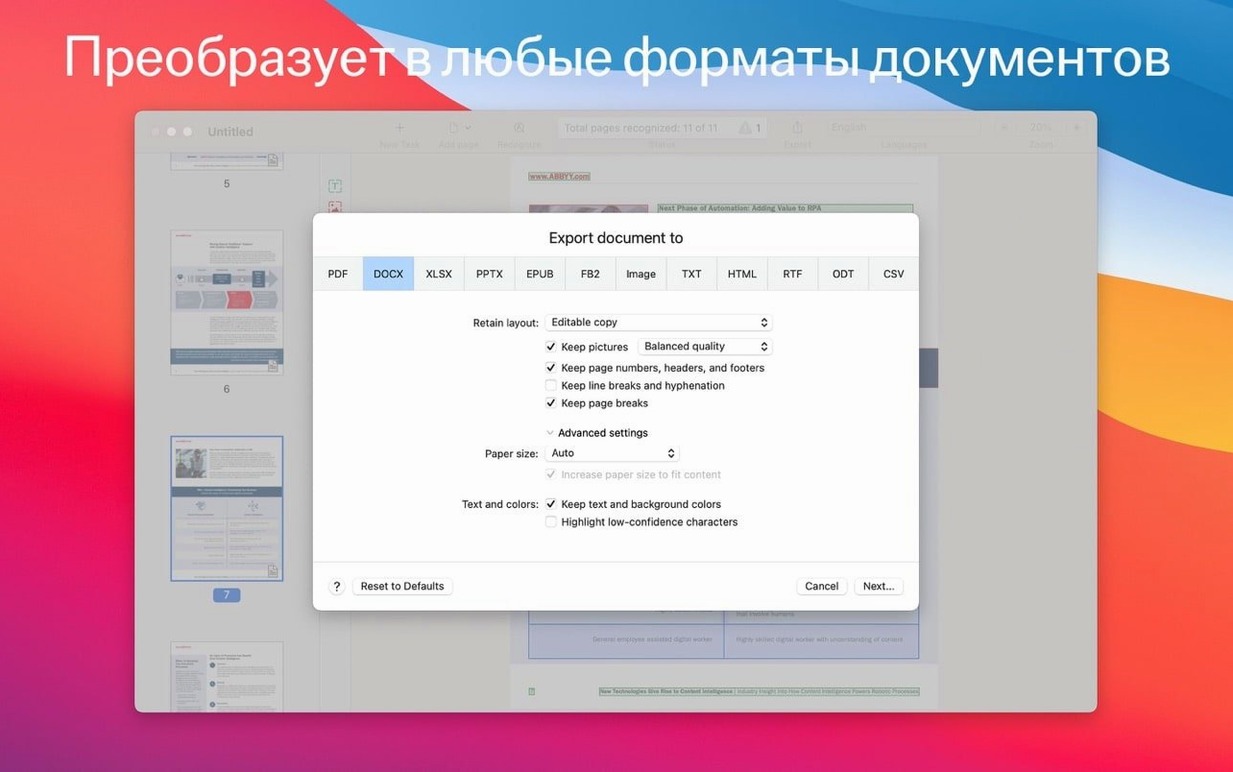
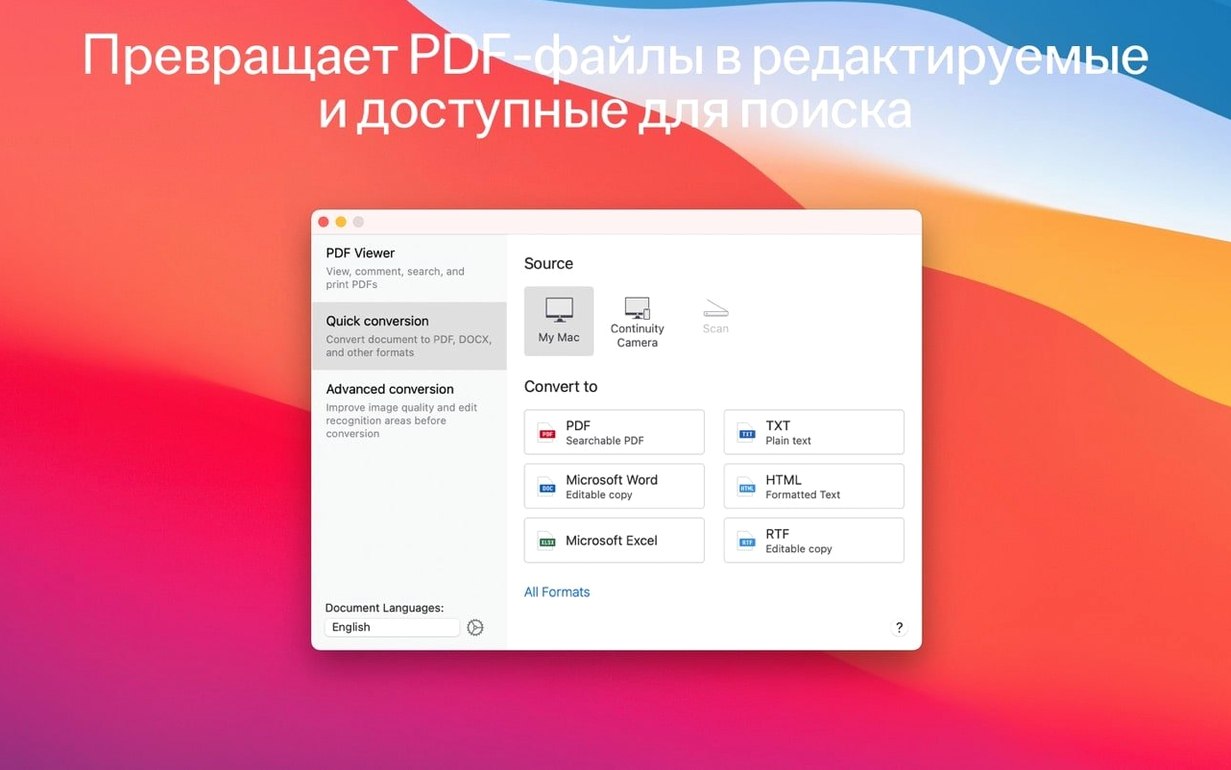
Batch conversion — dump a folder of scans and get back DOCX, XLSX, RTF or ODT files. It also creates PDF/A for archiving and PDF/UA for accessibility.
Continuity Camera — point your iPhone at a document, and the Mac grabs the image and converts it straight away. Or import shots you took earlier from an iPad.
Dark mode — supported, because 11 p.m. reading sessions exist.
Split‑window view with no splash screen
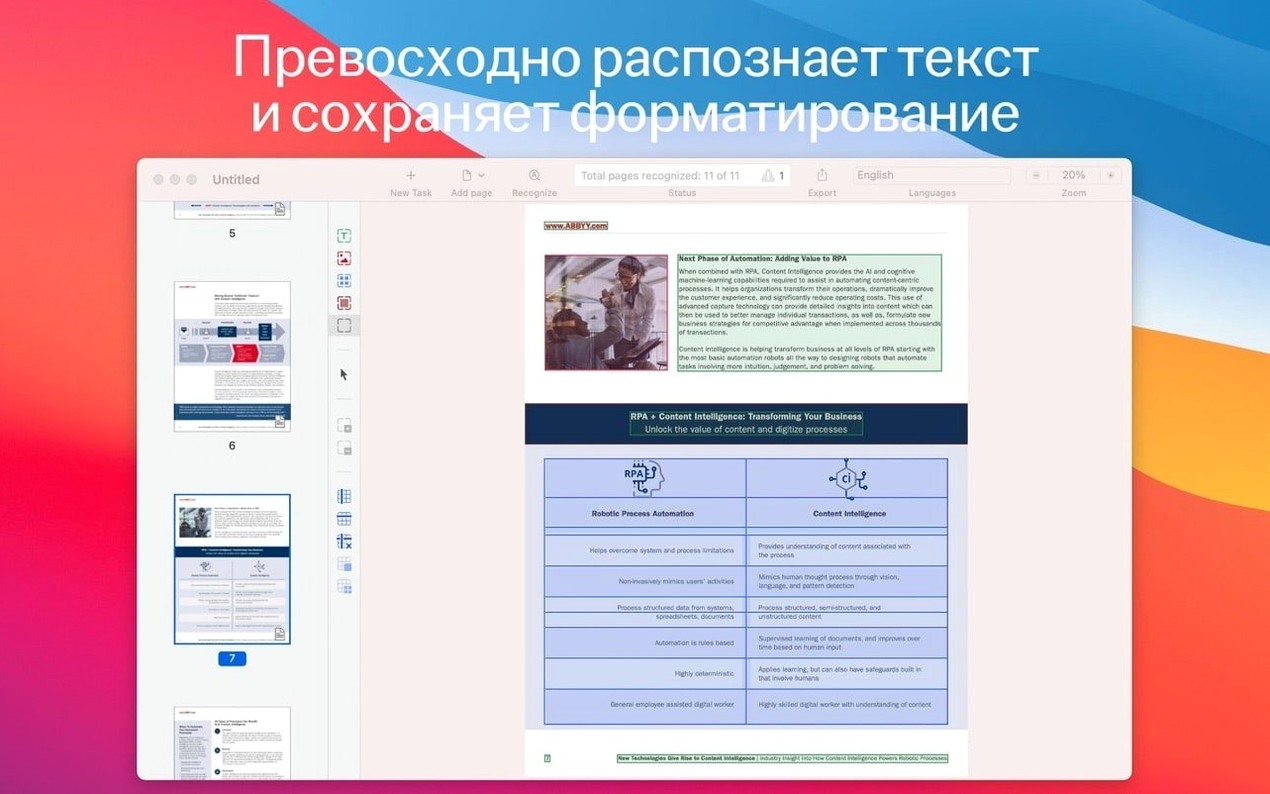
You open FineReader and land in a clean, split-window view — PDF reader on the left, recognised text on the right. No toolbars fighting for attention. No splash screen trying to sell you cloud storage.
Drag in a scanned contract. The OCR engine fires automatically. Ten seconds later the right-hand panel fills with editable paragraphs. The original scan sits frozen on the left so you can check the output line by line. A mismatched word catches your eye — the scanner picked up "modem" instead of "modern". You click the word in the recognised text, and FineReader highlights the corresponding blob of pixels in the scan. You type the correction and move on.
Three pages in, a table appears. FineReader drew a bounding box around it and preserved the cell structure. You adjust one column width by dragging its edge — the change sticks in the exported DOCX. No need to rebuild the table in Word afterwards.
Coffee rings and creased paper still fool the OCR
Trusting the output blindly. The OCR engine is good, but it is not psychic. Scans with coffee rings, creased paper, or handwriting in the margins will produce odd artefacts. Always eyeball the text against the original image before you send the file on.
Exporting everything as DOCX. If the document is a form or a heavily formatted report, PDF/A often preserves the layout better. DOCX works best for straight prose and simple tables.
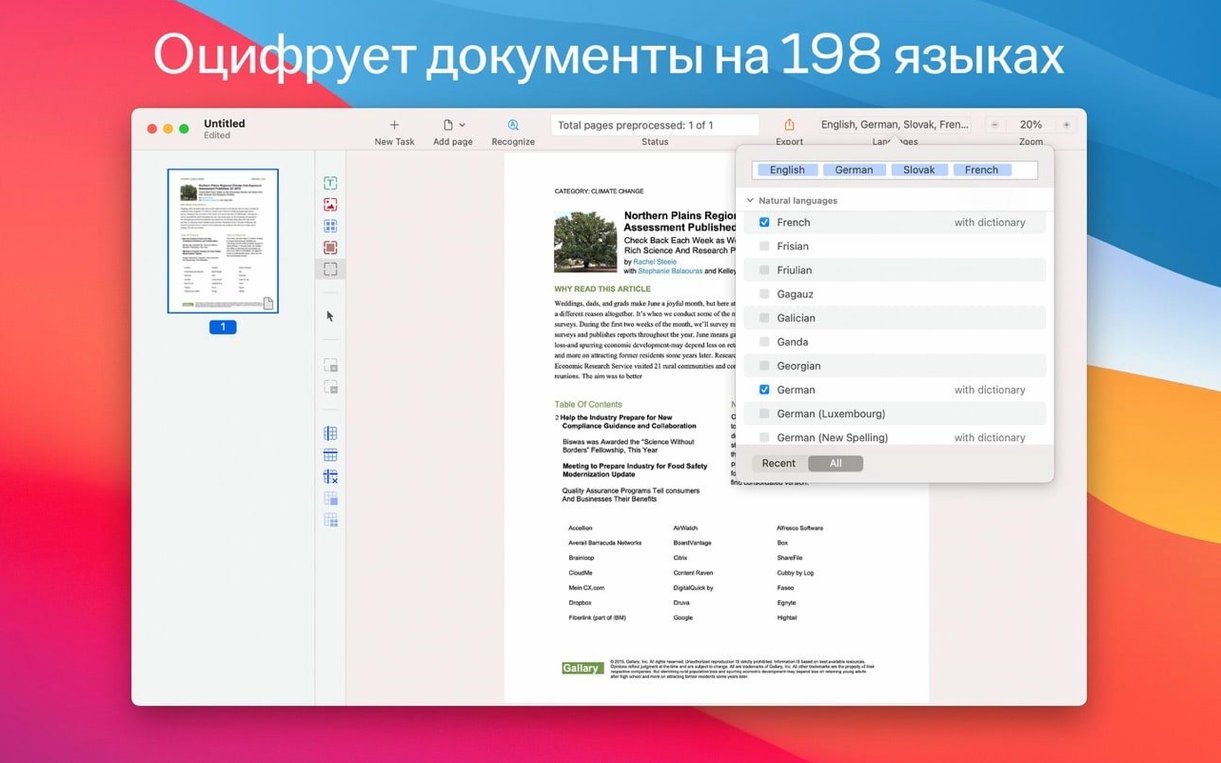
Ignoring recognition languages. FineReader ships with 198 of them, but it only applies the ones you select. A German lease agreement processed with the English language setting will turn "Mietvertrag" into "Mietvertrag" with half the umlauts mangled. Check the language dropdown before you hit recognise.
Feeding it low-resolution images. Continuity Camera is handy, but a shaky iPhone shot at 72 dpi gives the engine very little to work with. Hold the phone steady, get good light, and keep the document flat.
Workflow: turning a scanned book chapter into searchable notes
You have a 40-page chapter from an out-of-print book — a PDF someone scanned on an office copier a decade ago. The goal is a clean, searchable PDF you can highlight and annotate.
Step 1. Open the scanned PDF in FineReader. The app detects it is a pure image file and runs OCR on all pages automatically.
Step 2. Skim the recognised text in the side panel. The book has footnotes, and the OCR occasionally merged them into the body text. For each misread footnote, you click the text block, FineReader shows you the corresponding scan region, and you drag the block boundary to separate it from the main paragraph.
Step 3. Three pages have rotated diagrams. You select those pages in the thumbnail strip, right-click, and choose to rotate them 90° clockwise. FineReader re-recognises just those pages without touching the rest.
Step 4. With the text verified, you export as a searchable PDF. FineReader layers the recognised text invisibly over the original scanned image. The file looks identical to the photocopy, but now you can search for phrases, copy quotes, and add annotations in Preview.
Step 5. For the bibliography section, you export a separate DOCX. That way you can extract the references directly into your reference manager without retyping two hundred author names.
Interface languages: Russian, English, German, Italian, French, Simplified Chinese. Runs on Intel Macs with macOS 11 or later.
Requirements
- macOS 11 or later
- Intel processor
Comments 0
Sign in or create an account to leave a comment.
No comments yet…
If you’ve installed it, say how it went. Mention your Mac and macOS version — it helps the next person more than you’d think.