
Sweet Home for macOS
Description
Sweet Home 3D is for sketching a home plan and checking it in 3D before anyone moves a sofa. Version 7.5.7 runs on OS X 10.9 or later, on Intel and Apple silicon Macs.
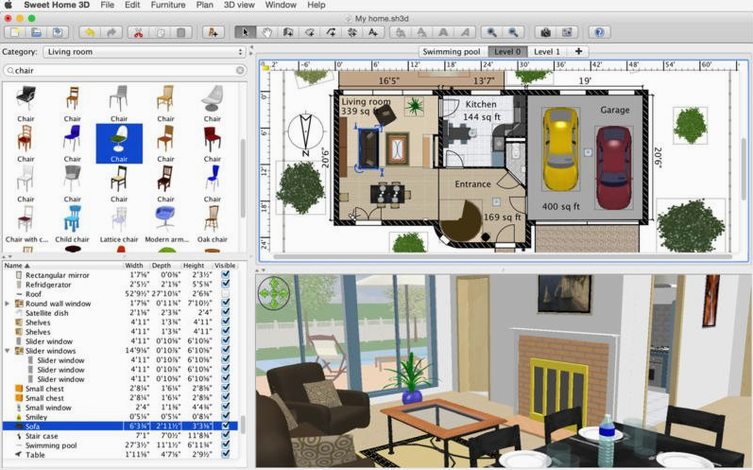
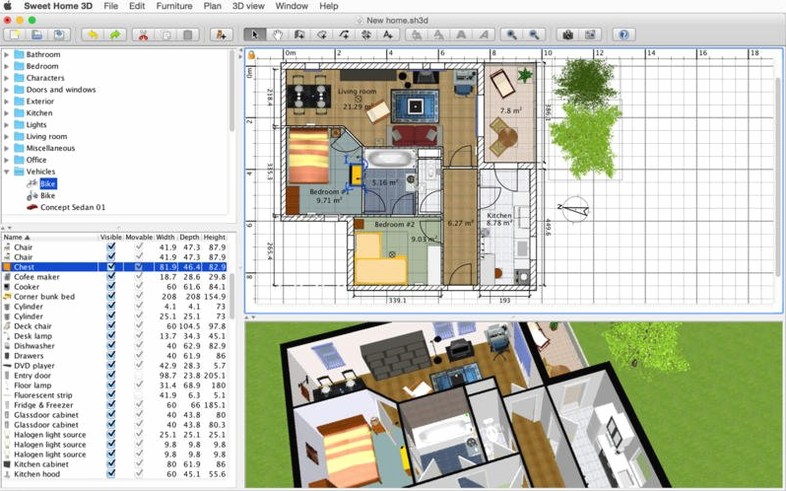
Drawing mode — the 2D plan where you drag walls, place doors, and set room dimensions on one level or several.
3D view — a live rendering of the plan that you can walk through, reposition lights, and set a sun angle for photorealistic stills.
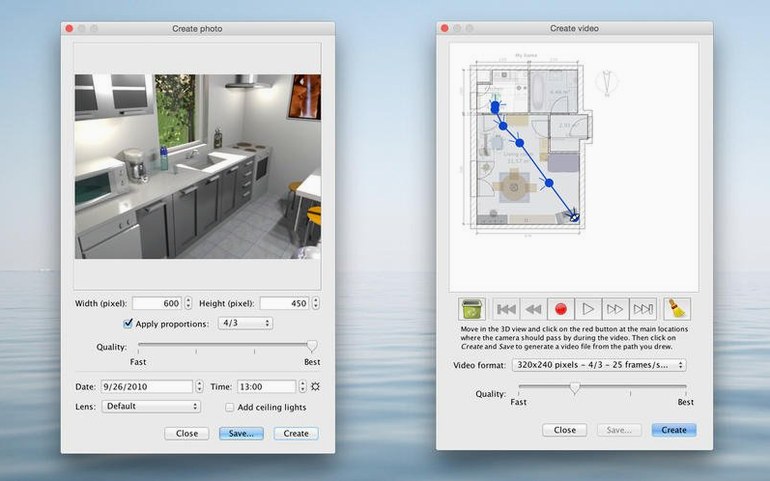
Video export — creates a walkthrough along a path you define; useful for showing a client the flow between rooms.
File formats — PDF, PNG, JPEG and SVG for plans and views; OBJ export for 3D scenes you want to refine elsewhere.
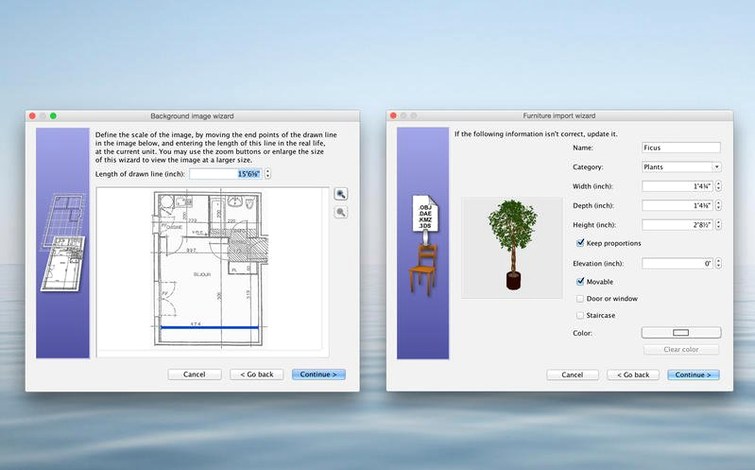
Extra models — import 3D objects you’ve downloaded or made yourself. The interface speaks Russian, German, French, Italian, Spanish, Dutch, Portuguese, Turkish, Czech, Japanese and several others.
Starting with a blank grid and a rectangle
Open the app and you get a blank 2D grid. Start by drawing a rectangular outline — click once to set a corner, drag, click again. Don’t worry about getting every wall perfect on the first pass. The plan stays editable at every stage. I usually rough out the ground floor in under two minutes.
Double-click a wall to type an exact length. The dimension label shifts as you drag. I find it easiest to draw all the walls first, then switch to room-creation mode: click inside each enclosed space and the app fills it with a floor colour and a label. Rename the room, set its ceiling height, and it calculates the area automatically.
Next, drop in doors and windows. Drag them from the catalogue sidebar onto a wall. Sweet Home snaps them to the centre unless you override with the arrow keys. If you open the 3D view early — just drag the divider up from the bottom — you will catch dead-end corridors and sightline problems while the plan is still loose.
Furniture comes last. The catalogue holds over 1,400 objects, sorted by category. Resize a table by dragging its handles in the plan or typing figures in the modification panel. Change its colour with the texture picker. The 3D view updates immediately, so you see if the sofa blocks the radiator before you commit to anything.
When the layout is settled, pick a viewpoint in the 3D window and set the sun time. Even the default 9 a.m. angle shows whether the kitchen counter bakes in glare. Run a photorealistic render for half an hour if you want soft shadows. Export a short video walkthrough along a path you click — it renders frame by frame, so save it for the end of the day.
Testing a remodel without a builder’s CAD file
Homeowners planning a remodel. If you are moving walls, swapping flooring, or testing an open-plan layout, this app gives you a way to test ideas without a builder’s CAD file. The learning curve is low enough that a patient Sunday afternoon is enough to produce a usable plan.
Interior design students. Sweet Home handles furniture resizing and texture swaps fast. Students who need quick 3D visuals for a crit can rough out a scheme, recolor surfaces, and export a JPEG mood board without waiting for a heavyweight render engine.
Landlords and property stagers. A furnished 3D snapshot helps marketing before anyone moves actual furniture. Place the virtual sofa, take a bird’s-eye screenshot, and share it with prospective tenants.
Hobbyists who tinker with small spaces. Garden offices, campervan layouts, single-room studios — the app excels where you only need one or two levels and a handful of custom objects. Importing downloaded OBJ files fills gaps the built-in catalogue does not cover.
Getting a floorless void in 3D because you skipped the room tool
- Skipping the room-creation step. Drawing walls is not enough. Until you click inside each enclosed space with the room tool, Sweet Home treats it as an undefined area. The 3D view will show a floorless void, and texture changes on walls may not stick.
- Forgetting to set floor and ceiling thickness. The default values rarely match a real build-up. If you are measuring clearance for stairs or a mezzanine, those centimetres matter.
- Relying on the default sun position for renders. The quality difference between the real-time 3D view and a photorealistic render is substantial. Beginners often assume the viewport preview is the final image and never open the photo render panel at all.
- Overloading a single level with furniture before testing performance. On older Macs, a plan with several hundred detailed models can slow the 3D view. Split complex projects across levels early, even if the design doesn’t strictly need it.
- Ignoring OBJ import scale. Downloaded models sometimes arrive at double or half the expected size. Check the dimensions in the modification panel immediately after import, before duplicating the item across ten rooms.
- Not locking walls before dragging furniture. It’s easy to catch a wall with the mouse and nudge it out of alignment while re-placing a cabinet. Right-click a wall and lock its base points once the footprint is final.
What’s new
- Fixes synchronization issues in the separate 3D view window.
- Fixes 3D rendering of underground levels at the same elevation.
- Fixes font display in the Thai interface.
Requirements
- macOS 10.9 or later
- Apple Silicon and Intel 64-bit
FAQ
Can Sweet Home 3D produce a photorealistic image of my plan?
Yes. You can set the sun position and light sources, then render a still at the quality your machine can handle.
Comments 0
Sign in or create an account to leave a comment.
No comments yet…
If you’ve installed it, say how it went. Mention your Mac and macOS version — it helps the next person more than you’d think.