Rhino for macOS
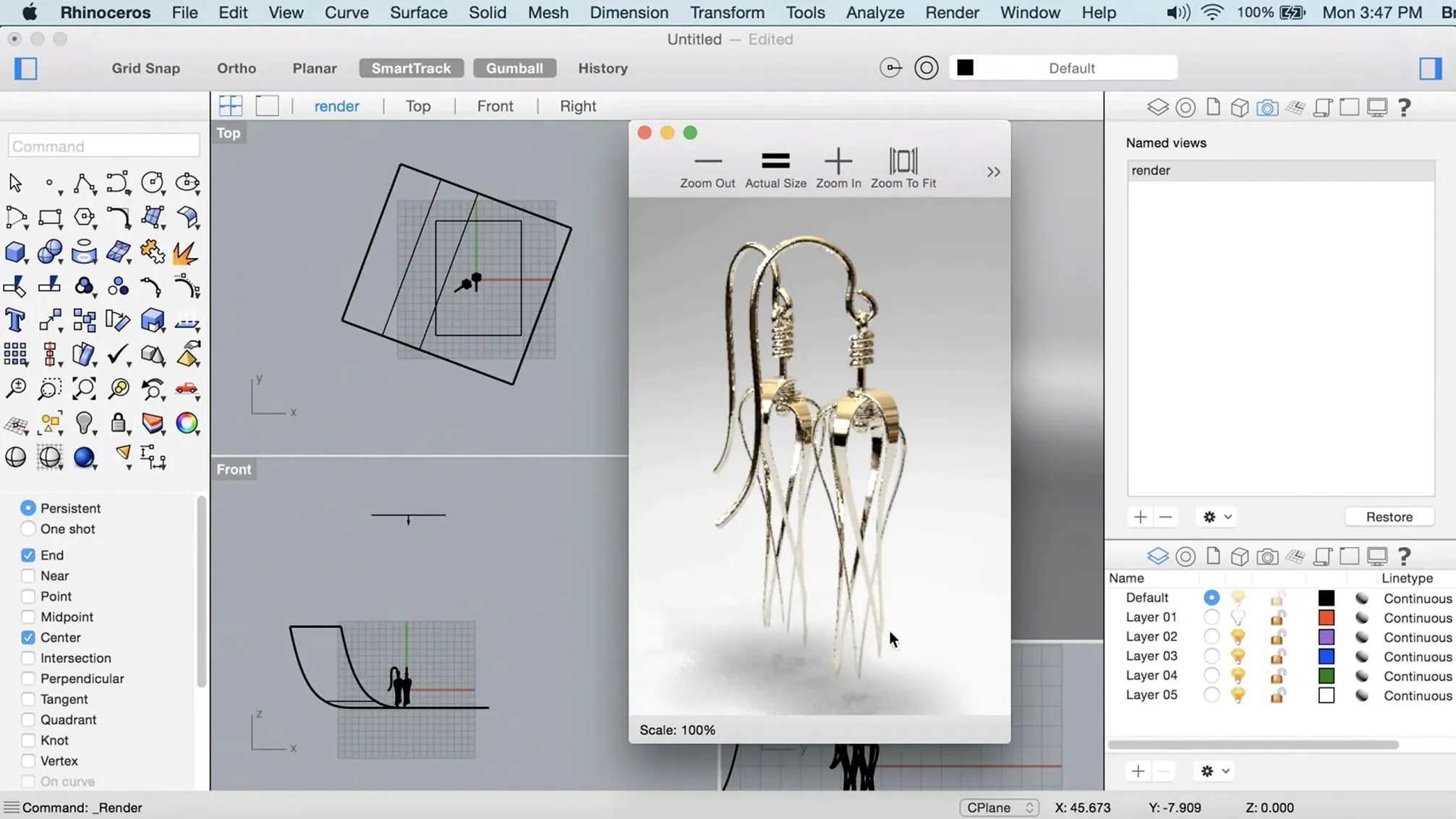
Description
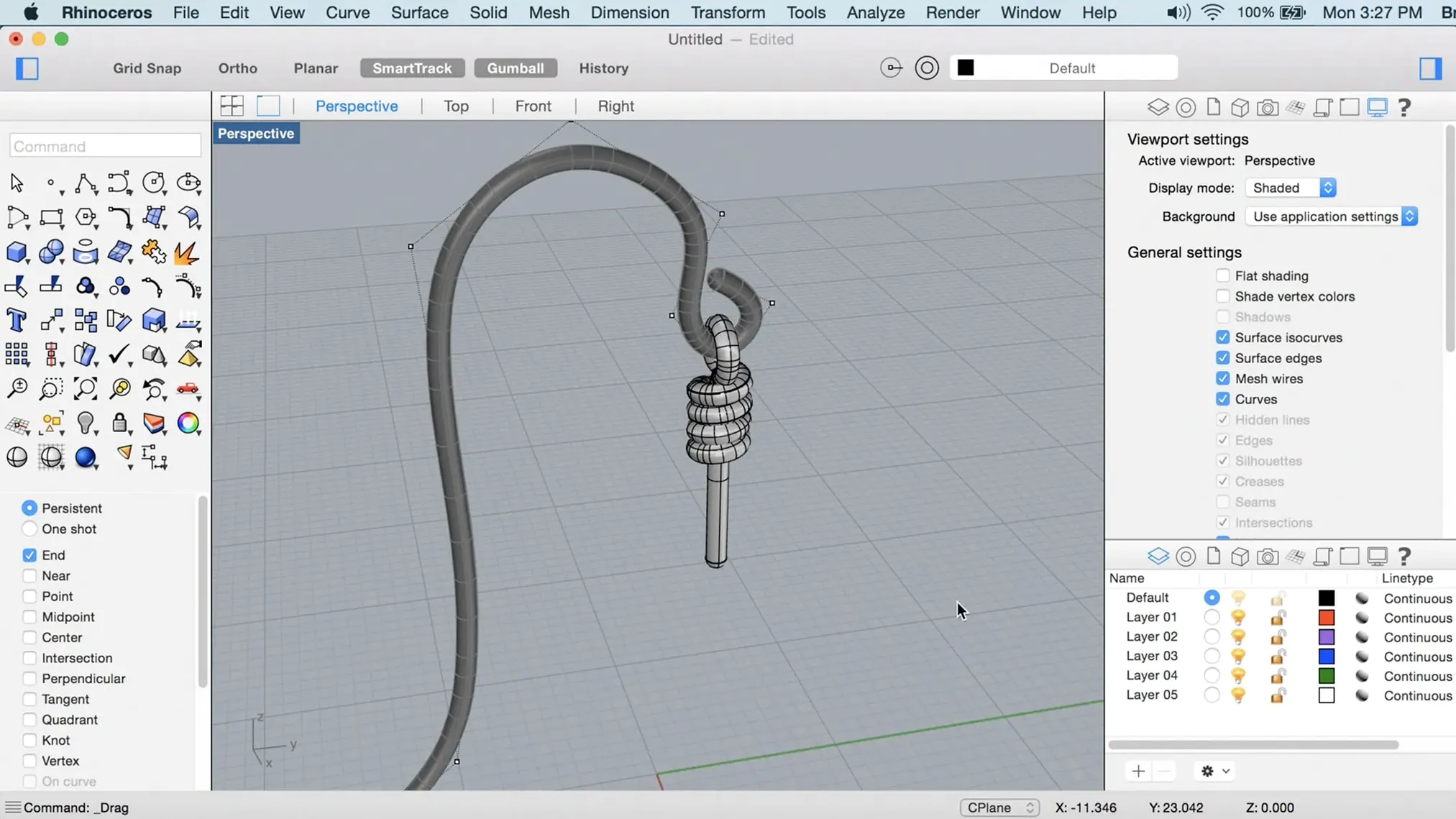
Getting an idea out of your head and into a file shouldn't feel like fighting the software. Rhino is for people who need to model shapes that aren't simple boxes—boat hulls, jewellery, product casings, the kind of organic curves that simpler programs struggle with. Version 8 focuses on making that process quicker, with a render engine that shows you results faster and a Mac interface you can actually rearrange to suit your workflow.
- New Metal-based graphics for smoother viewport performance on macOS.
- PushPull workflows for direct geometry editing without menu diving.
- ShrinkWrap for creating a tight mesh envelope around complex assemblies.
- New Grasshopper data types for handling more complex parametric designs.
- Handles objects of any size or complexity, limited only by your hardware.
- Faster workflows explicitly aimed at reducing bottlenecks in large models.
Under the hood, it's built for both Apple Silicon and Intel 64-bit Macs. The interface comes in 13 languages, including Polish, Japanese and Czech. It needs macOS 12.4 Monterey or later. It is a serious workshop tool, not an entry-level doodler.
Up arrow and F1: command-history tricks hidden in plain sight
Rhino buries useful things in plain sight. The command line remembers everything you type, so pressing the up arrow key cycles through your last few hundred commands. You can also type a partial command and press F1 to jump straight to that command's help page instead of searching for it.
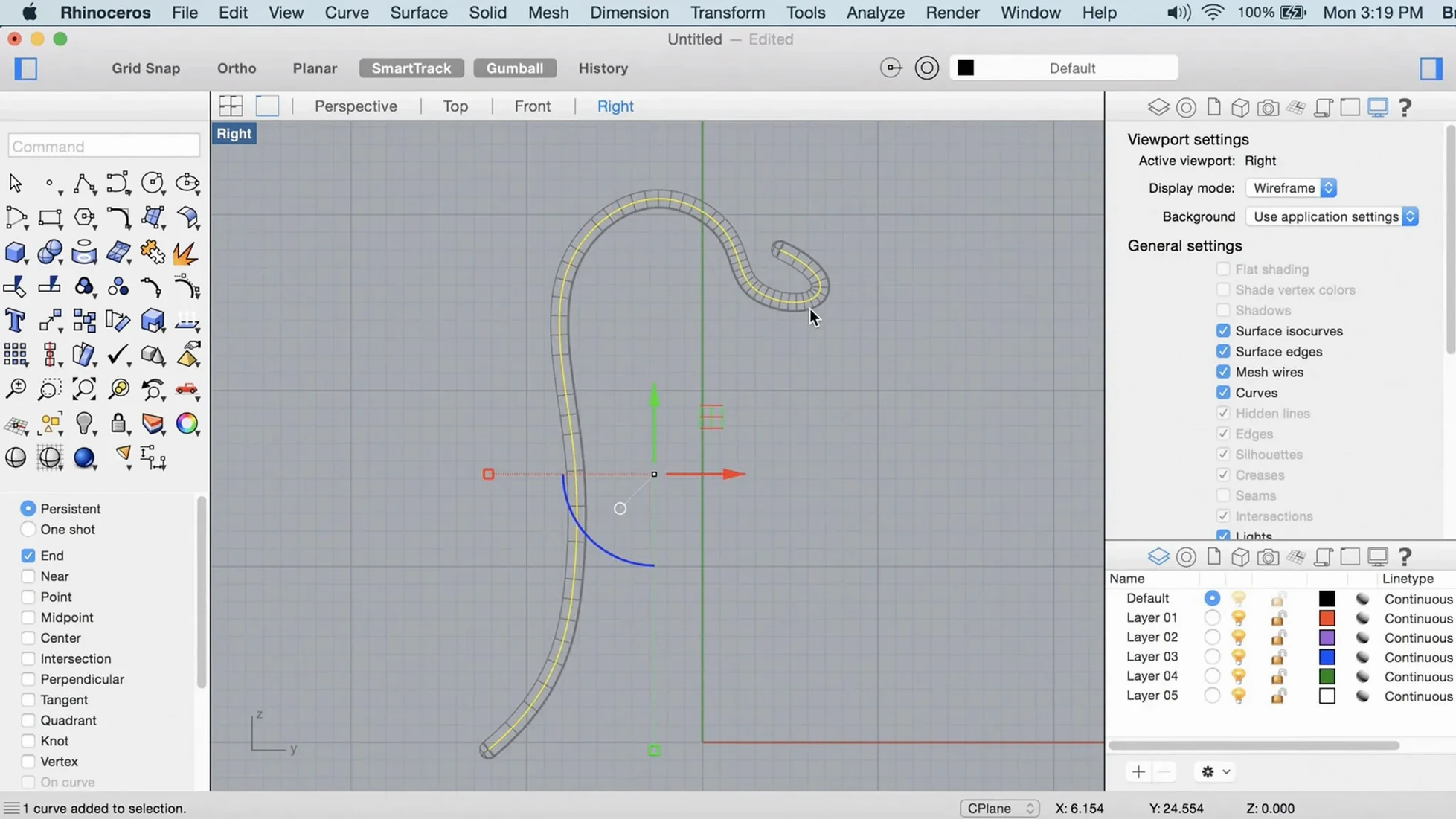
Middle-mouse button customisation is another one. Out of the box it does a viewport rotate, but dig into Rhino Settings > Mouse and you can remap it to pop up a toolbar of your eight most-used commands. If you spend half your day running OffsetSrf and BooleanDifference, that alone saves a surprising number of trips to the menu.
A small but honest timesaver: the SelLast command. After a loft or a boolean, the new object is already selected, but if you click away you can type SelLast and get it back instantly. That is faster than hunting for it in a crowded viewport.
ShrinkWrap turns intersecting solids into one printable mesh
ShrinkWrap arrived in Rhino 8 and it is not subtle. Select a dozen intersecting solids, run the command, and you get back a single closed mesh that hugs the whole assembly. For 3D printing prep, that removes the step of manually joining and cleaning up. It also works on open meshes and point clouds, which means you can wrap a scan straight into a watertight solid without the intermediate surfacing that would have been necessary before.
PushPull is the other feature you notice daily. Click a face, drag it, and the surrounding geometry stretches to match. Extend a wall thickness. Pull a boss out of a housing. It feels closer to direct modelling, and it cuts down on the extrude-then-boolean dance. It works on planar faces of polysurfaces, not just simple solids.
SubD Creases let you add a hard edge into a smooth SubD shape by selecting a loop and setting a crease weight. That is a modelling move that used to require inserting extra edge loops manually, so it simplifies control over transitional surfaces—like the sharp rim around an otherwise organic bowl form.
Set your viewport defaults in a blank file before anything else
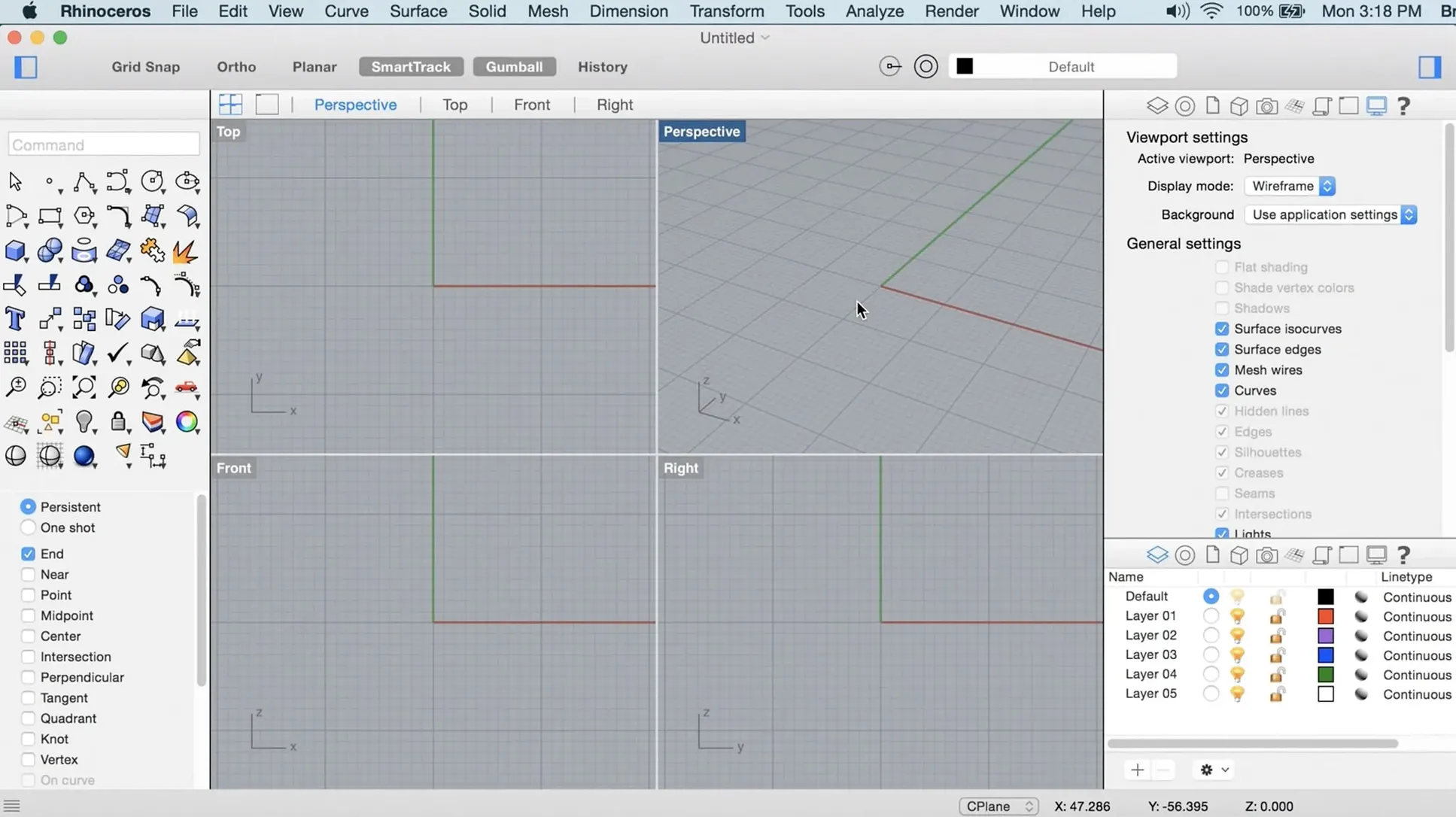
- Get your viewport defaults sorted early. Open a blank file, set the display mode to Shaded or Rendered, pick a background colour that doesn't tire your eyes, then save it as
default.3dmin your templates folder. Every new file will inherit those settings. - Set up the middle mouse button. Map it to a popup toolbar with Trim, Join, Split, ExtrudeCrv, BooleanUnion, OffsetSrf, FilletEdge, and ShrinkWrap. That covers sixty percent of a typical modelling session.
- Place your object snaps toolbar where your eye naturally goes. Disable snaps you rarely use—Project and Tangent can cause more trouble than they are worth when you are still getting your bearings—and leave End, Mid, Cen, Int, and Near active.
- Run
CheckNewObjectsand leave it on for the first week. It flags bad geometry the moment you create it, before it poisons later operations. Frustrating, but less frustrating than filleting a solid and getting a mysterious failure three hours later.
If macOS blocks it at launch, the disk image includes a helper called Open Gatekeeper friendly. Run it, press Enter in Terminal, and the quarantine flag is gone. The app then opens normally from your Applications folder.
Move autosave from 20 minutes to 10 before a crash decides for you
Under Rhino Settings > Files, increase the autosave frequency from the default 20 minutes to 10. Rhino does not crash often, but when it does you do not want to lose the last nineteen minutes of a complex surface layout.
In Rhino Settings > View > OpenGL, confirm the renderer is set to Metal. The version 8 Mac build uses Apple Metal for the viewport, and on Apple Silicon machines that gives noticeably smoother orbit and pan when the model crosses a few hundred megabytes. If the setting somehow defaulted to the old pipeline, you are leaving performance on the table.
The Aliases panel is worth ten minutes of your time. Create short aliases for commands whose names are tedious to type. For example, map SW to ShrinkWrap, PP to PushPull, and BD to BooleanDifference. The command line is where Rhino veterans spend half their time, and two-letter shortcuts make it feel like an instrument rather than a dialogue-box maze.
What’s new
Adds ShrinkWrap for meshing complex geometry.Adds Metal-based viewport graphics on Mac.
Adds a more customisable user interface on Mac.
Requirements
- macOS 12.4 Monterey or later
- Apple Silicon or Intel 64-bit processor
- 8 GB RAM recommended
- 10 GB disk space
- A multi-button mouse with a scroll wheel is recommended
FAQ
Does Rhino 8 for Mac run natively on Apple Silicon?
Yes, Rhino 8 supports both Apple Silicon and Intel 64-bit Macs.
What are the main new features in this version?
Rhino 8 adds Metal-based graphics, a more customisable interface, ShrinkWrap, and PushPull workflows.
Comments 0
Sign in or create an account to leave a comment.
No comments yet…
If you’ve installed it, say how it went. Mention your Mac and macOS version — it helps the next person more than you’d think.