
Plasticity for macOS

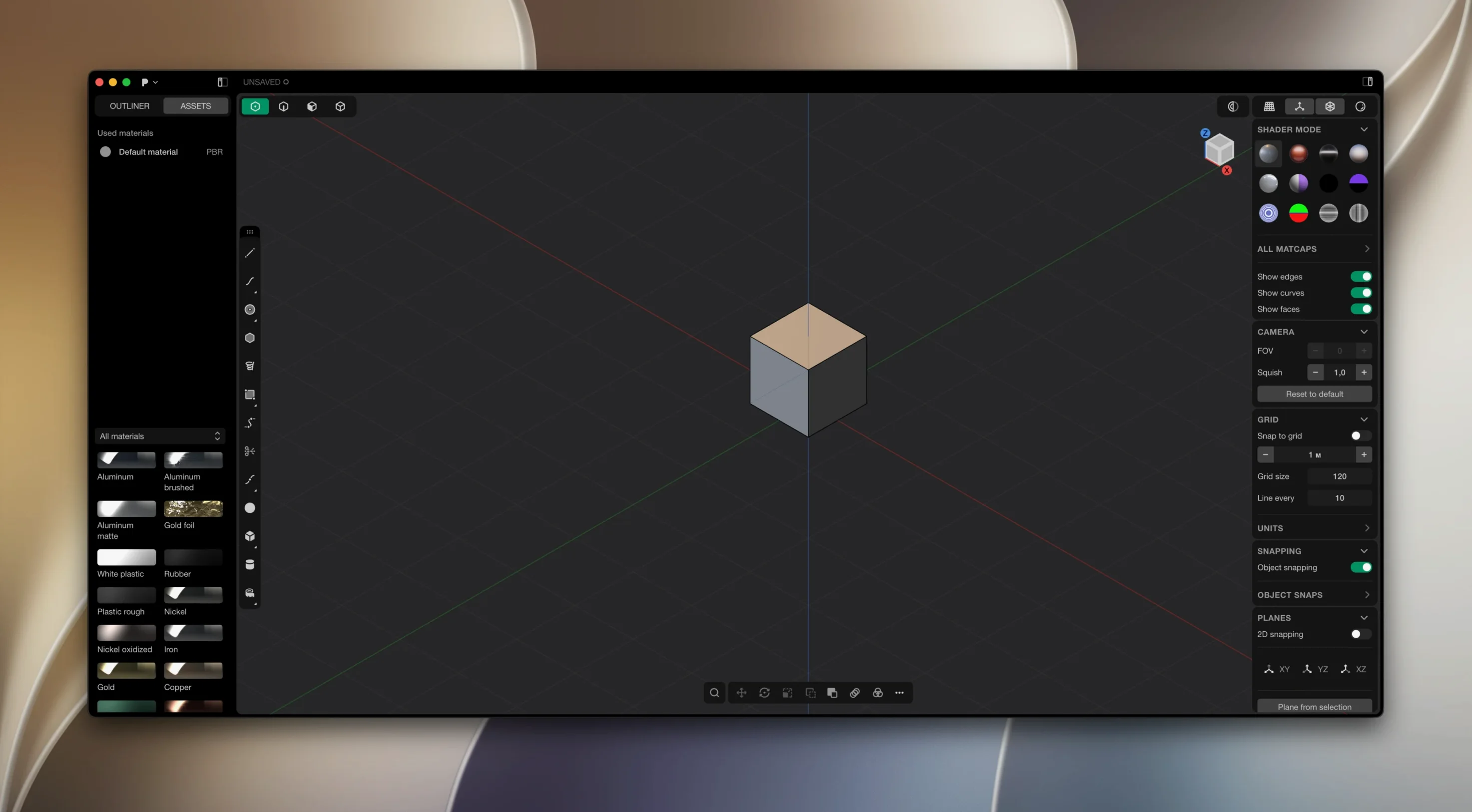
Description
It runs on Apple Silicon Macs and needs macOS 10.14 or later. The geometry kernel is Parasolid, so the solids are watertight and the fillets actually work.
Block out the main shape
You pull a sketch into a solid and push faces around. Live dimensions update the geometry as you type, which beats guessing and redoing.
Add the tricky blends
G2-continuous surfaces come from the xNURBS blending. You pick two faces, and the patch flows across without that lumpy transition you get in polygon modellers.
Cut the part for output
Imagine an industrial designer starting Monday with a brief for a desk-lamp base that needs soft blends and a hollow shell for electronics. They open Plasticity and begin with a sketch on the XY plane. A few arcs, lines, and a live dimension that locks the outer diameter to 140 mm. They extrude the profile into a solid, then use the shell command to wall it out at 3 mm.
The blend between the vertical stem and the flared foot is where polygon modellers fight back. Here they select two adjoining faces, invoke xNURBS blending, and get a G2 patch that picks up the surrounding curvature. They spend five minutes tweaking the tension slider rather than rebuilding a messy transition by hand. The part goes straight to a STEP export for the engineer and a shaded screenshot for the morning stand-up.
Switch units and bump the undo limit before sketching
Plasticity ships with sensible defaults, but a few things make the day faster.
- Units and grid. Switch from millimetres to inches or metres in the document settings before you place the first sketch. The grid spacing should match your target size — 10 mm for consumer products, 0.5 mm for jewellery.
- Selection filter shortcuts. Map
F1to faces,F2to edges,F3to vertices. It keeps you from dragging through a dense mesh of edges when you only want a face. - Auto-save interval. The default is ten minutes. Push it to five. Plasticity holds up well, but a crash during a heavy boolean is still possible.
- Viewport anti-aliasing.If you are on a MacBook Air, drop it to 2×. The fans stay quiet and the cursor remains snappy.
Workflow: from concept sketch to a watertight USB enclosure
The task is a two-part snap-fit enclosure for a custom USB-C hub. Nothing wild, but it must print on an FDM machine without supports splitting the thin lips.
- Import the reference image. Drop a JPG of the hand sketch onto the top plane. Scale it so the 100 mm length matches a live dimension reference line. Lock the image layer so it doesn't follow accidental clicks.
- Sketch the base profile and extrude. Use the line and arc tools, then offset the outer wall by 1.2 mm for the lip. Extrude the main body to 18 mm. Run a 0.6 mm fillet along the bottom edge to stop the print curling.
- Model the lid with the same references. Duplicate the base body, delete the floor faces, and shell it outward. The lip offset from step two means the cap slides on with a 0.2 mm clearance — no guesswork because live dimensions drive the offset.
- Cut the ports. Sketch rectangles on the front face for USB-C and HDMI cutouts, then extrude-subtract. A 0.3 mm fillet on each opening keeps the edges clean without weakening the wall.
- Check with a section analysis. Run the section tool along the mid-plane. You spot a 0.1 mm gap where the lip offset didn't follow a fillet. Fix it with a move-face operation, not a rebuild.
- Export for printing. The two bodies go out as separate STL files. The booleans held, the shell is manifold, and the slicer preview shows no red faces.
This workflow leans on the same Parasolid kernel that powers half the engineering packages on the market, but the interface stays flat enough that you never feel you are piloting a cockpit.
Handing clean STEP or OBJ files to Blender and your slicer
Plasticity doesn't try to replace your renderer or your slicer. It aims to be the bit where the shape happens, and it hands off clean geometry to everything else.
Rendering. Export a STEP or OBJ and pull it into Blender or KeyShot. Because the fillets are mathematically precise, you don't get faceted highlights on curved surfaces. For quick previews, copy the viewport and paste it into a Keynote deck — macOS screenshot markup handles the annotation arrows.
Technical drawing. The hidden-line export in 2026.1 writes clean SVGs. Open one in Affinity Designer, assign stroke weights, and you have a dimensioned assembly sheet without tracing a raster export.
CAM and 3D printing. Fusion 360 and PrusaSlicer read STEP files natively. The geometry arrives as a solid body, not a triangulated mesh, so adaptive layer heights and top-surface ironing work predictably.
macOS integration. Plasticity respects native Spaces and full‑screen mode, so you can swipe between it and a reference PDF without the windows tangling. Quick Look on .3dm and .step files works after you set the Finder defaults once. And because the app is Apple‑silicon native, it doesn't wake the thermal throttling that Rosetta‑translated CAD tools trigger on a fanless MacBook Air.
Someone hunting a plasticity torrent or a plasticity mac torrent will find that version 26.1.3 runs on macOS 10.14 and up, with the xNURBS kernel fully active. If a plasticity 3d torrent surfaces, the same geometry quality applies — activation instructions are included in the package, and a plasticity mac crack simply isn't needed when the provided steps are followed. The build marked plasticity 26.1.3 here includes the hidden‑line exporter and PolySplines for those working at Studio level.
Boolean the details and check the fillets don't collapse. It's a CAD-style job done in a tool built for artists.
Requirements
- Apple Silicon Mac
- macOS 10.14 or later
Comments 0
Sign in or create an account to leave a comment.
No comments yet…
If you’ve installed it, say how it went. Mention your Mac and macOS version — it helps the next person more than you’d think.