QLab for macOS
Description
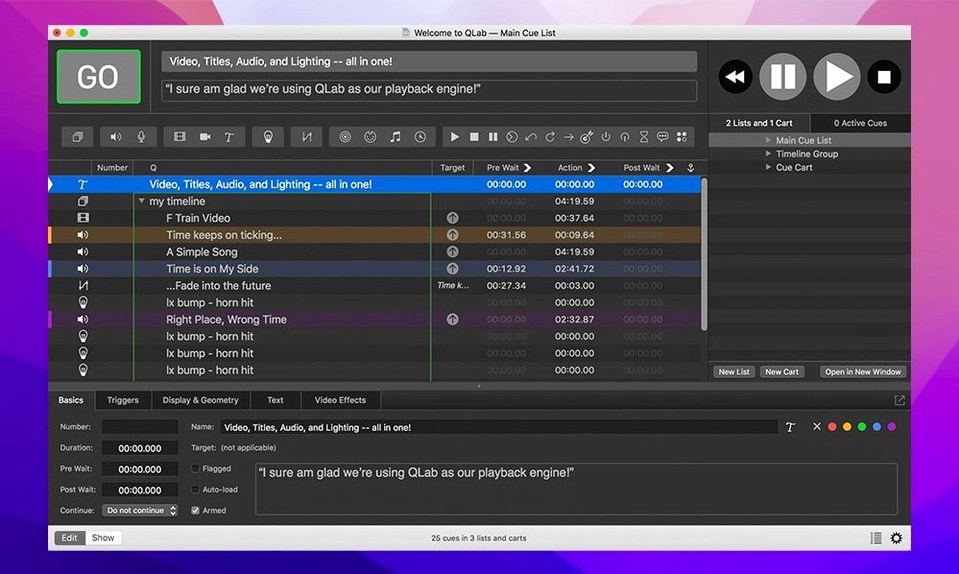
QLab works on any Mac running macOS 11 (Big Sur) or newer, on both Intel and Apple Silicon machines. It's a cue-based playback system that sits alongside your audio editor, your video trimmer, and your DMX tools — not replacing them, but firing their exports when and where you need them.
- A single workspace can address 48 discrete audio outputs and ingest from 24 inputs.
- Live video feeds from Blackmagic devices slot into the cue list alongside pre-rendered ProRes or HAP files.
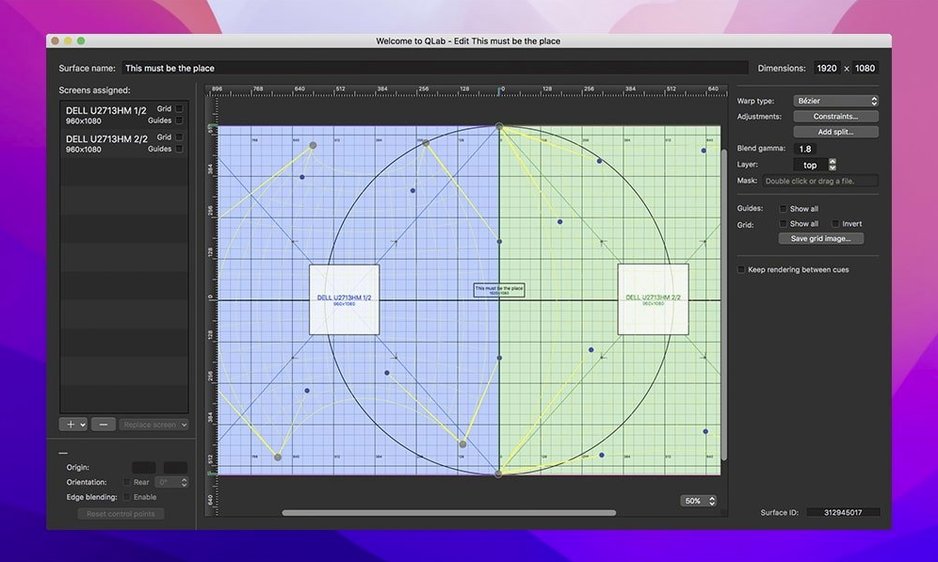
- Keystone correction and corner pinning let you map video onto irregular surfaces without leaving the app.
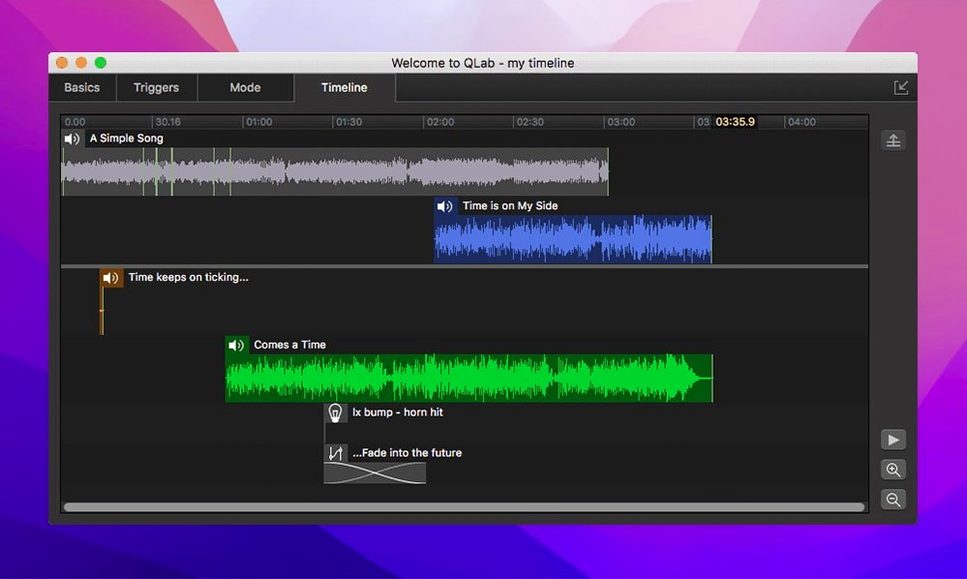
- Built-in animation tools and audio/video faders mean you can rough out a move or a fade without hopping to another program.
- Undo works across the board — handy when a client changes their mind mid-tech.
If your workflow already includes a DAW for clean edits and a lighting visualiser for rig plots, QLab handles the bit in the middle: cuing everything in sequence and keeping it in time.
Fader reset and other bits you discover after a month
Most people learn the big features first — the cue list, the inspector, the basic fade. A few useful bits tend to surface only after a month or two.
- Opt-click a fader to reset it to 0 dB or its default value instantly. Works on volume, rate, and nearly every horizontal slider in the inspector.
- Drag a file from Finder straight into a cue's target field to swap the asset without rebuilding the cue. Handy when the sound designer sends a revised stem at 10 minutes to curtain.
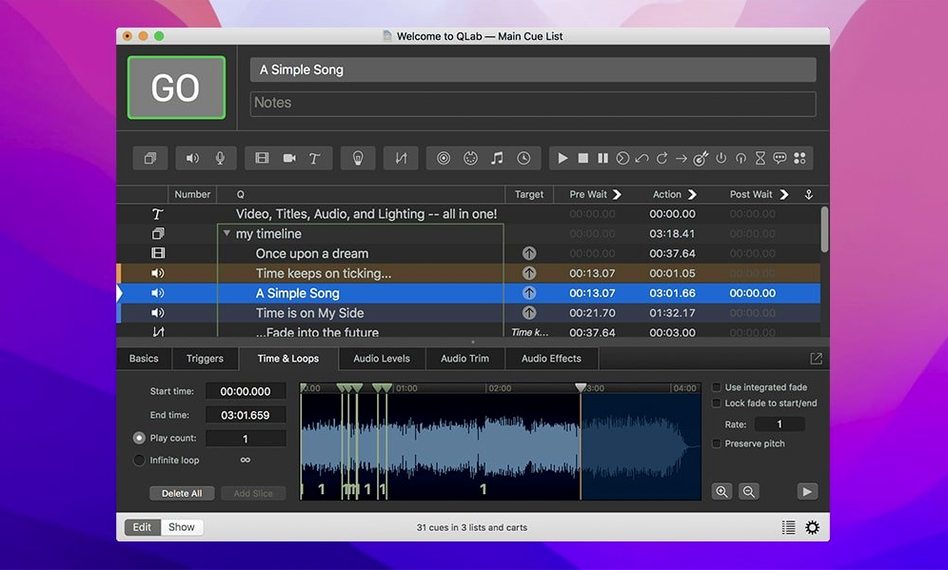
- The integrated audio editor (double-click any Audio cue's waveform) handles start/end trimming faster than opening an external DAW for a two-second snip. It is not a replacement for proper editing software, but it saves a round trip when all you need is a tighter head.
- Group cues can hold their own fades and effects independent of their children. A fade on a Group cue fades the summed output, which means you can duck an entire scene without touching individual channels.
- Assign a MIDI or key trigger to "Panic" in workspace settings. If a video freeze locks up during a tech run, one button kills all playback and saves everyone standing around waiting.
Things beginners routinely get wrong
QLab does not hold your hand much. It assumes you understand how cue lists work and that you have a mental model of signal flow. That trips people up in a few predictable ways.
The first mistake is ignoring the cue template. New users often drag files in and start building fades manually, cue by cue. Set a template once — default fade time, default continue mode, maybe a gentle 0.3-second fade-in on Audio cues — and every new cue inherits it. Saves hours over the run of a production.
The second is not understanding pre-wait vs post-wait. Pre-wait delays the start of a cue. Post-wait holds the next cue after the current one finishes. Mix them up and you get entrances happening in the wrong order. I have seen a blackout cue fire before the video had faded because someone set a post-wait where a pre-wait belonged.
The third is running cues that rely on external hardware without checking the connection first. A workspace that worked perfectly in rehearsal can fall silent if the audio interface was unplugged and macOS reassigned the output. Open the Audio Patch editor as part of your pre-show checklist. Every time.
A less obvious one: loading enormous ProRes files into a workspace saved on a slow external drive. QLab reads cues from disk, not from RAM. If your storage can't keep up, video cues stutter or fail to start on time. Use HAP or HAP Alpha for anything demanding frame-accurate playback.
Performance and stability in daily use
On any Mac made in the last four or five years — even an M1 MacBook Air — QLab handles moderate cue lists without breaking a sweat. A workspace with fifty Audio cues, a handful of Fade cues, and two or three video layers runs smoothly with the CPU barely ticking over. The audio engine is the same one that has been stable for years; dropouts are almost always a disk throughput problem, not a QLab problem.
Video is where you feel the hardware. A single 4K HAP file on an internal SSD is trivial. Three stacked 4K surfaces with corner pinning and live Blackmagic input will make the fans spin up. The renderer is not frame-accurate across multiple outputs by default — if you need genlock-style sync, you need to design the workspace carefully and test on the actual playback machine.
Memory usage stays modest. A complex workspace with a few hundred cues might use 300–500 MB of RAM. QLab is not a memory hog, but it does not sandbox its cues either — a misbehaving video file can crash the whole app. The 5.6.3 update fixed one such crash (a rare one on video stop), which is the kind of edge-case polish you want in software you trust for a live show.
Syphon integration works reliably if the receiving application is also well-behaved. I have used it to feed QLab's video output into MadMapper for projection mapping, and the pipeline held up across a four-day festival run. The one caveat: Syphon adds a frame or two of latency, which matters if you are trying to sync to a click track.
Cues not firing and the red badge that explains why
Cues not firing when expected. Check the continue mode on the previous cue. If it is set to "Do not continue" but you expected auto-follow, nothing happens. Also check whether a cue is broken (red badge) — usually means the target file is missing or the device assignment is invalid. Re-map the file or re-patch the device.
Audio routing confusion. If you are sending to output 7 and hearing nothing, open the Audio Patch editor and confirm output 7 is actually assigned to the physical output you think it is. QLab's output numbering is logical, not physical. A mismatch here is the single most common cause of silent cues during tech week.
MIDI or OSC commands not landing. QLab's network cues use UDP by default, which some network configurations drop silently. Switch to TCP in the network cue settings if packets are going missing. Also check that no firewall is blocking QLab's outgoing traffic — macOS sometimes prompts for permission on first launch, and people click "Deny" without reading.
Video stutter on external displays. If the display is not set to the same refresh rate as your video content, QLab has to do a real-time conversion which eats GPU time. Match refresh rates in System Settings before you open QLab. Also disable "True Tone" and automatic brightness on any Mac used for show playback — screen adjustments mid-show are never helpful.
Workspace migration from older versions. The 5.6.3 update includes a migration for workspaces from 5.6.2 and earlier that used Right On Cue Services Stage|Tracks. If you open an old workspace and that device shows as misconfigured, check the Light Patch editor. The migration should have picked it up, but if it did not, remove and re-add the network device definition.
What’s new
Adds a migration so workspaces from 5.6.2 and earlier pick up the built-in network device definition for Right On Cue Services Stage|Tracks. Rows in the Light Library or Light Definition editor now show a colour change when an instrument definition is misconfigured. Fixes a rare crash when stopping video playback.
Requirements
- macOS 11 (Big Sur) or later
- Compatible with Intel and Apple Silicon Macs
FAQ
What external video hardware does QLab support?
QLab can use live video input from external devices, including Blackmagic capture hardware.
Comments 0
Sign in or create an account to leave a comment.
No comments yet…
If you’ve installed it, say how it went. Mention your Mac and macOS version — it helps the next person more than you’d think.