
QSpace Pro for macOS
Description
Runs on any Mac with macOS 10.13 or newer — Intel or Apple Silicon, it does not matter. Here is one realistic task from start to finish.
Workspace — a saved set of open panes and tabs. Think of it as a project desk that you can leave and come back to.
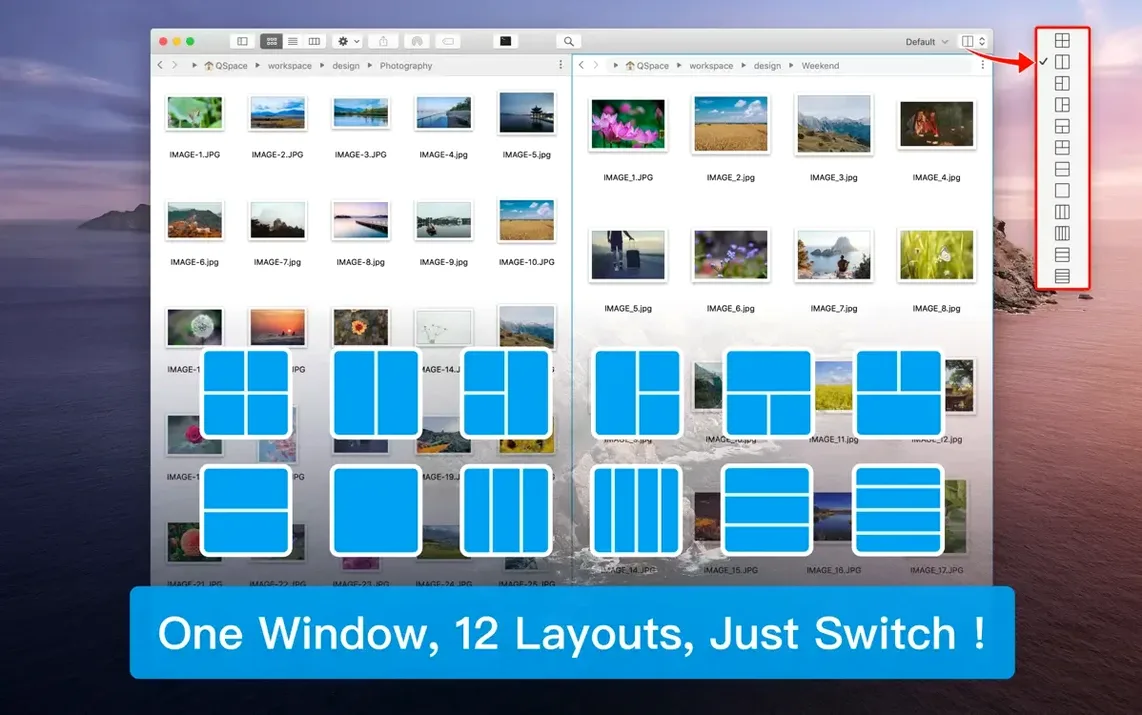
Pane — a single file browser panel. You can have up to twelve on screen at once.
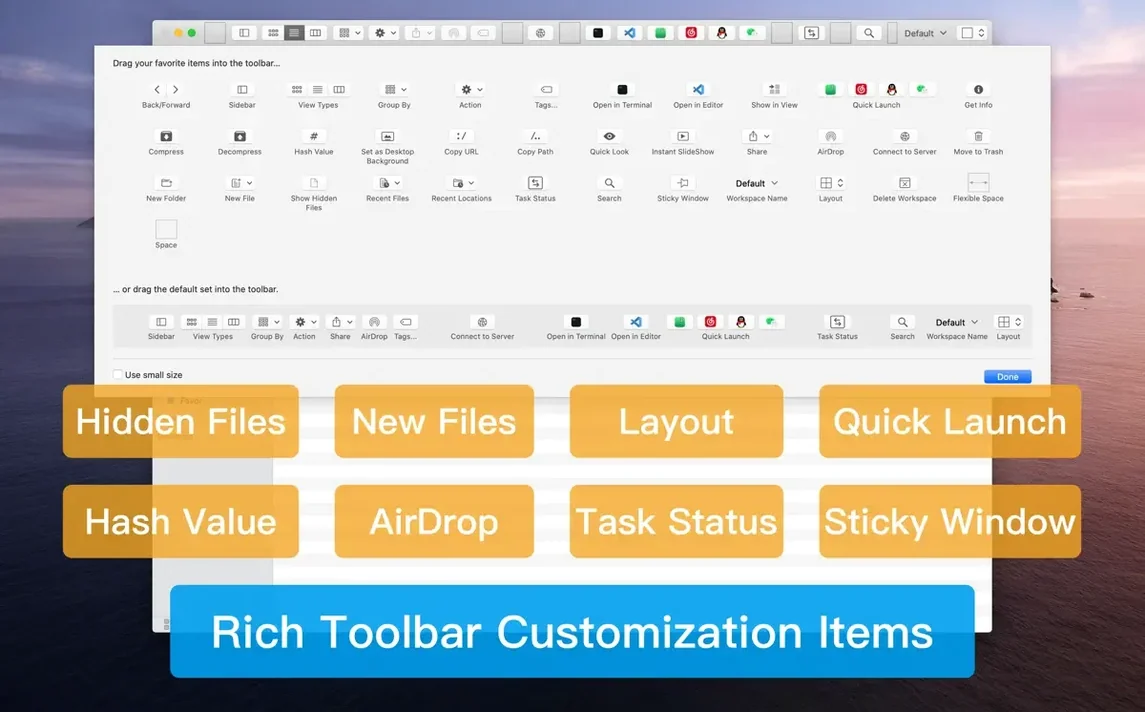
Stash shelf — a temporary holding area where you can drop files, folders, or web images before placing them somewhere permanent.
Moving project assets between folders
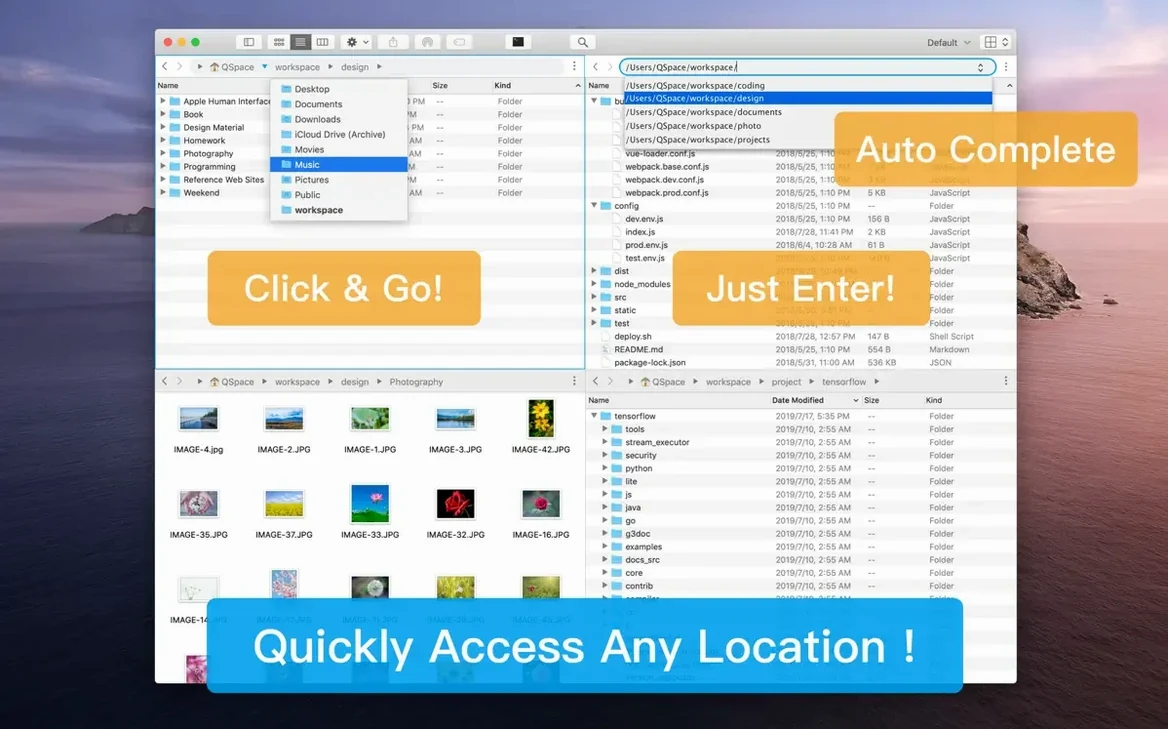
You have a mess of images, fonts and copy drafts spread across three network shares and a local drive. Open QSpace Pro and pick a four-pane layout. Navigate each pane to one of the source folders. Drag a few images straight into the target project folder in the fourth pane. Cut and paste works across panes too, so you can grab a set of icons from one location and place them exactly where the developer expects them. The stash shelf helps when you spot files you might need later but have no final home for yet — just drag them onto the shelf via the toolbar and keep browsing.
Once the assets are gathered, right-click the project folder and choose "Open in VS Code" to start working. Before you switch tasks, save the layout as a workspace so tomorrow you pick up right where you left off.
Drag a file to a Dock icon, just like Finder
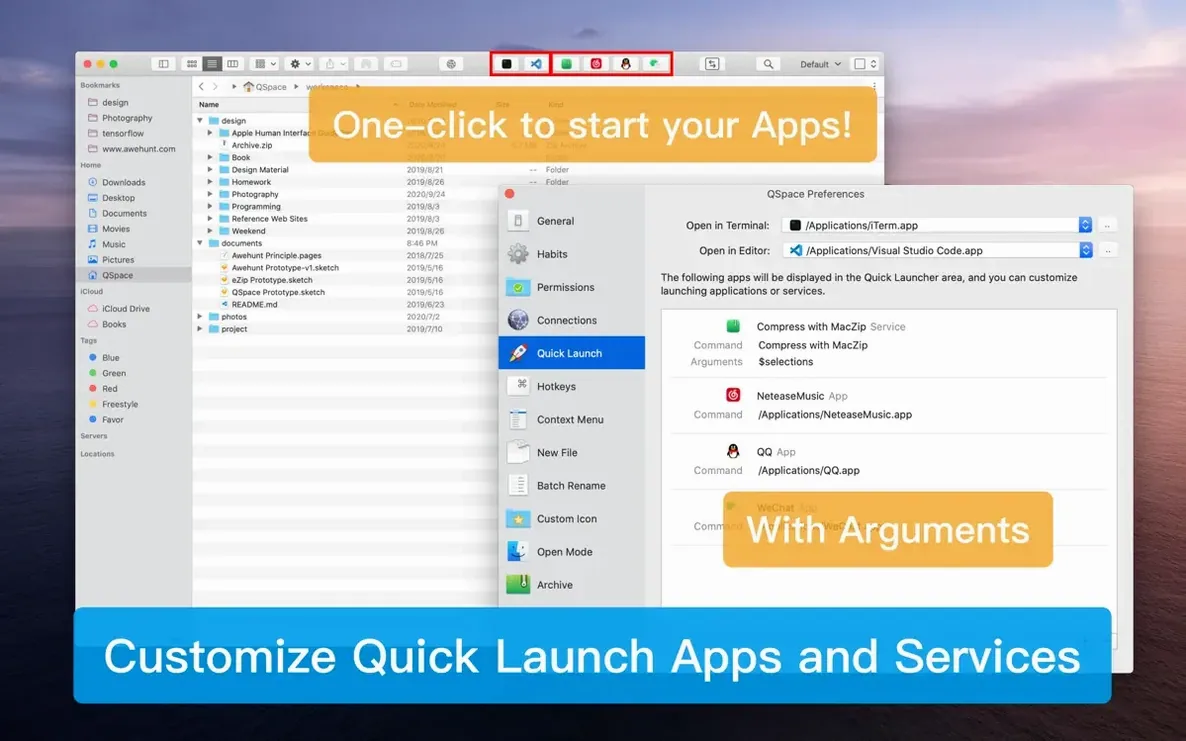
QSpace Pro sits beside the Finder rather than trying to replace it. Drag a file out of a pane and drop it onto an app icon in the Dock — the same gesture you know. The real difference shows when you use Open With shortcuts. A folder highlighted in QSpace can be sent straight to Terminal, iTerm, VS Code, Atom or Sublime Text without navigating there first. That turns a multi-pane layout into a launcher for whole work sessions.
Archive handling hooks into macOS in a quiet way. Double-click a zip in any pane and you browse inside it like a regular folder. Right-click to compress a folder as 7Z or extract one of twenty-odd formats. No extra utility needed. The hash calculator (MD5, SHA256, CRC32 and others) runs from the context menu, which is handy when you download a disk image and want to verify it before mounting — no Terminal required.
If you search for qspace pro mac you will find it fits into workflows where Finder alone feels underpowered. The customisable sidebar bookmarks stay in sync with nothing — they are local, simple, and sorted by drag-and-drop. Workspaces remember which remote servers were mounted via FTP, SFTP or WebDAV, so reconnecting is one click, not a new connection dialogue every morning.
A session with remote servers and local work
Monday morning. You open QSpace Pro and the workspace from Friday restores itself — three panes. Left pane shows the local project folder. Middle pane connects to the staging server over SFTP. Right pane points at the company OneDrive.
Step one: you spot updated copy drafts in OneDrive. Drag two files across to the local pane. Step two: the designer has dropped fresh mockups on the SFTP server. You open the archive right in the middle pane — qspace pro macos handles nested archives now — and pull out the PNGs you need. Step three: select the whole local project folder, right-click, choose "Open in VS Code." The editor opens with the correct path, ready to go.
Before lunch you stash a few web images you might use later. Drag them from the browser onto the stash shelf. They sit there, not cluttering any project folder until you decide. The session took six minutes. No Finder window was harmed.
Worth it if you spend more time shuffling Finder windows than doing actual work.
What’s new
QSpace Pro 7.0.4 tidies up a few rough edges and keeps everyday file-wrangling steady across panes.
Requirements
- macOS 10.13 or later
- Apple Silicon or Intel 64-bit
FAQ
How many devices can I use QSpace Pro on?
One account covers up to two devices at the same time.
Can QSpace Pro open folders in Terminal or a code editor?
Yes, you can send selected folders straight to Terminal, iTerm, VS Code, Atom, or Sublime Text.
Comments 0
Sign in or create an account to leave a comment.
No comments yet…
If you’ve installed it, say how it went. Mention your Mac and macOS version — it helps the next person more than you’d think.