Presentify for macOS
Description
Version 8.1.3 keeps the app on macOS 13 or later, with no changes to the core setup. It still runs on Intel and Apple Silicon Macs.
Requires macOS Ventura and screen recording access
Presentify needs macOS 13 Ventura or newer. It works in full-screen mode and sits in the menu bar, so it stays out of the way until you need it.
Annotate anything
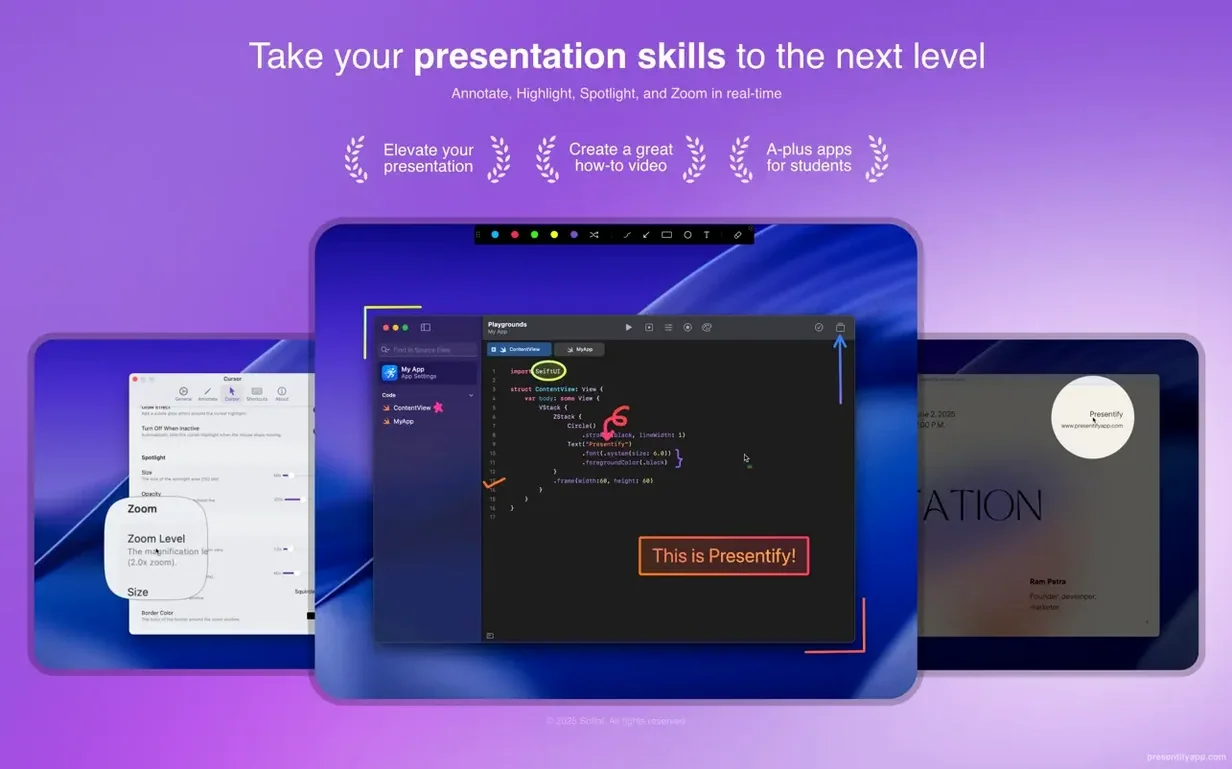
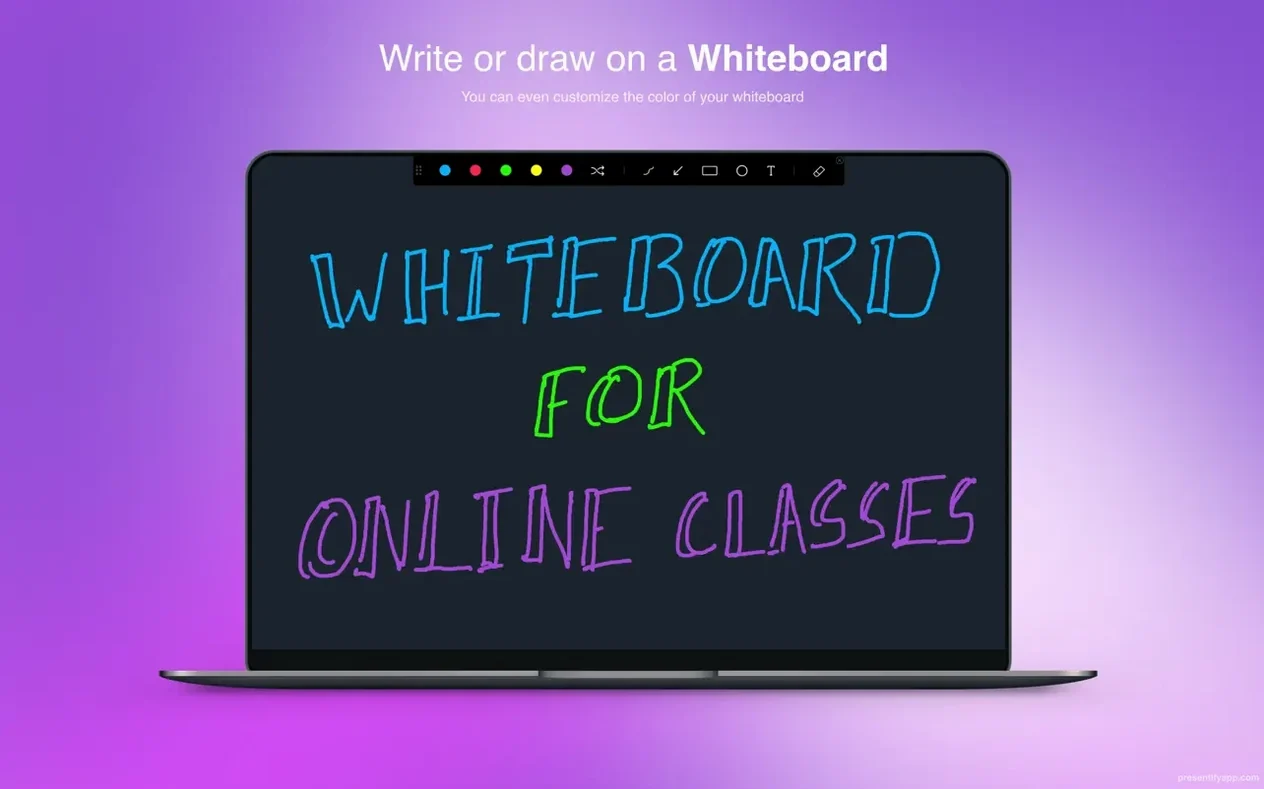
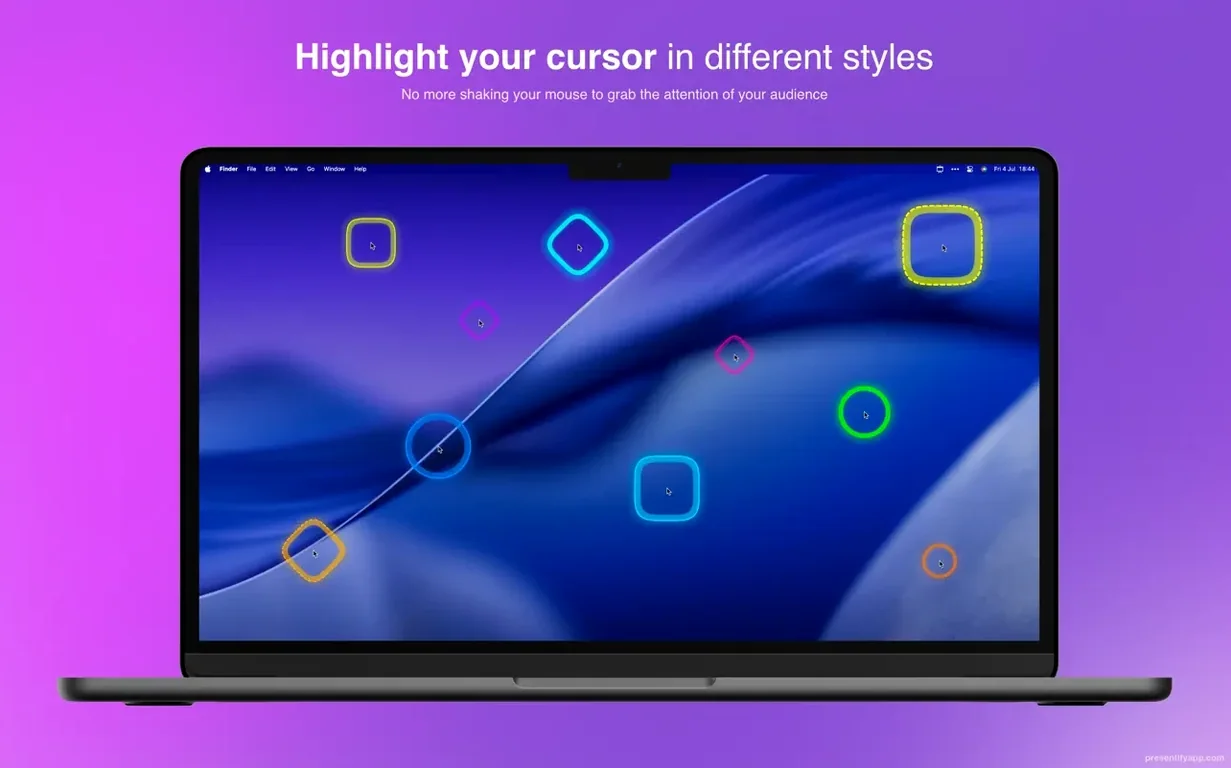
Draw over images, videos, PDFs, and code during a call or recording. The cursor highlight and spotlight tools help viewers follow what you are pointing at.
Use it with your tools
Annotations won’t appear without this permission
A few things trip people up, especially during the first few sessions.
- Annotations won't draw. Check that Presentify has screen recording permission in System Settings → Privacy & Security. Without it, the app can't see the screen and the drawing tools do nothing.
- Menu bar icon vanishes. Too many menu bar apps fighting for space. Hold
Cmdand drag the icon left or right to reposition it. If that fails, quit and relaunch the app. - Full-screen Keynote slides won't annotate. Toggle Presentify off and back on again with the global shortcut (
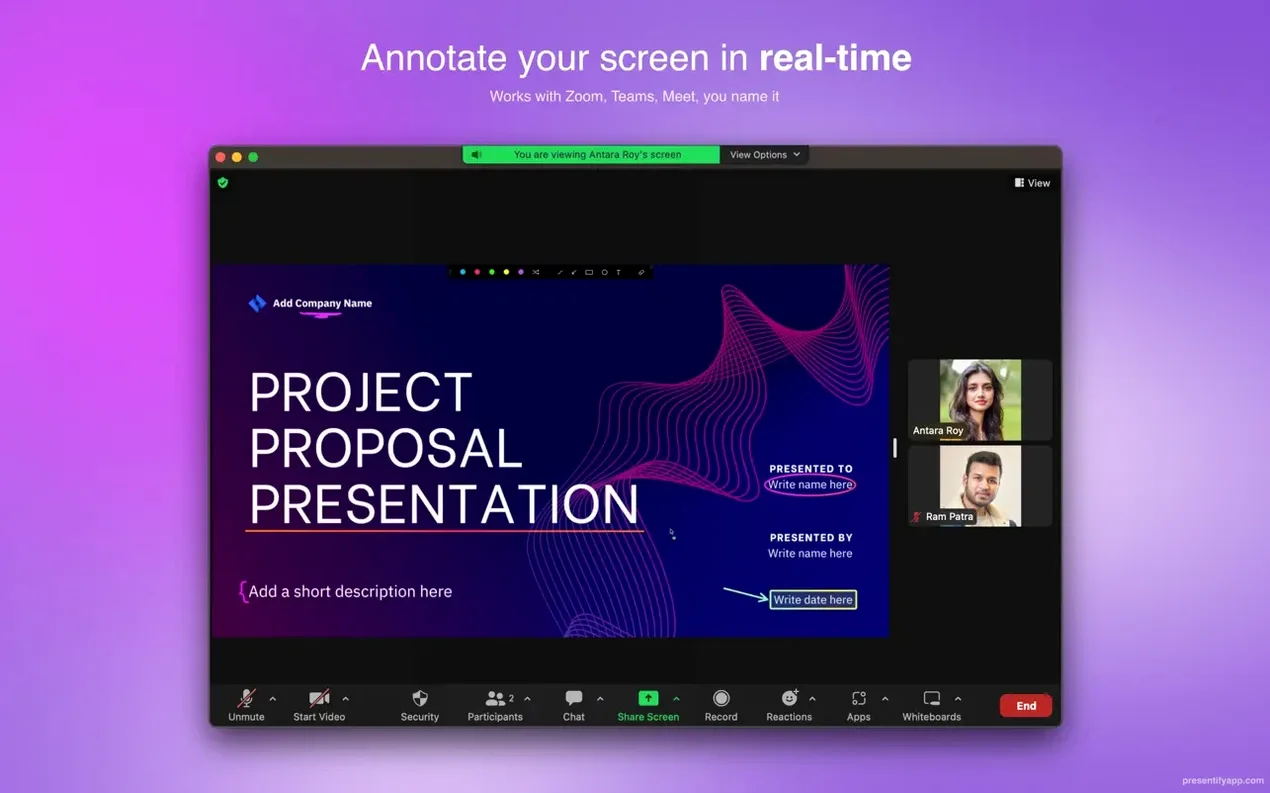
Option+Pby default). That forces the drawing layer to refresh above the slideshow. - Zoom or Meet participants can't see the drawings. You're sharing the window, not the full screen. Presentify draws on the screen layer, so switch to full-screen sharing in your meeting app — or share a display instead of a single window.
- Graphics tablet pressure feels off. Open Presentify's Drawing tab and turn off "Use random gradient colors" while testing strokes. Some tablet drivers interfere with that feature; plain colours sort it for most Wacom and XP-Pen setups.
Drawing on glass, not on the slide
Most of these come from treating Presentify like a regular drawing app. It isn't — it's a live overlay, and that changes how you interact with it.
- Trying to click through annotations. By default, clicks go to the annotation layer while drawing is active. Hold
Fnto interact with the window underneath. Forgetting this leads to frantic tapping during a live demo. - Leaving annotations on screen between slides. The auto-erase timer (set in Preferences) clears drawings after a delay. If you turn it off, old scribbles sit on top of new content. Keep it on a short leash — 5 to 10 seconds works for most presentations.
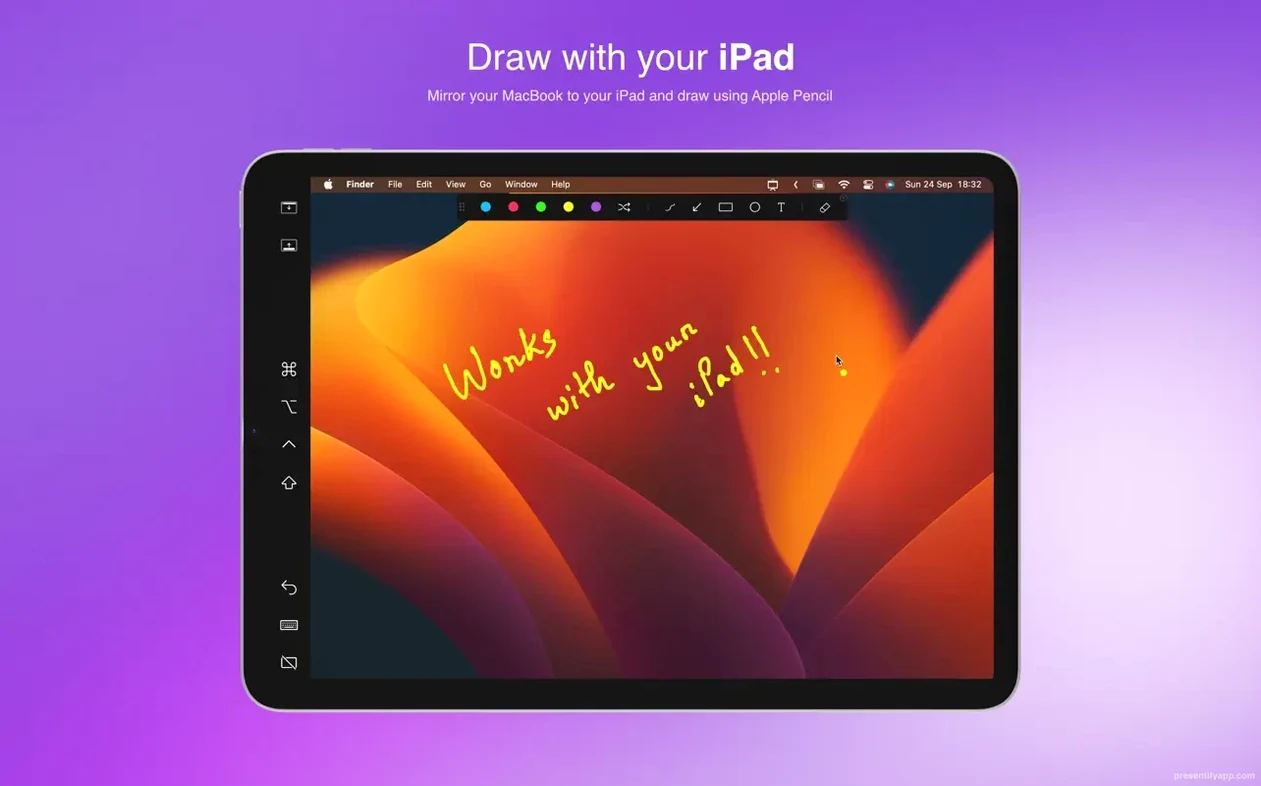
- Drawing with a trackpad and wondering why it's messy. It works, but it's not built for artistic lines. A basic Wacom or XP-Pen tablet makes a noticeable difference for text annotations and shapes. If you present regularly, it's worth plugging one in.
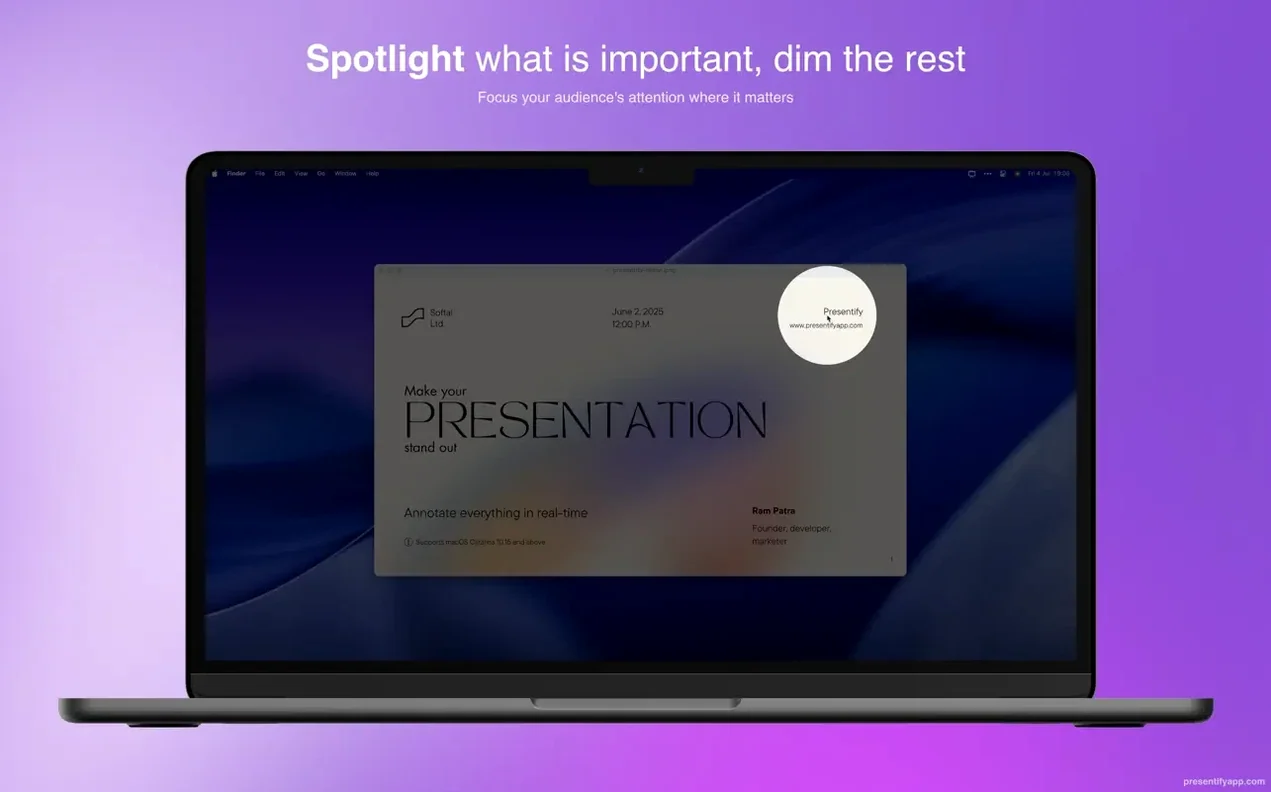
- Ignoring the spotlight tool. New users grab the pen and draw circles around things. The spotlight dims everything except a resizable oval — cleaner, faster, and less cluttered when you just want eyes on one UI element.
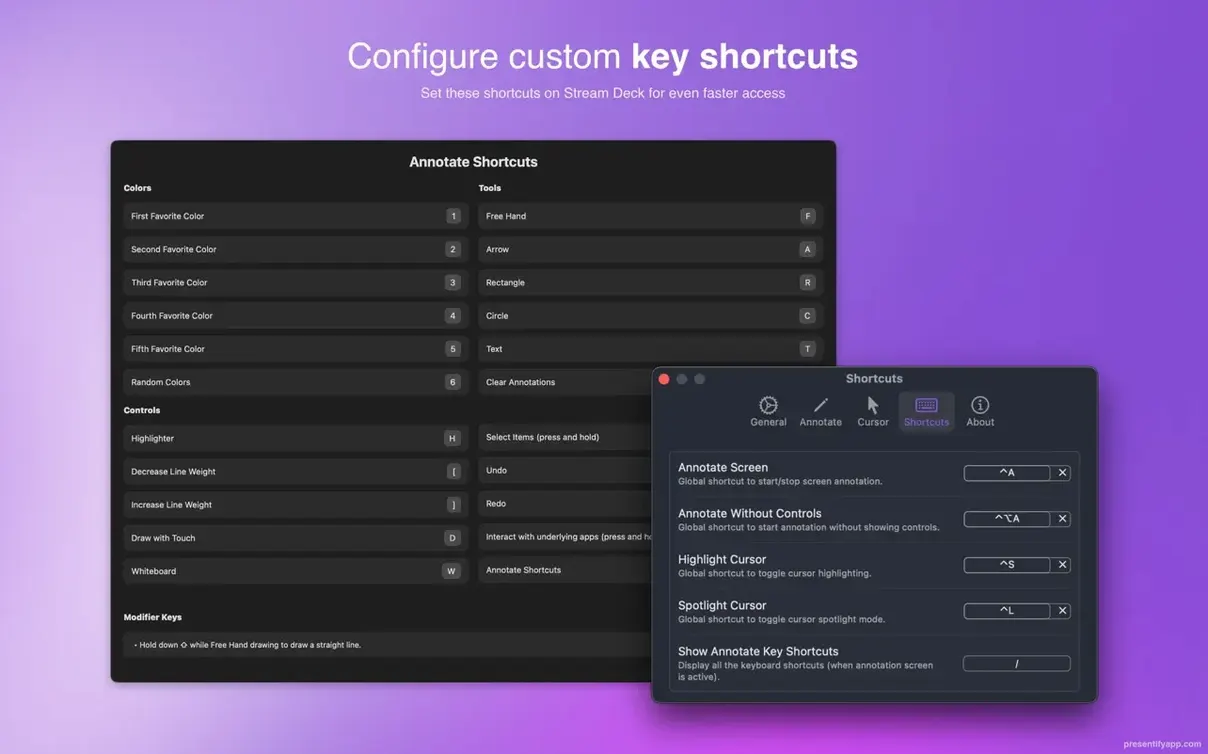
- Not setting a custom global shortcut.
Option+Pmight clash with other apps. Change it to something you won't hit by accident. The toggle is the most-used action; make it muscle memory.
Highlight behind text instead of over it
A few features sit quietly in the settings and rarely get noticed.
- Highlight without covering the text. In the toolbar, pick the highlighter shape — it draws a translucent bar that sits behind the content. Useful for code walkthroughs and spreadsheet reviews.
- Random gradient colours. Each new stroke gets a different gradient. It makes overlapping annotations easier to read at a glance, especially when several people are watching a dense diagram.
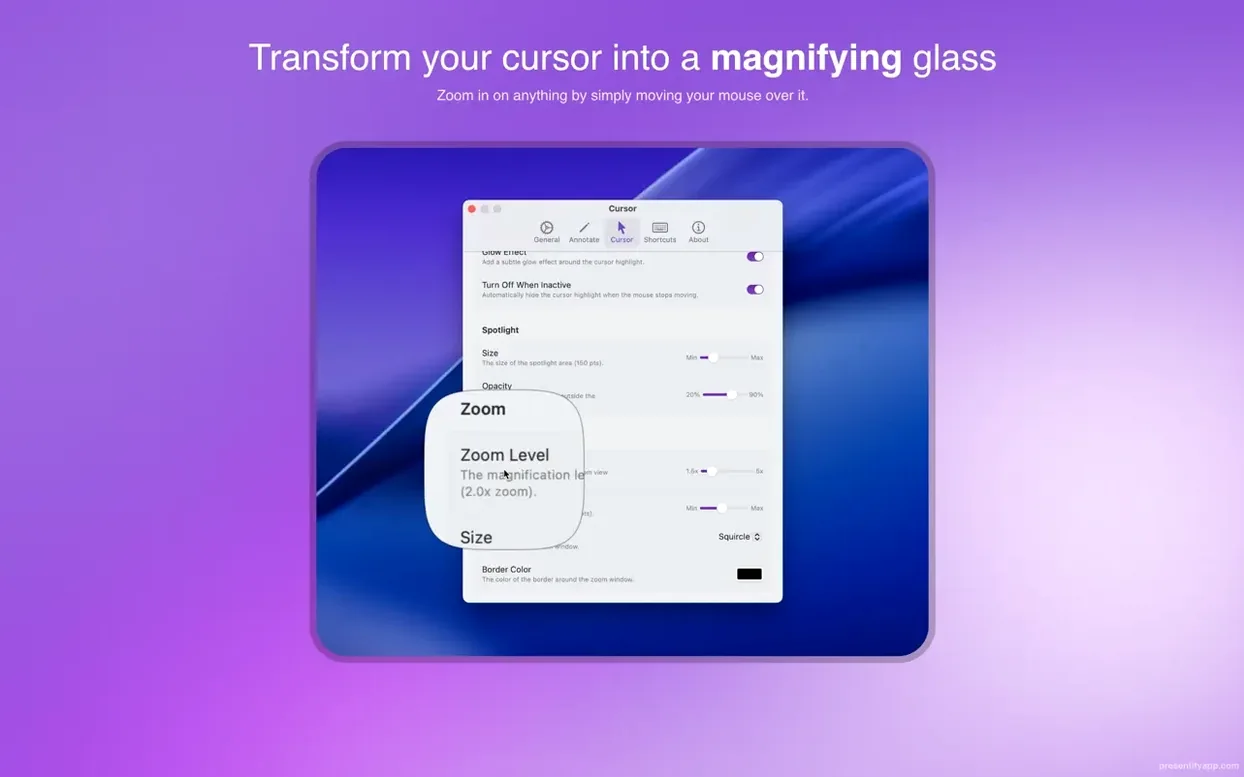
- Zoom via scroll wheel. Hold the zoom modifier key (set in Preferences) and scroll. No need to click the toolbar magnifier. Let go and the view snaps back.
- Annotate while Presentify appears paused. Even when the toolbar is hidden, the drawing layer can stay active. Tuck the toolbar away for a cleaner screen while still marking up slides with keyboard shortcuts.
- Multiple shapes. Rectangle, ellipse, line, arrow, and freehand are all in the same toolbar row. Long-press the shape button to swap — no menu diving.
It works with Zoom, Google Meet, Skype, and Keynote. Interface languages include English, German, Spanish, French, and Russian.
Requirements
- macOS 13 Ventura or later
- Intel or Apple Silicon
FAQ
Does Presentify work on older Macs?
No. It requires macOS 13 Ventura or later, on either Intel or Apple Silicon.
Can I use Presentify with Keynote?
Yes. It works with Keynote and in full-screen mode, so you can annotate slides as you present.
Comments 0
Sign in or create an account to leave a comment.
No comments yet…
If you’ve installed it, say how it went. Mention your Mac and macOS version — it helps the next person more than you’d think.