PowerPhotos for macOS
Description
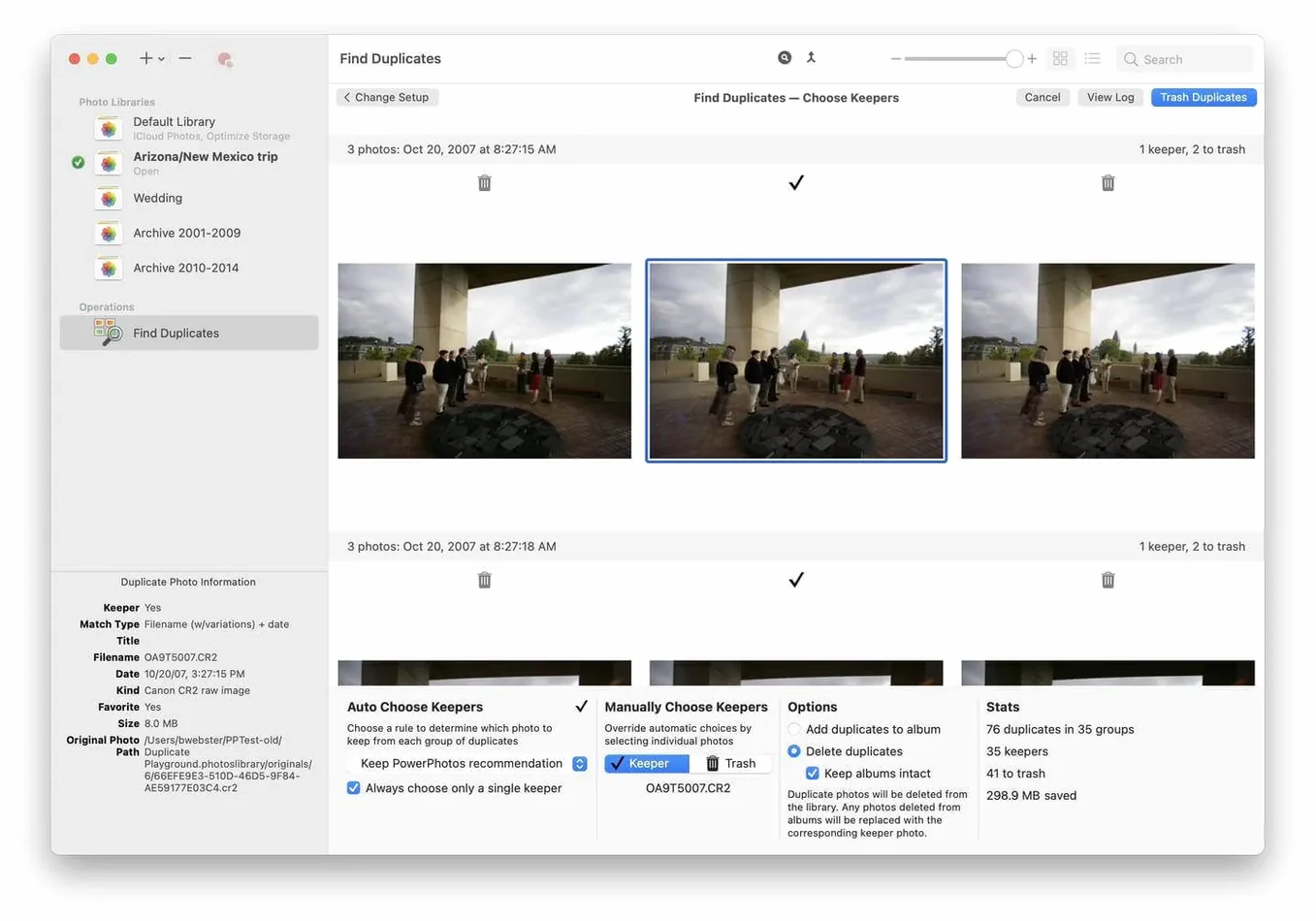
Duplicate detection hasn't changed, but it's still the tool I'd open first. It scans a single library or compares two side by side, flagging exact copies and near-matches. You review the finds, pick which to keep, and let PowerPhotos clear the rest.
1. Point it at your libraries. The app lists every Photos library on your Mac without forcing you to quit and relaunch.
2. Run a duplicate scan across one library, or compare two libraries to spot the same photo in both.
3. Mark the keepers. The side-by-side browser shows metadata so you can make a quick call.
4. Delete the extras. They move to a “Recently Deleted” album inside Photos, so nothing vanishes without a safety net.
After the cleanup, splitting a bloated library into smaller ones is the logical next step. It cuts down iCloud storage use without losing anything you meant to keep.
Moving an iCloud library off a full Mac
A photographer I help had one 900 GB Photos library synced to iCloud. Her Mac kept complaining about disk space. She didn't need every wedding from 2016 on her laptop, but she didn't want to delete them either.
Here's the route we took with PowerPhotos.
- Search across everything first. I used the unified search to find all photos from 2016–2018 without opening each library. Quick filter by year, no guesswork.
- Create a new library. File > New Library, named it "Archive 2016–2018", saved to an external SSD.
- Copy, don't move. Dragged the matching photos from the main library to the archive library. I chose Copy so the originals stayed put until I verified everything landed safely.
- Spot-check the copy. Browsed the archive library inside PowerPhotos — no need to open Photos itself. Metadata intact, albums preserved.
- Delete from the main library. Once the copy checked out, I selected the same batch in the main library and deleted it. Photos moved them to Recently Deleted; I cleared that album to free the space immediately.
- Turn off iCloud for the archive. Opened the archive library in Photos, unchecked iCloud Photos in Settings. That library stays local on the SSD now.
Her main library shrank from 900 GB to about 340 GB. The archive sits on a drive in her desk drawer, searchable whenever she plugs it in. No duplicate imports, no manual dragging in the Finder.
Saturday morning library cleanup with coffee
I tend to do library housekeeping on a rainy Saturday morning with a coffee. Here's what that looks like.
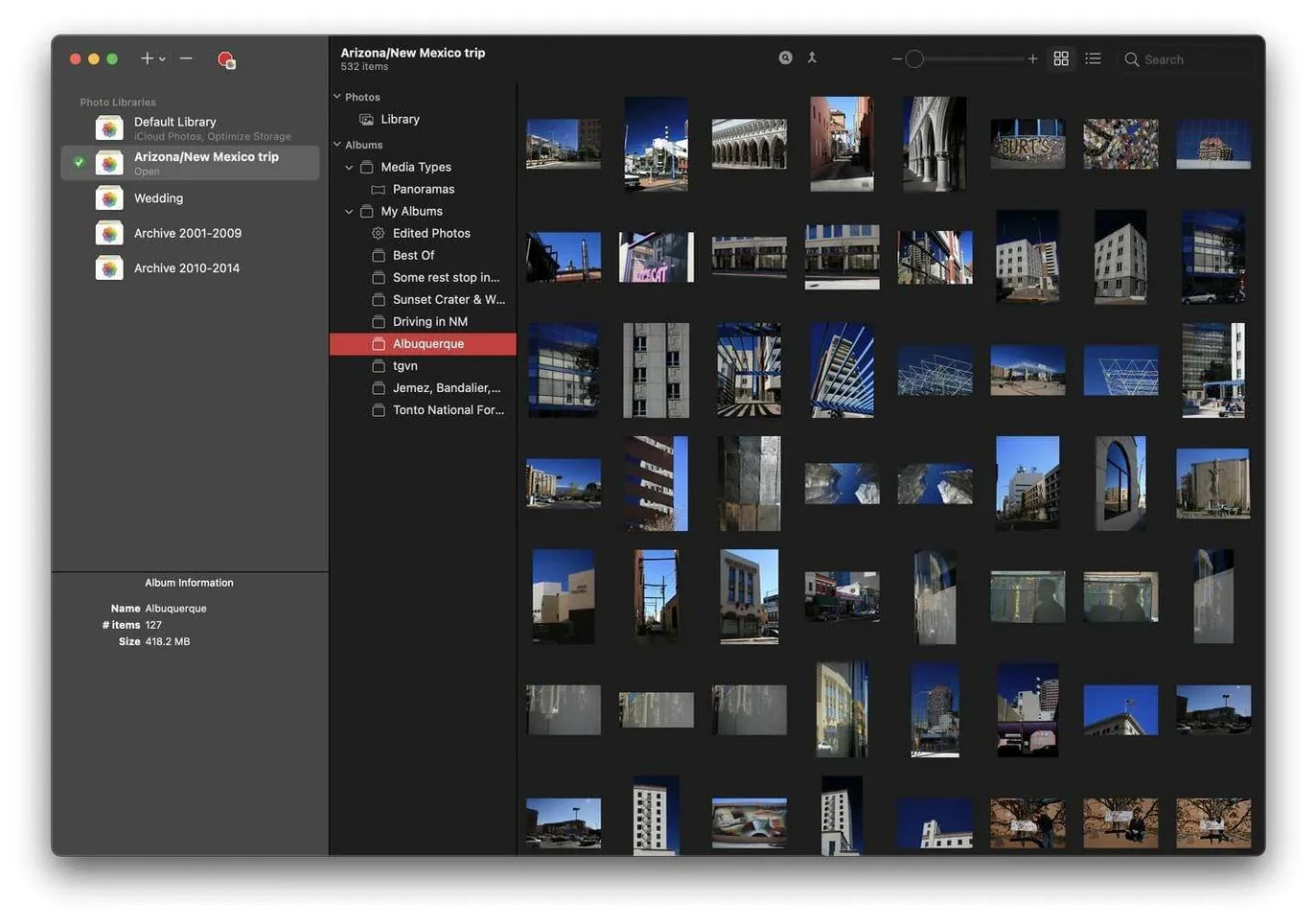
I launch PowerPhotos. The left sidebar lists all four libraries on my Mac — two on the internal drive, two on externals. The little coloured dots tell me which one is currently open in Photos. I click the one I want to work on; the browser fills with its contents.
I usually start with a duplicate scan on the library I've been using most. Click the Duplicates button, pick "Find duplicates in this library", and let it churn. On a 200 GB library it takes about eight minutes. I go refill my coffee.
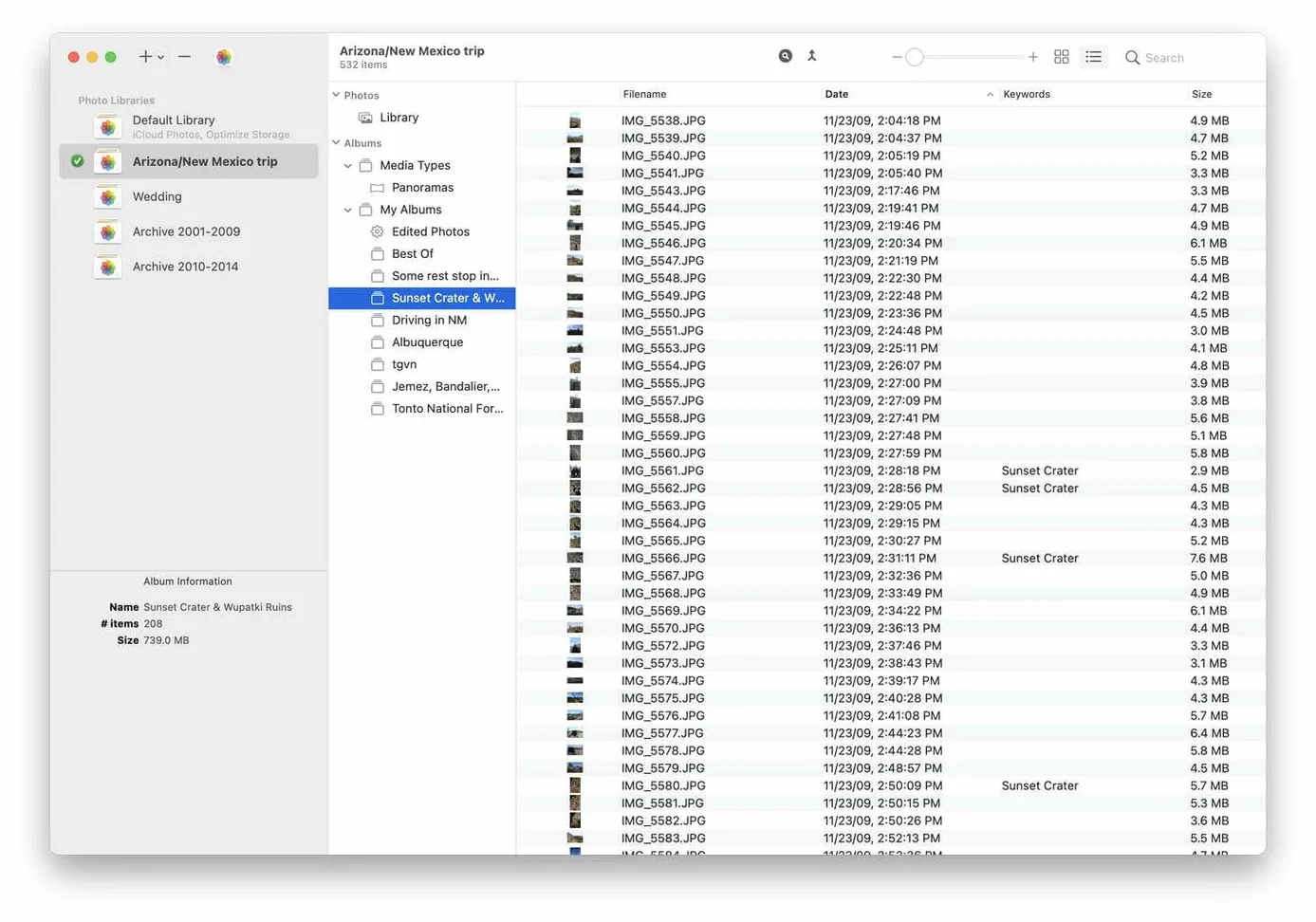
When I come back, duplicates are grouped in pairs or sets. The side-by-side view shows file name, date, size, and which album each copy lives in. I use the arrow keys to move through matches quickly — right arrow to keep the left photo, down arrow to skip a set I'm unsure about. I can mark a hundred duplicates in under two minutes this way.
Before I delete anything, I glance at the summary bar at the bottom: how many marked, how much space I'll reclaim. Then one click sends them to Recently Deleted. I open Photos, verify a few, and empty the trash.
Option‑click to peek without switching
- Option-click a library in the list to open it in Photos without making it the system library. Handy when you just need to check something quickly.
- The library list accepts drag and drop. You can reorder libraries however you like, or drag a library file from the Finder straight into the sidebar to register it.
- Right-click any library and choose "Show in Finder" when you need to copy it to another drive. Faster than digging through ~/Pictures.
- During duplicate review, hold the Space bar for a Quick Look preview of a photo without leaving the app. Works on both sides of the comparison.
- The search field at the top searches all libraries at once — but only if you haven't selected a specific library first. Click empty space in the sidebar to deselect, then search.
- PowerPhotos remembers your last window layout. If you drag the divider between the library list and the browser, it stays put next time you launch.
- When copying between libraries, hold Option to move instead of copy. Use with care — I only do this after a verified backup.
None of these are shouted about in the interface. I found most of them by accident, or after a long day of library wrangling when I wondered "surely there's a quicker way" and tried a modifier key.
Requirements
- macOS 14 or later
- Apple Silicon or Intel 64-bit Mac
- English interface
Comments 0
Sign in or create an account to leave a comment.
No comments yet…
If you’ve installed it, say how it went. Mention your Mac and macOS version — it helps the next person more than you’d think.