OmniPlayer: MKV Video Player Pro for macOS
Description
People who download a lot of video files and just want them to play. OmniPlayer opens what you throw at it.
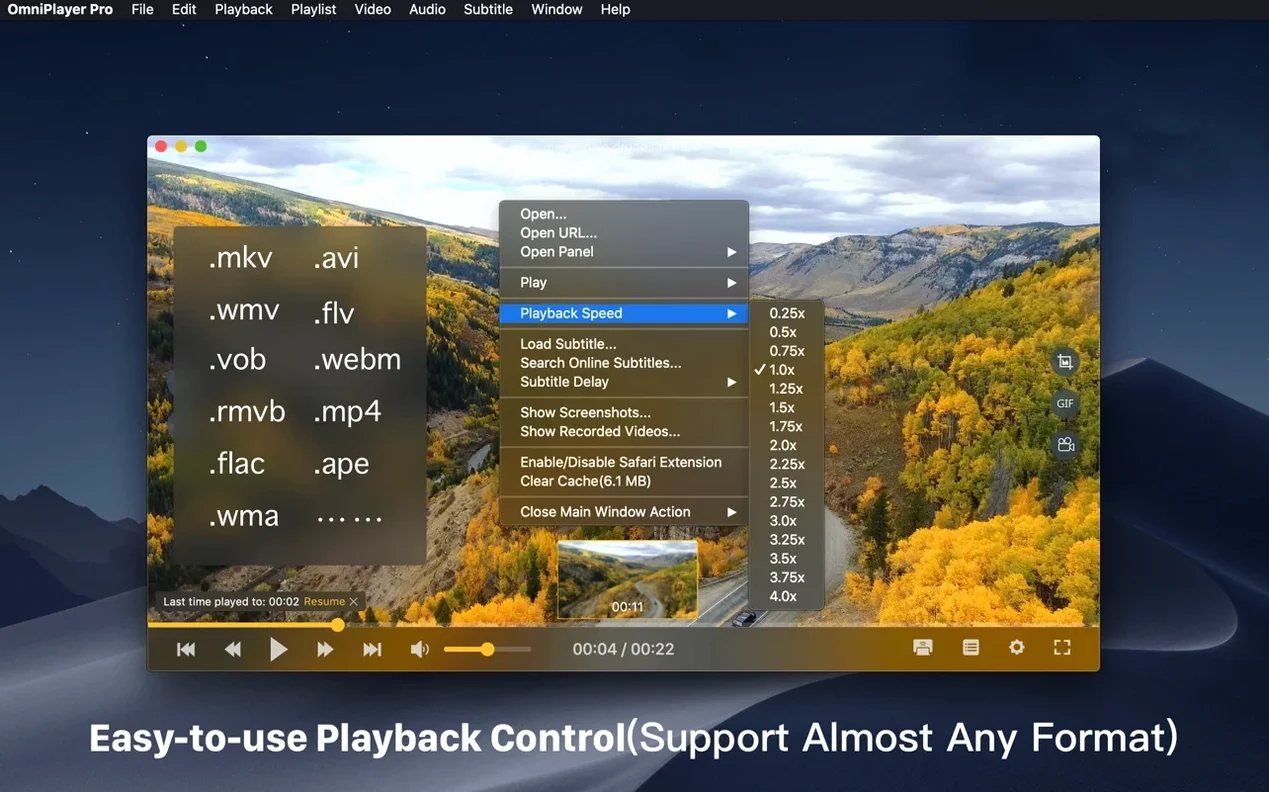
Playback controls — pause, resume, fast forward, rewind and jump to a specific time. The progress bar shows preview thumbnails during local playback, so you can scan ahead without guessing.
Playlist handling — media files are added to a playlist automatically and cleared when you quit. You can search the list, delete items and switch repeat modes from the same panel.
Image adjustments — brightness, contrast and saturation controls sit right in the player window. No need to calibrate your display; tweak the file itself while you watch.
GIF maker — grab a clip up to 60 seconds long and turn it into a GIF. Useful for quick previews or bug reports.
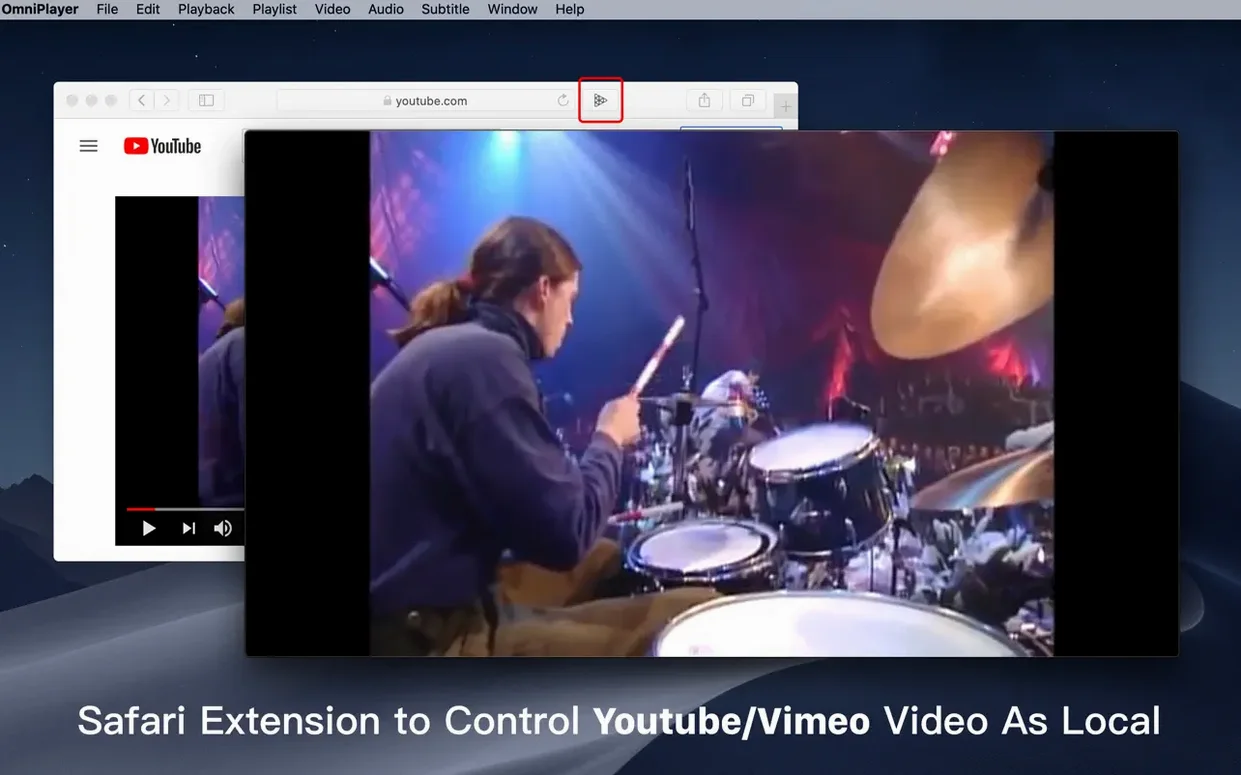
Online streams — plays media over HTTP and HTTPS, so you can feed it a URL instead of a local file.
Resume — saves the last playback position when auto-stop kicks in. Close a file mid-way and it remembers where you left off.
Smooth 4K playback of massive 30 GB MKV files
Does it handle 4K and large files without stuttering? Yes. The 2.1.22 update specifically fixed a bug loading 30 GB MKV files, and playback of high-resolution local content is smooth on Intel Macs running macOS 11 or later. Remote files over SAMBA or FTP depend more on your network than the player.
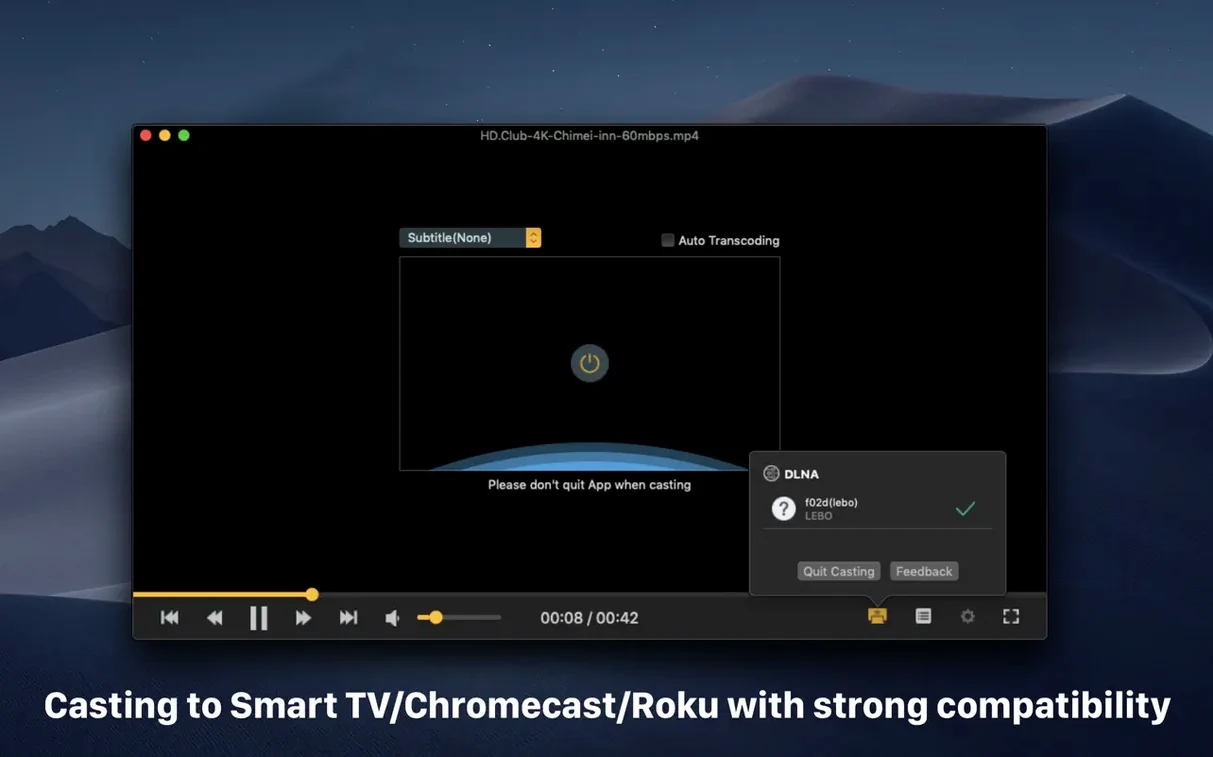
Can I cast to a TV? It supports DLNA, Chromecast and Roku. The casting menu lives in the playback controls — pick a device on your network and the stream starts. Audio sync can drift slightly on older Roku models, but the on-screen delay slider fixes it quickly.
Will it remember where I stopped? Only when auto-stop is enabled. If you manually close a file or quit the app, the position isn't saved. Turn on auto-stop in preferences and it reliably bookmarks your spot.
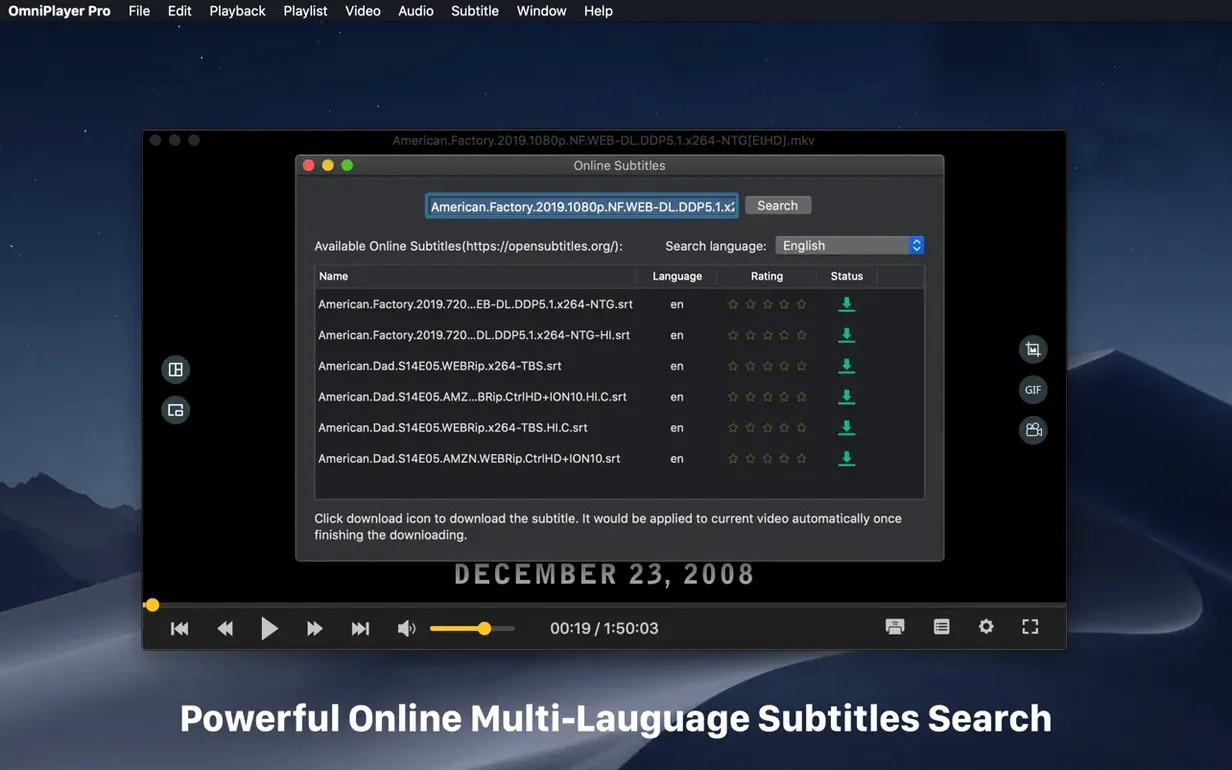
What about subtitles for non-English content? Real-time subtitle loading works from local files, and you can search online by video title or hash directly from the subtitle menu. Encoding can be changed on the fly if characters show up as gibberish.
Workflow: grabbing a clip from a long recording
Say you've got a two-hour screen recording and you need a 20-second section as a GIF.
- Open the file. The preview thumbnails on the progress bar help you find the rough area quickly.
- Set the playback speed to 1.5x or 2x to scrub through faster, then pause near the start point.
- Use the jump-to-time button if you know the exact timestamp, or nudge with the rewind and fast-forward controls.
- Hit the GIF capture tool, drag the in and out points to cover your 20 seconds, and set the frame rate low if the file size matters more than smoothness.
- Save. The player drops a GIF on your desktop without re-encoding the original file.
If the clip needs brightness or contrast adjustment first, tweak those sliders before you capture — the GIF inherits whatever image settings are active.
How OmniPlayer compares with similar Mac apps
OmniPlayer vs. IINA. IINA is slick, open-source and built on mpv, with a modern macOS look and a strong following. OmniPlayer trades some of that polish for practical extras: a built-in GIF maker, online subtitle search and preview thumbnails on the progress bar. IINA handles network streams cleanly but doesn't touch SAMBA or FTP playback out of the box. If you need casting to a TV, OmniPlayer's DLNA and Chromecast support is more direct.
OmniPlayer vs. VLC. VLC plays almost anything on any platform and has done so for decades. It's the default answer to "will this file open?" OmniPlayer doesn't try to match VLC's sheer format reach. What it offers instead is a less cluttered interface and quicker access to image adjustments, subtitle downloads and GIF creation without hunting through menus. VLC's playlist management is more powerful, but OmniPlayer's auto-clearing approach suits people who treat playlists as temporary queues.
OmniPlayer vs. Elmedia Player. Elmedia focuses heavily on streaming to smart TVs and DLNA devices, with a polished paid tier. OmniPlayer's casting covers similar ground but adds Roku support. Elmedia's free version limits some playback features; OmniPlayer doesn't hold back the core player. For local file playback with subtitle tweaking, the two are close, though OmniPlayer's GIF tool and preview thumbnails give it an edge for quick content work.
What’s new
Fixes a bug when loading a 30GB MKV file. General bug fixes.Requirements
- macOS 11 or later
- Intel 64-bit
FAQ
Can OmniPlayer handle very large MKV files?
Yes. The 2.1.22 update specifically fixed a bug when loading a 30GB MKV file, so large files should open without issue.
Comments 0
Sign in or create an account to leave a comment.
No comments yet…
If you’ve installed it, say how it went. Mention your Mac and macOS version — it helps the next person more than you’d think.