Jump Desktop for macOS
Description
Jump Desktop runs on any Mac with macOS 11 or later. It handles both Intel and Apple Silicon machines without fuss, so you won't need separate downloads.
Tools worth knowing about
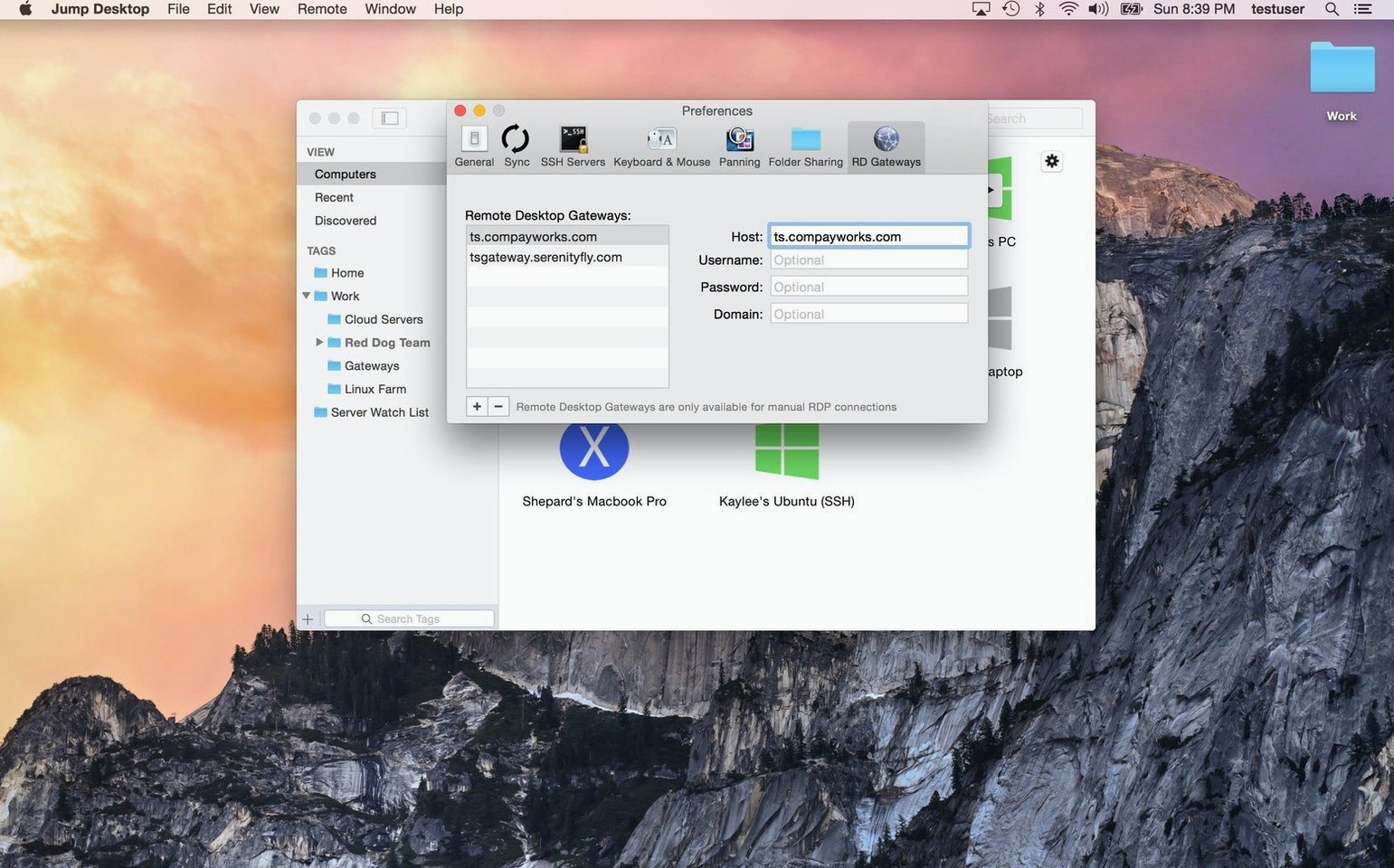
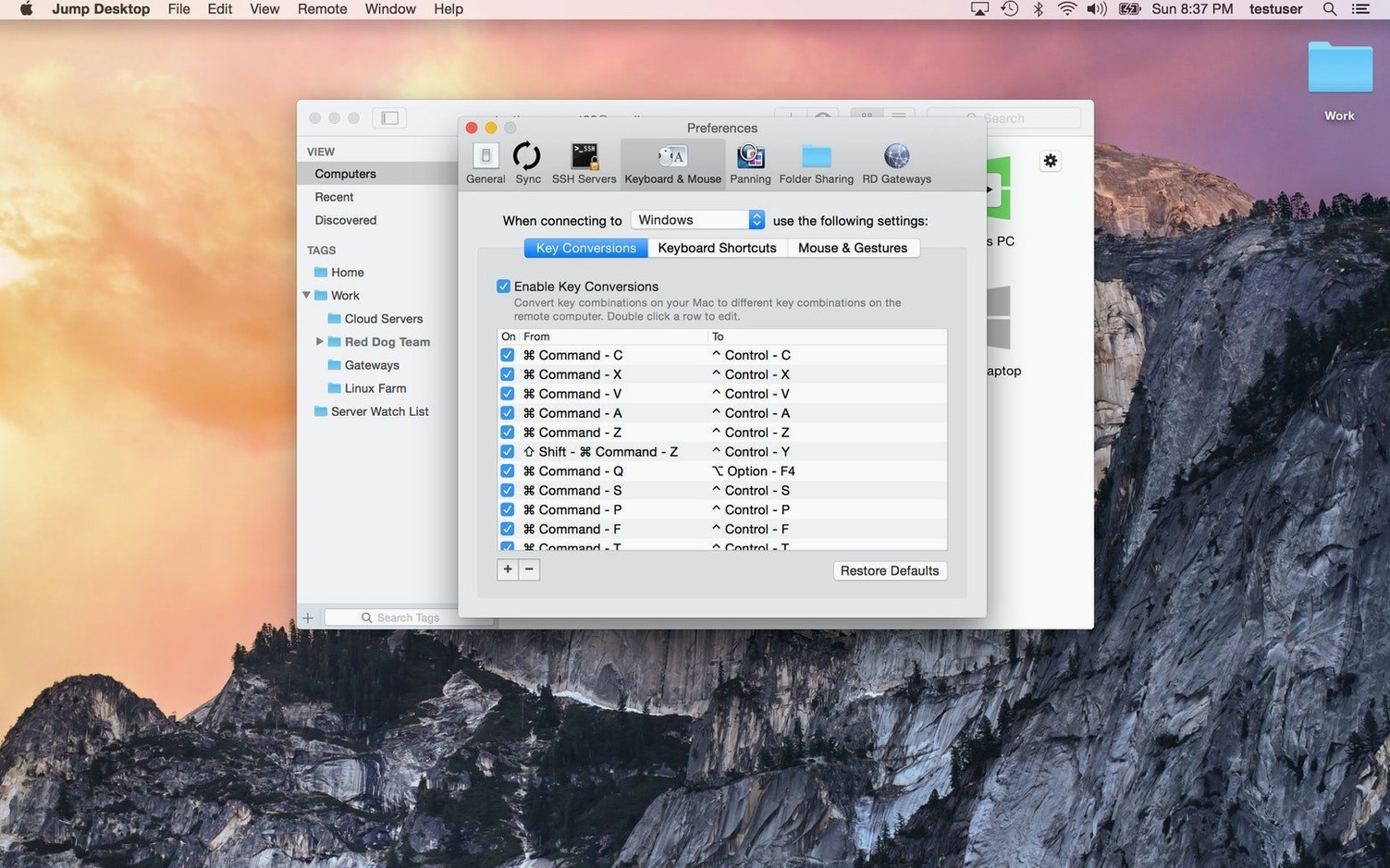
- Keyboard remapping — reassign keys so your local muscle memory doesn't trip you up on a remote PC. Handy when Ctrl and Command refuse to get along.
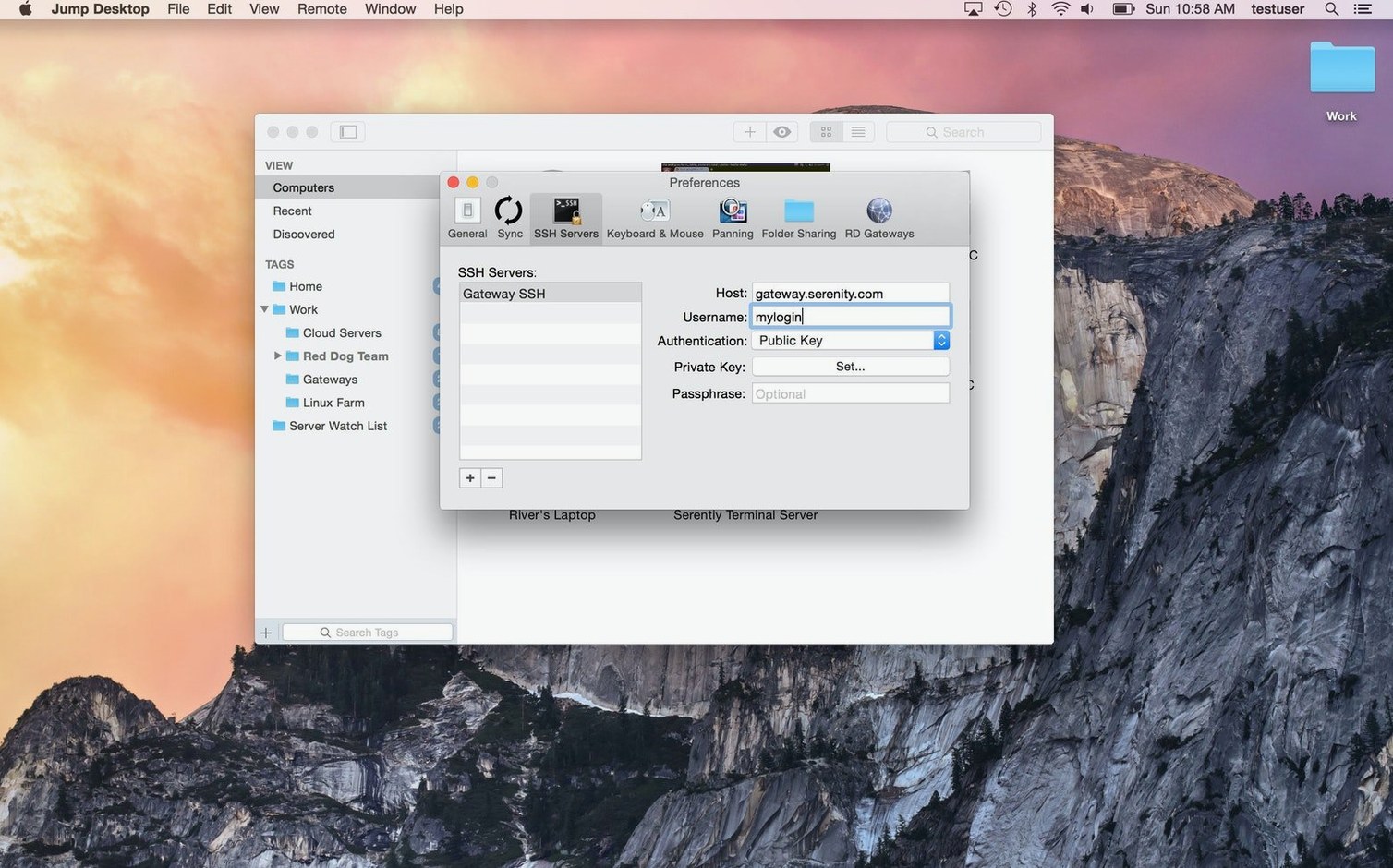
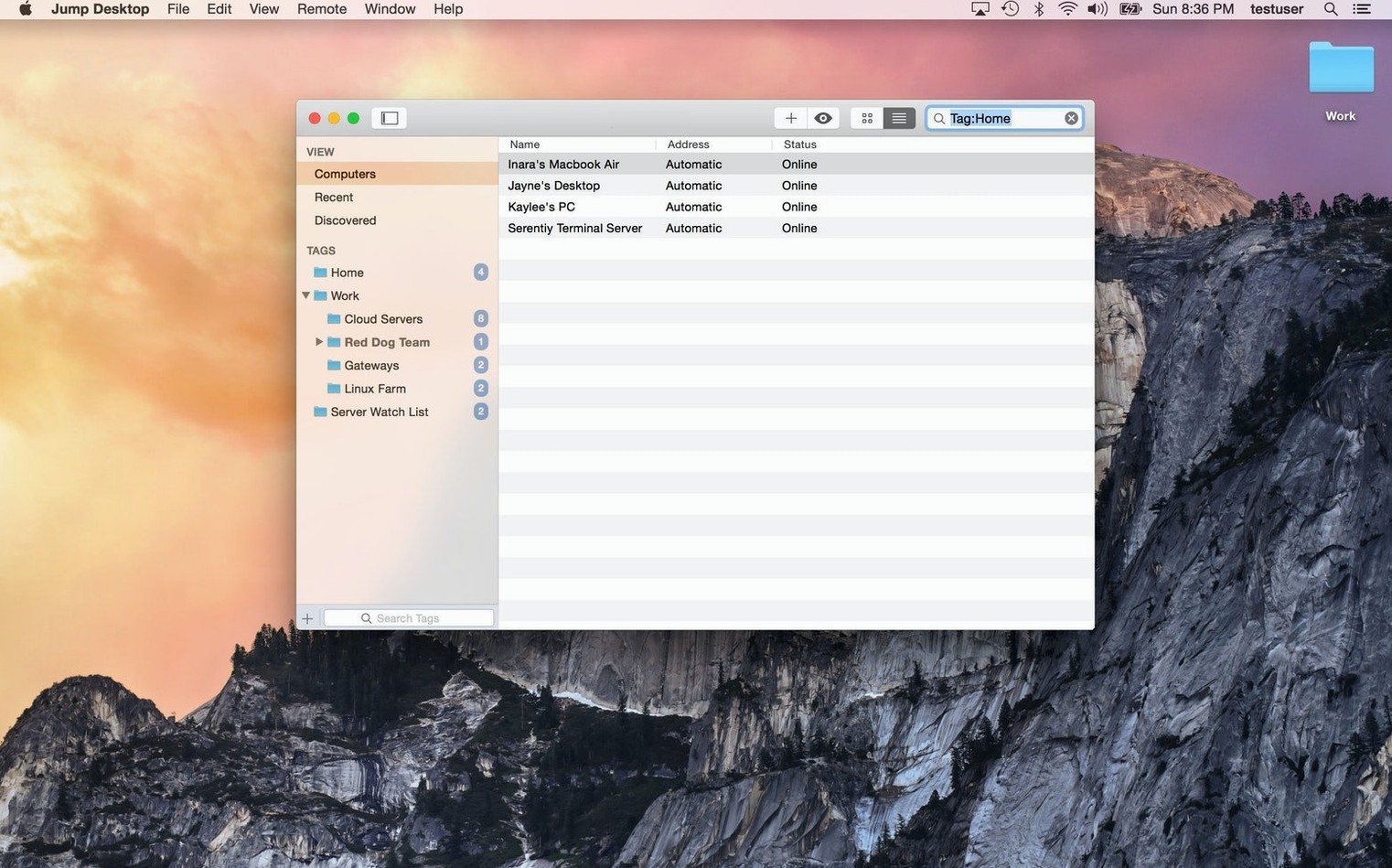
- Jump Desktop Connect — install this companion app on the host machine and you can skip the usual IP-and-port dance. Sign in once, and the machine appears in your client list.
- Dual protocol support — RDP for Windows boxes, VNC for Macs and Linux. One app covers both, even if the remote machine only speaks one.
How it handles setup
You can sign in with a Google account or any email address. The client finds machines running Connect without making you configure routers. Once connected, the session streams in real time — enough for terminal work, less ideal for video editing, but that's the protocol, not the app. It keeps things responsive where it counts.
Keyboard remapping for cross-platform IT staff
IT support staff who bounce between Windows and Mac machines all day. One client, two protocols, and the keyboard remapping alone saves a constant low-level headache. Anyone who works from home but needs an office Mac will also find the Connect setup quick enough to stop dreading Mondays.
Developers and tinkerers running headless Mac minis or old laptops in a cupboard tend to like it too. VNC access with sensible defaults beats most free clients for everyday checks. And if you help family members with their computers from across town, Jump Desktop spares you the phone call where they describe icons by colour.
A typical afternoon
A designer leaves her iMac at the studio and takes a MacBook Air home. She installed Jump Desktop Connect on the iMac last week, signed in with her email. Tonight she opens the client, clicks the iMac in her list, and waits a few seconds. The 5K display scales down to her laptop screen without turning every menu bar into a squint test. She pulls a client file from the remote desktop, edits locally, then drops the revised version back onto the iMac before logging out. Twenty minutes, no VPN, no phone call to IT.
Restart Connect when the remote machine stays invisible
- Remote machine not showing up — open Jump Desktop Connect on that machine and confirm it's signed in with the same account you use in the client. If it still doesn't appear, restart Connect. That fixes most discovery problems.
- Sluggish screen updates — lower the colour depth or resolution in the session settings. A 4K remote desktop over a modest connection will always lag until you trim it back to something sensible.
- Keys doing odd things on a Windows host — open the keyboard remapping panel and set explicit mappings for Command, Option and Control. The default layout works, but remapping to match your habits removes the constant correction.
- Gatekeeper blocking the first launch — if macOS complains, right-click the app and choose Open. You only need to do this once.
What’s new
Jump Desktop 10 is a major refresh. Here's what you get on the Mac side.
- Up to 480 fps. Games, scrolling and fast motion track high-refresh screens properly. Leave Framerate set to Auto and it follows your display.
- Hardware encoding. Sharper detail for the same bandwidth, less CPU load on the host, and longer battery life on your Mac. Switch Codec to Hardware to use it.
- High-performance virtual displays. Save and switch display presets. Set an exact resolution, scale and refresh rate. Keep After Disconnect leaves displays running on the host between sessions.
- USB device support. Redirect USB devices plugged into your desk straight to a Windows or Mac host.
- Game controller support. Play your games from the Mac with the controller in your hands.
- Creative work improvements. Input Trail shows stylus and mouse strokes immediately on high-latency connections. Colour Passthrough sends the host's colours unprocessed to calibrated displays.
- Everyday work improvements. Back and forward mouse buttons, pinch-to-zoom on a trackpad, and more reliable text composition for Chinese, Japanese and Korean.
Requirements
- macOS 11 or later
- Apple Silicon or Intel 64-bit Mac
FAQ
Can Jump Desktop connect to both Macs and PCs?
Yes. It supports RDP connections to Windows PCs and VNC connections to Macs, Linux machines, and VNC servers.
Do I need to set up port forwarding on my router?
Not if you install the free Jump Desktop Connect companion app on the host computer. Sign in and the client finds the machine automatically.
Does it support keyboard remapping?
Yes. You can remap keys so your local keyboard layout works naturally when controlling a remote machine with a different operating system.
Comments 0
Sign in or create an account to leave a comment.
No comments yet…
If you’ve installed it, say how it went. Mention your Mac and macOS version — it helps the next person more than you’d think.