Keyboard Maestro for macOS
Description
Version 11.0.4 adds tool tips to the Macro Debugger window. That small change is typical Keyboard Maestro — polishing the engine room while the macro count in a power user's library ticks past a few hundred.
Triggers, window control, and OCR in the core engine
| What | Details |
|---|---|
| Current version | 11.0.4 |
| macOS required | 10.13 or later |
| Architecture | Intel & Apple Silicon |
| Languages | English |
The core stayed the same. Keyboard Maestro still triggers by hotkey, schedule or clipboard change. It manipulates windows, opens specific documents, fills web forms and runs OCR on images using Apple's text recognition. The Switch/Case debug display now shows which branch would fire — handy when a macro chain runs a dozen conditions deep. Search highlighting in triggers got a fix too.
Make it less polite and more useful
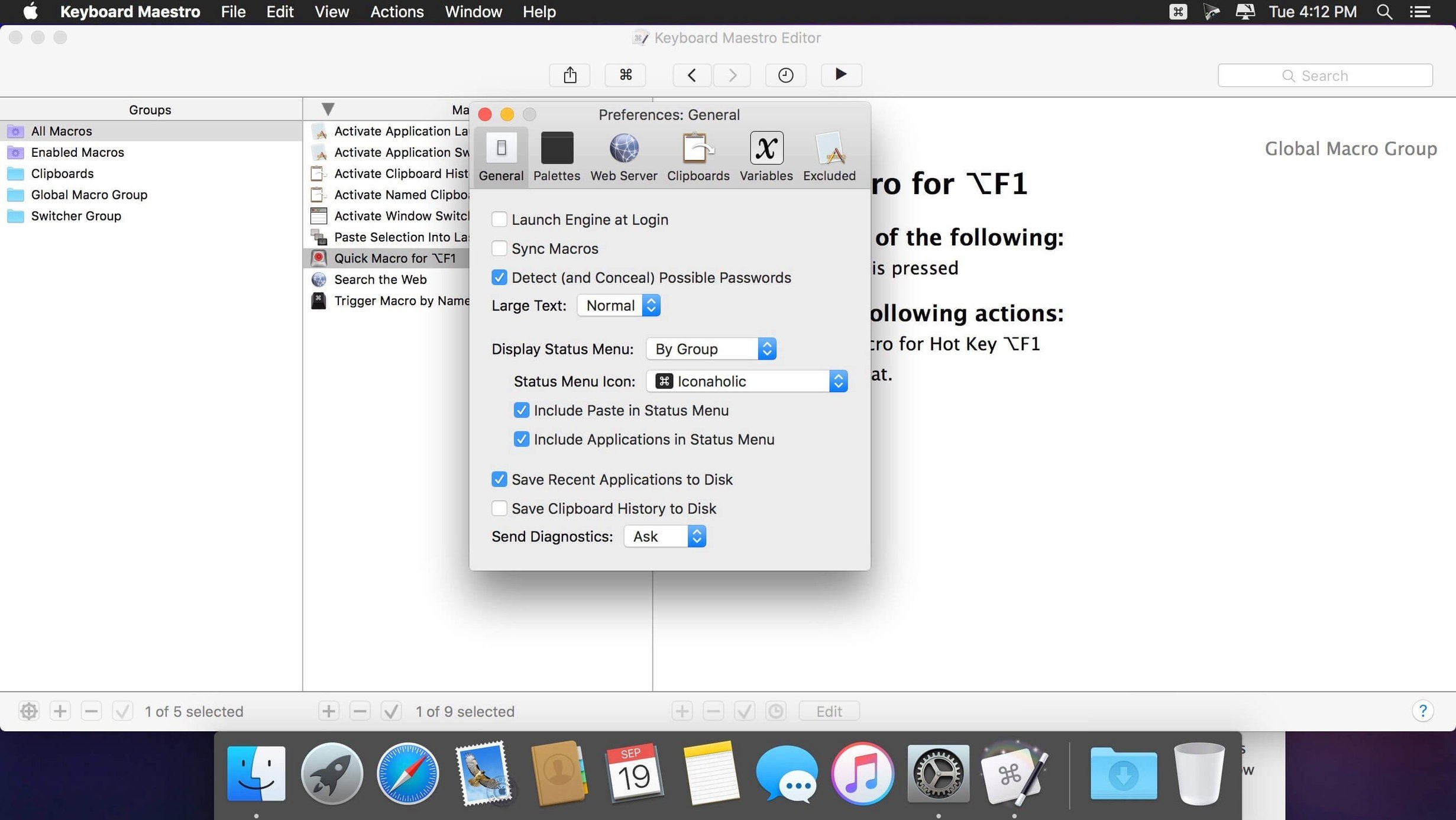
Out of the box, Keyboard Maestro is polite. Almost too polite. A few tweaks make it feel less like a guest and more like the tool you actually installed.
- Increase the clipboard history size. The default stores 200 entries, which disappears fast if you copy code snippets or image references all day. Push it to 500 or 1,000. While you are there, tick "Pause Clipboard History while recording" — it stops your macro recording sessions from filling the list with junk.
- Engine watchdog. Under Preferences > General, enable "If the Engine is not responding for 15 seconds, restart it." On busy days with dozens of macros firing, the engine can trip. This catches it before you notice.
- Conflict palette behaviour. When a hotkey triggers multiple macros, Keyboard Maestro shows a palette. Set it to "Show briefly then execute the first" if you want speed, or "Show and wait" if you prefer choice. Either is better than the default blink that leaves you guessing which macro ran.
- Script timeout. Shell and AppleScript actions default to 30 seconds. If you call external tools that sometimes hang —
ffmpeg, network mounts, database queries — set it to 10 seconds and let the macro fail cleanly instead of stalling.
None of these changes are exciting. They are the kind of things you set once and forget, until the day a clipboard entry from three hours ago saves you retyping a VAT number.
The glue layer between apps that don't talk to each other
Think of Keyboard Maestro as the glue layer between applications that were never designed to talk to each other.
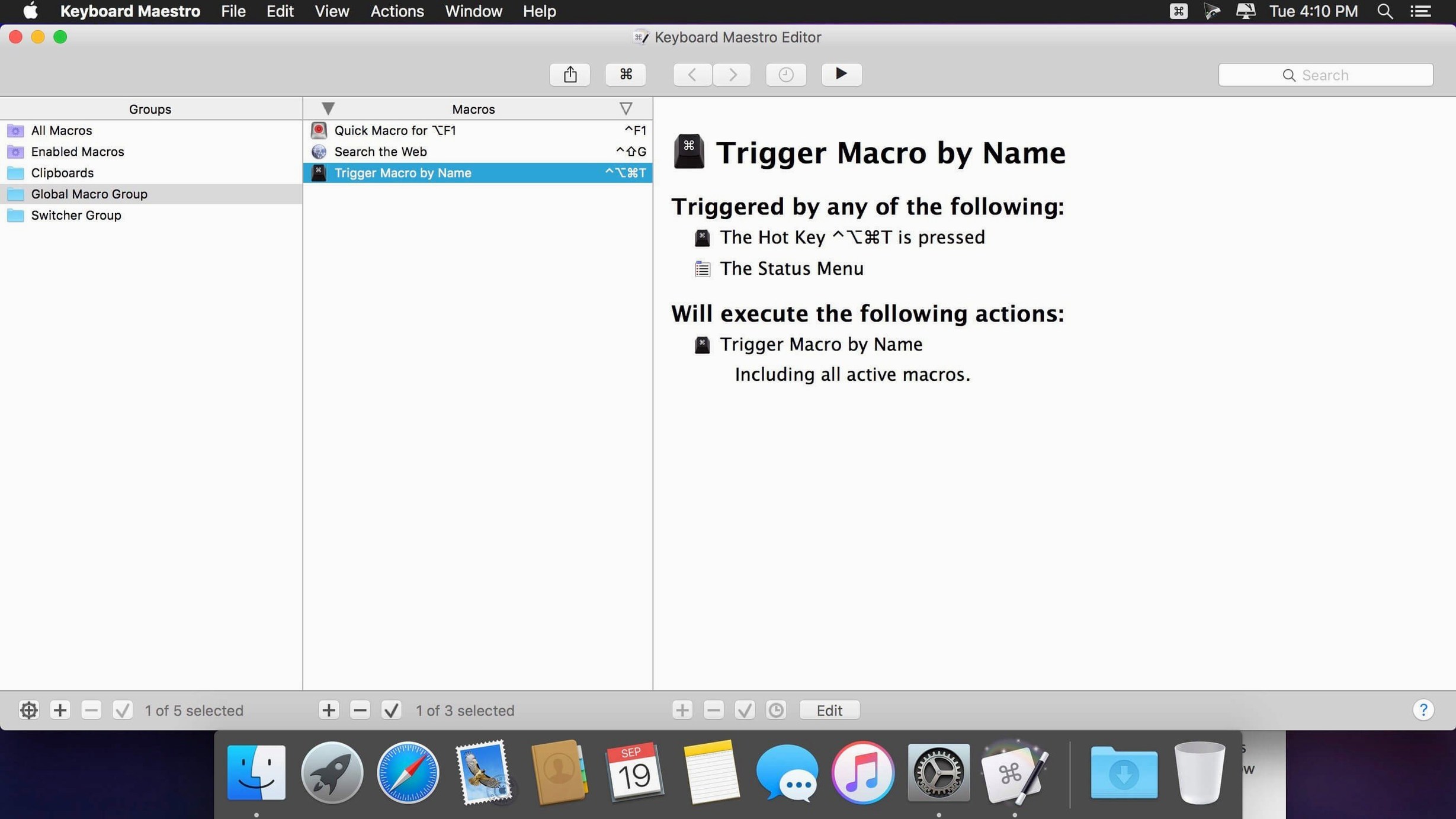
It reads the clipboard. It watches windows. It can stuff text into a web form, grab the result, and drop it into a Numbers cell. A single macro might chain: copy a tracking number from Mail > switch to Safari > paste into a courier site > wait for the page to load > extract the status > paste it into a reply. None of those apps know about each other. Keyboard Maestro is the one that does.
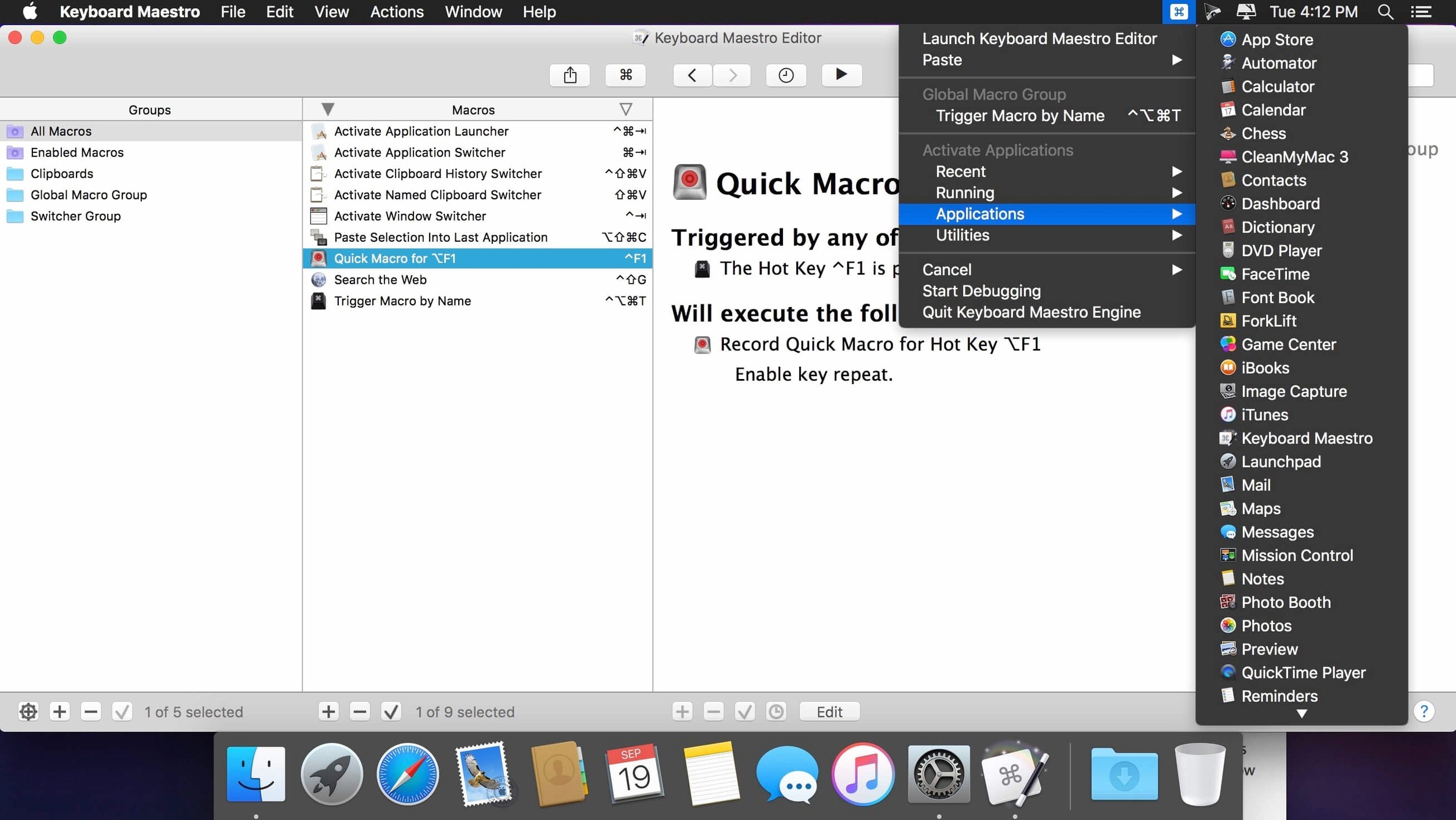
macOS Shortcuts overlaps in spirit, but the two serve different masters. Shortcuts handles system-level actions well — toggling Wi‑Fi, sending a pre-written message. Keyboard Maestro handles application detail. It clicks buttons by name, resizes windows to exact pixel dimensions, and runs loops with conditions Shortcuts cannot express. Plenty of users run both: Shortcuts for quick triggers from the menu bar, Keyboard Maestro for the heavy lifting.
It also plays nicely with Alfred and LaunchBar. Alfred opens apps and files; Keyboard Maestro can then arrange those apps across three displays and paste boilerplate text into the frontmost one. A typical workflow: Alfred summons the project folder, Keyboard Maestro tiles the Finder window, opens the PDF, and positions Notes alongside — all from a single hotkey.
Typed abbreviation expands into a full paragraph with the customer's name
Developers and support staff who write the same kind of reply five times a day. Keyboard Maestro turns a typed abbreviation — say ;refund — into a full paragraph with the customer's name pulled from the email subject line. It checks the clipboard for an order number and inserts it mid-sentence. That is not a timesaver; it is a wrist-saver.
Designers who bounce between Adobe apps and asset folders. A macro can export from Illustrator, optimise the PNG in ImageOptim, rename it with the project code, and move it to the client folder — all triggered when the file lands in a watched folder. The designer stays in Illustrator, unaware the rest happened.
Anyone running a Mac Mini as a headless server. Scheduled macros check for new files on a network share, OCR the PDFs, rename them by date and sender, and file them in the right client directory. Set it up once and forget it until the audit.
Researchers and writers who collect web clippings. A hotkey grabs the page title and URL, formats it as a Markdown citation, and appends it to a running text file. Another macro pulls highlighted text from Safari, runs it through a text filter to strip smart quotes, and pastes the clean version.
The common thread: people who do the same sequence of actions across two or more apps, more than a handful of times a week. If your work is entirely inside one application — say, all day in Xcode or all day in Final Cut — Keyboard Maestro helps less. Its strength is the space between apps.
No Touch Bar or trackpad gestures, but deeper automation
BetterTouchTool shares some turf — window snapping, keyboard shortcuts, trigger-based actions — but its heart is input-device customisation. It shines with Touch Bar widgets, trackpad gestures, and remapping keys per application. Keyboard Maestro does none of those natively. In return, Keyboard Maestro offers proper flow control (if/else, loops, variables) and a clipboard history that BetterTouchTool does not try to match. If you want your Magic Mouse to do a three-finger swipe that pastes the date, BetterTouchTool is the tool. If you want that date to be formatted conditionally, surrounded by template text, and emailed to a colleague — that is Keyboard Maestro.
Hazel watches folders and acts on files. It is single-minded and excellent at it. Keyboard Maestro can trigger macros when files appear, but its folder-watching is less polished — Hazel's rule interface is clearer for that one job. The two pair well: Hazel renames and sorts downloaded bank statements; Keyboard Maestro then OCRs them and logs the balance into a Numbers sheet. Hazel does the filing; Keyboard Maestro does the processing.
FastScripts focuses entirely on running scripts via keyboard shortcuts, with per-application assignments. It is lighter, faster to configure, and costs nothing for basic use. But it runs scripts, not actions. Keyboard Maestro runs scripts too — AppleScript, JavaScript, shell — but wraps them in a visual macro editor with hundreds of pre-built actions that do not need a line of code. If you already write all your automation in AppleScript, FastScripts may be enough. If you want to record a sequence of clicks, add a conditional branch, and paste the result without opening Script Editor, Keyboard Maestro covers more ground.
Worth it if you reach for the same sequence of clicks more than twice a day.
What’s new
- Adds display to Switch/Case actions showing which entries are true or would execute.
- Adds support for Apple Text Recognition in the OCR Condition.
- Adds Tool Tips for the Macro Debugger window.
- Fixes an issue with search highlighting triggers.
Requirements
- macOS 10.13 or later
- Runs on Intel and Apple Silicon Macs
FAQ
Can Keyboard Maestro fill web forms automatically?
Yes, it can fill web forms as part of a macro, along with automating other interactions across apps and sites.
Does version 11 work with Apple's text recognition?
Yes, the 11.0.4 release supports Apple Text Recognition in the OCR Condition, so you can trigger macros based on text found in images.
Comments 0
Sign in or create an account to leave a comment.
No comments yet…
If you’ve installed it, say how it went. Mention your Mac and macOS version — it helps the next person more than you’d think.