
FotoMagico for macOS
Description
Photographers who need a client-ready slideshow in ten minutes. Teachers assembling a term's worth of images for parents' evening. Anyone who'd rather not wait for a render bar just to see if a transition works. That's who uses FotoMagico.
Drops straight into Final Cut Pro or iMovie
It saves to any QuickTime-compatible format, so the exported file drops straight into Final Cut Pro, iMovie or a USB stick for the TV. The real-time engine means you preview in full resolution as you edit — no bouncing to a separate preview window.
What screens does it support?
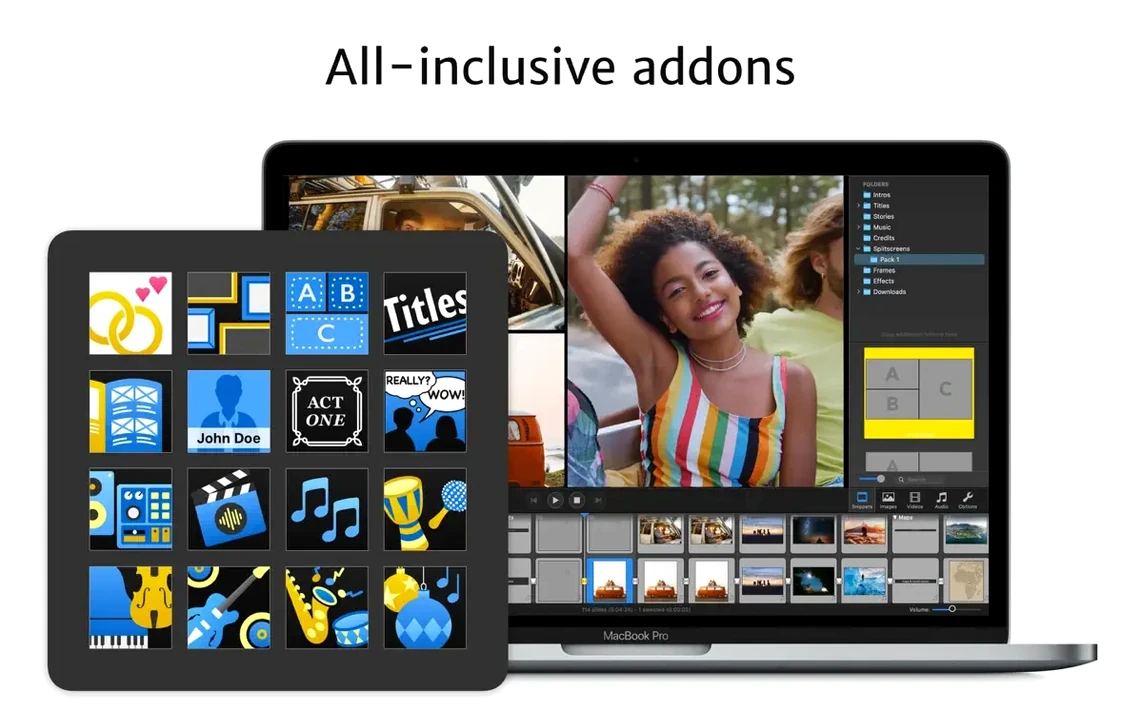
Large displays, HDTVs and high-resolution projectors. If your Mac can drive it, FotoMagico can fill it. The Snippets feature now matches the stage aspect ratio properly even on unusual screen sizes.
Can I send a slideshow to someone without the app?
Yes. Export a self-contained movie file and it plays on any computer that runs QuickTime. You can also add watermarks to images before they leave your desk.
Requires macOS 14 Sonoma or newer
Not anymore. Version 6.10 drops support for Catalina, Big Sur, Monterey and Ventura. You need an Intel or Apple Silicon Mac running macOS 14 Sonoma or newer.
Change the rushed slide and transition defaults
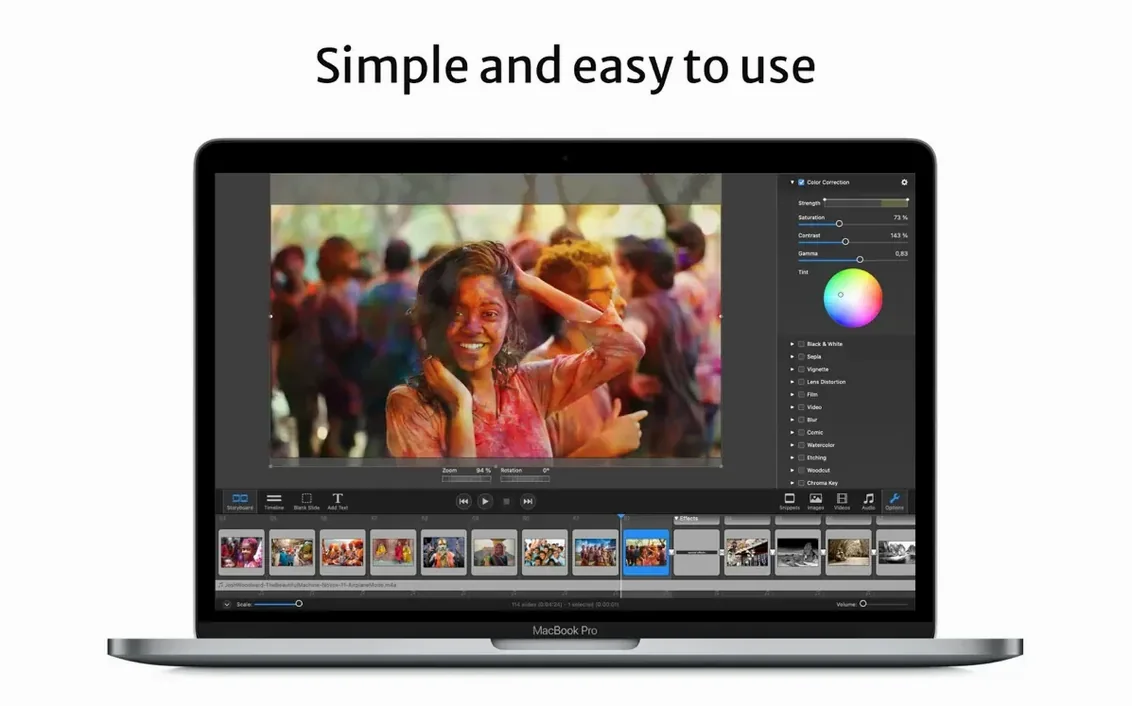
Open preferences and set the default duration for slides and transitions. The factory defaults feel rushed for anything other than a quick preview. Three seconds per slide and a one-second crossfade is a safer starting point for client work.
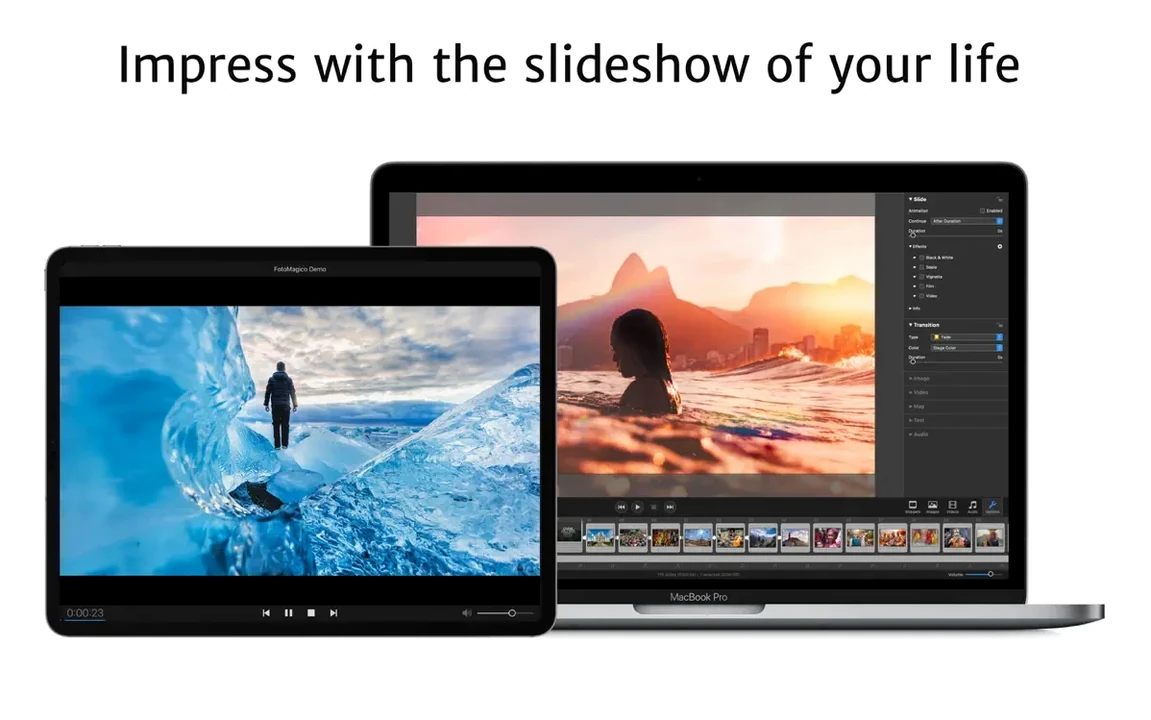
Switch the export preset to match where the slideshow will live. If it's heading to an iPad, pick the iPad preset early — it affects how text sizes and image crops look while you build. Changing it later means rechecking every slide.
Build a vertical Instagram story in six minutes
- Pick the Vertical Story preset when you create the project. That sets the 9:16 canvas straight away.
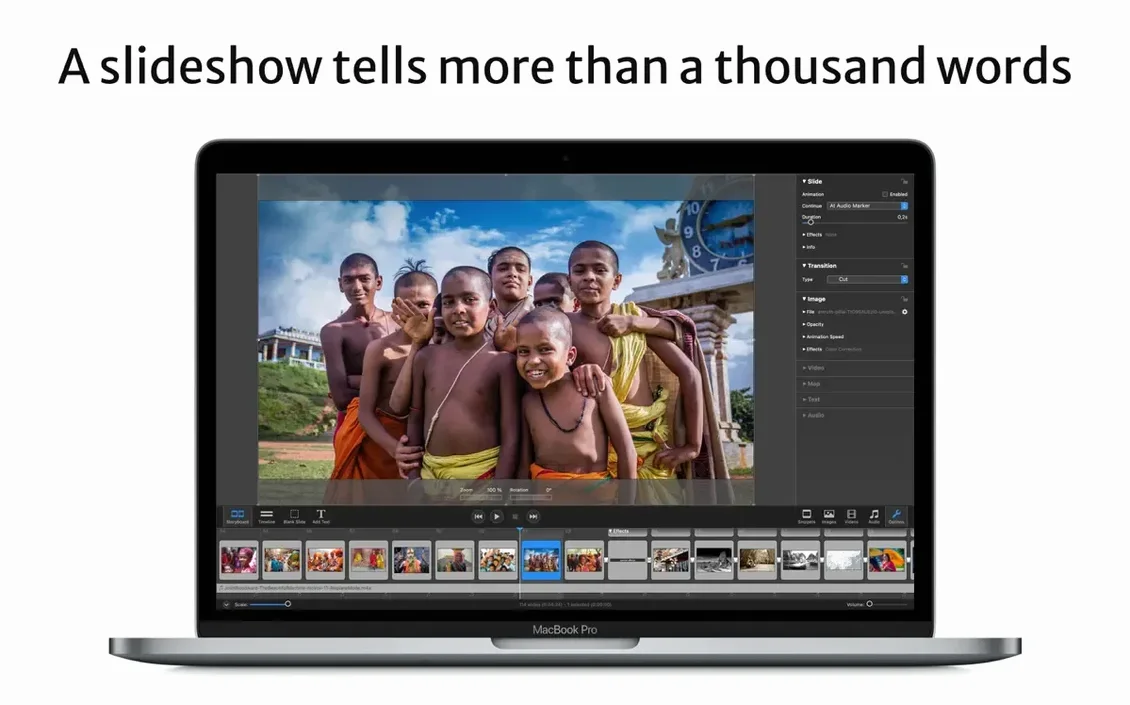
- Drop ten photos into the storyboard. Drag them into the order you want. Don't overthink it yet.
- Switch to the Snippets tab and drag a few title overlays onto key images. Keep text short — two or three words per slide.
- Open the music browser, pick a track from the built-in addons, and trim it to roughly match the slide count. Let the last slide land on a downbeat if you can.
- Run through it once. If a photo is cropped awkwardly, double-click it and nudge the framing inside the slide.
- Export as a movie file. The real-time engine means no render queue — the file is ready while the tea is still hot.
The whole thing, from blank canvas to a shareable clip, takes about the time it takes to write a decent email. No third-party converter needed, no waiting for a progress bar.
Offline activation and legacy project compatibility
Does it need an internet connection? No. Activation is handled offline. You can build and export slideshows in a field with no Wi‑Fi and no distractions.
Will my old FotoMagico projects open? Projects saved in earlier versions open fine in 6.10, provided your Mac runs Sonoma or newer. The file format hasn't changed in a way that breaks backwards compatibility.
Can I put the project file on iCloud and keep working on my iPad? Yes. Save the project to iCloud Drive on the Mac, then open it in fotoMagico on the iPad. The sync is straightforward — just make sure both devices have finished uploading before you switch.
Does it handle RAW files or just JPEGs? It reads whatever macOS can decode, which includes most RAW formats. The real‑time engine pulls from the full‑resolution file, so a 45‑megapixel image doesn't choke the timeline the way it would in a timeline‑based video editor.
Is there a Windows version? No. FotoMagico is macOS and iPadOS only. If someone on Windows needs to view the show, export it as a movie file and send that instead.
What’s new
Adds macOS 27 Golden Gate support. Drops support for macOS 10.15 Catalina, 11 Big Sur, 12 Monterey and 13 Ventura. Fixes a crash on quitting the app. Snippets now match the stage aspect ratio more reliably for unusual stage sizes. Localises some controls in the Map Assistant. Various stability improvements.
Requirements
- Apple Silicon or 64-bit Intel Mac
- macOS 14 Sonoma or newer
FAQ
Is there a Windows or iPhone version?
No. FotoMagico runs only on macOS and iPadOS. There is no Windows or iPhone support.
Comments 0
Sign in or create an account to leave a comment.
No comments yet…
If you’ve installed it, say how it went. Mention your Mac and macOS version — it helps the next person more than you’d think.