
Folder Preview Pro for macOS
Description
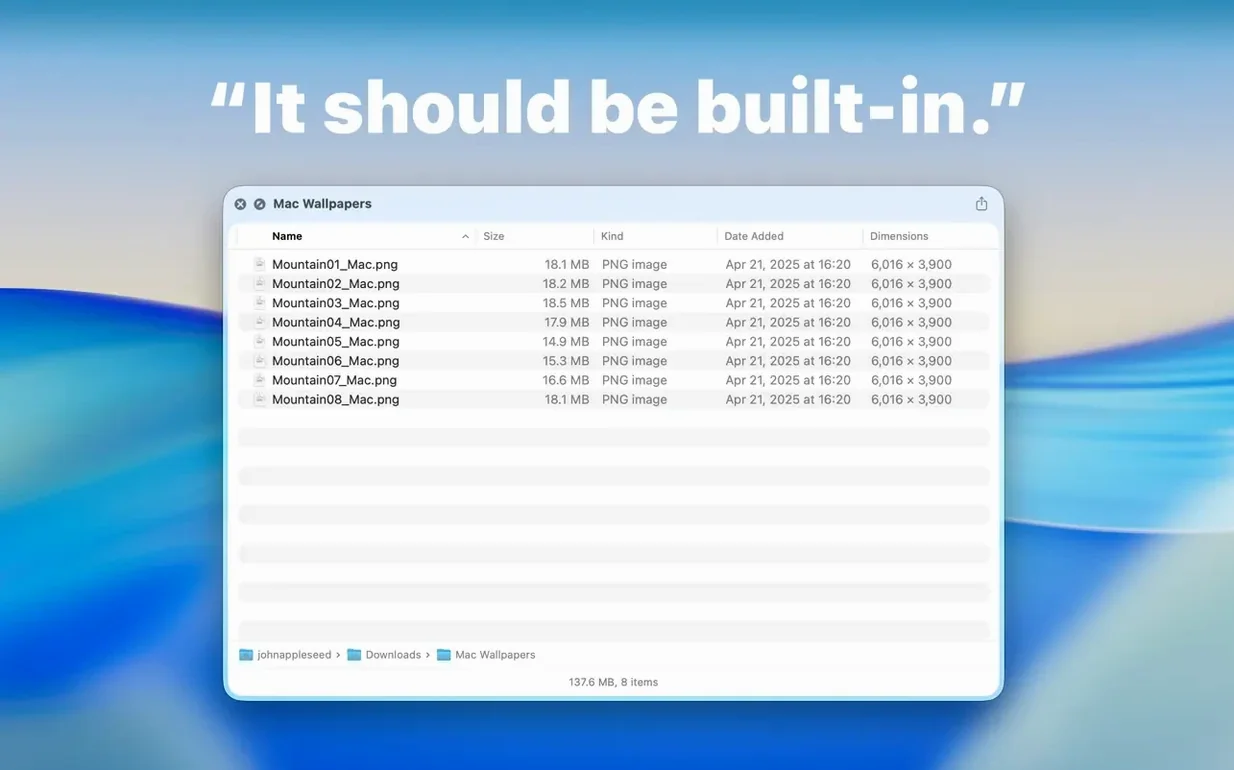
You hit the spacebar on a folder in Finder, hoping for a quick peek inside. Instead, you get a generic icon and a file count. Folder Preview Pro 3.1 replaces that with an actual listing of the folder's contents, right in the Quick Look panel.
Press Space to preview folder contents instantly
Select any folder in Finder and press Space, or use Command-Y. The preview panel shows you the files, images, and subfolders inside immediately. It works for local drives and network shares.
Can I get a file out of the preview?
Yes, from version 3.1 onward you can drag files directly out of the preview window and drop them onto the desktop or into another app. This works from both the list and icon views.
Browse nested folders side by side with Dual Columns
The new Dual Columns view shows the parent folder and the selected subfolder side by side. You can also right-click any folder and choose Contents to browse it level by level without ever opening a Finder window.
Folder size displayed right in the toolbar
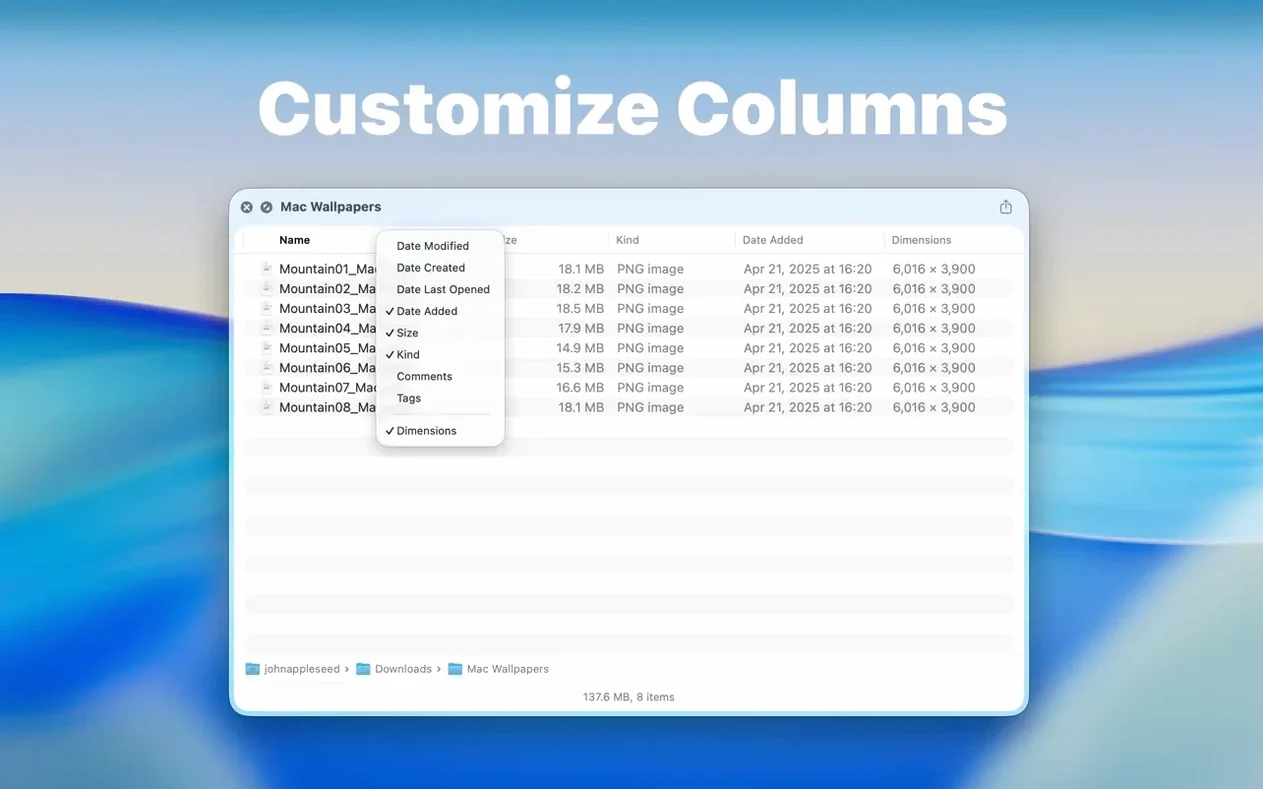
The folder size now sits in the toolbar just under the folder name, keeping it visible without cluttering the status bar. Right-click the column headers in list view to show or hide details like size, kind, or modification date.
Move archive size to its own toolbar spot
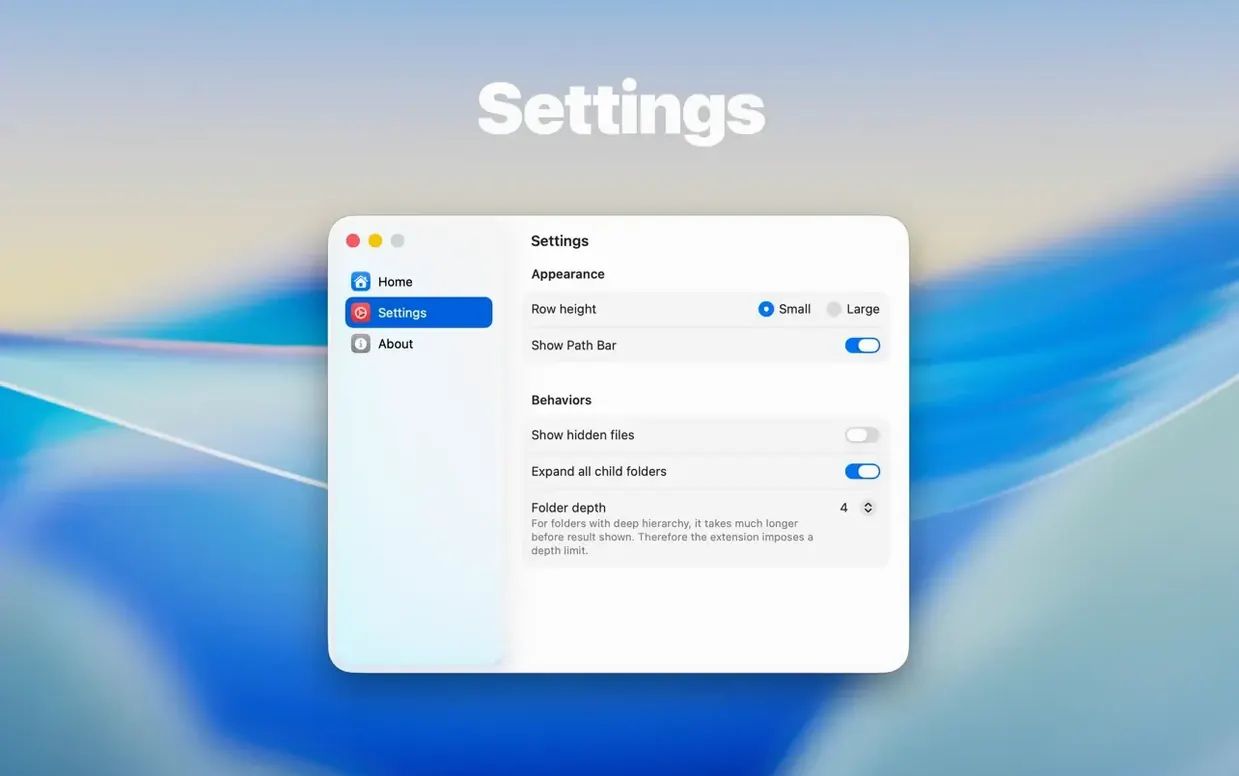
The out-of-the-box settings are sensible, but a couple of tweaks make the app fit tighter to how you actually work.
- Open the app from Launchpad, click its menu bar icon, and choose Preferences.
- Go to the Archive size limit pop-up. The default is 5 GB. If you regularly handle large compressed backups or media zips, bump it to 10 GB. The preview won't choke on smaller archives, but a limit set too low just blanks the panel when you need it most.
- Switch on Dual Columns as the default view if your folder trees are more than one level deep. It saves you the constant right-click → Contents dance when you're hunting for a file buried three folders down.
- In list view, right-click the column bar and tick Kind and Size. Those columns are hidden initially but make scanning a folder much faster than squinting at icons.
Fills the Quick Look gap Apple left for folders
Finder's built-in Quick Look has never shown folder interiors, so anything doing this is filling a gap Apple left. The closest alternatives aren't direct clones, but they overlap in intent.
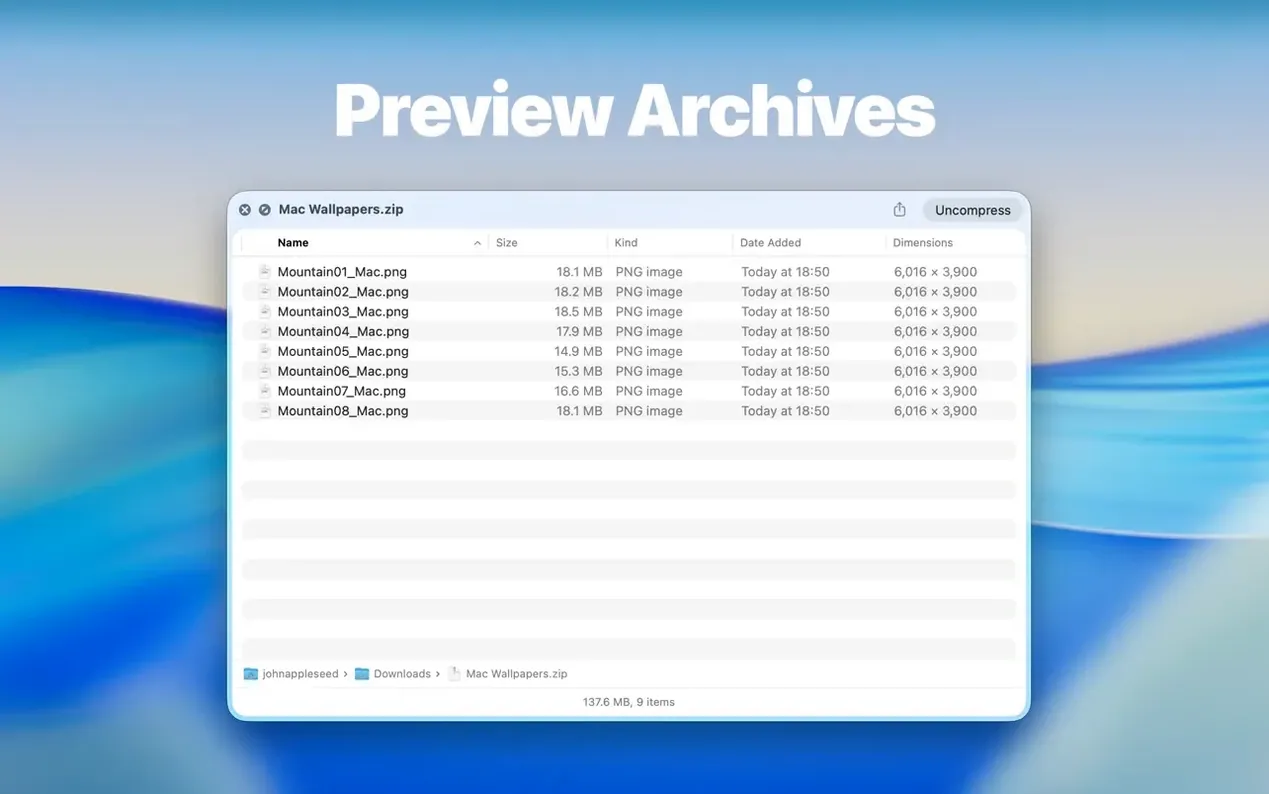
BetterZip's Quick Look extension handles archive previews well — ZIP, RAR, 7Z — but it doesn't touch plain folders. If your workflow is half archives and half normal directories, you'd still need a second tool for the latter. Folder Preview Pro covers both in one panel.
XtraFinder adds a bunch of Finder features, including folder previews in its own panel. The difference is weight. XtraFinder hooks deep into Finder itself, which means more that can break on a macOS update. Folder Preview Pro sits as a separate Quick Look plug-in; if it misbehaves, you can uninstall it without touching Finder's guts.
Path Finder is the nuclear option — a full Finder replacement with dual panes, folder previews, and a hundred other things. It's powerful but busy. If you just want folder previews and don't fancy relearning your file manager, a lean extension makes more sense.
Press Space on a ZIP to test the archive preview
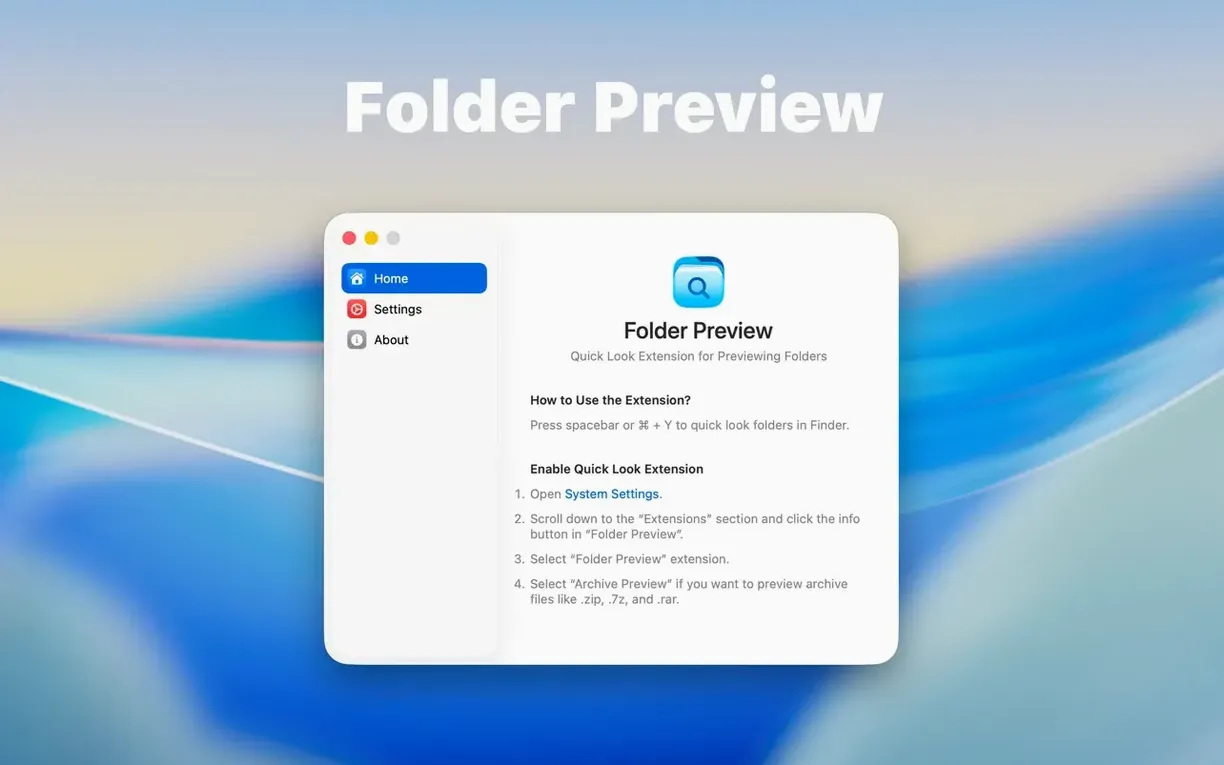
Launch the app once after dragging it to Applications, then forget about it. It runs as a background service and kicks in whenever you invoke Quick Look on a folder.
A good habit: press Space on a few archive files early on — especially RAR and 7Z — to confirm the preview loads. If macOS blocks the extension on first launch, head to System Settings → Privacy & Security and allow it. That's usually a one-time thing with unsigned Quick Look plug-ins.
When you're cleaning out a downloads folder or sorting a project directory, keep the preview panel open and drag files straight out to trash or a new folder. It turns a tedious click-open-drag-close routine into a single motion. After a day or two you'll wonder why Finder didn't do this in 2012.
What’s new
Adds Dual Columns view.
Adds a Contents item for level-by-level folder browsing.
Lets files be dragged out of the preview from list and icon views.
Requirements
- macOS 13 or later
- Intel and Apple Silicon Macs
Comments 0
Sign in or create an account to leave a comment.
No comments yet…
If you’ve installed it, say how it went. Mention your Mac and macOS version — it helps the next person more than you’d think.