
FL Studio for macOS
Description
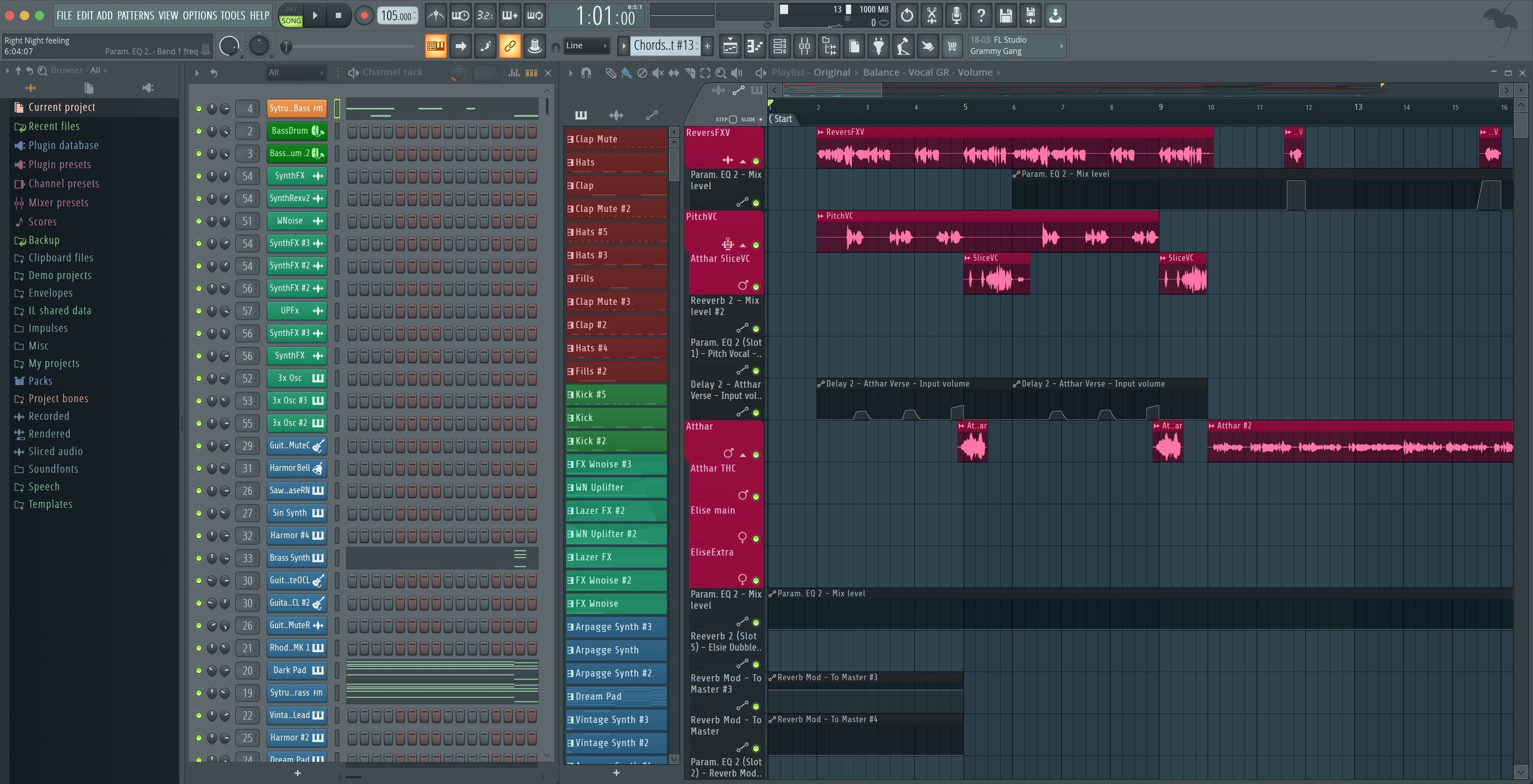
A beat starts with a kick drum on step four, then a snare, then a hi-hat pattern that sounds almost accidental. You draw a few notes in the Piano Roll, drop a sampler on another channel, and suddenly there’s a loop that didn’t exist three minutes ago. FL Studio works the way a lot of people think about music — in patterns that stack and shift.
Where the work gets done
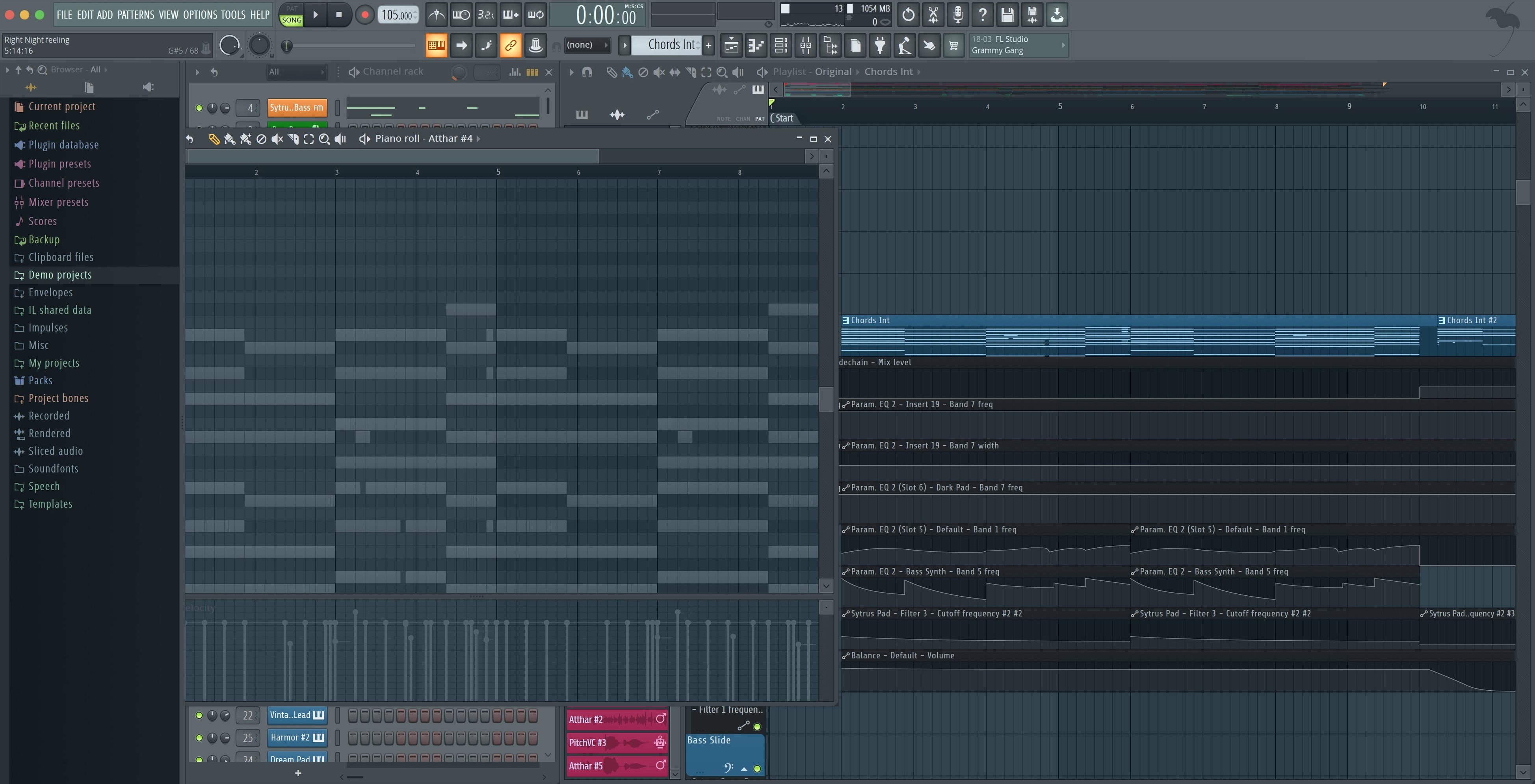
- Channel Rack and Piano Roll. Step sequencing for drums and melodic patterns sits next to a precise MIDI editor. You click steps into the grid or draw velocities and slides by hand.
- Multitrack recording. Arm a mixer track and record audio or MIDI. It handles takes, punch-ins, and layered overdubs without fussing with the transport.
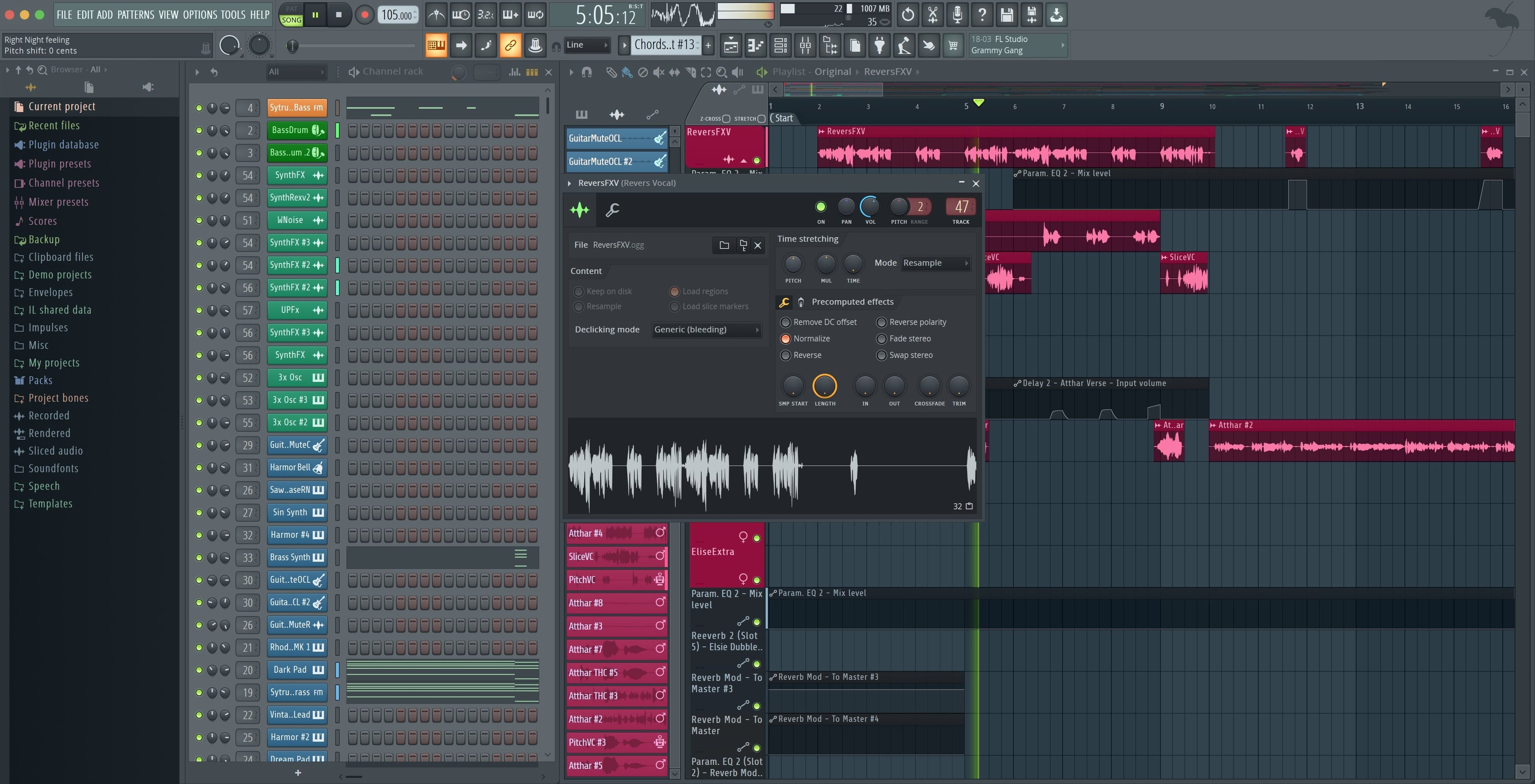
- Built-in instruments. Synthesizers, samplers and drum machines come in the box. Add VST plugins when you need a third-party sound.
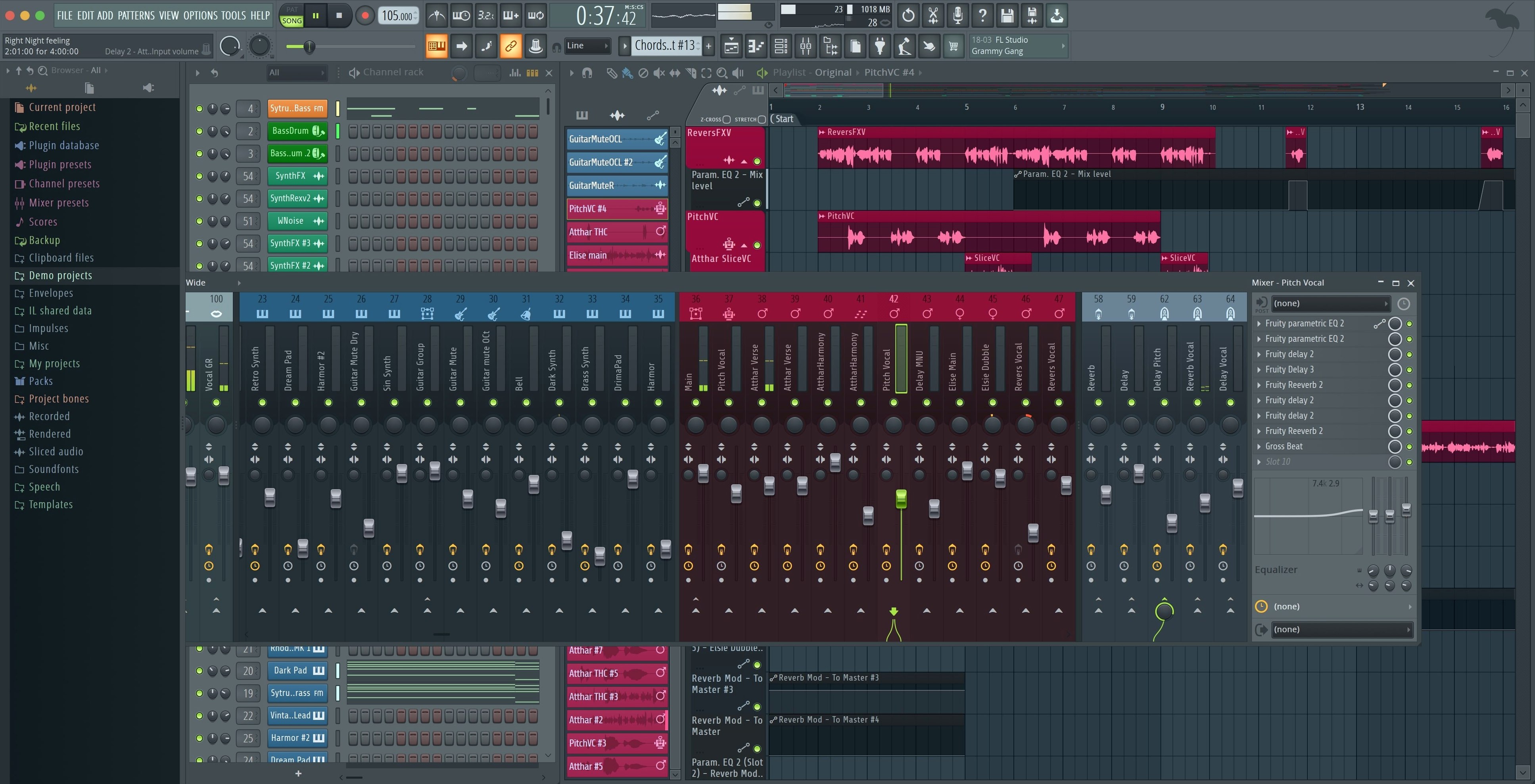
- Mixer with effects. Every track hits a full desk with inserts, sends and EQ. The export dialog now lets you render Master and Current when splitting mixer tracks — a checkbox rather than a workaround.
Why it runs well on Mac
FL Studio 2026 runs natively on Apple Silicon and Intel Macs from macOS 10.15 onward. No translation layer needed. The latest maintenance update tidied a few rough edges: the Akai Fire controller now defaults to its dedicated script, the Plugin Performance Monitor shows fractional percentages, and connecting a new MIDI controller triggers a prompt to enable it right away.
Ctrl+Alt+Z is your actual undo
Most people learn the big features first and spend months missing the little ones. A few worth grabbing early:
- Ctrl+Alt+Z (⌘+Option+Z) is your actual undo. Plain Ctrl+Z toggles one step. The three-key version walks backwards through history properly.
- Right-click the metronome icon. You get a countdown before recording starts instead of an abrupt punch-in. Saves a lot of takes.
- Shift+click a mixer fader to reset it to zero. Works on knobs in the Channel Rack too. Beats dragging a fader back to centre and hoping you got it right.
- Scroll anywhere on a knob to tweak it. You don’t need to grab the handle. Just hover and scroll.
- F6 closes every open window except the Playlist. When the screen looks like a bomb went off in a control panel, F6 puts it back in order.
Workflow: building a beat from an empty project
Open FL Studio and the Channel Rack starts with a kick, clap, hat and snare loaded by default. Most people change that. Here’s a start-to-finish method for a clean project.
- Set the tempo and project length. Tap the BPM box or drag it — 85 to 95 works for half-time hip-hop, 120 and up for house or pop. Then drag the Playlist’s pattern block out to 16 bars so you have room.
- Pick your sounds. Drop a FLEX instrument on the Channel Rack for a quick bass patch. Add three channels from the Browser library: kick, snare or clap, closed hi-hat. Assign each to its own mixer track by highlighting them and pressing Ctrl+L (⌘+L).
- Step-sequence the drums. Kick on steps 1 and 5. Snare or clap on 3 and 7. Hi-hat on every offbeat — steps 3, 7, 11, 15. Hit the pattern length control and set it to 16 steps so you get a full bar.
- Drop a bass line in the Piano Roll. Right-click the FLEX channel and pick Piano Roll. Draw a short note on beat 1 of bar 1, another on beat 3 — keep it simple and in key. Use Ctrl+click to add notes quickly.
- Arrange in the Playlist. Switch to Pattern mode (the button next to the transport). Paint the drum pattern for 8 bars. Paint the bass pattern for 6 bars, leaving bar 7 empty as a drop. Add a soloed hi-hat pattern in that gap.
- Add mixer polish. On the kick mixer track, insert a Fruity Parametric EQ 2 and pull down some low-mid mud around 250 Hz. On the master track, add a Fruity Limiter last in the chain — gentle ceiling, no crunch.
- Export the loop. Select the 8-bar range in the Playlist, open the Export dialog, tick “Split mixer tracks” and check both Master and Current if you want stems. FL Studio renders what you asked for without exporting the whole project.
Fix no sound after plugging in an interface
FL Studio on Mac behaves well until it doesn’t. Here’s what people run into and how to get unstuck.
- No sound after connecting an interface. FL Studio doesn’t always switch automatically. Go to Options > Audio Settings, set the device to your interface, then reopen the project. The notification for new MIDI controllers in 26.1.6 doesn’t extend to audio devices yet.
- Plugins missing from the Browser. If you added VST folders manually, run a rescan from Options > Manage Plugins. The Plugin Performance Monitor now shows fractional precision, which helps spot a misbehaving plugin chewing more CPU than it should.
- Patterns playing at the wrong length. The Playlist block length is independent of the pattern length inside the Channel Rack. If a 4-bar block plays only 2 bars of notes, open the Channel Rack, drag the pattern length control to match, and re-paint the Playlist block.
- Export sounds different from playback. Check that “Disable maximum polyphony” isn’t on in the export settings unless you mean it. Also verify that third-party plugins aren’t in demo mode — some mute sporadically during export even if they play fine during monitoring.
Building a 90-second tension bed from scratch
A post-production freelancer gets handed a 90-second ad spot at 10 a.m. The brief asks for a rising tension bed with metallic hits and a sub drop. She opens FL Studio and loads three instances of Sytrus on separate mixer tracks, each with a different FM patch — one glassy, one hollow, one pure sine for the sub. She draws MIDI in the Piano Roll for each, keeping the sub out until the final 15 seconds.
She adds Fruity Convolver on a send and drags a warehouse impulse response from the Browser into it. Each metallic hit gets routed to that send at varying levels. The Plugin Performance Monitor shows fractional CPU use per insert, so she catches one convolution setting that spikes 4.7% higher than the others and lightens the wet mix slightly.
By 11:15 the bed is timed to picture. The Akai Fire on her desk lights up with its dedicated script, no manual mapping needed. She records a volume automation pass on the master fader during the final eight seconds — a slow dip that makes the sub drop land harder. Export with split mixer tracks ticked gives her the stems the client asked for without exporting one track at a time.
What’s new
Adds checkboxes in the export dialog for rendering Master and Current when splitting mixer tracks. Adds fractional precision to Plugin Performance Monitor values. Shows a notification when a new MIDI controller is connected, with an option to enable it. The Akai Fire controller now uses its dedicated script by default.
Requirements
- macOS 10.15 Catalina or later
- Apple Silicon or 64-bit Intel processor
- Apple Silicon Macs run natively (Rosetta not required)
- English interface
FAQ
Does FL Studio support VST plugins on Mac?
Yes. The Producer Edition loads VST instrument and effect plugins alongside the built-in synths and samplers.
Comments 0
Sign in or create an account to leave a comment.
No comments yet…
If you’ve installed it, say how it went. Mention your Mac and macOS version — it helps the next person more than you’d think.