
Flicker Free for macOS
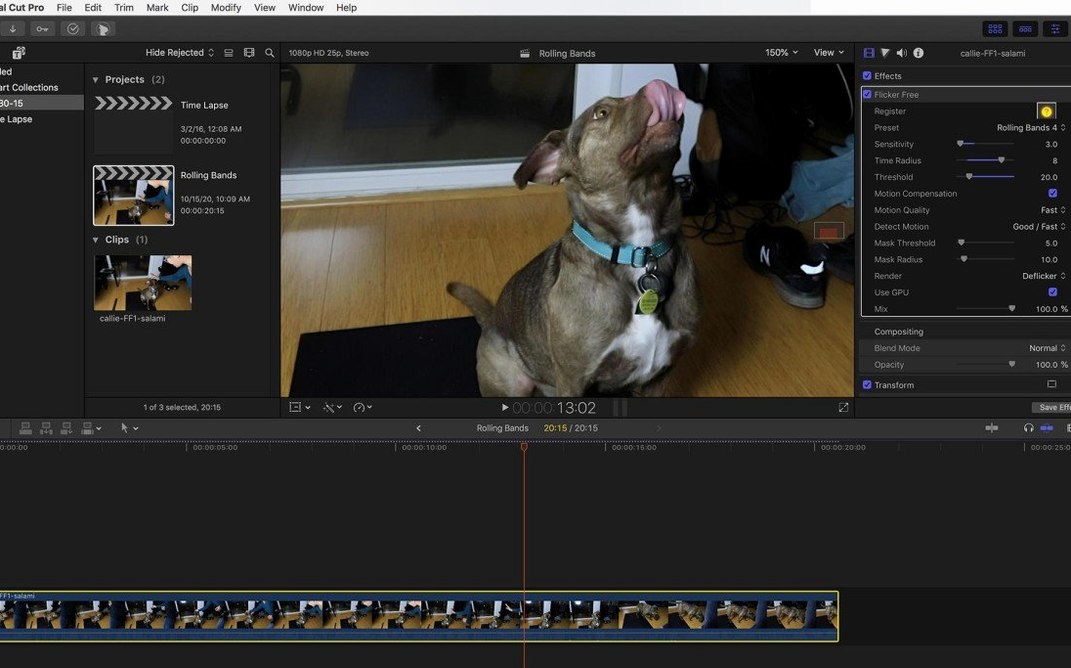
Description
It runs on any Mac that can host a modern video editor — Intel or Apple Silicon, no special GPU requirements. You drop it onto a clip inside Premiere Pro, After Effects, Final Cut Pro, DaVinci Resolve or another supported host.
Clean up flicker first, then grade
- After the shoot, before the grade. It sits between imported footage and your colour work. Clean up flicker first, then grade.
- Not a built-in filter. Most editors have some sort of deflicker, but they tend to soften the image. This is a third-party tool that analyses frames as they're processed, so it preserves more detail.
- Presets do the heavy lifting. You pick a preset for time-lapse, slow-motion or general flicker, and the plugin works out the rest. No keyframing by hand.
The footage it actually helps with
It's built for the stuff that trips up standard tools. Time-lapse shot under artificial light. Slow-motion from a Phantom Flex or a Sony FS700U. Old GoPro HERO3 Black clips where the shutter and the fluorescent tubes never quite agreed. If the flicker is frame-to-frame rather than within a single frame, this is the tool for it.
Long time-lapse sequences no longer crawl on Apple Silicon
Version 2.1.6 didn't reinvent the plugin. It fixed things that quietly annoyed people through several projects. The biggest practical change is how it handles long time-lapse sequences on Apple Silicon. Earlier versions could slow to a crawl on the last few hundred frames of a big sequence. That's gone now. Render times stay consistent from first frame to last.
There's also a small but useful improvement to the preset system. Previously, switching between the Time-lapse and LED/fluorescent presets sometimes reset your frame-analysis region. Now the region sticks. If you've ever re-drawn a rectangle three times because you were testing presets, you'll notice the difference within ten minutes.
One more thing worth knowing: the plugin now respects the host application's render-safe frame boundaries more reliably. In Resolve 18 and later, it no longer occasionally grabs a black frame from outside the clip's in-point during analysis. That was a rare bug, but when it hit, it produced a single-frame flash right at an edit point. Fixed.
Before you install
Universal binary loads natively, no Rosetta needed
It's a universal binary — ARM and x86 in the same package. No Rosetta translation needed. The plugin loads natively in whichever version of your host application you're running. That's been true since version 2.0, and 2.1.6 hasn't changed it.
Will it soften my footage like the built-in deflicker in Premiere?
It shouldn't. Built-in deflicker filters tend to apply temporal smoothing that eats fine texture — skin pores, fabric weave, distant foliage. Flicker Free analyses luminance variation frame by frame and adjusts exposure to match, rather than blending frames together. Detail stays put. If you're seeing softness, you've probably got the wrong preset for your flicker type, or you've pushed the adjustment slider too far past the default.
Can I try it on a short section before committing to the whole clip?
That's the recommended workflow. Apply the plugin, set your preset, render a ten-second test range, and check the result. If it looks right, extend the range to the full clip. The analysis runs on whatever portion you render, not on the entire timeline upfront.
What's the difference between the General Flicker preset and the Time-lapse one?
General Flicker looks for faster, smaller exposure shifts — the kind from 50 Hz or 60 Hz mains-powered lights interacting with shutter speeds. Time-lapse is tuned for slower, more erratic changes across frames that might be seconds or minutes apart. Use the wrong one and you'll either leave flicker behind or introduce a subtle pulsing that wasn't there before.
Does the plugin handle rolling bands from LED walls at events?
Yes, that's one of its stronger use cases. The LED/fluorescent preset is built specifically for horizontal or vertical bands that roll through the frame. It's not perfect — if the band is very wide and moves slowly, you might need two passes — but it's far better than any built-in tool for this job. The plugin became popular with wedding and corporate editors precisely because of conference-room LED flicker.
Stabilise first, then deflicker
Applying it before stabilisation. Flicker Free needs consistent frame boundaries. If you stabilise afterward, the plugin's frame analysis no longer lines up with the image. Always stabilise first, then deflicker.
Using the wrong preset and blaming the plugin. Beginners often try General Flicker on a time-lapse and wonder why the sky still pulses. The presets aren't suggestions — they set different analysis windows and correction curves. Test two presets on the same ten-second range before you decide the plugin doesn't work.
Forgetting to check frame-to-frame versus intra-frame flicker. Flicker Free handles flicker between frames. If the flicker is within a single frame — say, a rolling shutter artefact from a DSLR — this isn't the tool. You'll see no improvement and might introduce odd exposure jumps. Know which problem you have before you reach for a plugin.
Rendering the entire timeline as a first step. It's tempting to apply the plugin and hit render on a twenty-minute sequence. Don't. The analysis pass takes time, and if you picked the wrong preset, you've just queued twenty minutes of correction you'll need to undo. Ten seconds, check, then commit.
Leaving the adjustment at 100% without checking. The default 100% correction strength is often too aggressive for footage with mild flicker. It can introduce a sterile, overly flat look — the exposure equivalent of overdone noise reduction. Dial it back to 60–70% on subtle flicker and see if that's enough. You can always push it further, but you can't recover texture lost to overcorrection.
Requirements
- macOS host editor (Premiere Pro, After Effects, Final Cut Pro, DaVinci Resolve or similar)
- Intel or Apple Silicon Mac
FAQ
Does it work with time-lapse footage?
Yes, it targets flicker in time-lapse video and includes presets to make the workflow simpler.
Is it a standalone app?
No, it is a video deflicker plugin that runs inside host editors like Premiere Pro, After Effects and Final Cut Pro.
Which cameras' footage does it support?
It works with any footage that has frame-to-frame flicker, with examples given for cameras like the Phantom Flex, Sony FS700U and GoPro HERO3 Black.
Comments 0
Sign in or create an account to leave a comment.
No comments yet…
If you’ve installed it, say how it went. Mention your Mac and macOS version — it helps the next person more than you’d think.