Final Cut Pro for macOS
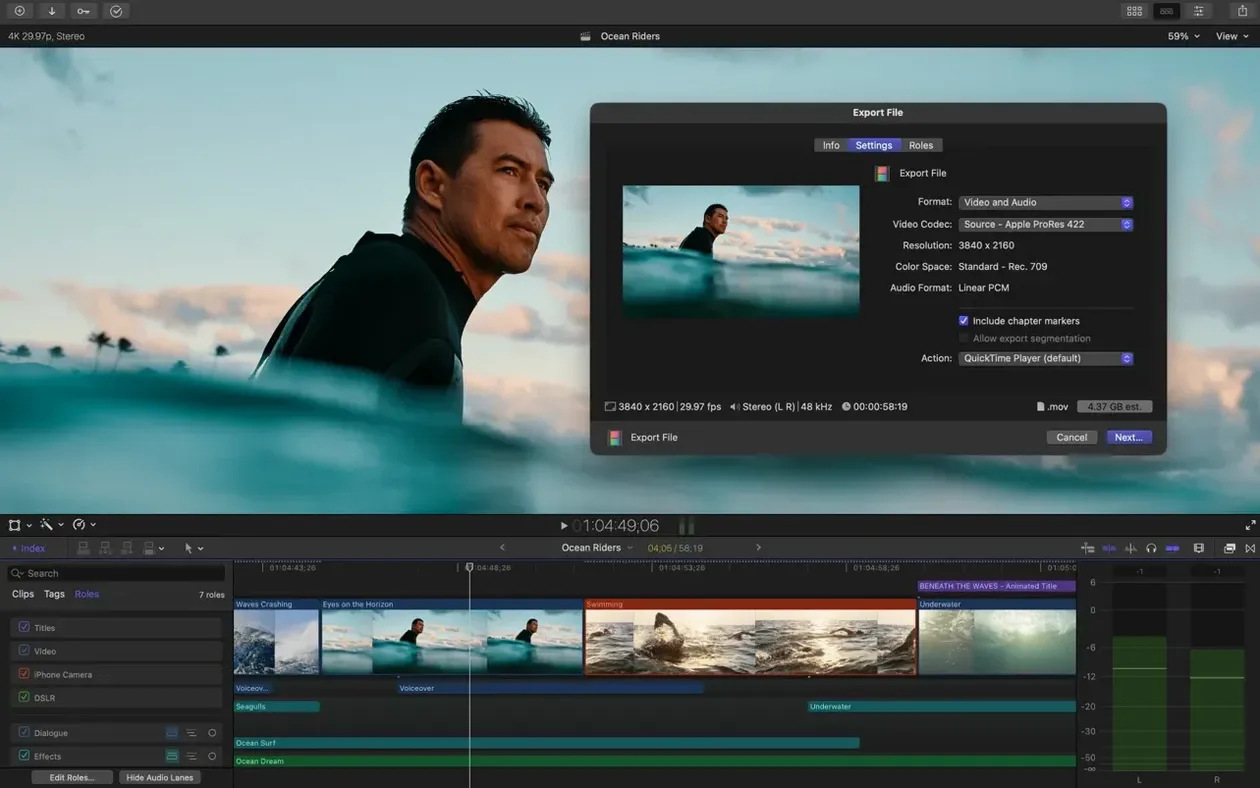
Description
Final Cut Pro is Apple's own pro-level video editor, rebuilt from the ground up for speed and modern media handling. Version 12.3 needs macOS 15.6 or later and a Mac with a Metal-capable graphics card. An Apple silicon Mac is required for some features.
What the hardware requirements mean
The app runs on both Intel and Apple silicon Macs, but you'll notice the difference. Intel machines need that Metal-capable GPU, 8 GB of RAM and 5.8 GB of free disk space as a bare minimum. If you work with 4K or larger timelines, plan for more. Several newer tools, particularly the machine-learning-driven ones, simply won't appear on an Intel Mac. You also need an internet connection for some features. The interface speaks English, German, Spanish, Simplified Chinese, French or Japanese.
Generate captions and auto-mask objects in the June 2026 update
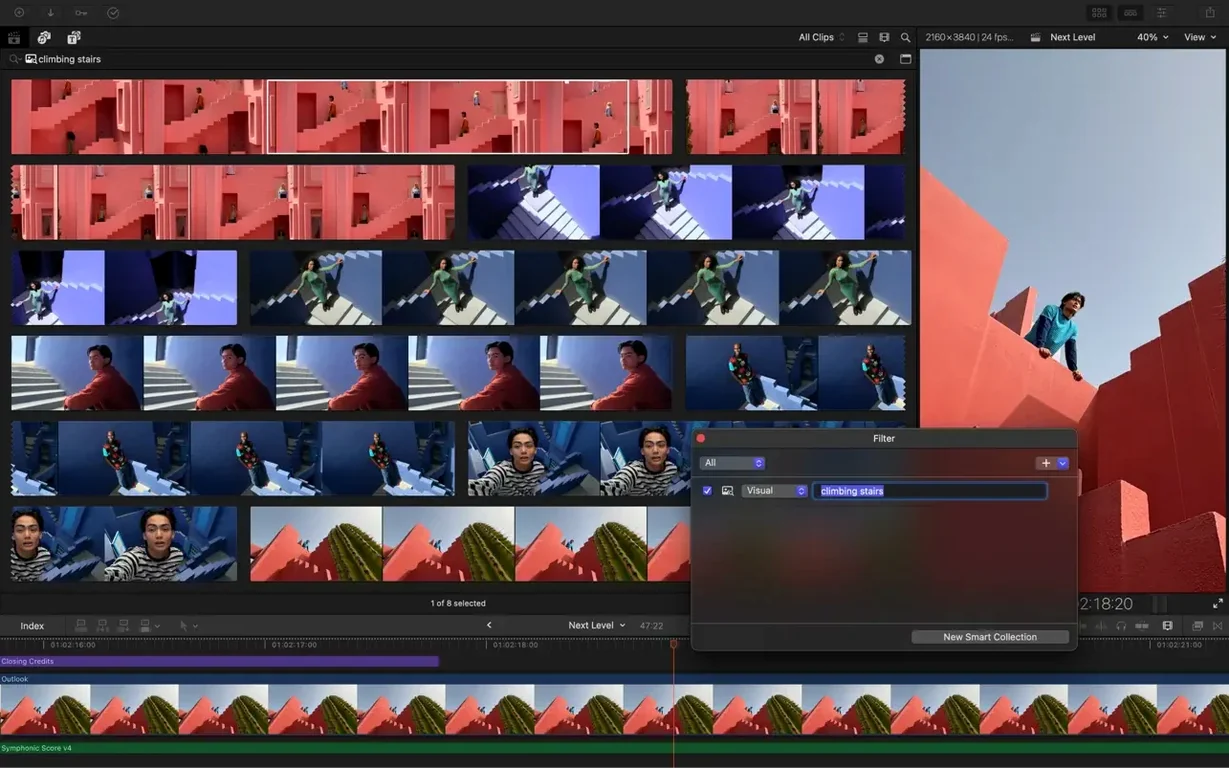
This release, from 30 June 2026, adds a handful of genuinely useful editing aids. Generate Captions creates subtitles you can style inside the app. Auto Mask isolates a recognised object so you can grade or tweak it without touching the rest of the shot. Match Color balances footage from different cameras, and Edit Detection can take a rendered file and split it back into individual clips. Underneath sits the usual foundation: multicam syncing for up to 64 angles, library-based media management, proxy creation, and broad codec support from ProRes and RED to H.264 and HEVC.
Send clips to Motion and Compressor without leaving the timeline
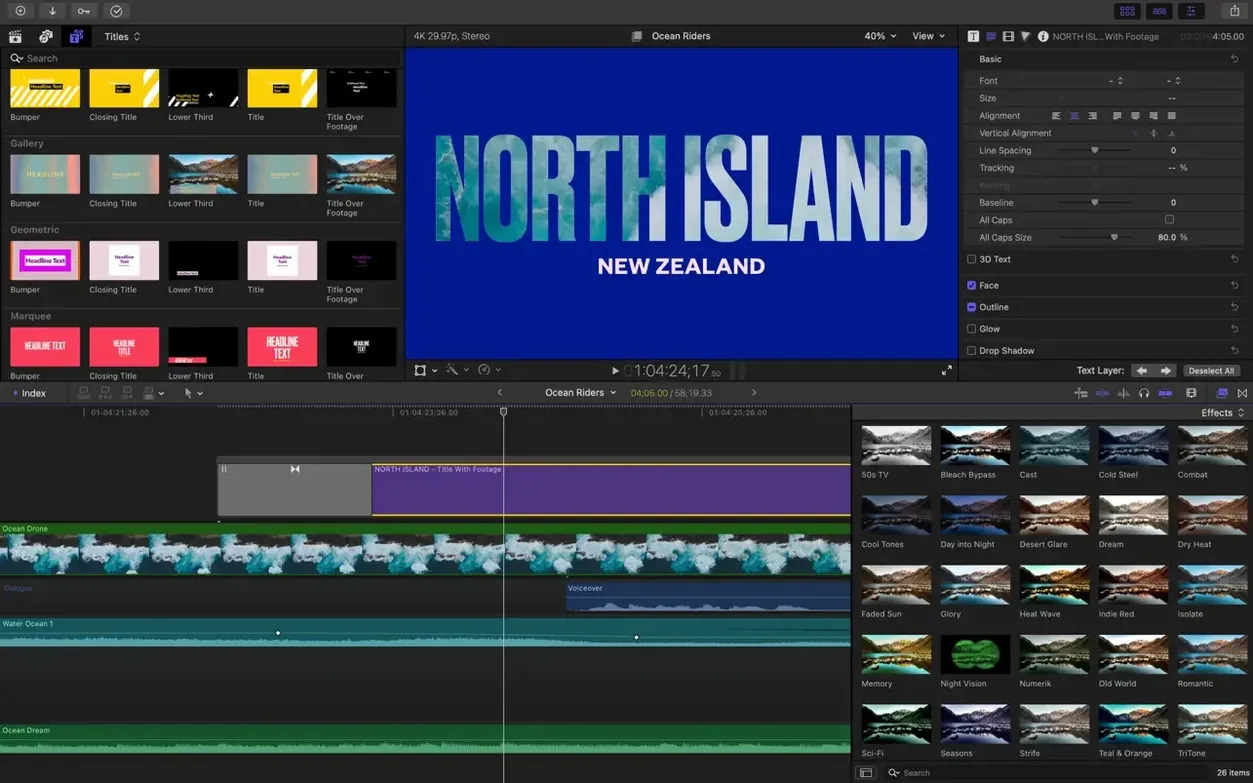
Final Cut Pro is not an island. It ships knowing it has siblings. Motion and Compressor — bundled together in Apple Creator Studio — slot in without drama. Send a clip to Motion for a custom title or generator, save, and it updates on your timeline. Queue exports through Compressor if you need tight control over bitrates and formats. The XML export is the real door to the outside world. Hand a project off to a colourist in DaVinci Resolve or an audio engineer in Logic Pro and get it back with the timeline structure intact.
On the macOS side, the app leans on the system for media handling. It reads and writes to the Photos library if you ask it to. It respects Finder tags you have already applied. Drag a clip from a tagged folder in the Finder, and that tag becomes a keyword suggestion. If you use iCloud Drive for proxy libraries, you can move between machines without relinking — as long as you do not rename anything behind its back. For broadcast work, FxPlug plugins from developers like Neat Video or Color Finale sit in the same effects browser as the built-in tools. No separate windows, no floating palettes.
One thing worth knowing: for shops that still rely on older workflows around final cut pro 7 download archives, the XML path is your bridge. Export as XML, and translation tools like SendToX can map legacy sequences into the modern timeline format. It is not a one-click conversion, but it stops old projects from becoming museum pieces.
Sharp edges that catch people out and what actually fixes them
Every app has its sharp edges. Here are the ones that catch people out with Final Cut Pro and what actually fixes them.
Library bloat
Libraries swallow media by default. You import a card and every frame lands inside the library bundle. That bundle swells. The fix is to set your import preferences to "Leave files in place" before you pull in anything important. If you already have a fat library, select the clips in the browser, choose File > Consolidate Event Files, and move the media to external storage. The library file shrinks back to a database.
Missing media after moving folders
Final Cut Pro links to files by path. Rename a folder or move a drive, and the clips go red. Do not reimport. Open the project, select the missing clips in the browser, and choose File > Relink Files. Point it at the new location. It scans subfolders automatically. If you know you will be moving things around, generate proxy media first — those can live inside the library and keep you editing while the originals are offline.
Auto Mask refusing to isolate
Auto Mask is clever but not psychic. It works best when the object you want has clean separation from the background. If the mask flickers or grabs the wrong thing, drop a shape mask over the rough area first, then apply Auto Mask inside that. It narrows the problem. Also, your first frame matters. Pause on a frame where the object is fully visible and well-lit before you start the analysis. The tracker anchors to that frame.
Captions shifting out of sync
Generate Captions ties its timing to the connected clip. If you ripple-edit the clip, the captions move with it. If you cut the caption block itself instead of the clip, you break the connection. To fix, select the caption block in the timeline, press Delete, and regenerate from the clip — it is faster than manually nudging each line. Check your caption roles in the timeline index too. If the captions are on a subrole that has been muted, you will stare at a blank viewer for no obvious reason.
Multicam sync failing on long takes
With 64 angles, the automatic audio sync can give up if the scratch track is noisy or one camera drifted. Manually set a sync point on the angle that refuses by marking an in-point with the blade tool, then selecting all angles and choosing "Sync to Monitoring Angle" from the multicam menu. That hard-codes the alignment. Also, check that none of your camera angles have a frame rate mismatch before you create the multicam clip. A 23.98 angle in a 29.97 multicam will drift however good the sync looks at the start.
Flip off background render to kill the beachballs
The defaults are polite. They protect you from yourself. Two or three switches flip the app from cautious to efficient.
- Turn off background render. In Preferences > Playback, uncheck "Background render." It is the single biggest cause of beachballs on large projects. Render manually when you need to see a heavy section. Your Mac will stay cooler and the timeline will stay responsive.
- Set still-image duration to 2 seconds. The default is 4 seconds. Most cuts land faster. Change it in Preferences > Editing before you drag a folder of photos onto the timeline. You can adjust individual clips later, but starting short saves trimming.
- Switch audio output routing. If you edit with an external interface, Final Cut Pro can be stubborn about which channels it uses. Go to Window > Audio Output and assign your stereo pair explicitly. Do not leave it on "System Setting."
- Show used media ranges in the browser. In the browser, choose View > Show Skimmer Info. A thin orange bar appears under clips you have already cut into the timeline. Months later, when you clean up a library, you know instantly which clips are safe to delete and which are not.
Syncing dual-camera ProRes interview footage on an external drive
You open a library on an external drive connected to a Mac Studio. The drive contains an hour of interview footage from two cameras — one wide, one close-up — recorded in ProRes 422. The audio came in on a separate field recorder with timecode synced to both cameras.
Import and organise. You drag the whole card folder into the browser with "Leave files in place" already selected. The clips appear as camera original files. You create a new event called "Interview" and drag them in. Since the slate showed the guest's name, you select all clips, open the Keywords editor with Cmd-K, and type the guest's surname. Every clip gets the keyword. You then scrub through and add a separate keyword, "keeper," to the takes the director circled on set.
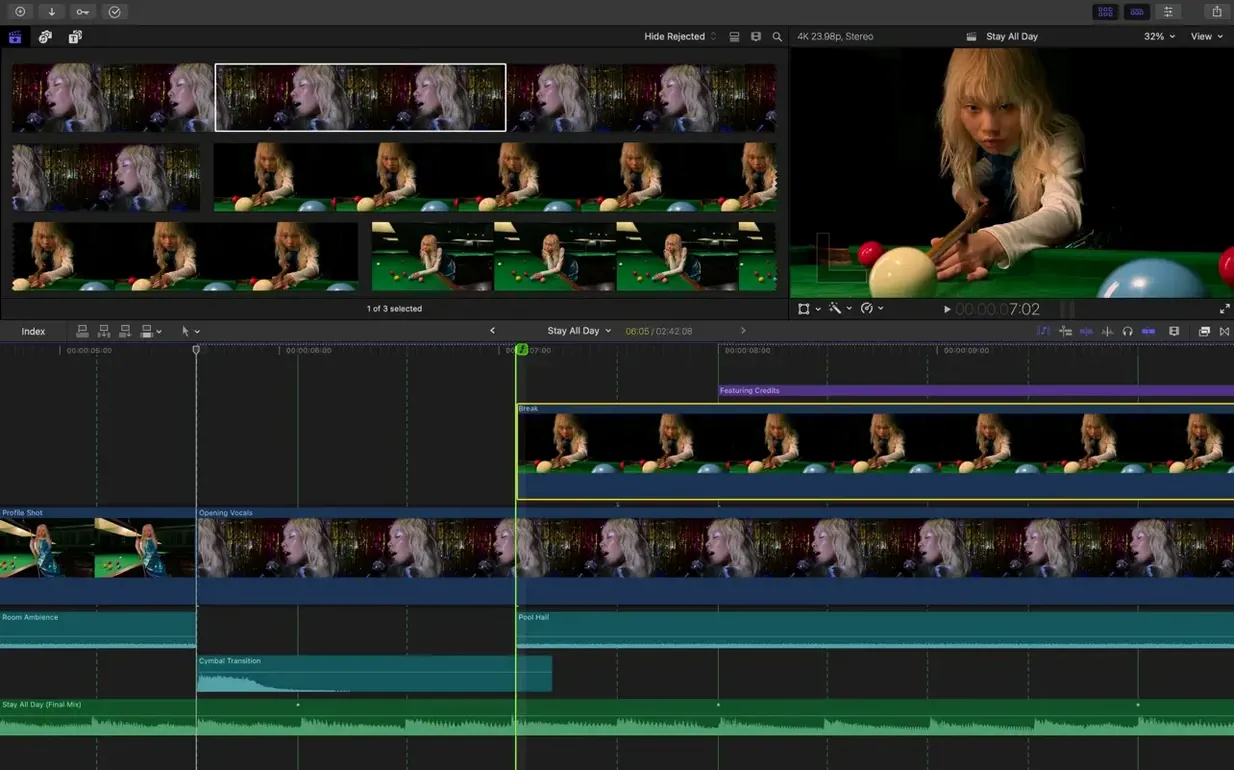
Sync the multicam. You select both camera angles and the external audio in the browser, right-click, and choose New Multicam Clip. Final Cut Pro reads the timecode and snaps everything into a single clip with three angles. You open the Angle Viewer and switch between the wide and close-up with the number keys. The sync is frame-accurate because timecode did the heavy lifting.
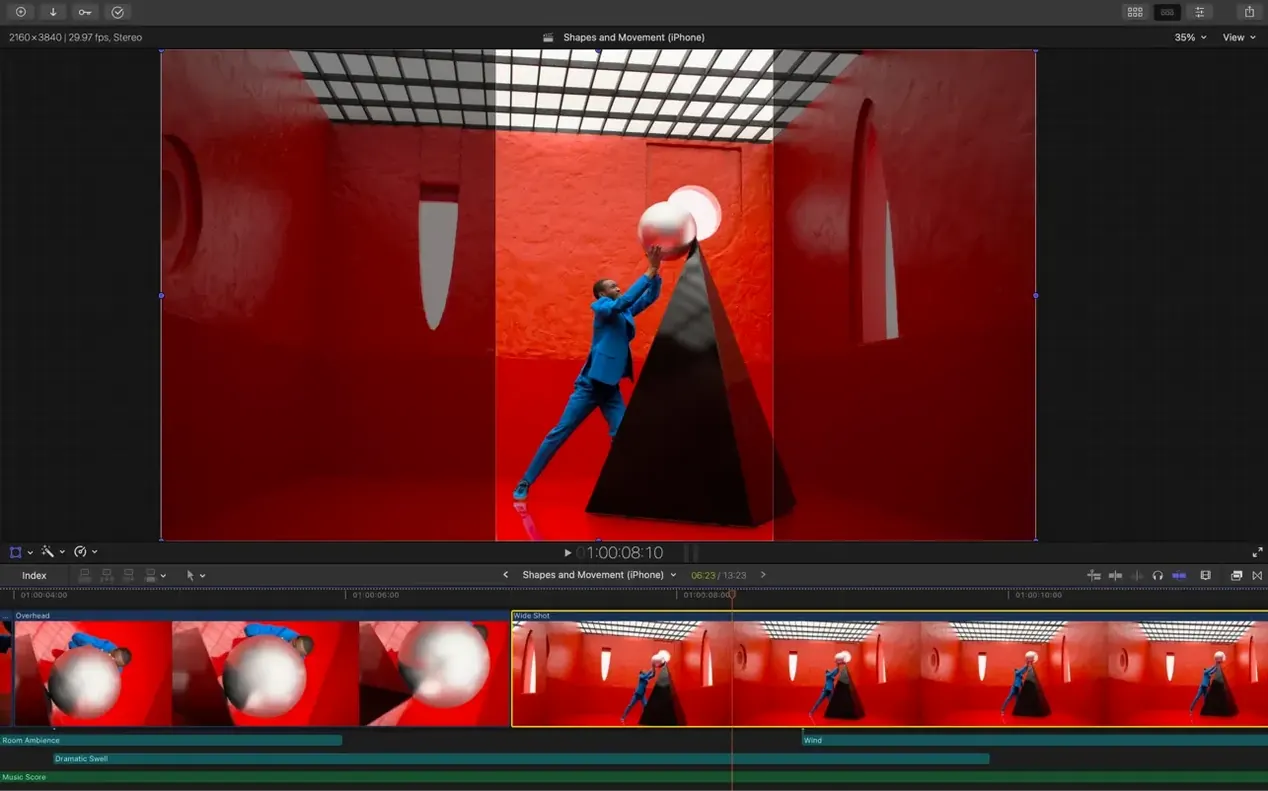
Rough cut. You drag the multicam clip into the primary storyline. Using the Angle Viewer, you cut the interview by simply tapping 1 or 2 on each answer. The Magnetic Timeline ripples everything along as you go. You do not touch a track target once. When a section drags, you use the Range Selection tool to select a pause, press Delete, and the gap closes.
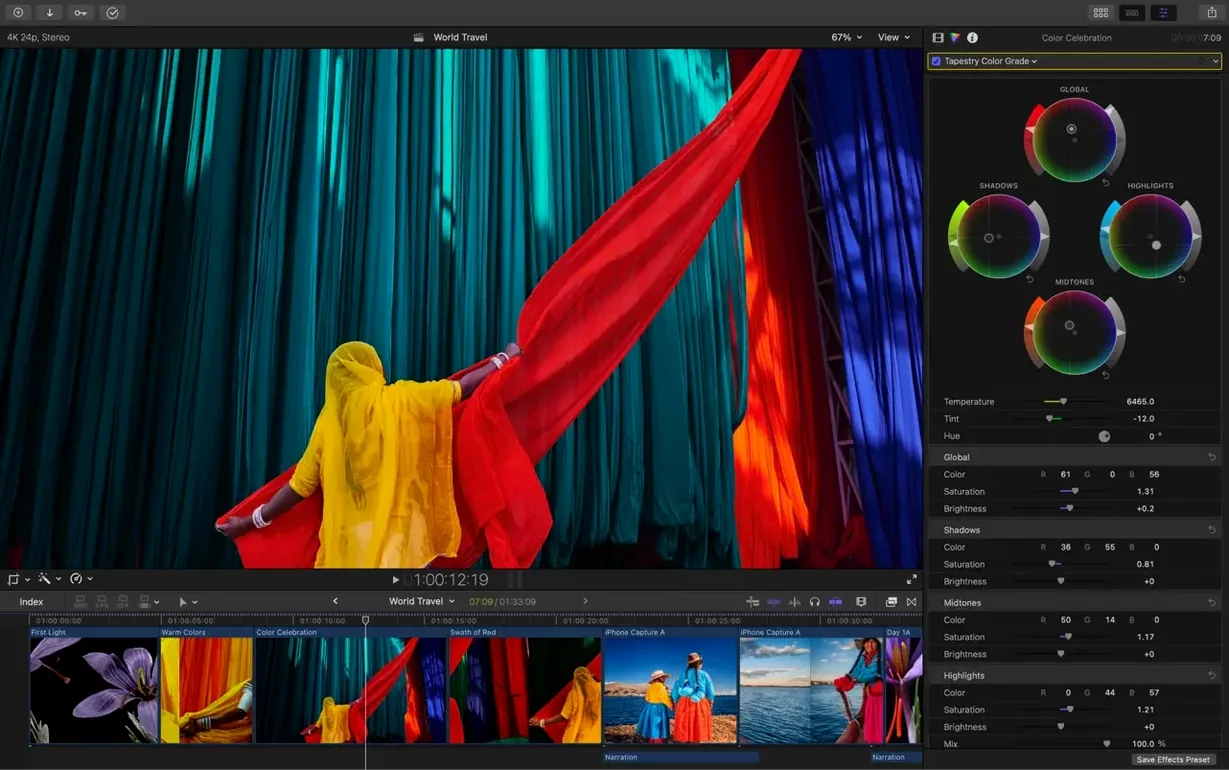
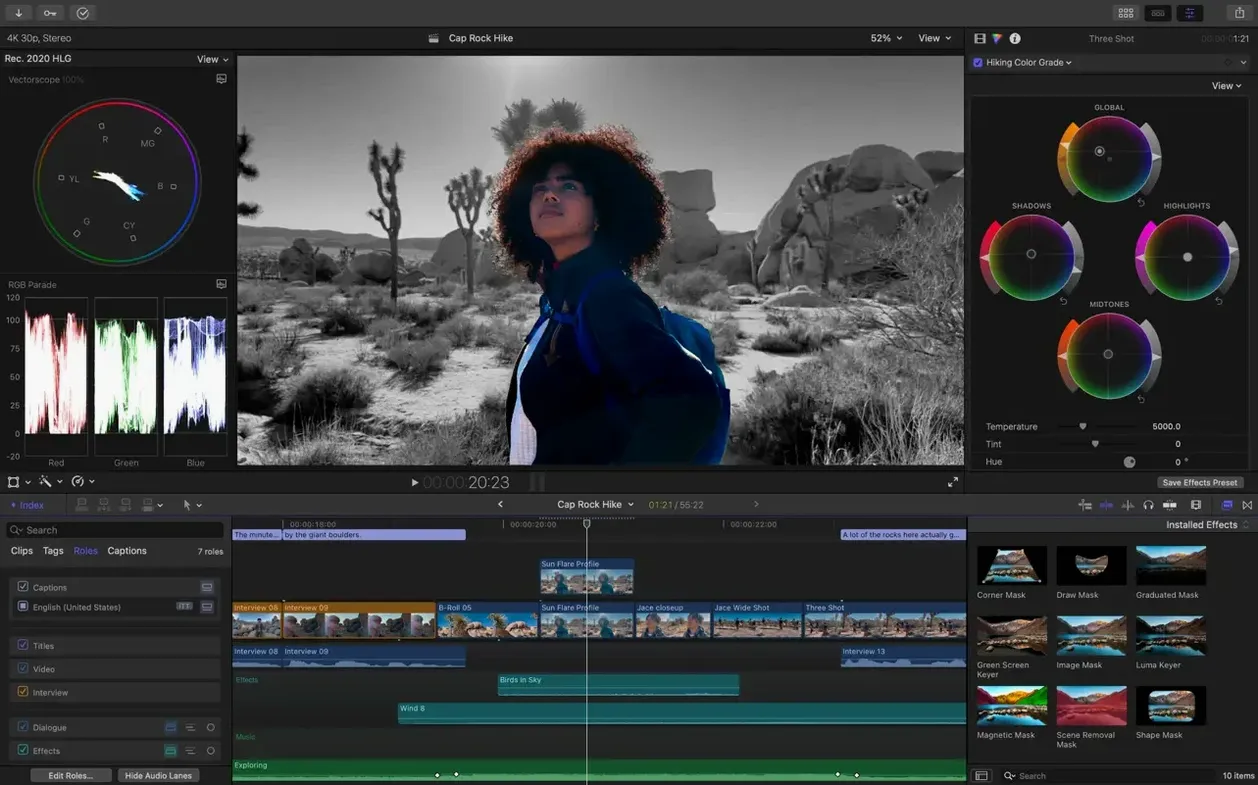
Match Color pass. The two cameras have a slightly different white balance. You park on a frame from the wide shot, select the close-up clip, and choose Modify > Match Color. A split-screen preview appears. You drag the sample box to the guest's forehead and click Apply. The close-up warms up. You reduce the effect intensity to 70% in the inspector to keep it subtle.
Captions and crop. You select the primary storyline from start to finish and choose Edit > Generate Captions. The app transcribes the audio and drops styled captions onto a connected caption lane. You open the caption inspector, switch the font to your production's standard, and reduce the background opacity. A ten-minute export to review confirms the timings are solid.
Export for delivery. The director wants a master file and a vertical cut for social. You select the project and choose File > Share > Master File, then queue a Compressor droplet that adds a LUT and a slate. For the vertical version, you duplicate the project, select it, and click the Smart Conform button in the viewer. Final Cut Pro reframes each shot. You tweak one cut where the close-up cropped too tight, nudging the framing with the Transform tool. Twenty minutes after the rough cut was locked, both files are rendering. You close the library and go get coffee.
What’s new
- Adds Generate Captions for customisable subtitles.
- Adds Auto Mask to isolate objects for targeted adjustments.
- Adds Match Color to balance footage from different cameras.
- Adds Edit Detection to split a rendered video into separate clips.
Requirements
- macOS 15.6 or later
- 8 GB RAM minimum
- 5.8 GB free disk space
- Metal-capable graphics card (Intel Macs)
- Some features require an Apple silicon Mac
- Some features require an internet connection
FAQ
Can Final Cut Pro open projects from other editing apps?
It can import and export XML, which lets you move a project to apps for colour correction or audio mixing and bring it back.
What's included in Apple Creator Studio?
Apple Creator Studio bundles Final Cut Pro, the motion graphics tool Motion, and the encoding app Compressor.
Comments 0
Sign in or create an account to leave a comment.
No comments yet…
If you’ve installed it, say how it went. Mention your Mac and macOS version — it helps the next person more than you’d think.