DisplayBuddy for macOS
Description
macOS handles brightness and volume for built-in screens perfectly. Plug in an external monitor and those controls vanish. You are left jabbing at unresponsive buttons on the display itself, navigating slow on-screen menus just to turn the brightness down in the evening.
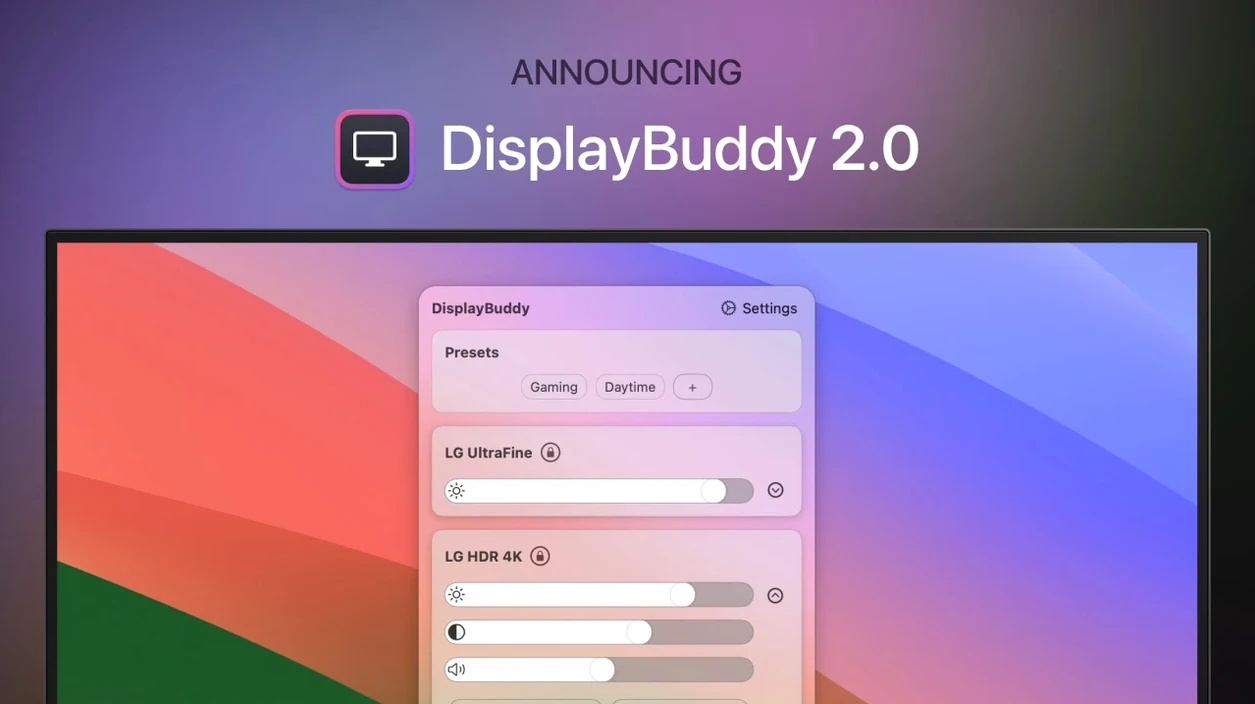
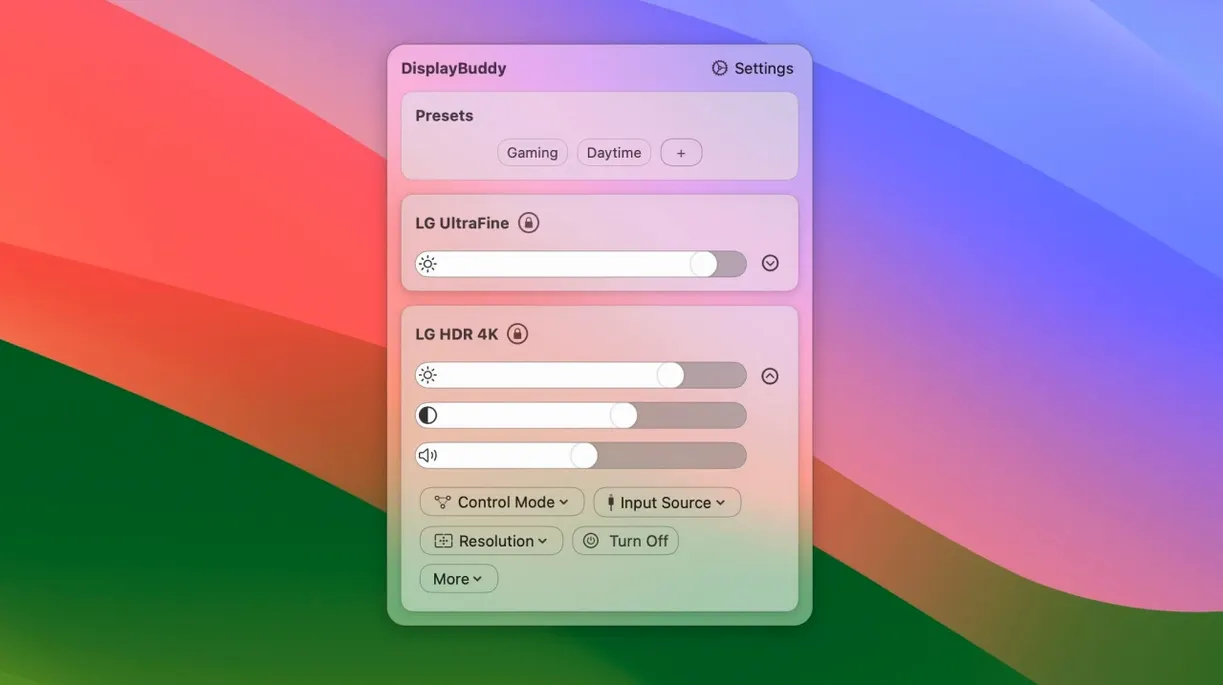
DisplayBuddy puts those controls back where they belong — in your Mac menu bar. It talks DDC directly to your external displays so you can adjust brightness, contrast and volume without touching the monitor.
Match brightness across monitors, no manual fiddling
- Controlling brightness and contrast across multiple monitors from one place.
- Synchronising settings so two side-by-side displays match without manual tweaking.
- Using custom keyboard shortcuts instead of reaching for a mouse.
- Getting usable screen brightness outdoors with the UltraBright feature on MacBook Pro.
- Switching colour profiles or macOS Display Presets on compatible screens.
Requires Apple Silicon and lives in the menu bar
- DDC control requires Apple Silicon M1, M2 or M3 chipsets.
- The app sits in the menu bar — there is no standalone window interface.
A quick workflow: matching two monitors for evening work
Here is a straightforward routine that takes about twenty seconds once you have done it once.
- Open DisplayBuddy from the menu bar. Both monitors appear as separate sliders.
- Set brightness to 45% and contrast to 55% on the primary display. Warm the colour slightly using Night Shift from the app controls.
- Select the second monitor and match the same numbers.
- Click the preset menu and choose Save preset. Name it something plain like “Evening dual”.
Tomorrow evening, click the DisplayBuddy icon and pick “Evening dual” from the preset list. Both monitors snap to the exact same settings. You can also assign a keyboard shortcut to the preset if you prefer to avoid the menu altogether. The preset remembers brightness, contrast and the input source, so a monitor that doubles as a games screen switches back to the correct HDMI port without extra button presses.
Let Mac keys drive your external display
The default setup works, but a few tweaks make the app much faster to use day to day.
- Enable keyboard sync. In Preferences, tick the option that lets your Mac brightness and volume keys control the active external display. It stops the muscle-memory frustration of tapping a key and nothing happening.
- Set a global shortcut for a favourite preset. If one preset covers most of your working hours, bind it to something like
⌃⌥⌘1. No menu bar trip needed. - Turn on “Launch at login” but pair it with a default preset. That way when your Mac wakes up, both displays are already at sensible levels instead of whatever they were last set to via the monitor’s own OSD.
If you grabbed a displaybuddy download for a multi-monitor desk, these three changes alone save a surprising amount of fiddling each morning.
What’s new
Adds support for selecting a colour profile or macOS Display Presets on compatible displays. Fixes hidden volume slider behaviour for some DDC displays. Fixes preset menu clipping. Improves responsiveness of Dark Mode, Night Shift and True Tone controls.
Requirements
- macOS 10.13 or later
- Apple Silicon or Intel Mac
- English interface
FAQ
Can DisplayBuddy control more than one external monitor?
Yes. You can control brightness and contrast for multiple monitors from the same menu bar app, and synchronise settings across all of them.
Which Macs support DDC control?
DDC control works on Macs with Apple Silicon M1, M2 and M3 chipsets.
Comments 0
Sign in or create an account to leave a comment.
No comments yet…
If you’ve installed it, say how it went. Mention your Mac and macOS version — it helps the next person more than you’d think.