Disk Drill for macOS
Description
You connect a camera card after a long shoot and macOS offers to initialise it. The photos are there, just not where the directory expects them to be. That is the moment you reach for Disk Drill.
Scan what you plugged in
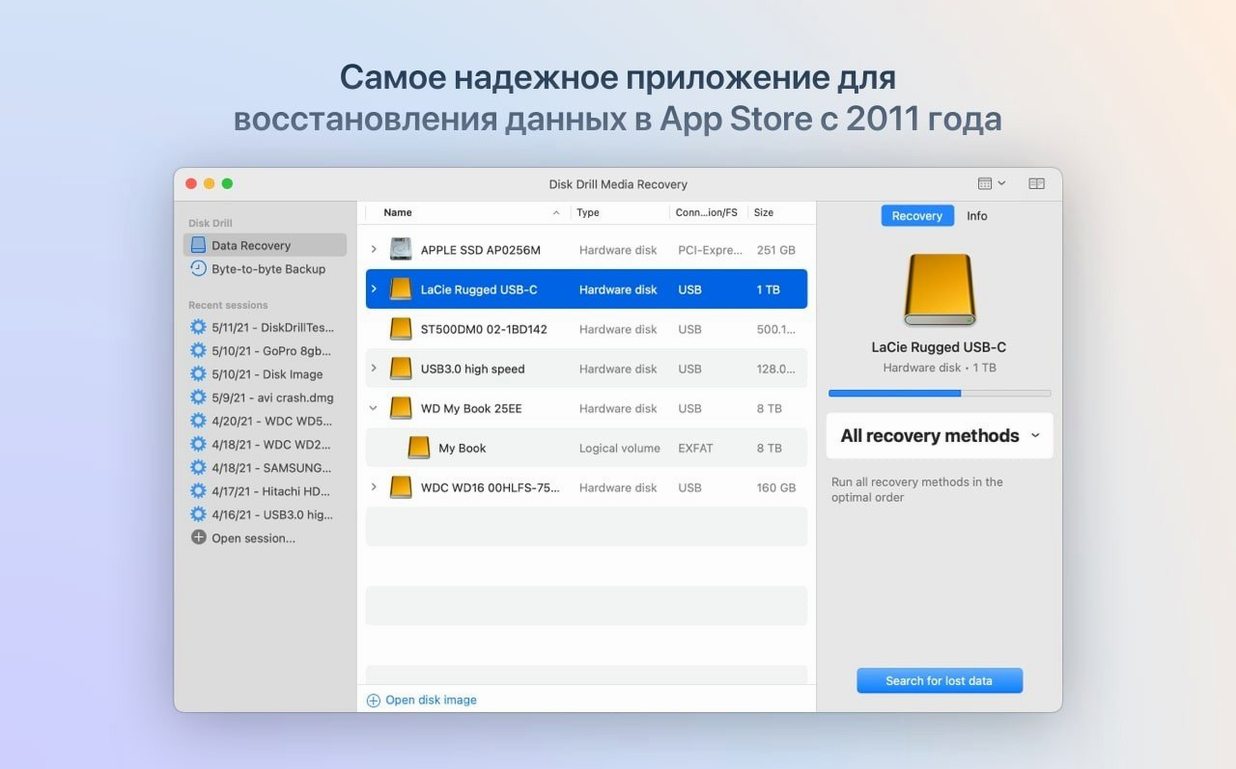
Point it at internal hard drives, USB sticks, memory cards, Kindles or Android devices. It also talks to iPhones, iPads and iPods over a cable. The current build improves encrypted APFS partition handling, so scans on newer Macs run cleaner than before.
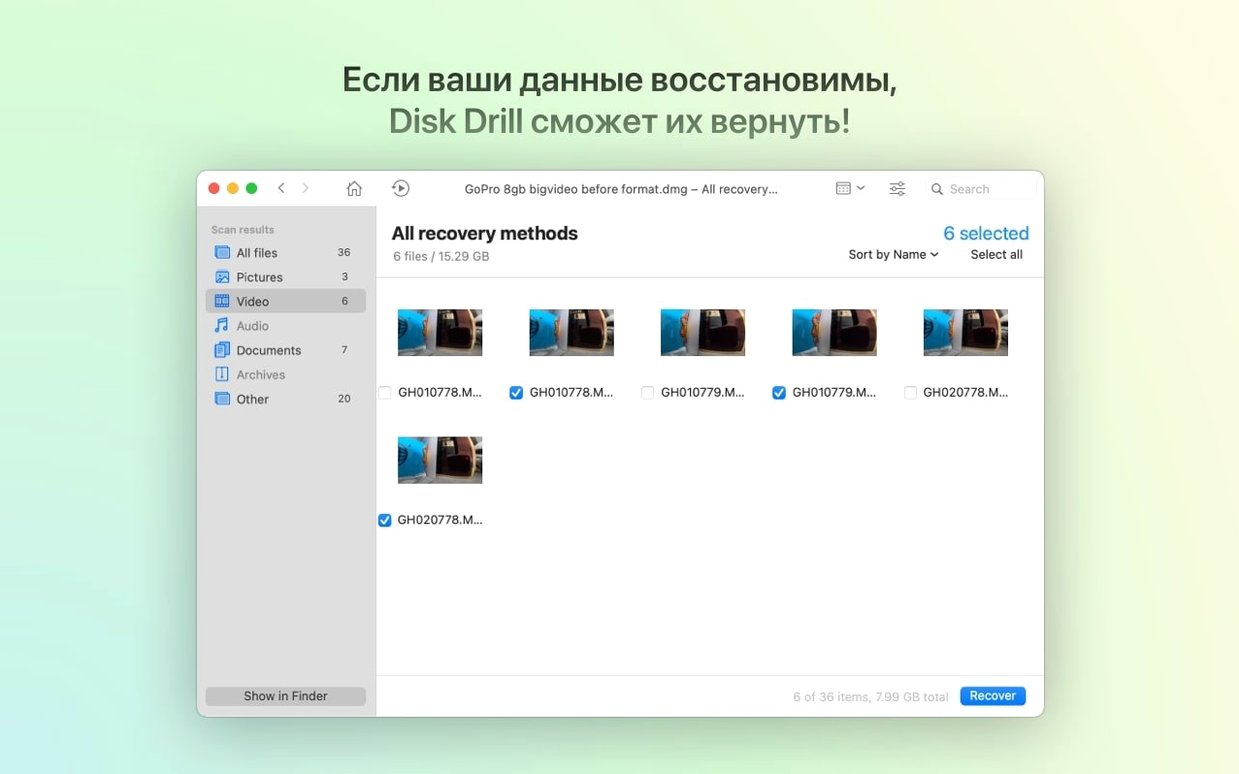
Preview before you recover
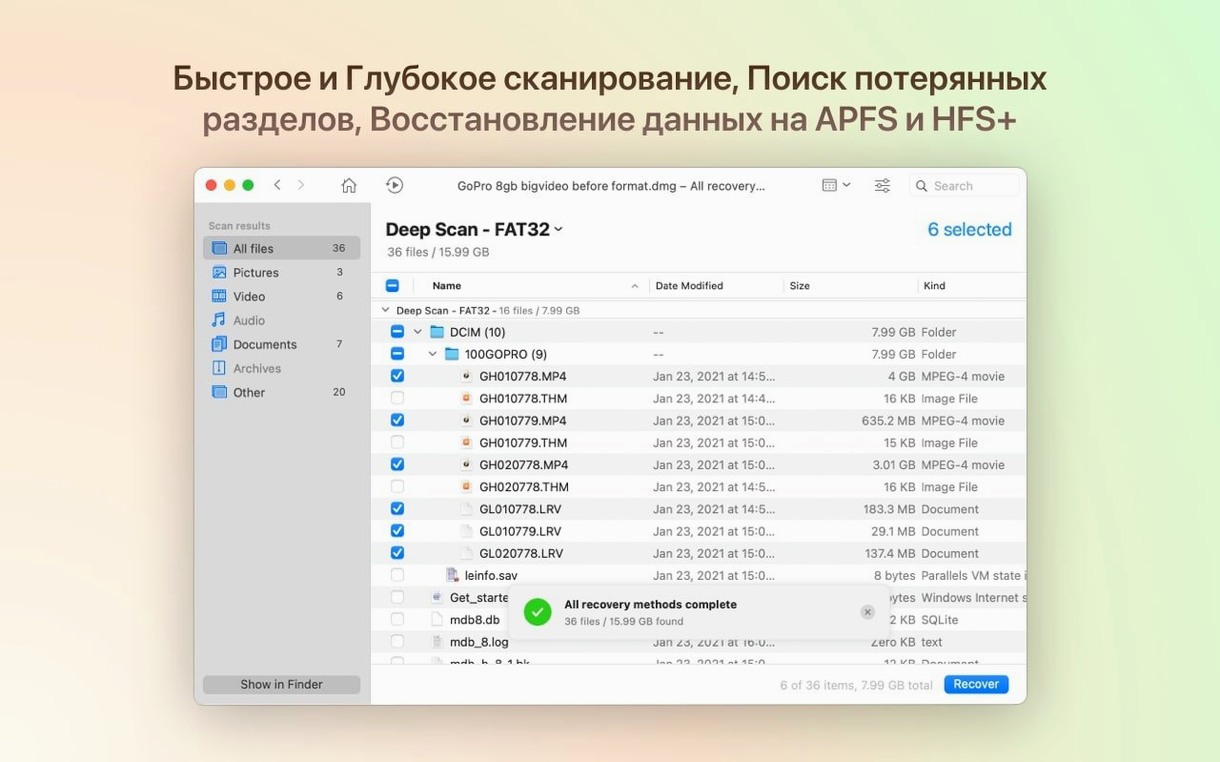
Double-click any found item to check it is intact. The ACR module now groups iPhone photos faster and recognises .m4a audio, so you do not waste time recovering a file you cannot open.
Pick what to keep
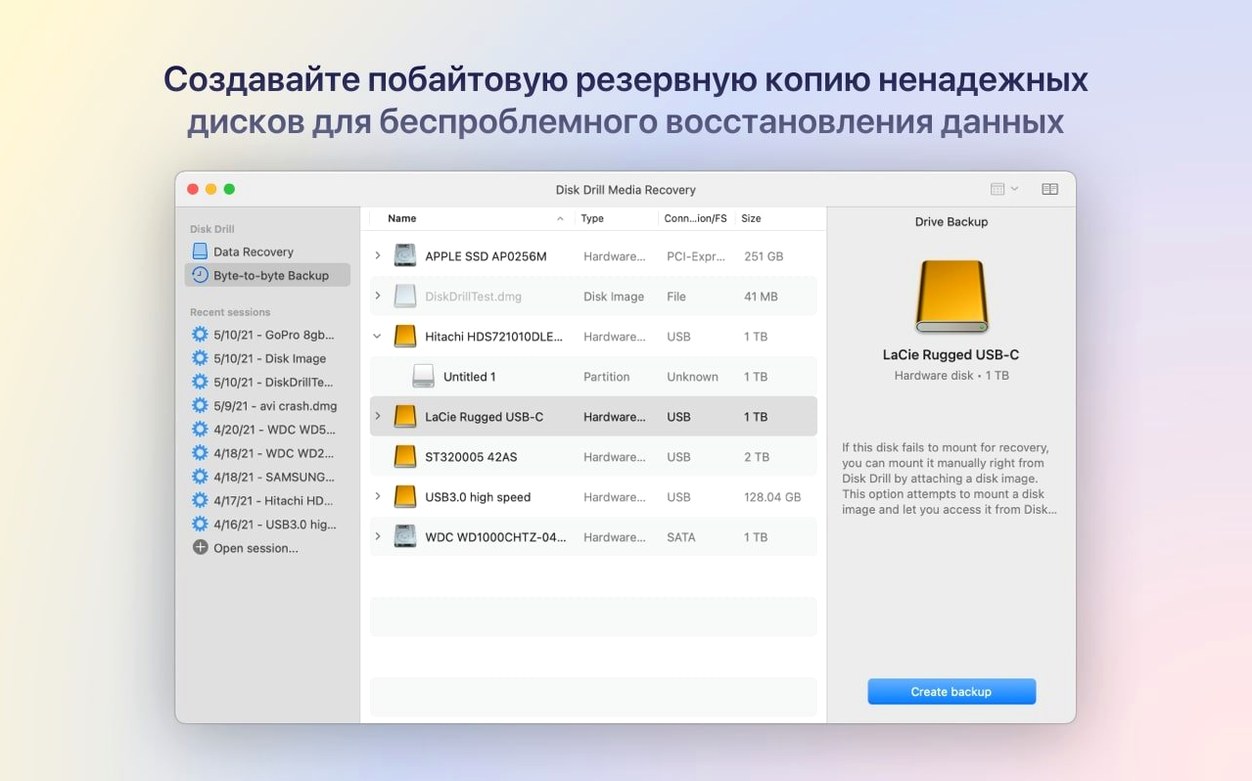
Recover only the files you need. Byte-to-byte DMG scanning is fixed in this version, and BitLocker partition detection is new — useful if a Windows-formatted drive lands on your desk.
Installing it on the drive you’re trying to recover
Most first-time recoveries fail before the scan even finishes. Here is what catches people out.
- Installing Disk Drill on the same drive they are trying to recover. Every write to that disk risks overwriting the files you want back. If your only Mac has a single internal drive and you just emptied the Trash, shut it down. Use another Mac in target disk mode, or boot from an external drive with Disk Drill already on it.
- Running a Quick Scan and stopping there. Quick Scan reads directory leftovers — fast, but shallow. A deep scan trawls the raw blocks and finds things the file system forgot. Always let both finish before you decide nothing is recoverable.
- Recovering files back to the same volume. That writes new data onto the very space you are trying to rescue. Always set the recovery destination to a different physical drive.
- Ignoring the preview pane. A filename alone tells you nothing. Preview confirms the file is whole. It also saves you recovering three hundred identically named
IMG_0042.dngcandidates when only one is intact. - Pulling the plug mid-scan. A scan on a large, damaged drive can run for hours. Killing it early because it looks stuck means starting from scratch. Disk Drill lets you pause and resume — use that if you need the Mac back.
Encrypted APFS handling that now just works
Version 6.3.2326 is not a headline-grabbing overhaul. It is the kind of update that quietly removes friction from real jobs.
Encrypted APFS partition handling got an improvement under the hood. If you are recovering from a modern Mac with FileVault turned on, the scan completes with fewer errors. You still need the password, but Disk Drill now navigates the encryption layer more reliably — less stalling, fewer partial reads.
BitLocker partition detection is new. Until recently, a Windows BitLocker drive plugged into a Mac was a brick. Now Disk Drill recognises the partition layout and can attempt recovery from it, provided you have the recovery key. That matters if someone hands you a corporate laptop drive or an external SSD formatted on a work PC.
The byte-to-byte DMG bug being fixed is one of those things you might never notice — unless you rely on disk images for forensic-style recovery. Before the fix, creating a sector-by-sector DMG from a failing drive sometimes produced a corrupted image. Now the image is sound, which makes it a safer first step when a drive is physically deteriorating.
On the media side, .p8 and .pfx certificate files joined the recognised formats. Audio people will notice .m4a support in the ACR module, and photographers get .rwl raw recovery. .dng detection was patched too — previously some DNG files passed through unrecognised, which was maddening if you shoot raw on a Leica or a Pentax.
Set a default recovery folder on an external drive
Out of the box, Disk Drill is tuned for safety, not speed. A few tweaks make it better suited to how you actually work.
- Recovery destination. Set a default folder on an external drive. If you forget to change it per-session, you are not writing recovered data back to the source volume by accident.
- Scan file types. The default is everything. If you only need photos from a camera card, narrow the scan to image formats. It cuts scan time significantly on large media.
- SMART monitoring. Disk Drill includes a disk health tool that reads SMART attributes. Switch it on for any external mechanical drive you care about. It will flag reallocated sectors and pending failures before you lose data. The notifications are unobtrusive — you will see them in the menu bar when something is degrading.
- Recovery vault. This is a lightweight metadata tracker for selected folders. Enable it on your active project directories. It keeps a running index of file locations and attributes, which makes Quick Scan nearly instant if something disappears. The overhead is negligible on modern Macs.
- Deep Scan file signatures. Under the hood, you can toggle which file type signatures the deep scan hunts for. If you know exactly what you lost — say, Final Cut Pro libraries — disable everything else and the scan finishes faster.
Time Machine doesn’t touch drives that were never backed up
Disk Drill is not a silo. It slots into a real workflow alongside the tools you already use.
Time Machine. They solve different problems. Time Machine handles version history and whole-system restoration, but it does not touch drives that were never included in its backup set. If a USB stick dies, Time Machine has nothing for you. Disk Drill is the first move for unbacked-up media; Time Machine is what you hope was running beforehand.
Disk Utility. Use Disk Utility to check whether macOS even sees the physical device. If the drive appears in Disk Utility but will not mount, Disk Drill can often bypass the broken partition map and scan the raw blocks. If Disk Utility shows nothing, you have a hardware problem — recovery software cannot help.
Finder and Preview. The preview pane inside Disk Drill is competent, but for large batches of recovered images, drag the found files into a Finder folder and use Quick Look. It is faster for flicking through hundreds of raw files than the built-in viewer.
Terminal. Disk Drill runs byte-to-byte DMG creation as a graphical task. If you prefer command-line control, ddrescue does similar work, but Disk Drill wraps it in a pause-and-resume interface that is friendlier under pressure. The DMG it produces can be mounted and scanned later, even on a different Mac.
Data recovery forums. When Disk Drill finds a mess of orphaned file fragments and you cannot tell what belongs where, the community around tools like this is worth searching. Someone has usually posted a guide for reassembling recovered .mov atoms or sorting through raw photo streams. Disk Drill gets the bits back; the forums help you make sense of them.
macOS Gatekeeper. The first launch is always the awkward one. macOS flags the app because it is not notarised. Open Terminal, drag the app into the window, and press Enter — it launches. You only need to do this once per install. It is a Gatekeeper quirk, not a problem with the software itself.
Plenty of people end up here after a late-night search for disk drill mac torrent or disk drill crack mac because a drive failed and they need results immediately. The same goes for the torrent disk drill crowd — the software gets the job done whether you arrived via a forum thread or a direct recommendation. Just make sure you are running the build described here. Older cracked versions carried a bug where deep scans on APFS volumes produced silent corruption on files larger than 4GB, and you would not know until you tried to open them.
What’s new
- Detects and recovers lost BitLocker partitions.
- Adds support for .p8 and .pfx files.
- Adds .m4a support in the ACR module.
- Improves encrypted APFS partition handling.
- Fixes byte-to-byte DMG scanning.
Requirements
- macOS 10.15.7 or later
- Apple Silicon or 64-bit Intel Mac
FAQ
Does Disk Drill recover files from a phone?
Yes. It can scan and recover data from iPhones, iPads, iPods and Android devices connected to your Mac.
What languages does the interface come in?
It ships in Russian, English, German, Arabic, Spanish, Italian, Simplified Chinese, Korean, Malay, Dutch, Polish, Portuguese, Turkish, French, Hindi, Swedish and Japanese.
Comments 0
Sign in or create an account to leave a comment.
No comments yet…
If you’ve installed it, say how it went. Mention your Mac and macOS version — it helps the next person more than you’d think.