Deep Glow for macOS
Description
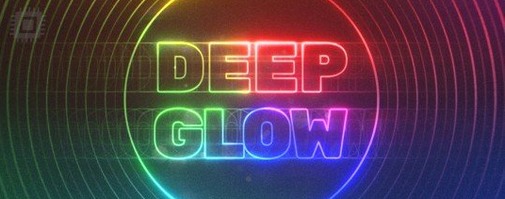
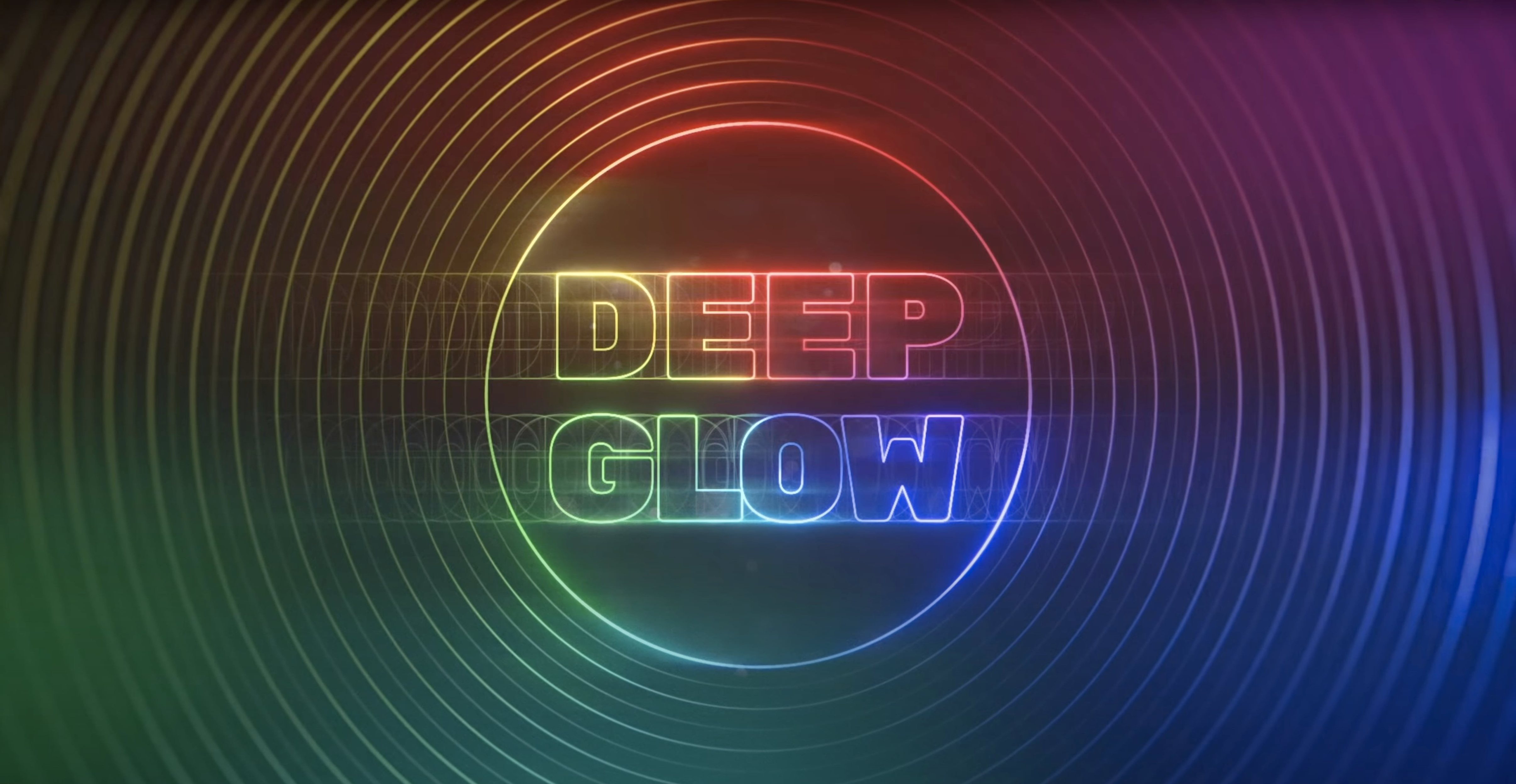
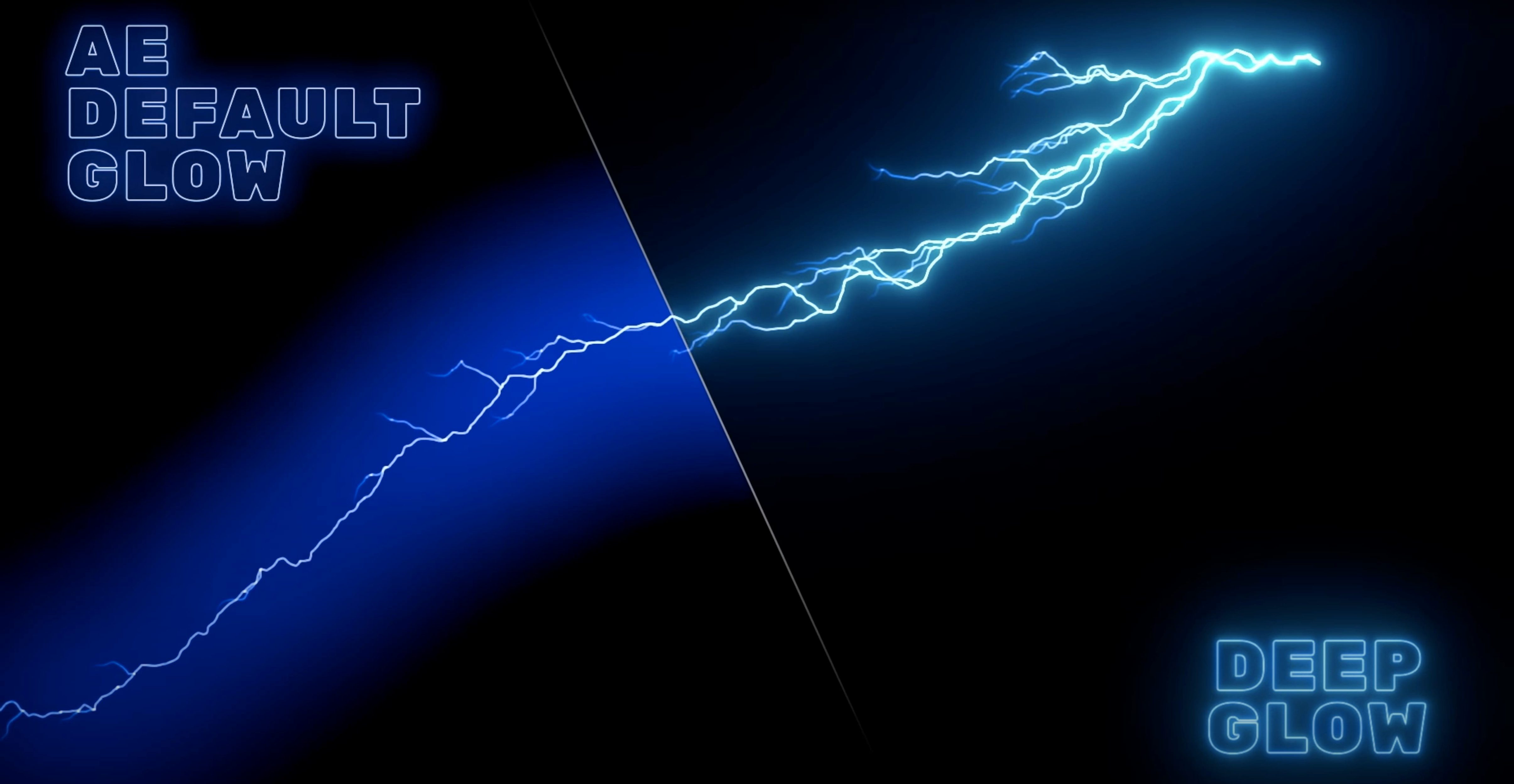
Compositors and motion designers reach for Deep Glow when the stock AE glow gives up. It does one job: believable light falloff that holds up on 32-bit comps. You drop it on a layer, dial the radius, and the glow behaves like real light — bright at the source, then dropping off at the correct inverse-square rate. You can also push it into grainy, stylised territory for titles or HUD elements without it falling apart.
Drop it onto a pre-comp in non-linear colour without burning highlights
Most artists apply it directly to a pre-comp or an alpha-edged layer. It works in non-linear colour spaces, so it slots into a colour-managed pipeline without burning out your highlights. On complex shots, it ends up on an adjustment layer over several light sources, letting you balance bloom across a whole scene from one effect instance.
Buses and typical jobs
For sci-fi UI, it lives on a track above the hologram layers. For music videos, it gets sent to a glow bus so multiple neon elements share the same falloff character. Version 1.6 runs natively on Apple Silicon and Intel Macs, and you install it with a standard .dmg and installer.
Place it after colour work but before grain to read the comp as one light source
Deep Glow sits best late in your effects stack, after any colour work but before grain. On an adjustment layer, it reads the comp below it as a single light source. Combine it with a plugin like Fractal Noise driving a luma matte — the glow picks up the noise's edges and gives you flickering torchlight without extra keyframes.
If you use Saber or Video Copilot's Optical Flares, send them to a dedicated glow bus. Pre-comp your light elements, apply Deep Glow to the bus, then tweak one radius slider instead of three. macOS Stage Manager doesn't interfere, but I'd keep your AE workspace tidy — Deep Glow's interface has enough controls without battling window clutter too.
On Apple Silicon, the GPU acceleration in version 1.6 means scrubbing the radius slider at quarter-res preview stays responsive. If you're working in a calibrated display pipeline under macOS colour sync, set your project to 32-bit and tick "Linearize Working Space" — the plugin reads the environment and handles the gamma without you second-guessing it.
Replace AE stock Glow on three old shots and watch the falloff behave
Start small. Day one, pick three shots from recent projects where you used AE's stock Glow or added an obscene amount of feathered masks. Replace them one at a time. You'll notice the falloff behaves itself right away — no more clipping at white and then an abrupt drop to black.
By day two, experiment with the downsampling control. Drop it to half or quarter while you're dialling in the look, then switch back to full for final render. That alone saves twenty minutes of stabbing at sliders while a full-res frame chugs through the GPU. If you're after that deep glow after effects mac look people chase for title sequences, try radius above 200 with the threshold pulled down to about 30%. The bloom spreads wide but doesn't eat your type.
Day three, build a glow bus preset. Set up an adjustment layer with Deep Glow, configure the falloff curve and compositing mode to something you use often — Screen or Add usually — then save it as an animation preset. You'll drop it into scenes all year.
Duplicate a neon sign layer, apply it directly and pick a Glow Mode
Say you've got a night cityscape with a neon sign in the mid-ground. The sign sits on its own layer, alpha-edged. You've already colour-graded the plate.
- Duplicate the neon layer and apply Deep Glow directly. Set the Glow Mode to Screen so the glow adds to the background without blocking it.
- Pull the Radius up to about 80 and watch the falloff. The glow should be hot near the tubes and fade smoothly over the building face. If it looks like a uniform blob, lower the Threshold until only the brightest parts trigger the glow.
- Switch the preview to half-res and tweak Exposure. You want the sign readable, not a white rectangle.
- Add a subtle grain tweak — bump the intensity to 0.3 and set the size small. This breaks up any banding in the falloff, especially if the shot's destined for a stream that compresses dark gradients badly.
- Pre-comp the neon and its glow, then drop a gentle Camera Lens Blur on the pre-comp if the sign is slightly out of focus. The glow blurs with it, which sells the depth of field.
- Hit full-res preview on the problematic frames (where the sign crosses a dark window) and adjust Quality back to high before render.
The whole tweak takes under two minutes once you know the sliders. A year ago you'd have stacked three instances of the stock glow with matte chokers and still hated the result.
Snags and what to do about them
Glow flickers when the light source moves fast. The downsampling defaults to half-res, which can alias on motion. Bump quality to full and disable temporal downsampling in the effect controls. Render times go up, but the shimmer goes away.
Dark edges appear around bright objects. You're likely working in a gamma-encoded space and the compositing math fights itself. Switch the project to 32-bit and set the working space to linear. If you can't change the project mid-stream, try switching Glow Mode from Add to Screen — it's a softer blend that masks the artefact.
GPU suddenly crawls on an M-series Mac. Check if another effect above Deep Glow is forcing a CPU bounce. AE on Apple Silicon sometimes sends a frame back to the CPU for a legacy effect, then back to the GPU. Move Deep Glow to the top of the stack temporarily to isolate the culprit.
Render queue hangs on a specific frame. Purge AE's memory and disk cache, then try again. If it still sticks, bump Quality down one notch for that comp — some third-party plugins downstream choke on the high sample count Deep Glow outputs at maximum quality.
Glow looks great in the viewer but blows out in export. Your output module colour profile doesn't match the working space. In the render settings, under Colour Management, set the output profile explicitly rather than leaving it on "Preserve RGB". Test a short TIFF sequence before committing to a long ProRes render.
None of these are unique to Deep Glow — they're just what happens when you push a proper light simulation through a compositing pipeline that wasn't expecting it. Fix the pipeline, not the plugin.
Requirements
- Apple Silicon and Intel (x86 64-bit)
- Adobe After Effects
- Interface: English
Comments 0
Sign in or create an account to leave a comment.
No comments yet…
If you’ve installed it, say how it went. Mention your Mac and macOS version — it helps the next person more than you’d think.