Cursor Pro for macOS
Description
Version 2.4 brings this pointer tool up to date for current macOS releases and Apple Silicon Macs. It's a menu bar app that does two things: draws attention to your cursor and zooms in on the screen when you need a closer look. No full-screen capture nonsense — just a highlight and a magnifier that show up when you want them, then get out of the way.
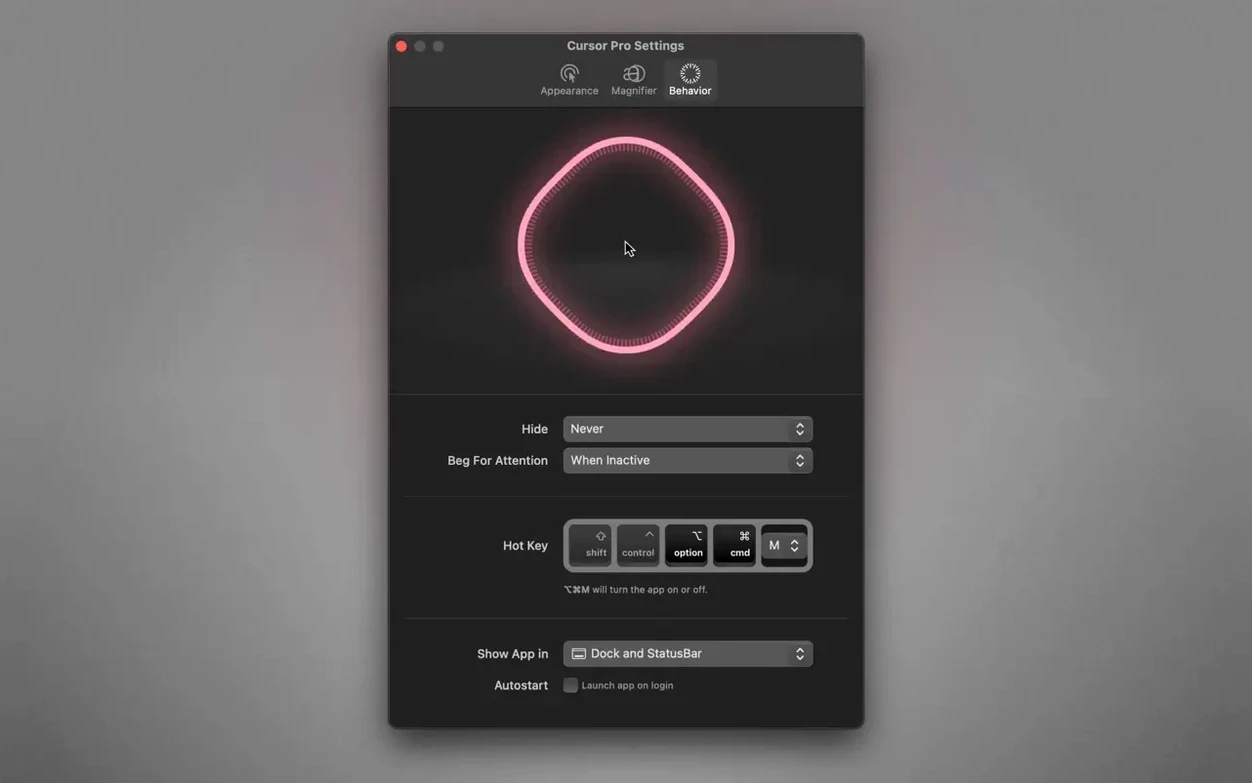
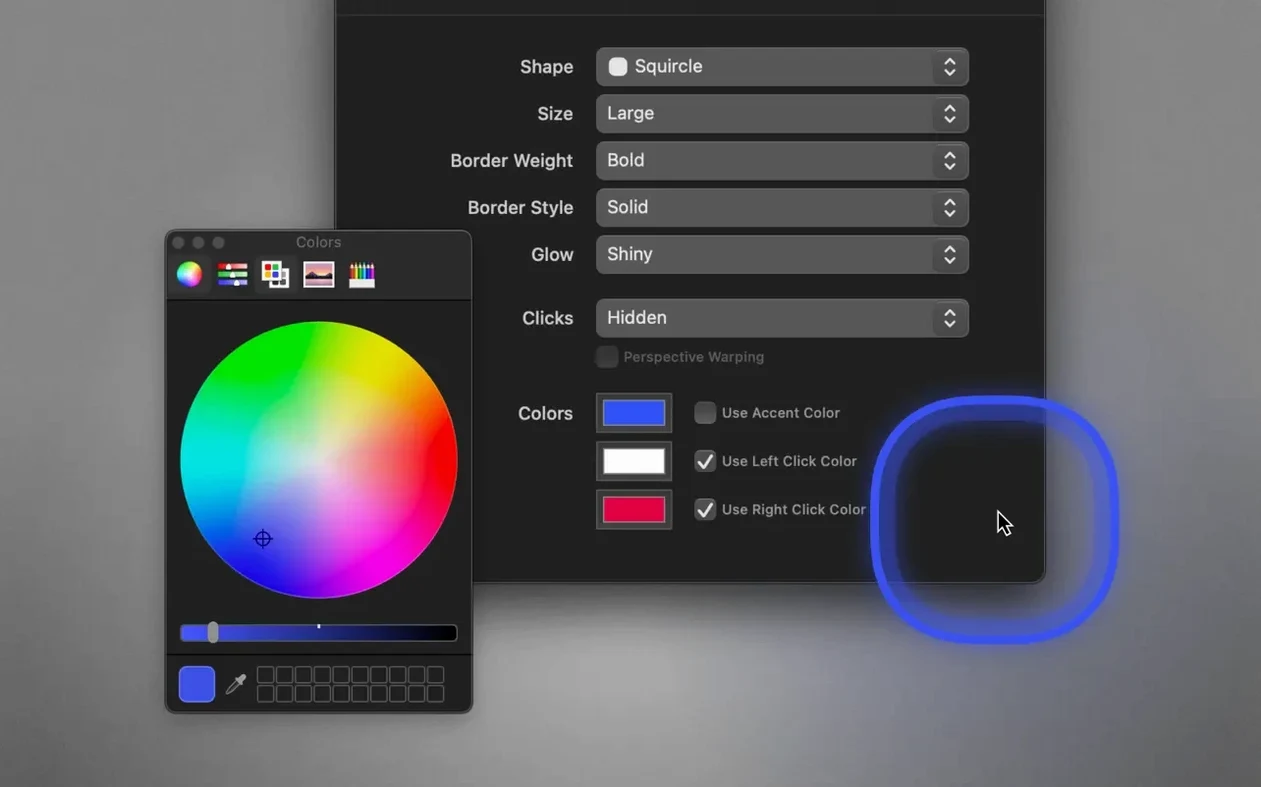
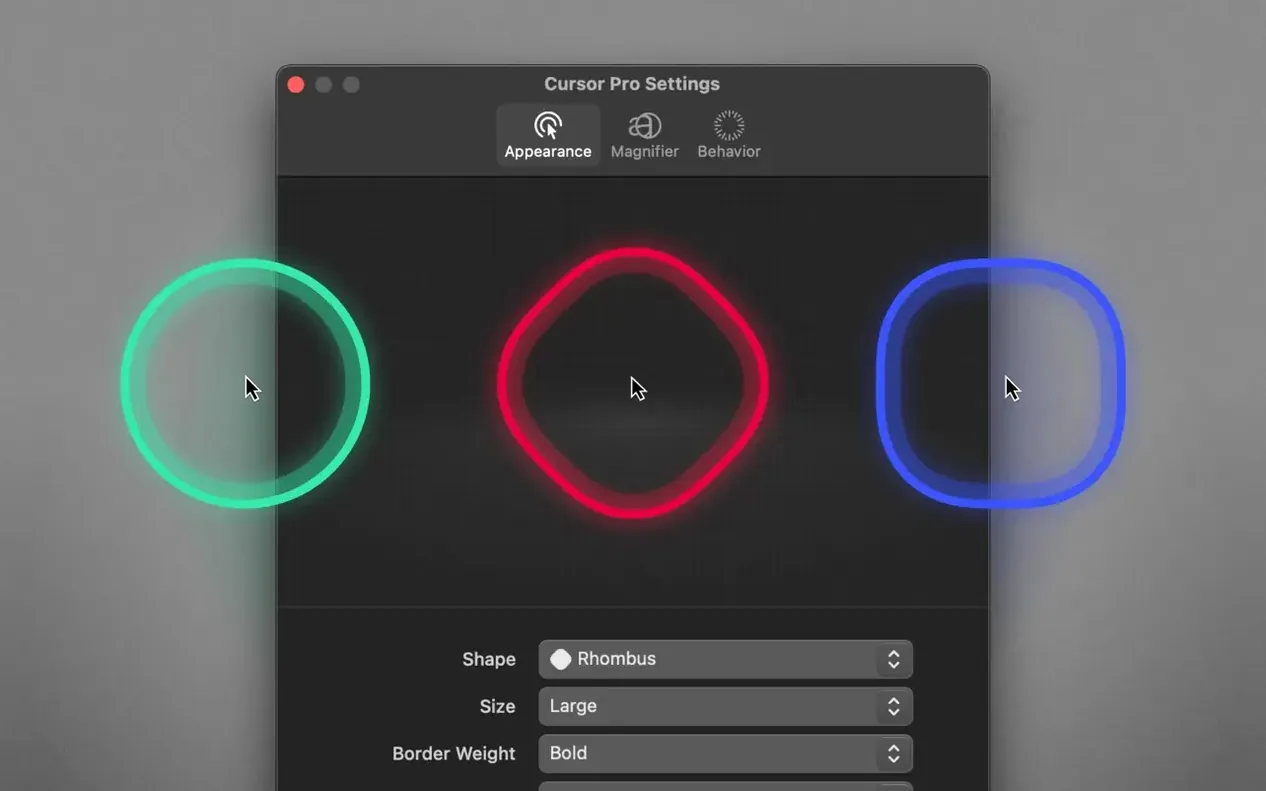
- Highlight the pointer with a coloured circle or diamond shape, triggered by a global hotkey.
- Pick any colour for the highlight so it stands out against your slides or desktop.
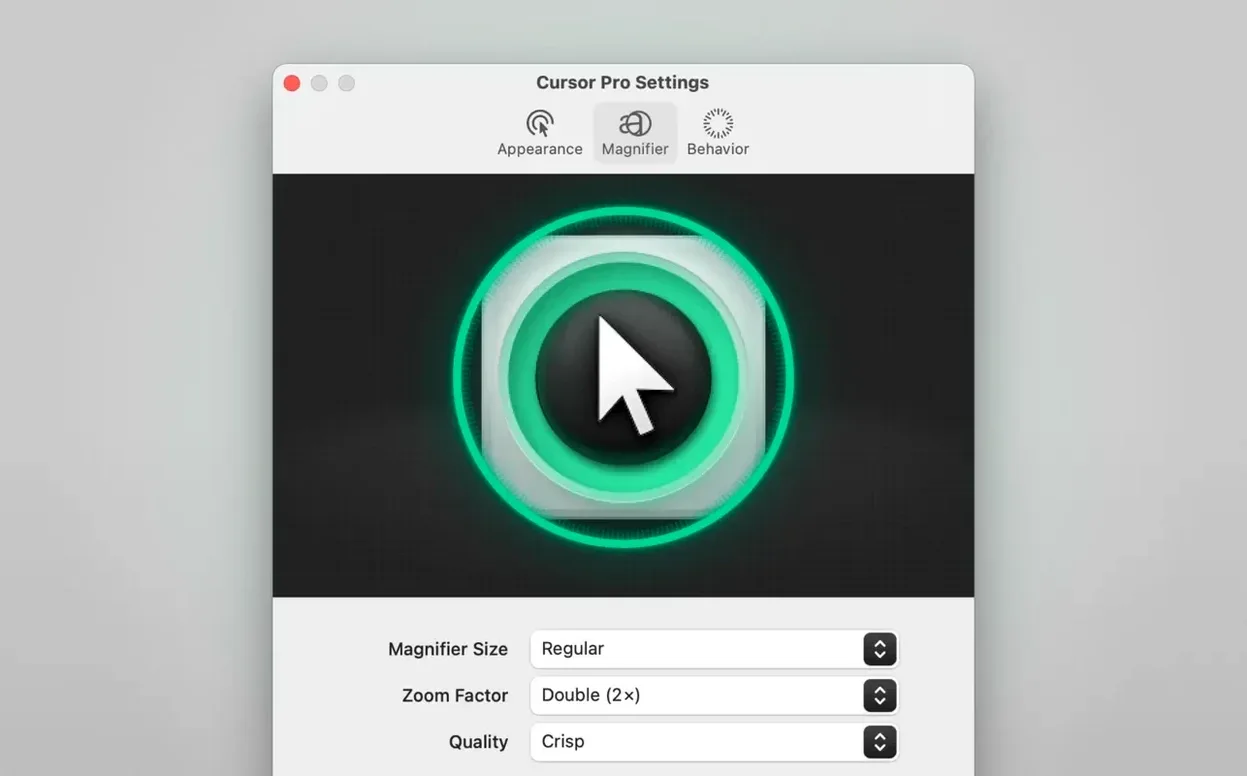
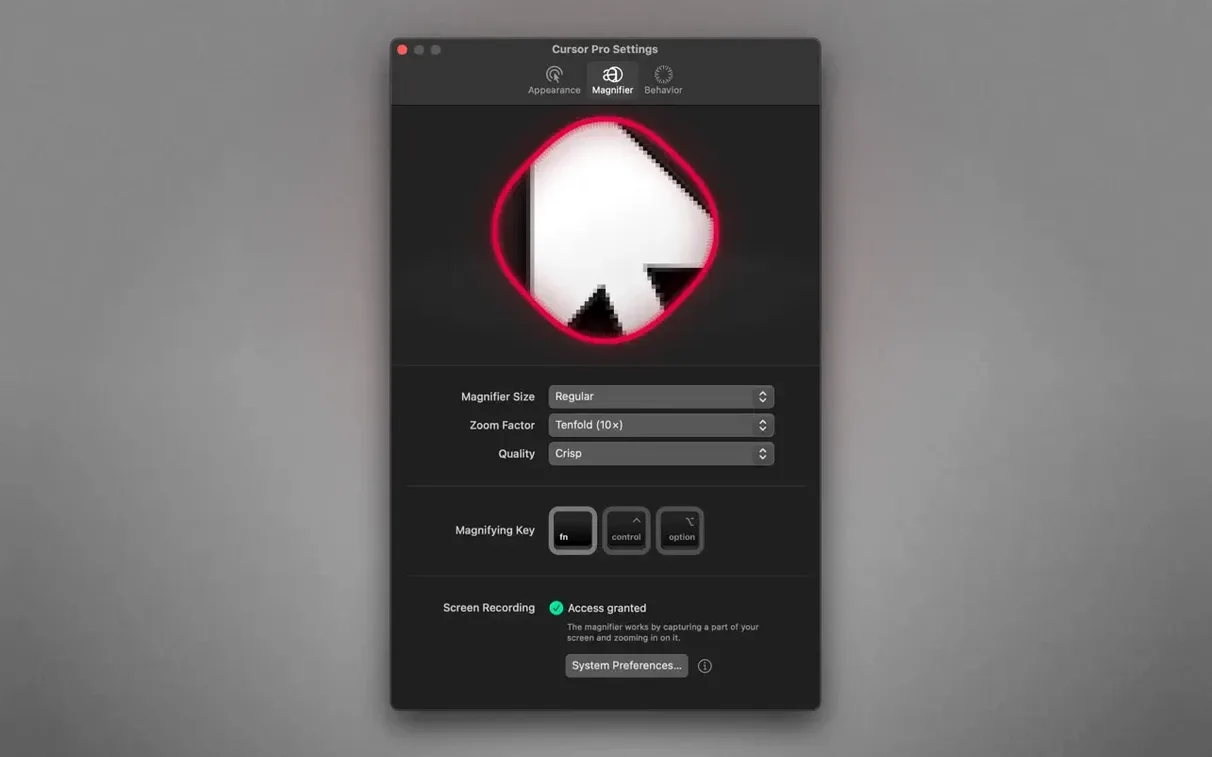
- Use the built-in magnifier to enlarge screen content during demos or design reviews.
- Lives in the menu bar, the Dock, or both — your call.
- Works on both Apple Silicon and 64-bit Intel Macs running macOS 11 or later.
- Interface available in English, German, Spanish, Italian, French, Japanese, Korean and Simplified Chinese.
If you present or share your screen regularly and spend half the time saying "look at my cursor, no, over here," this is the kind of utility that earns its keep. It's tailored for professional presentations but useful for anyone who wants to be seen clearly.
Highlight and pulse that replace frantic mouse-wiggling
Presenters who run live demos or walk clients through slide decks will use this daily. The highlight cuts through visual noise on busy desktops, and the pulse effect grabs attention without you having to wiggle the mouse like a maniac.
Teachers and trainers recording screencasts get similar value. Students following along on a laptop screen can lose a standard pointer in seconds. A bright circle with a subtle glow changes that. The magnifier also helps when you need to zoom in on a tiny UI control during a how-to video.
Remote workers sharing their screen on calls five times a day are the quiet majority here. Cursor Pro sits in the menu bar and activates with a single hotkey — you don't interrupt your flow. If you work on an ultrawide or high-resolution display, the auto-hide behaviour keeps things tidy when the highlight isn't needed.
Why the highlight disappears when sharing a single window
A few things trip people up on first use.
Highlight doesn't show during screen sharing. Most apps see the highlight only when you share the entire screen, not a single window. Switch to full-screen sharing in Zoom, Teams or your recording app and it should appear.
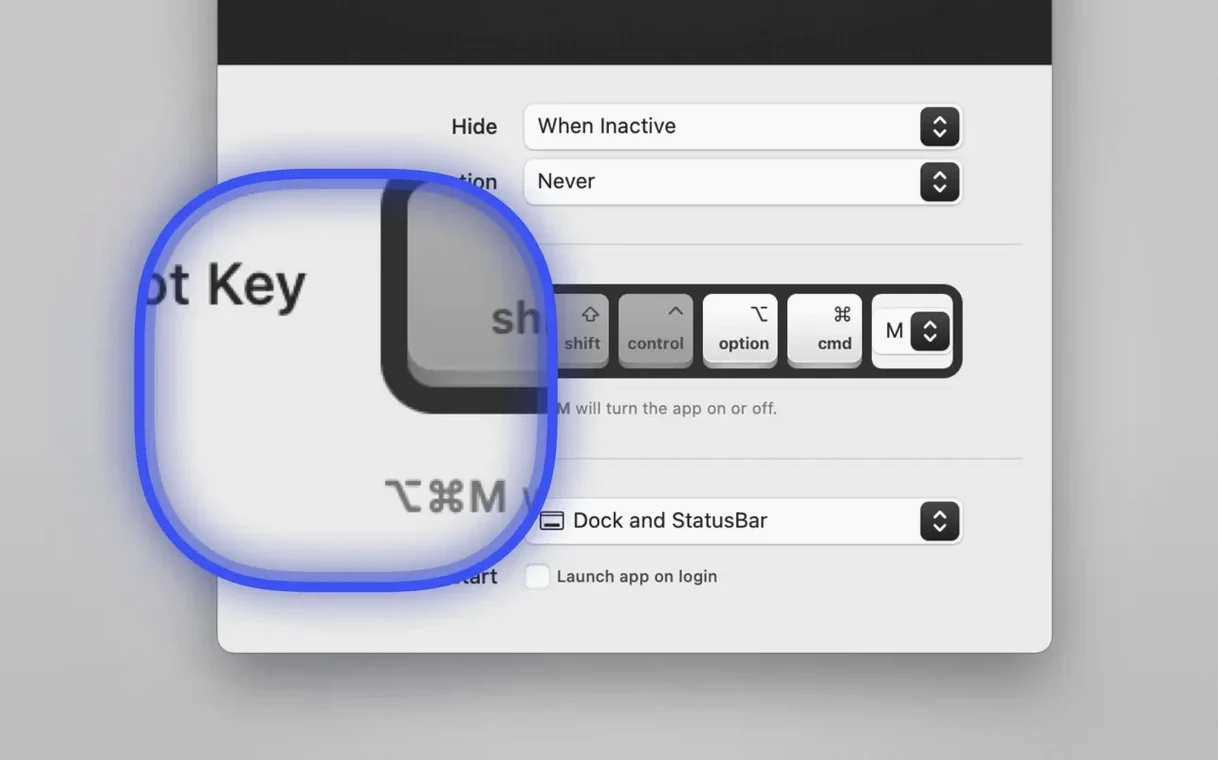
Hotkey conflicts. If the global shortcut does nothing, another app has probably grabbed the same key combo. Open Cursor Pro's preferences and pick something less contested — Shift-Control-Option-C works reliably on most setups.
Cursor torrent of visual effects. Some users turn on the highlight, glow, pulse and magnifier all at once and wonder why their screen looks like a disco. Start with just the highlight. Add glow or pulse later if you need extra emphasis. The magnifier works best on its own, activated separately when you need a close-up.
App vanishes after launch. Check your menu bar — Cursor Pro hides there by default. If you prefer it in the Dock, open preferences and tick both options.
Apple Silicon runs natively, launches faster, and sips battery
Version 2.4 tidied up Apple Silicon support so the app runs natively without Rosetta. Day-to-day, that means faster launch times and lower energy use on M-series Macs — noticeable if you keep the magnifier active during long sessions.
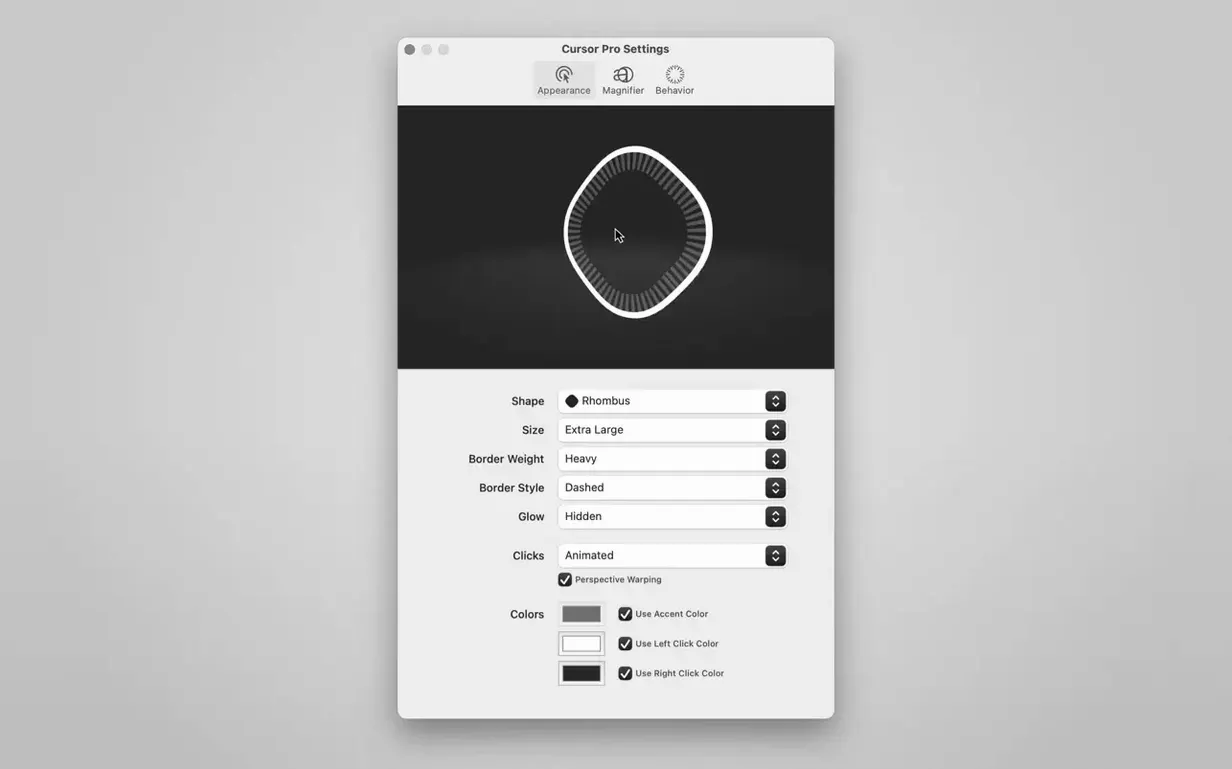
Earlier updates in the 2.x line added the diamond highlight shape, auto-hide behaviour and the option to run from the status bar only. The diamond shape works particularly well for design reviews where a circle might obscure too much of the interface underneath.
Language support expanded to cover eight localisations, which matters for training teams spread across different regions. The interface stays out of your way regardless of which language you pick.
Requirements
- macOS 11 or later
- Apple Silicon or Intel 64-bit
FAQ
Can I change the shape of the pointer highlight?
Yes, you can switch between a circle and a diamond shape for the highlight.
Does Cursor Pro work during screen sharing calls?
Yes, it's designed to work with macOS screen sharing and presentations so viewers can follow your pointer easily.
What languages does the app support?
The interface is available in English, German, Spanish, Italian, Simplified Chinese, Korean, French and Japanese.
Comments 0
Sign in or create an account to leave a comment.
No comments yet…
If you’ve installed it, say how it went. Mention your Mac and macOS version — it helps the next person more than you’d think.