dBpoweramp Music Converter for macOS
Description
You’ve got a folder of FLAC files that won’t play in the car, or a pile of old WAVs eating disk space for no reason. dBpoweramp Music Converter turns them into whatever you actually need, without stripping the artwork or scrambling the tags along the way.
Start with Batch Converter
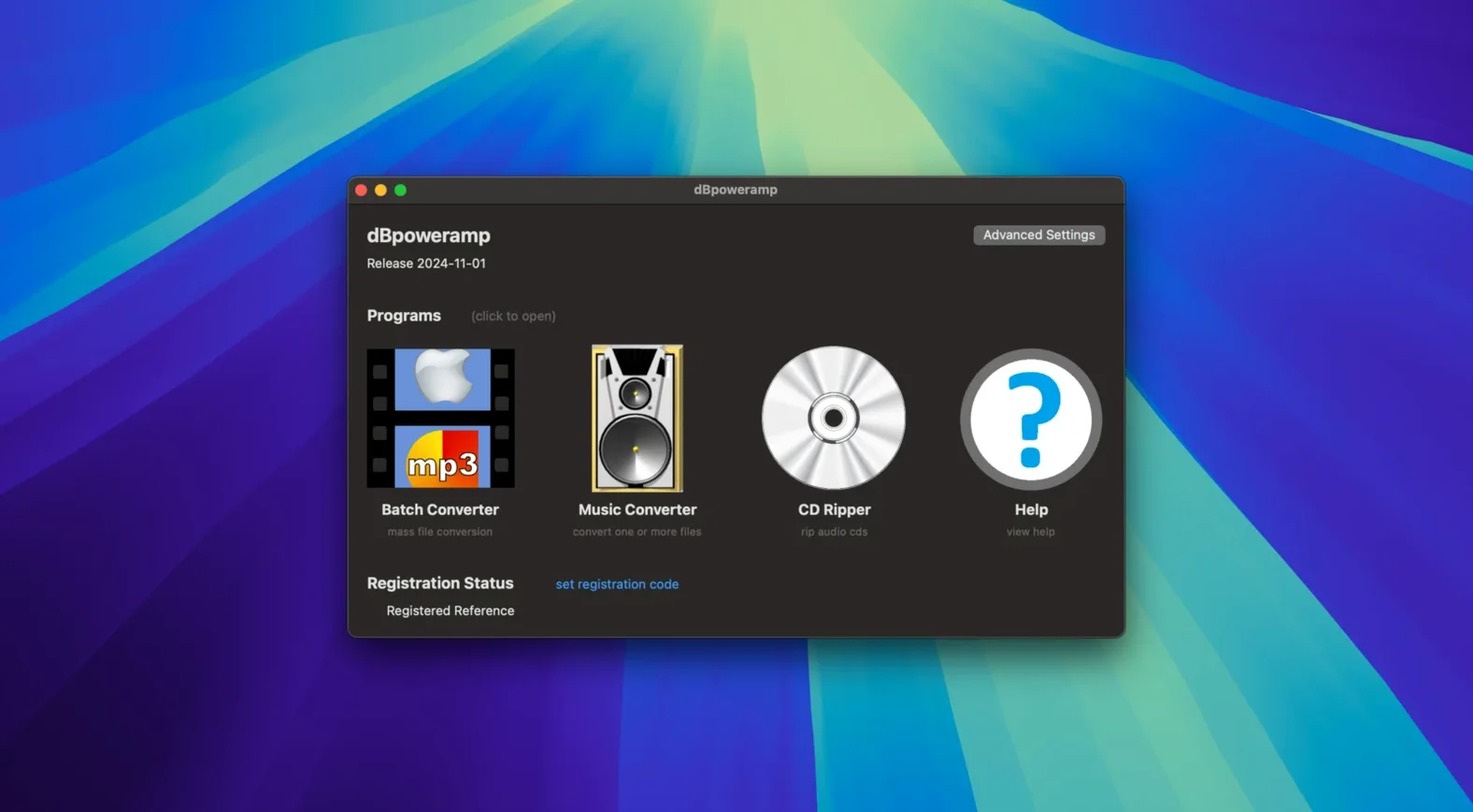
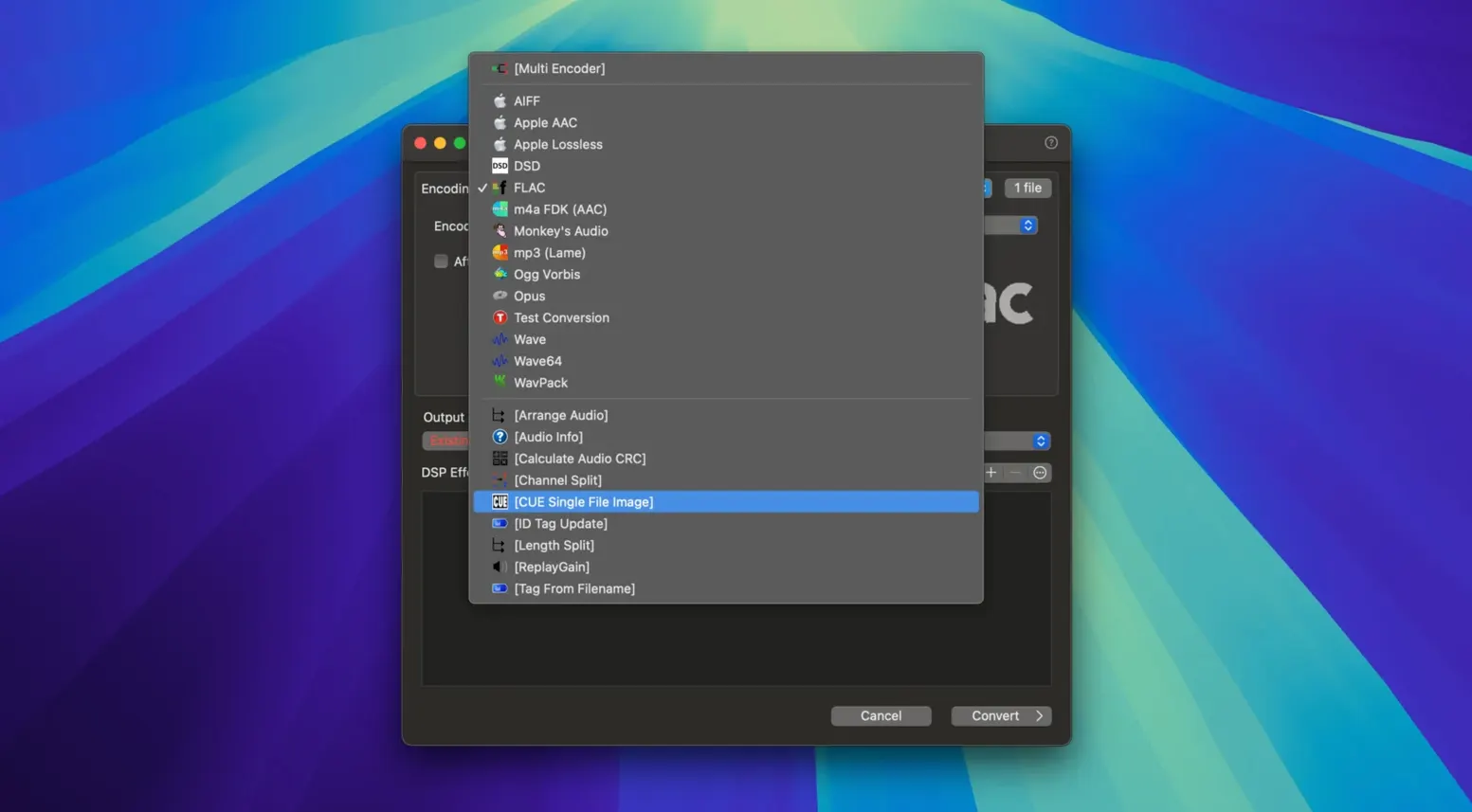
Open Batch Converter and drop a folder onto it. Pick an output format—AAC, MP3, Apple Lossless, whatever suits the job—and hit Convert. The app pushes work across all your cores, so a hundred tracks finish a lot faster than you’d expect. ID tags and embedded artwork carry over intact. While it runs, try the DSP tab: volume normalization, sample rate conversion, or bit-depth changes are all one click away. That single pass can prep a whole library for a playback device with fussy requirements.
Clean up tags before you convert
Right-click any file in Finder and pick the ID Tag Editor shortcut. It’s quicker than opening a separate window when you just need to fix a misspelled artist or blank album field before a conversion run. The current build sorts an annoying bug where the Enter key closed the dialog while autocomplete was visible, so editing feels less like a fight. If you’re ripping CDs, the built-in CD Ripper grabs metadata automatically—one less thing to type.
Start with a test folder of ten tracks
Start with a small folder you don’t mind experimenting on. Ten tracks is plenty. The point is to nail your output settings before you point the app at your main library.
- Right-click the test folder in Finder and choose Convert with dBpoweramp. Pick a format and check the DSP tab. If you want everything the same loudness, tick Volume Normalize and leave it on EBU R128. It’s the least destructive option.
- Let the batch finish, then open the ID Tag Editor on a couple of files. Confirm artwork and tags survived. If anything looks off, adjust the output codec settings—don’t blame the source files yet.
- Once you trust the results, set Batch Converter as your default entry point for big jobs. The Finder shortcut is handy, but Batch Converter gives you a clear before-and-after view of what’s queued.
One early friction point: if macOS blocks the app on first launch, head to System Settings > Privacy & Security and click Open Anyway. That’s a Gatekeeper quirk, not a problem with the app. The latest build also fixed a spurious warning about an Intel-only component on Apple Silicon Macs, so you shouldn’t see that now.
Multi-device libraries that need FLAC and AAC
People maintaining a local music library across more than one device. If you rip CDs to FLAC for the home system but need AAC copies for an iPhone, the multi-format workflow saves hours. The same goes for anyone who inherited a messy archive of WMA and WAV files and wants them unified into one lossless format without re-ripping.
DJs and live performers benefit from the DSP chain. Converting a folder of high-res WAVs to 16-bit AIFF with peak normalization in one pass means less faffing in a separate editor. The multi-core encoding keeps the wait short, even on older Intel Macs.
Casual streamers probably don’t need it. If your collection lives entirely in a streaming app, a batch converter adds steps you won’t value.
Batch throughput beats XLD’s single-file focus
XLD is the obvious comparison. It handles secure CD ripping and a similar format list, and it’s been a Mac staple for years. Where dBpoweramp pulls ahead is batch throughput and Finder integration. XLD’s interface is functional but feels its age; the right-click Convert with dBpoweramp shortcut is genuinely quicker for ad-hoc jobs.
MediaHuman Audio Converter has a cleaner, simpler interface and covers the common formats well. It’s a good choice if you convert a handful of files now and then. It lacks the deep DSP controls and the multi-core aggression of dBpoweramp, though. When you’re processing a thousand tracks, the difference in elapsed time is hard to ignore.
Fre:ac is open-source and cross-platform, with solid format support. It’s the most flexible if you want to tweak encoder parameters to an obsessive degree. The trade-off is polish: tag handling can be hit-and-miss with less common formats, and there’s no Finder integration. For users searching “dbpoweramp music converter mac” because they want a tool that feels native on macOS rather than ported, Fre:ac rarely scratches that itch.
What’s new
Adds resampling improvements. Fixes the Edit Tags Enter key closing the dialog when autocomplete is visible. Fixes a warning about an Intel-only component on the latest macOS.
Requirements
- macOS 11 or later
- Runs on Intel and Apple Silicon Macs
Comments 0
Sign in or create an account to leave a comment.
No comments yet…
If you’ve installed it, say how it went. Mention your Mac and macOS version — it helps the next person more than you’d think.