BetterDisplay Pro for macOS
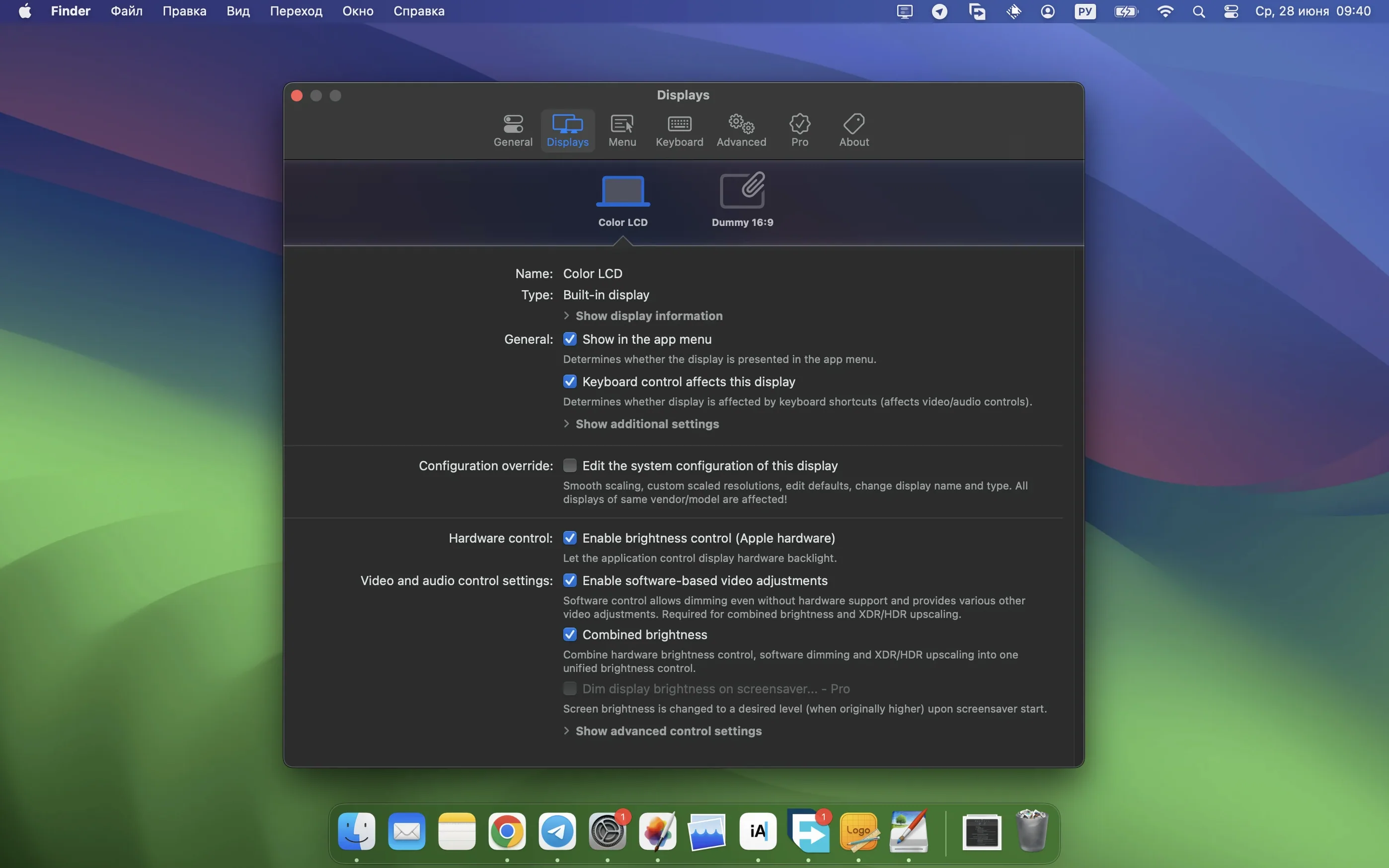
Description
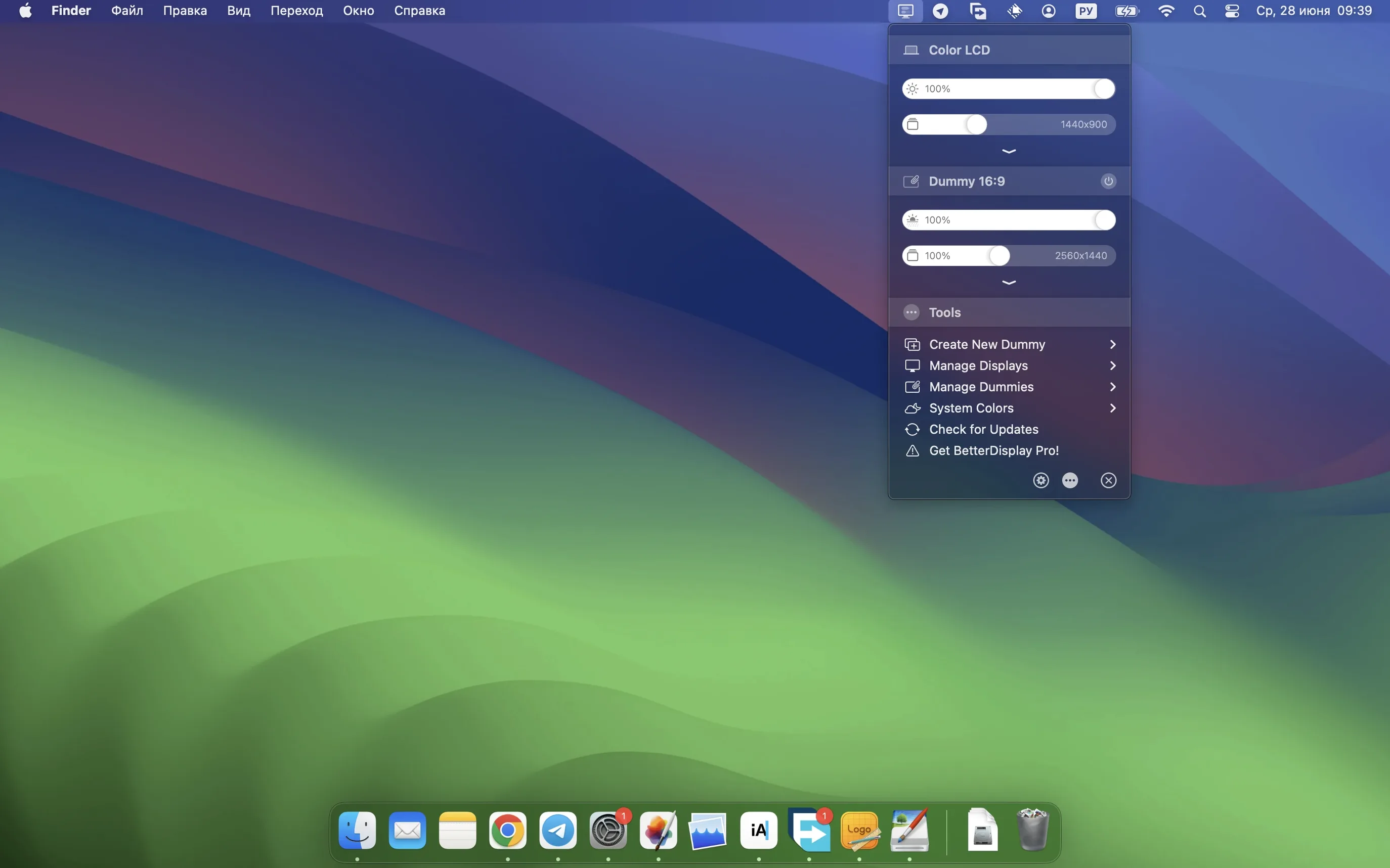
macOS gets confused when you plug in a high-resolution monitor. You end up with either tiny text or a blurry scaled resolution that doesn't quite match what the panel can do. BetterDisplay Pro fixes that and then goes further — it gives you proper control over brightness, colour and virtual screens without digging through System Settings.
HiDPI scaling for displays macOS ignores
- Getting crisp HiDPI scaling on third-party displays that macOS ignores.
- Pulling up a picture-in-picture window of a secondary display so you can keep an eye on a render or a full-screen app.
- Creating virtual displays for screen sharing when you need a clean desktop without buying extra hardware.
- Adjusting XDR or HDR brightness upscaling on Apple Silicon Macs that support it.
- Controlling external monitor hardware — brightness, contrast, volume — directly through DDC instead of fumbling for the monitor's buttons.
Needs macOS 26 or later, DDC still monitor-dependent
- Requires macOS 26 or later, so it won't run on older installs.
- DDC control over multiple displays is faster in version 5.0.6 but still depends on your monitor's firmware cooperation.
- Custom 3D LUTs and advanced image adjustments are there if you need them, but the interface assumes you know what you're doing.
Sits in the menu bar at around 120–150 MB
BetterDisplay Pro sits in the menu bar and doesn't draw attention to itself. On an Apple Silicon Mac the memory footprint hovers around 120–150 MB once you've got a couple of displays configured. That's reasonable for an app managing resolution overrides, DDC polling and virtual screen surfaces.
DDC brightness changes land instantly on my test setup — version 5.0.6 noticeably tightened up multi-display DDC response so you're not waiting for a second monitor to catch up. Virtual displays feel like real ones. Moving a window onto a virtual screen and back again doesn't introduce lag or frame drops. The picture-in-picture window updates smoothly at whatever refresh rate the source display runs.
Stream video filter automation, new in this release, triggers reliably when video playback starts. No stutters on the main desktop while the filter kicks in. CPU usage barely registers because most processing runs through the GPU's video decode pipeline. If you stack multiple virtual displays with heavy scaling and a 3D LUT applied, you'll see a modest GPU bump — maybe 10–15% on integrated graphics — but the system stays responsive.
Stability is uneventful, which is the best kind. The app has survived display hot-plugging, sleep/wake cycles and three-monitor daisy-chain experiments without beachballing or corrupting the display configuration. That said, some monitor firmwares ignore DDC commands after waking from deep sleep. Not BetterDisplay's fault, but worth knowing.
Setting a 4K display to 1440p-equivalent scaling
People jump straight into the scaling sliders without understanding what HiDPI actually does. They set a 4K display to a 1440p-equivalent scaled resolution and then wonder why text looks slightly soft. The rule: pick a resolution that divides cleanly into the panel's native pixel count. For a 3840×2160 screen, 1920×1080 HiDPI works perfectly. Anything in between relies on a two-step render that costs sharpness.
Another common one: enabling XDR brightness upscaling on a display that can't handle it. The screen goes nuclear bright for five seconds, then the backlight protection circuit clamps down and the image turns grey. Check whether your monitor actually supports extended brightness before ticking that box.
Virtual displays confuse people who don't realise the new desktop appears behind their physical screens. They create a virtual display, see nothing change, and assume the feature is broken. You need to open Displays in System Settings and arrange it — or switch to it deliberately. Picture-in-picture mode is the easier way to keep it visible.
DDC control gets blamed when the monitor ignores commands. Usually the cable is the problem. HDMI-CEC and DDC both need a proper connection — a cheap USB-C to HDMI adapter that strips the DDC channel will make the brightness sliders dead. DisplayPort or a direct USB-C cable tends to work reliably.
Lunar skips resolution scaling and virtual displays
BetterDisplay Pro vs Lunar
Lunar focuses almost entirely on brightness and contrast control. It does DDC, it does sensor-based auto-brightness with an ambient light sensor, and it handles HDR brightness transitions well. What Lunar doesn't do is resolution scaling, virtual displays or picture-in-picture. If you only care about matching your Mac's brightness keys to an external monitor, Lunar is simpler. If you need the full display override toolkit — scaling, colour LUTs, virtual screens — BetterDisplay Pro covers ground Lunar doesn't touch.
BetterDisplay Pro vs SwitchResX
SwitchResX has been around forever and handles custom resolutions and HiDPI overrides reliably. Its interface looks its age and it doesn't do DDC, HDR brightness upscaling or virtual displays. For pure resolution wrangling on older macOS versions SwitchResX still works. On macOS 26 and later, BetterDisplay Pro does everything SwitchResX does plus hardware control and virtual screens, all in a modern interface that fits the menu bar properly.
BetterDisplay Pro vs MonitorControl
MonitorControl is a free, open-source DDC brightness utility. It gives you the core keyboard-based brightness and volume control for external monitors and nothing else. No scaling, no virtual displays, no 3D LUTs, no HDR upscaling. If you download BetterDisplay Pro, you're getting MonitorControl's feature set as a tiny subset of what the app can do. The trade-off is complexity — MonitorControl does one thing with basically zero configuration. BetterDisplay Pro asks you to spend ten minutes setting things up.
What’s new
- Simplifies device control configuration.
- Speeds up DDC control across multiple displays.
- Adds stronger sharpening effects.
- Introduces stream video filter automation.
Requirements
- macOS 26 or later.
- Apple Silicon or Intel Mac.
FAQ
Does BetterDisplay Pro work with my external monitor?
It works with most modern displays. DDC control depends on the monitor supporting it over HDMI or DisplayPort, and HiDPI scaling works on any high-resolution panel macOS can see.
Can I use it just for the built-in MacBook display?
Yes. You get XDR brightness upscaling on compatible Apple Silicon Macs, full black dimming, and flexible scaling options for the internal screen as well.
What are virtual displays for?
They create extra desktop spaces without physical monitors attached. Useful for clean screen sharing during presentations or when you need a specific resolution for recording.
Comments 0
Sign in or create an account to leave a comment.
No comments yet…
If you’ve installed it, say how it went. Mention your Mac and macOS version — it helps the next person more than you’d think.