Bartender for macOS
Description
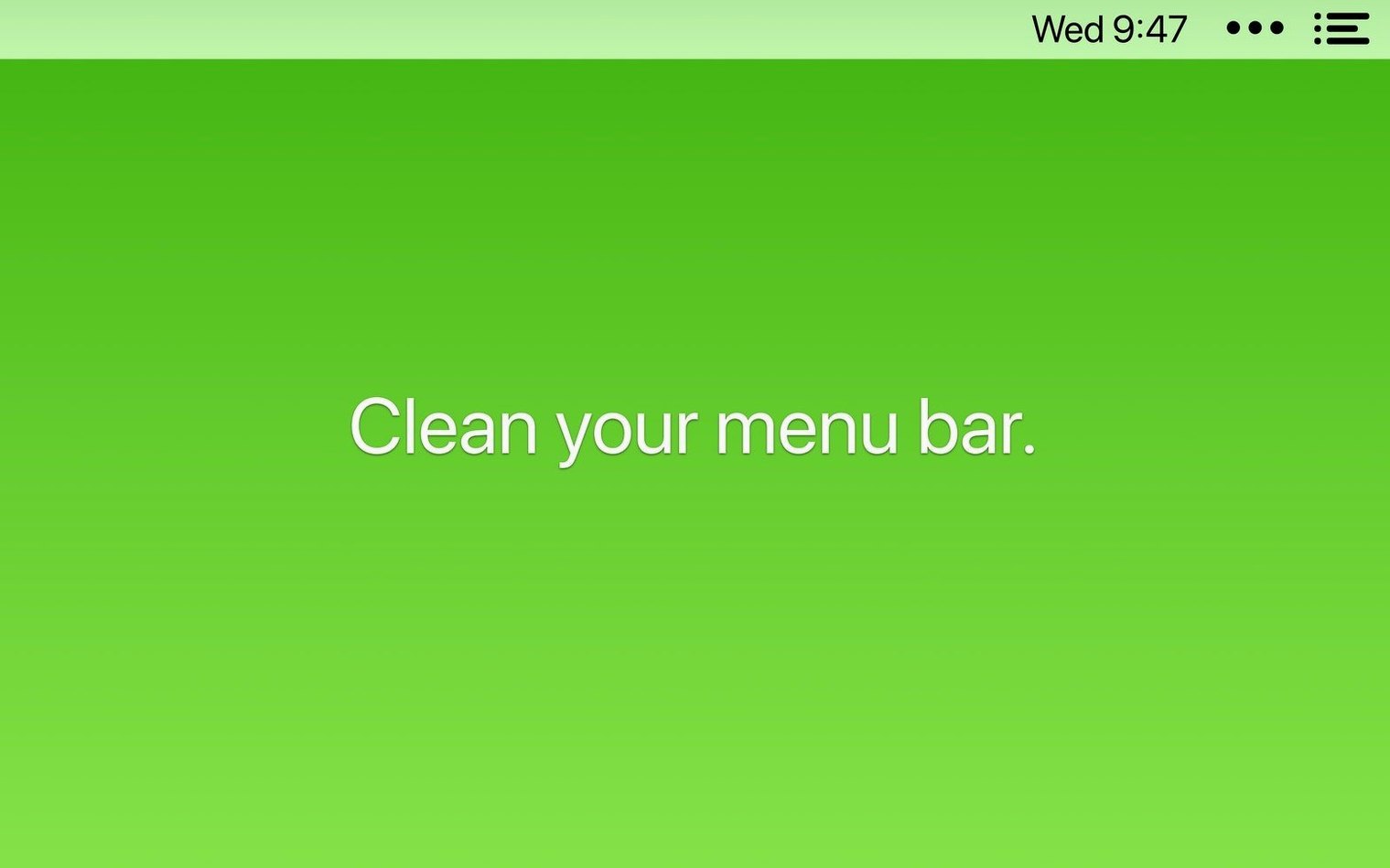
Bartender is a utility that lets you hide and rearrange the icons on your Mac's menu bar.
Check your macOS version first — older systems need an earlier release
Bartender 7 is built for macOS 27. It runs on both Intel and Apple Silicon Macs. Check your macOS version first — older systems need an earlier release.
Icons you still want to see stay in the main bar
The app works in a few clear steps.
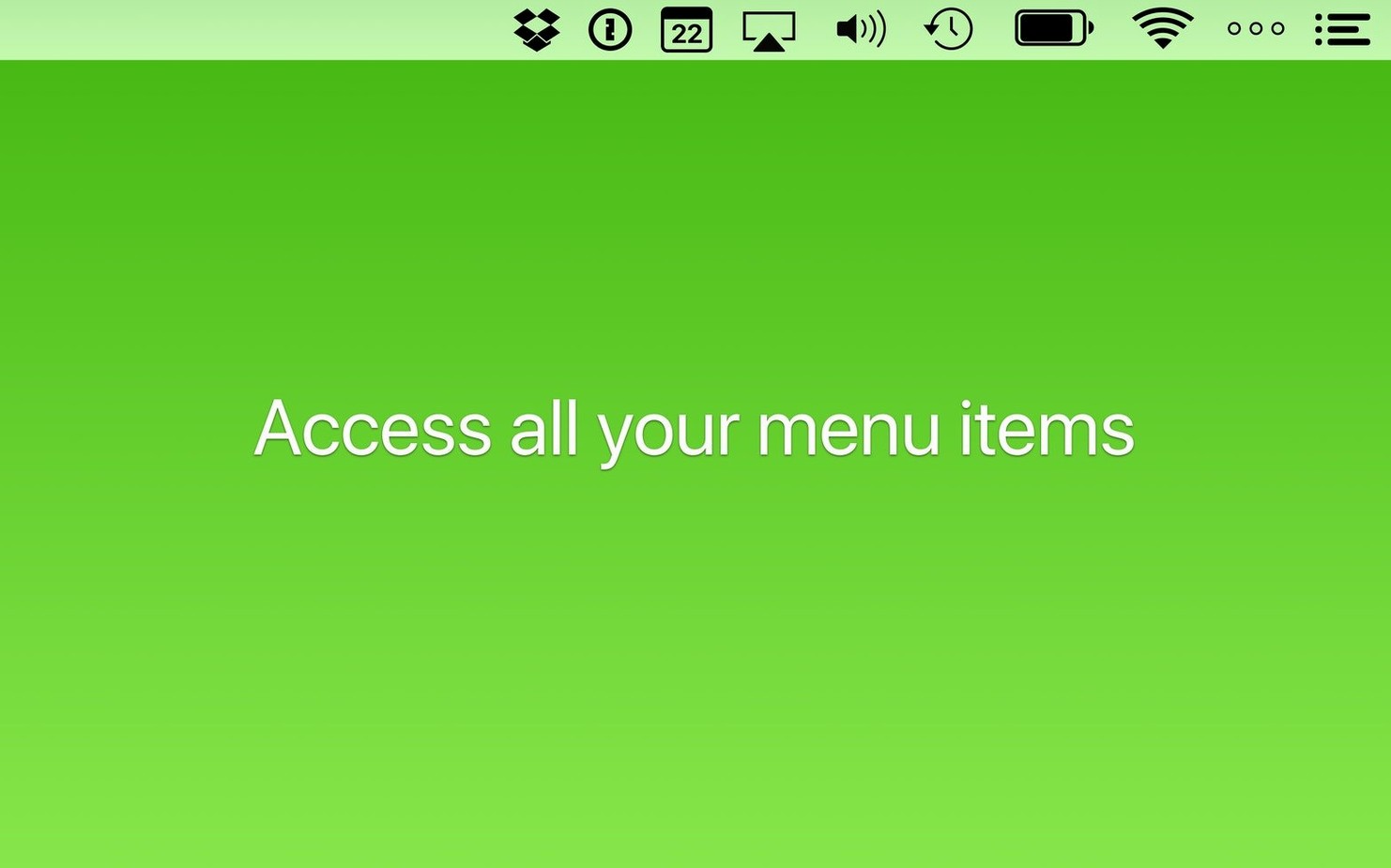
- Bartender sits in your menu bar. Click it to reveal a second, hidden bar. Drag lesser-used icons there to tidy things up.
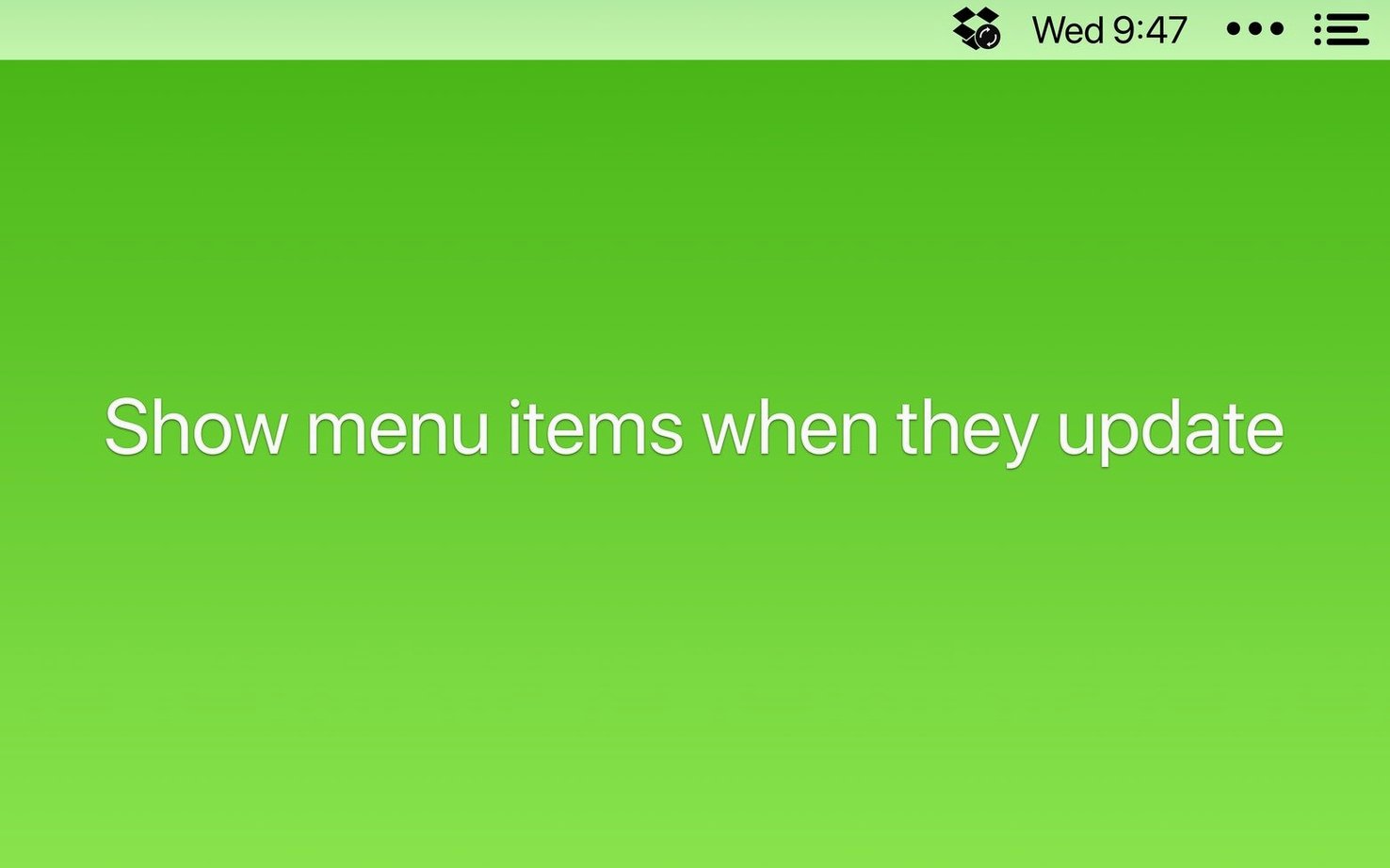
- Icons you still want to see stay in the main bar. You can set some to appear only during updates, syncing, or when an app flags an error.
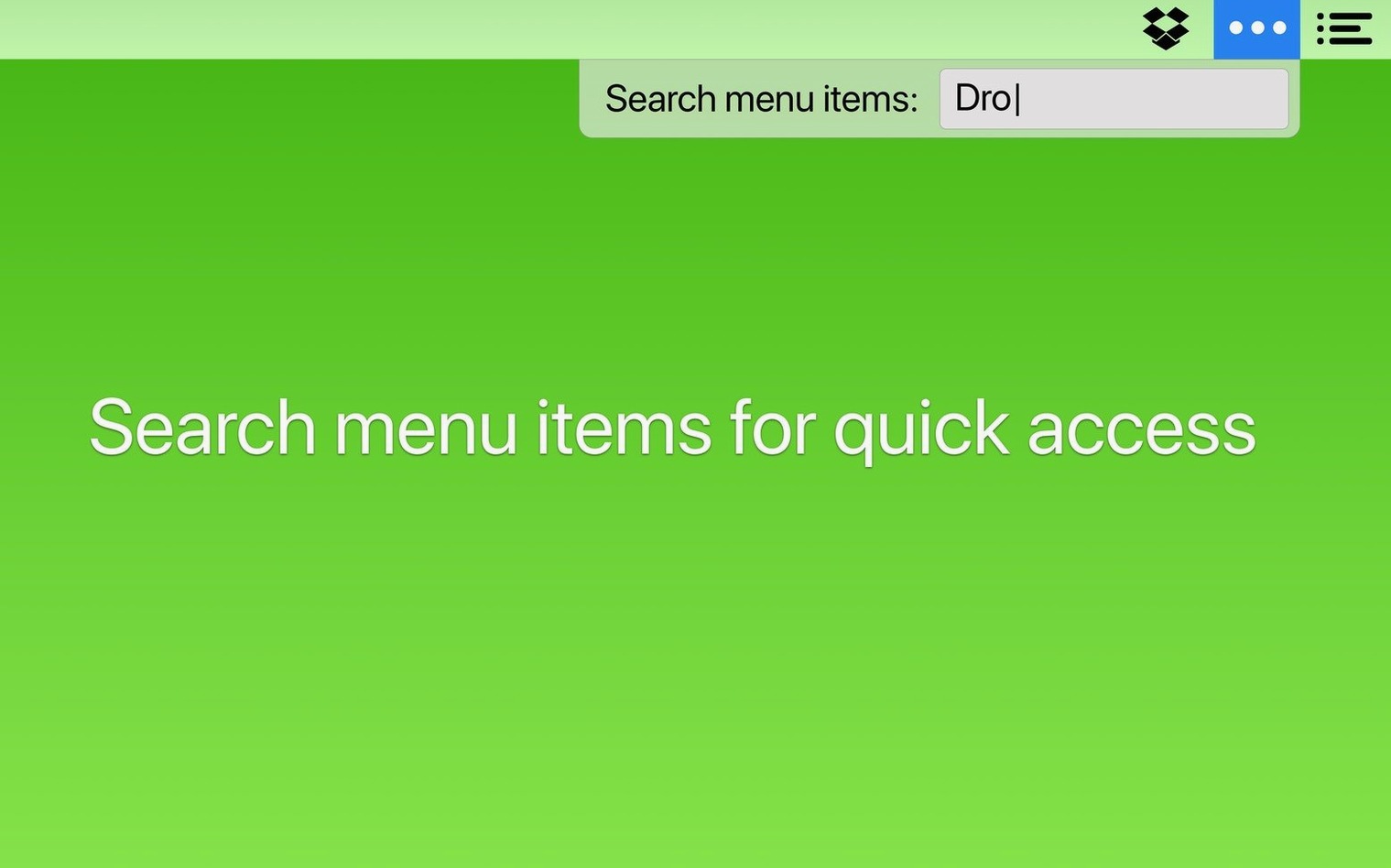
- Press a keyboard shortcut to bring up the Command Bar. Start typing to search for any menu item by name — no more hunting through menus.
- Spacers and dividers let you group icons. Version 7.0.4 stops them shifting position after a restart.
This update also fixes items that failed to show up or got stuck while you were moving them. The interface stays out of your way — minimal, no screen recording permissions required.
A tidy menu bar, start to finish
Say your menu bar holds twenty icons by lunchtime. You glance at it three times a minute and actually use five of them. Here is a workflow that cuts the noise.
Open Bartender's preferences. Under Menu Bar Items, tick everything you want to keep visible — Wi‑Fi, battery, clock, your calendar app. Untick the rest. They vanish from the main bar instantly.
Now open the Bartender Bar with a click or the shortcut ⌃⌥⌘B. All your hidden items sit here in a clean second row. Drag them into a sensible order: messaging tools on the left, system monitors on the right, a spacer between groups.
For apps that only need attention occasionally, set a trigger. Right‑click an item, pick Show when updating. The icon appears in the main bar when there is activity, then hides itself again. Good for sync tools and backup apps.
Finally, hide Bartender's own icon. The menu bar looks like you only have five things running. Press the shortcut to search for anything else.
Before you install, a few answers
Does Bartender still require screen recording permissions?
Version 7 does not. The app reads the menu bar without needing that privacy‑sensitive permission. It is one less dialogue box to click through on first launch.
Hidden icons still run — you just stop seeing them
It should not. Bartender does not process the apps themselves — it only manages whether their icons are shown. The hidden items still run; you just stop seeing them. On older Intel machines with fifty‑plus menu extras, you might notice a slight pause when opening the Bartender Bar for the first time after a cold start, but it settles quickly.
Once you learn the shortcut, you rarely touch the mouse
Yes. The Command Bar takes a shortcut, then a few typed letters, then Enter. Arrow keys navigate the bar. Once you learn the shortcut, you rarely touch the mouse for menu bar tasks.
Your layout does not leak into someone else’s account
Bartender keeps its settings per user. Your layout does not leak into someone else's account, and their chaos does not spill into yours.
Twenty minutes with Bartender
You install the app, drag it into Applications, and launch it. A single icon — a neat little bartender logo — appears in the menu bar. No splash screen, no onboarding wizard.
You open preferences. The left panel lists every item currently in your menu bar. You uncheck a weather app you never asked to see, a printer utility, and two cloud‑sync indicators. They slide off the main bar. The menu bar tightens up immediately.
You assign the Bartender Bar a trigger: Show for updates on your password manager, Always hidden on a Java updater that lives there for no good reason. You add a spacer between the volume control and the VPN indicator — just because it looks better.
An hour later, a backup tool starts running. Its icon blinks into view in the main bar, right where you expect it. When the backup finishes, the icon disappears. You did not have to do anything.
Before you pack up for the day, you hit the Command Bar shortcut and type "bluetooth". The menu opens with the Bluetooth item highlighted. Two keystrokes and you have switched off your headphones. The whole session took less setup than finding a decent desktop wallpaper.
A dozen small utilities tamed within an hour
Designers and developers who run a dozen small utilities tend to notice the difference within an hour. Their menu bars collect colour pickers, screenshot tools, code linters, and simulators. Bartender gives them a single point of access without the visual clutter.
People who share their screen on calls get an immediate win. A slim menu bar looks more professional and stops colleagues asking about every third‑party icon. Just the clock, maybe Wi‑Fi, nothing to explain.
Keyboard‑focused users who already avoid the mouse find the search‑and‑navigate flow natural. The Command Bar becomes muscle memory — faster than scanning a row of tiny pictograms.
Anyone running a MacBook with a notch gets practical value. Screen real estate is tight up there. Hiding half your menu bar items means the ones that matter do not get pushed into the overflow zone, where macOS tucks them behind a chevron you have to click to reveal.
If you install bartender for mac on a clean system and build your menu bar habits from scratch, you never develop the reflex to scan a messy row of icons. That alone saves a surprising amount of attention over a working week.
Requirements
- macOS 27 or later
- Intel or Apple Silicon Mac
FAQ
Does Bartender 7 need screen recording permissions?
No. Bartender 7 works without macOS screen recording permissions.
Can I search for a specific menu command?
Yes. The Command Bar lets you search for any menu bar item by name.
What does Bartender 7.0.4 fix?
It fixes items failing to appear, items shifting around after a restart, and items getting stuck while moving.
Comments 0
Sign in or create an account to leave a comment.
No comments yet…
If you’ve installed it, say how it went. Mention your Mac and macOS version — it helps the next person more than you’d think.