Audiobook Builder for macOS
Description
Dragging a folder of MP3s into Books gets you a jumbled mess — no chapters, no cover, just a long list of tracks pretending to be a book. Audiobook Builder fixes that by stitching your audio into a single, navigable audiobook your iPhone or iPad will treat like a proper title.
Build the audiobook
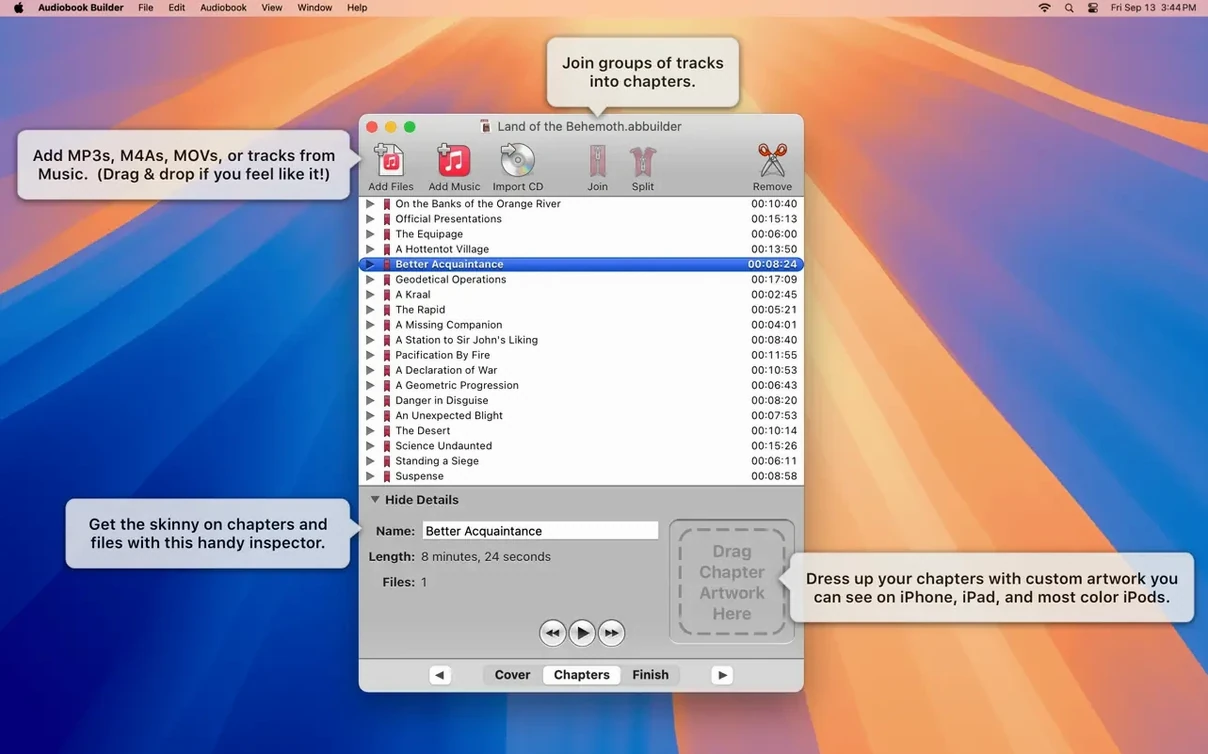
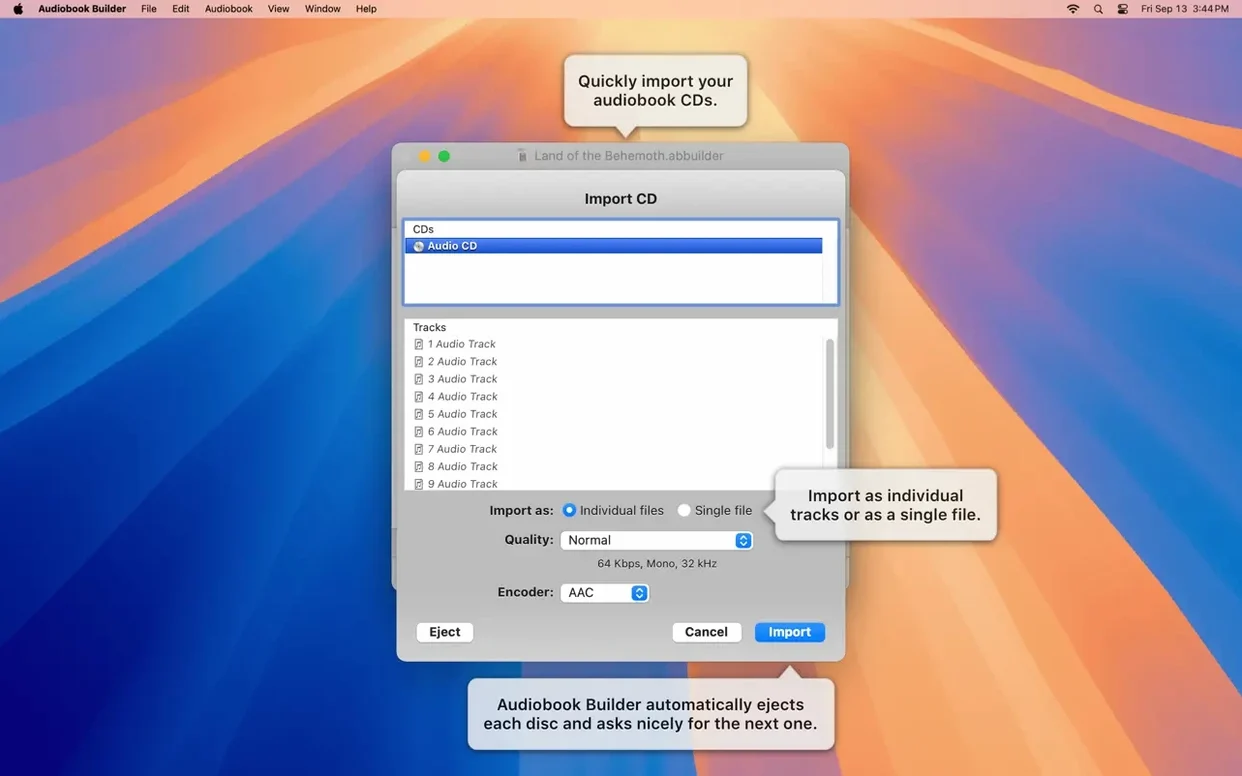
Drop in audio files or import directly from a CD. The app joins everything into one m4b file, keeping chapter markers intact so you can skip forward without guesswork.
Tidy up the chapters
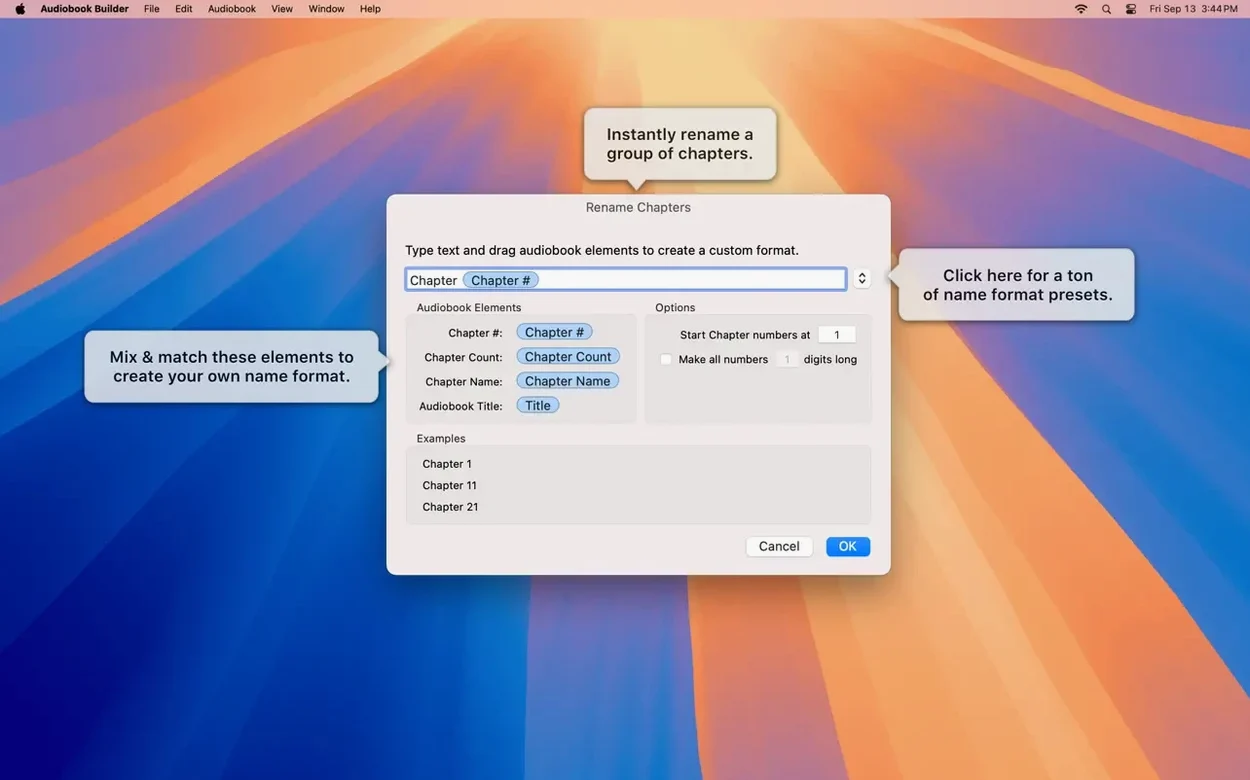
Merge short sections or split long ones until the structure matches the real book. Add cover and chapter artwork — both work properly on macOS 13 Ventura and later.
Send it to your library
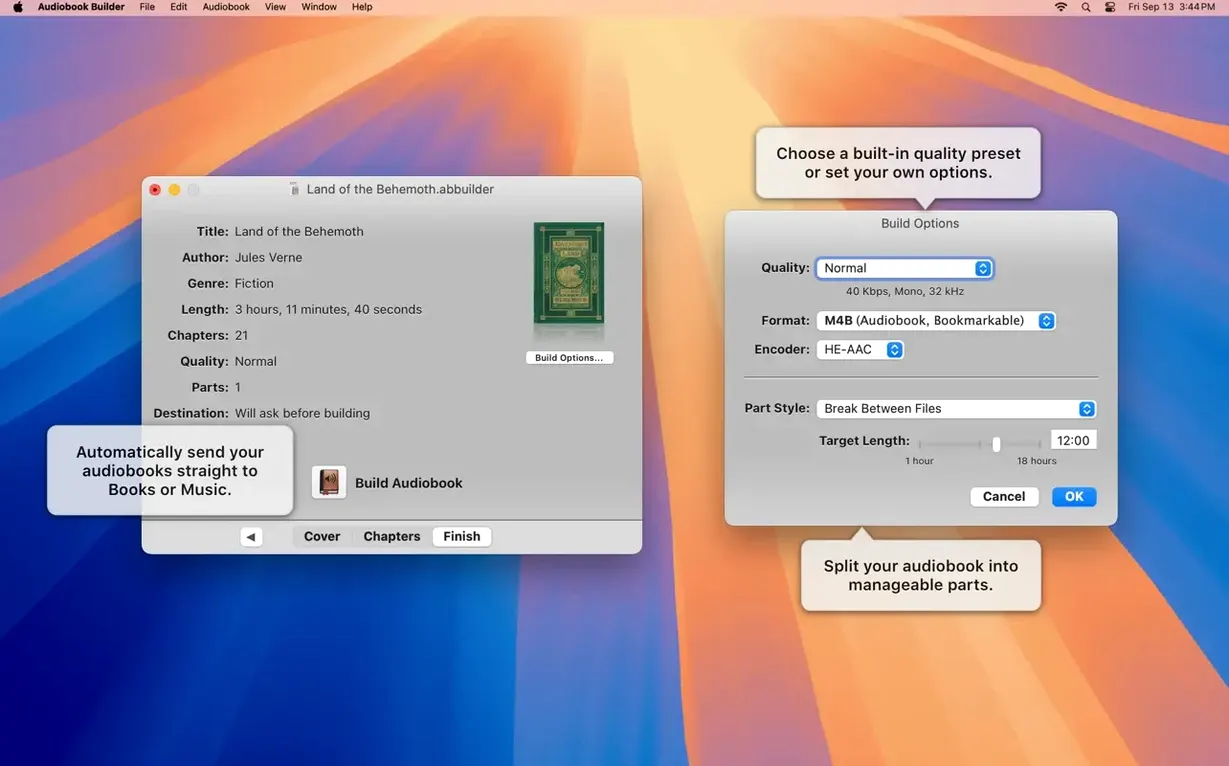
When the build finishes, Audiobook Builder hands the file straight to the Music app, the Books app, or iTunes if you're on an older Mac. It remembers chapter artwork and even restores the Description tag for classic iPod holdouts.
First-day setup that saves you trouble later
Before you queue up a dozen books, build one short test project. Pick something with three or four chapters so the encode takes minutes, not hours. This lets you check that your playback device shows chapters, cover art, and the author name the way you expect. Nothing worse than discovering a tagging mistake after encoding a 20-hour novel.
Next, decide where finished audiobooks should land. Open Preferences and choose your target — the Music app for most modern Macs, or Books if you keep audiobooks separate. The app remembers this, so set it once and forget it.
If you plan to import CDs, go to the Import CD panel and confirm the lookup service is pulling the right metadata. A wrong track title here means a wrong chapter title in the finished book, and editing sixteen chapters after the fact is tedious.
Files QuickTime reads all work here
Does it handle files that aren't from CDs? Yes. Any audio file that QuickTime can play — MP3, M4A, WAV, AIFF — drops right in. The app doesn't care where the audio came from, only that it's properly structured when you hit Build.
Will it work on an old Mac? It runs on OS X 10.11 El Capitan and everything newer, Intel or Apple Silicon. You don't need a recent machine for this — an ageing iMac in the corner handles audiobook encoding just fine.
Can I split a single long MP3 into chapters? You can, but you'll do it manually. Mark the split points in the project editor, give each section a title, and the app writes proper chapter stops into the M4B file. It's not automatic, but the controls are straightforward once you've done one or two.
Spoken word on max quality wastes space
The most common one: ignoring the quality slider. The default setting is a sensible middle ground, but if you crank it to maximum for a voice-only recording, you're just making a larger file with no audible benefit. Spoken word doesn't need the same bitrate as a symphony.
Another is building a book with unnamed chapters. Audiobook Builder won't stop you — it just labels them "Chapter 1," "Chapter 2," and so on. That works, but naming them properly while you're in the editor takes two minutes and makes navigation far less frustrating later.
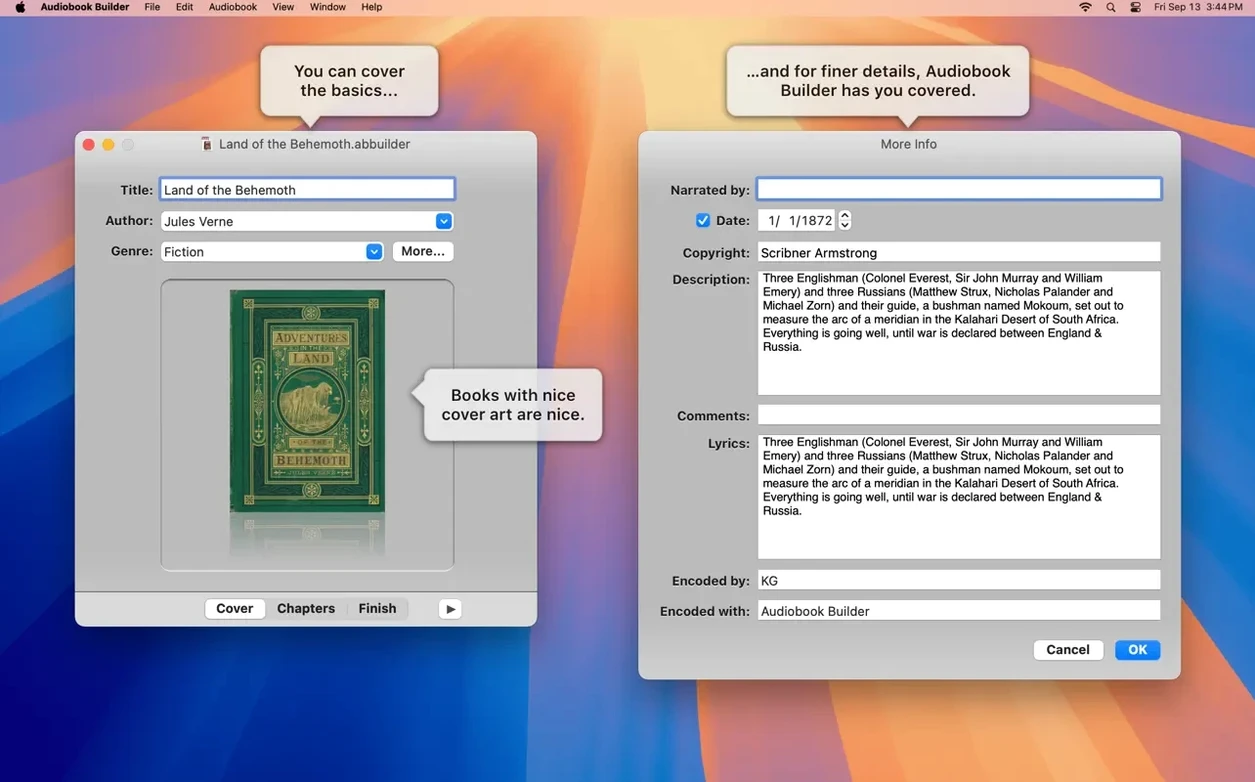
Forgetting artwork until the last step is also common. The app asks for cover art during the build setup. If you skip it, your audiobook sits in your library as a grey placeholder. You can add it later in the Music or Books app, but it's quicker to drag the image in before you build.
Lastly, don't delete your source files the moment the M4B appears. Run through the finished audiobook builder file on your phone or iPad first — check that chapters jump correctly and the running time looks right. If something went sideways during encoding, you'll want those originals handy.
What’s new
Ready for macOS 15 Sequoia. Cover and chapter artwork now work on macOS 13 Ventura. Fixes a false “no audio in file” error for WAVE files containing MP3 data. Corrects an error-reporting glitch on pre-11.3 Macs. Restores the Description tag for some classic iPods.
Requirements
- macOS 10.11 or later
- 64-bit Intel or Apple Silicon processor
FAQ
Does Audiobook Builder run on Apple Silicon Macs?
Yes. Version 2.2.9 supports ARM and 64-bit x86 processors, so it runs natively on Apple Silicon and Intel Macs.
Which macOS versions does version 2.2.9 support?
It requires macOS 10.11 or later and is fully ready for macOS 15 Sequoia.
Can I add cover artwork and chapter images?
Yes. Artwork works correctly on macOS 13 Ventura and newer, and you can assign different images to individual chapters.
Comments 0
Sign in or create an account to leave a comment.
No comments yet…
If you’ve installed it, say how it went. Mention your Mac and macOS version — it helps the next person more than you’d think.