Audio Hijack for macOS
Description
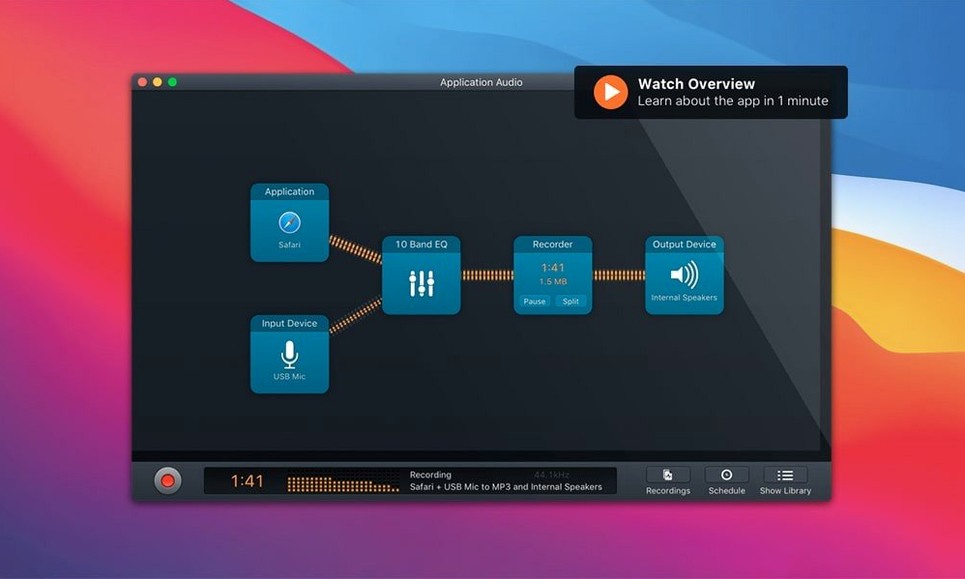
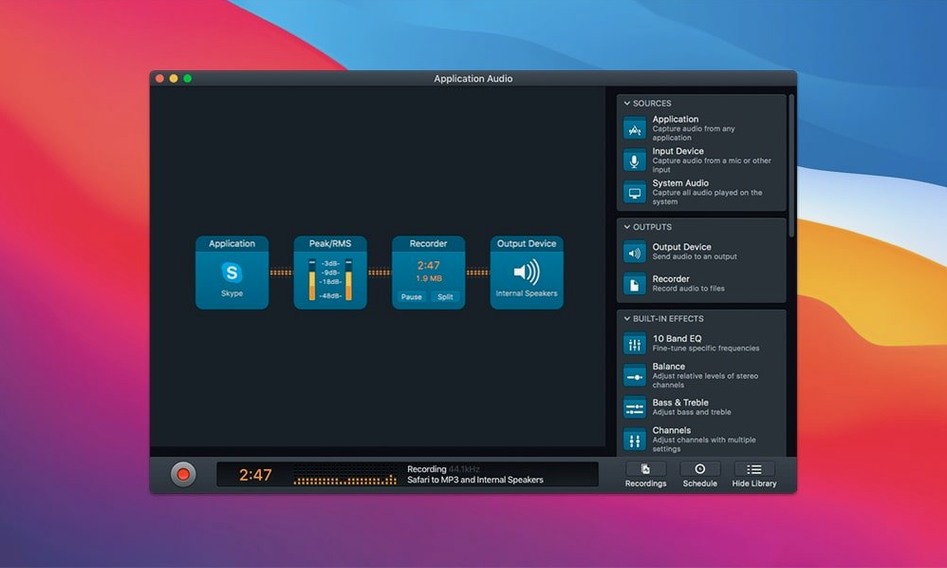
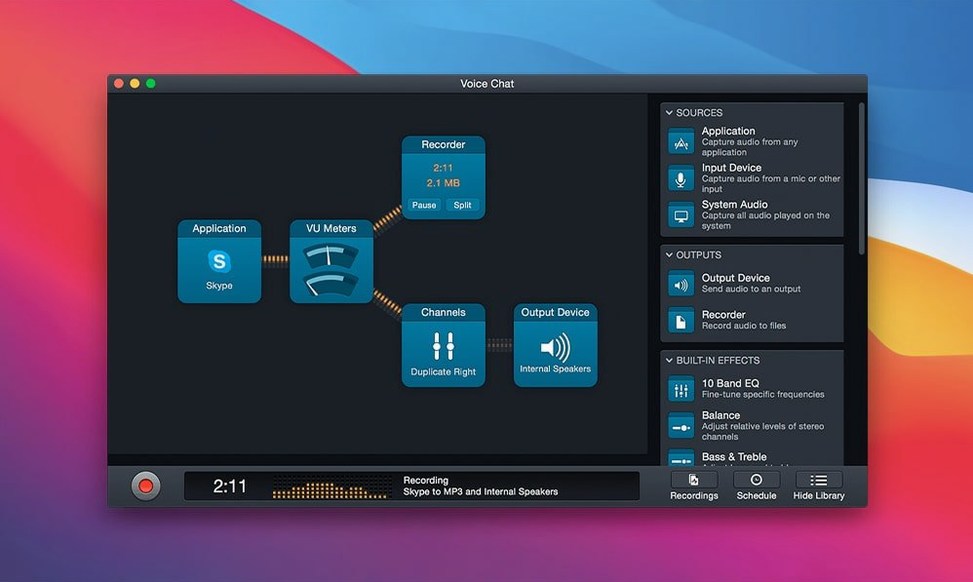
You need a clean recording of a video call. macOS grabs the whole system by default — notification pings, background music, the lot. Audio Hijack solves that by letting you pull sound from one application at a time. You pick FaceTime as the source, add a recorder block, and you are already in control.
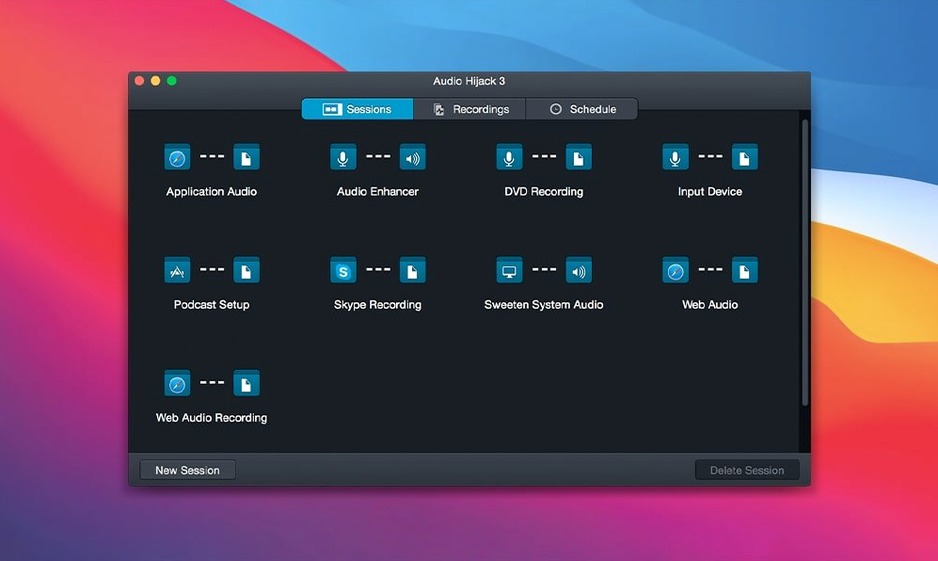
Start with a template. The app ships ready-made setups for calls, streaming music, and input devices. For a FaceTime chat, the VoIP template wires up the call audio, drops in a gentle compressor, and sends the result to a WAV or FLAC file. You can swap the output to FLAC in two clicks.
Quiet rooms are rare. If a laptop fan kicks in or a fridge hum bleeds through, drag the Denoise filter into the chain. The Dehum block deals with mains hum. The Declick filter catches mouth clicks. Place them before the recorder, run a quick test, and adjust the sliders until the background is suppressed but the voice sounds natural.
One session can capture multiple sources at once. Run a microphone alongside the FaceTime track and you have a local WAV plus a remote voice in separate files, all from one timed pass. Hit the run button, have the conversation, and stop the session. The file lands where you told it to, named and tagged.
macOS 27 works without driver dances
Version 4.6.0 added support for macOS 27 (Golden Gate). If you run the latest operating system, the app works without workarounds. No driver updates, no permission loops.
The Transcribe block got a quieter upgrade. A new Recommended model is available in the dropdown. It balances speed against accuracy for meeting notes and interview transcripts. The Whisper.cpp backend jumped from 1.7.4 to 1.9.2, which means fewer memory spikes on long files and slightly faster processing on Apple Silicon. You probably won't notice the difference on a five-minute clip, but an hour-long podcast edit finishes sooner.
No interface changes came with this release. Your old session files open exactly as before. The templates remain the same. The block library looks identical. That predictability matters when you have a recording deadline in twenty minutes.
Separate guest tracks for easier timestamp edits
Podcasters who interview remote guests live on FaceTime or Skype. The app captures both sides of the conversation as separate tracks, which makes editing a disagreement about timestamps much simpler.
Anyone digitising old media. A USB turntable or tape deck connects as an input device. You chain the Declick and Dehum filters, set the recording format to FLAC, and leave it running while you do something else. The files land with proper metadata if you fill in the tags before you start.
People who attend long video meetings and need a verbatim record. The Transcribe block spits out a text file alongside the audio. It is not a courtroom stenographer, but for catching action items you missed while daydreaming, it does the job.
Mac users who want an audio hijack mac download that does not require learning a digital audio workstation. The block-based canvas is closer to a flowchart than a mixing desk. You learn it in an afternoon and then forget the interface exists.
Switch from MP3 before you archive vinyl
- Output file format. The default is MP3. Open the recorder block, switch to FLAC or Apple Lossless if you are archiving vinyl or recording something you might remaster later. Disk space is cheap; re-recording a rare B-side is not.
- File naming. The app can auto-name files with the date, time, and session name. Go to Preferences and set a naming scheme that makes sense in six months. "Untitled 23.flac" is useless during a frantic search.
- Recording folder. Point it at a folder that syncs or backs up automatically. The default location is fine until you rebuild your Mac and forget the recordings were there.
- Block order in the chain. Effects before the recorder block alter what gets written. Effects after the recorder block process audio on playback. Drag Denoise to the left of the recorder.
Email dings baked into your first minute
Capturing the wrong source. You pick "System Audio" when you meant to grab just Safari, and suddenly your email notification sound is baked into the first minute of an interview. Always check the source block dropdown before you hit run.
Stacking too many filters. New users drag in Denoise, Declick, Dehum, a compressor, and a ten-band EQ before testing a single one. The result is a voice that sounds like it is trapped in a pipe. Add one effect, listen, adjust, then add the next.
Forgetting that the Transcribe block needs a language. If your interview is in French and the block is set to English, the output will be entertaining but useless. Select the language in the block settings before recording.
Searching for an audio hijack crack mac is a common way people first discover the app. The block-based routing, the templates, and the filter chain are all available from the first launch. You do not need to work around anything to get a clean recording.
Closing the session without checking the output folder. A quick test recording catches routing errors, filter misconfigurations, and the dreaded silent-file problem before you have a guest waiting on the line. Run ten seconds, stop, and listen back.
Not using the timer. The session can start and stop automatically at set times or after a set duration. If you are recording a radio stream late at night, set the timer so you do not wake up to an eight-hour file of dead air.
What’s new
- Adds support for MacOS 27 (Golden Gate).
- Updates the built-in Transcribe block with a Recommended transcription model.
- Updates the Whisper.cpp backend from 1.7.4 to 1.9.2.
Requirements
- macOS 14.4 or later
- Works on Intel and Apple Silicon Macs
FAQ
Can Audio Hijack record Skype and FaceTime calls?
Yes. It captures audio directly from the application, so you can record both sides of a Skype or FaceTime conversation cleanly.
Comments 0
Sign in or create an account to leave a comment.
No comments yet…
If you’ve installed it, say how it went. Mention your Mac and macOS version — it helps the next person more than you’d think.