
attn LED for macOS
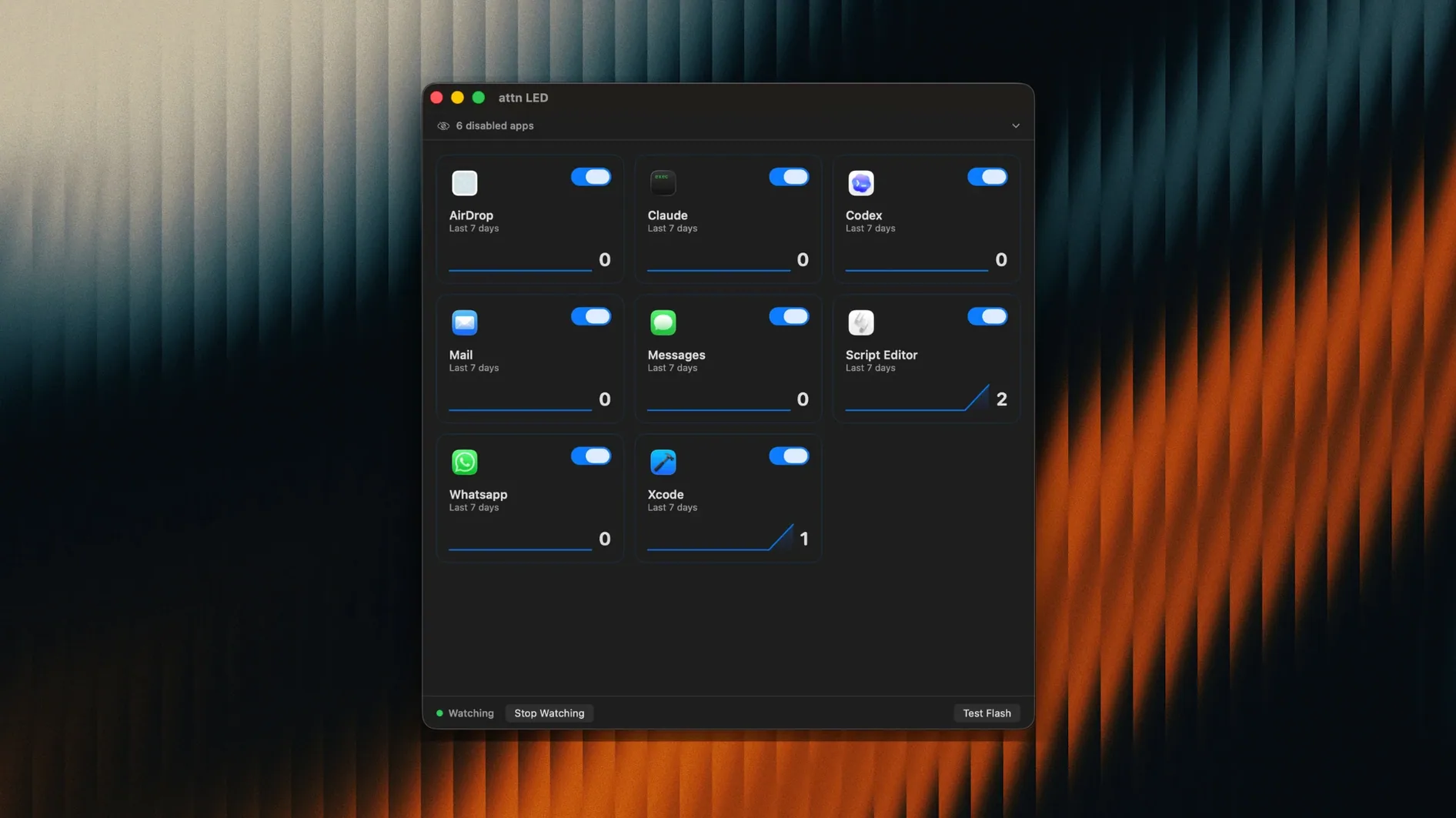
Description
Version 1.0 is the first public release. It needs macOS 12 or later, on Apple Silicon or Intel.
No blinking during video calls
- Will it blink during video calls? No. The app detects FaceTime and other conference software and stops the LED automatically. You won't flash a light at your colleagues mid-meeting.
- Can I pick which apps trigger it? Yes. You can limit it to Slack, Mail, Messages, Discord, Teams, Telegram and others. The LED blinks, you glance over, and it keeps blinking until you open that app.
- Does it work with Focus Mode? It monitors the macOS notifications database directly, bypassing Focus Mode limits. If an app you've selected fires a notification, the light comes on.
- Where's the LED visible from? The camera light is visible from anywhere in the room. You can be away from your desk and still catch a blink from the corner of your eye.
The idea is simple: your MacBook already has a physical status light. attn LED 1.0 turns it into a notification indicator you can see without looking at the screen. Plug in your charger, walk across the room, and if Slack pings, the green light tells you.
Adds a light on top of Notification Centre
attn LED doesn't replace Notification Centre. It sits alongside it. Banners and sounds still follow whatever you've set in System Preferences — the app adds a physical layer on top, nothing more.
It works particularly well with Focus modes. Set your Mac to Do Not Disturb, and attn LED still blinks for the apps you care about. No banner, no ping, just a light. Pair it with Slack's notification preferences or Mail's VIP list, and you get a tight filter: only the people or channels you've already whitelisted elsewhere make the LED fire.
The app reads the same notification database that macOS uses, so any app that can post a notification can trigger the light. The automatic detection picks up new apps without you needing to add them manually. That means if you install a work chat tool next week, attn LED notices and offers it as an option.
During FaceTime, Zoom, or Teams calls, the LED pauses. No configuration needed. The app checks for active camera sessions and steps aside — useful if you hot-desk or take calls in shared spaces where a blinking light would confuse people.
Trim the app list from the menu bar
Open attn LED from the menu bar after launching it. Three things are worth a minute of your time.
Limit the app list. By default, the app picks up everything that sends notifications. That gets noisy fast. Go through the list and keep only the apps where a delayed reply actually matters. For most people, that's Slack, Messages, and maybe Mail. Uncheck the rest.
Check the blink behaviour. The LED keeps blinking until you open the relevant app. If you leave Slack unread while you're out for lunch, the light will still be going when you get back. That's the point — but it's worth knowing. There's no timeout setting in version 1.0.
Test with a notification. Get someone to send you a message in one of your selected apps while you're in another room. Watch for the green light near the camera. If it doesn't fire, check that the app is selected in attn LED's list and that notifications are enabled for it in System Preferences. The app relies on macOS delivering the notification to the database — if the system suppresses it, the light stays dark.
The app runs quietly from the menu bar. No dock icon, no window unless you open preferences. Once you've set your apps, you can forget it's there — until the light blinks.
Requirements
- macOS 12 or later
- Apple Silicon or Intel Mac
FAQ
Does attn LED blink during video calls?
No, it automatically stops blinking when FaceTime or other video conference apps are active.
Can I choose which apps make the LED blink?
Yes. You can limit notifications to specific apps like Slack, Mail, Messages, Discord, Teams and Telegram.
Comments 0
Sign in or create an account to leave a comment.
No comments yet…
If you’ve installed it, say how it went. Mention your Mac and macOS version — it helps the next person more than you’d think.