Alcove for macOS
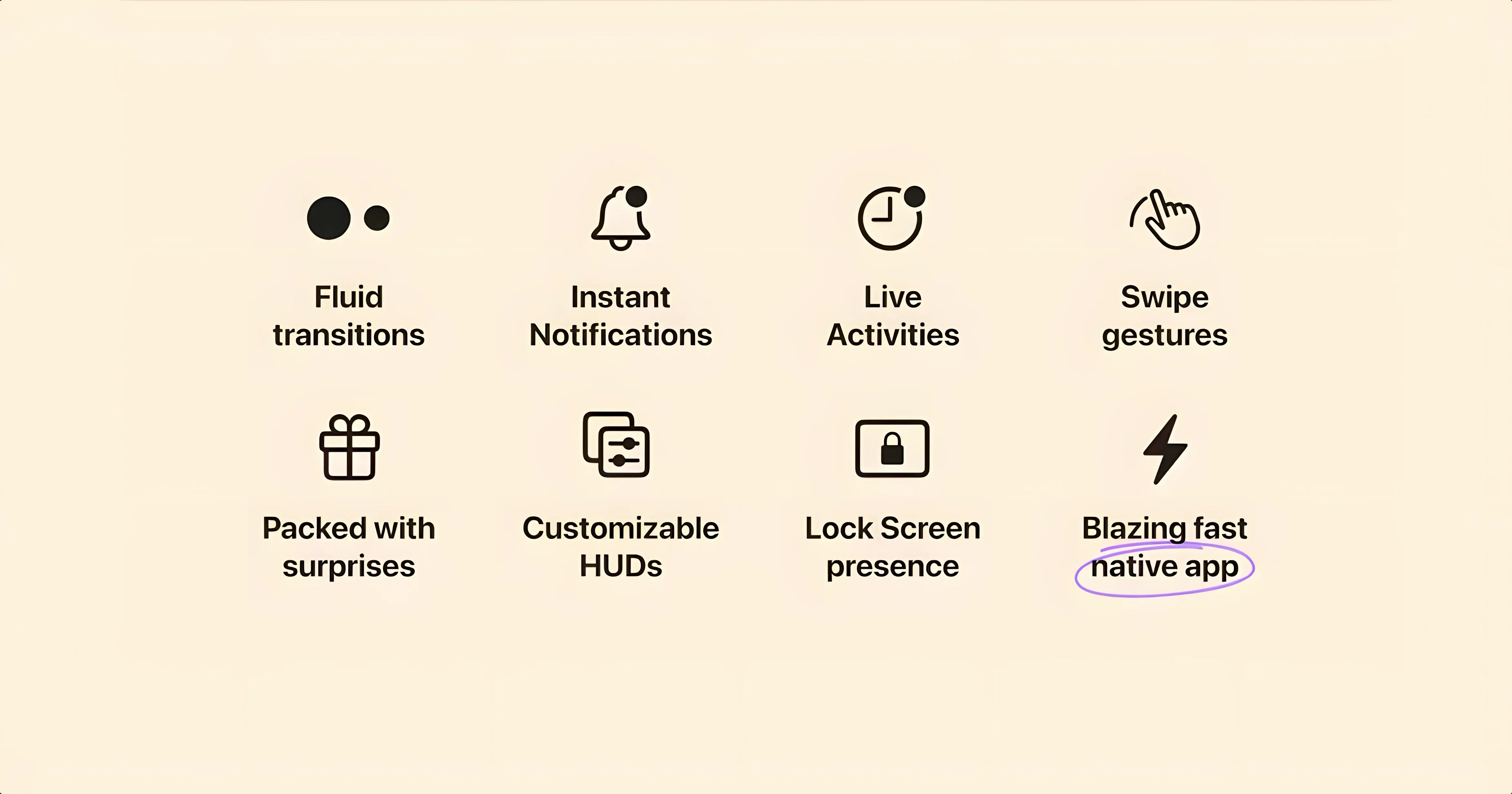
Description
Version 1.7.9 is the current build. No changelog details were published for this point release, but the app remains focused on bringing interactive capsule actions to the Mac notch.
macOS 14 — minimum requirement. Runs natively on both Intel and Apple Silicon Macs that have a notch.
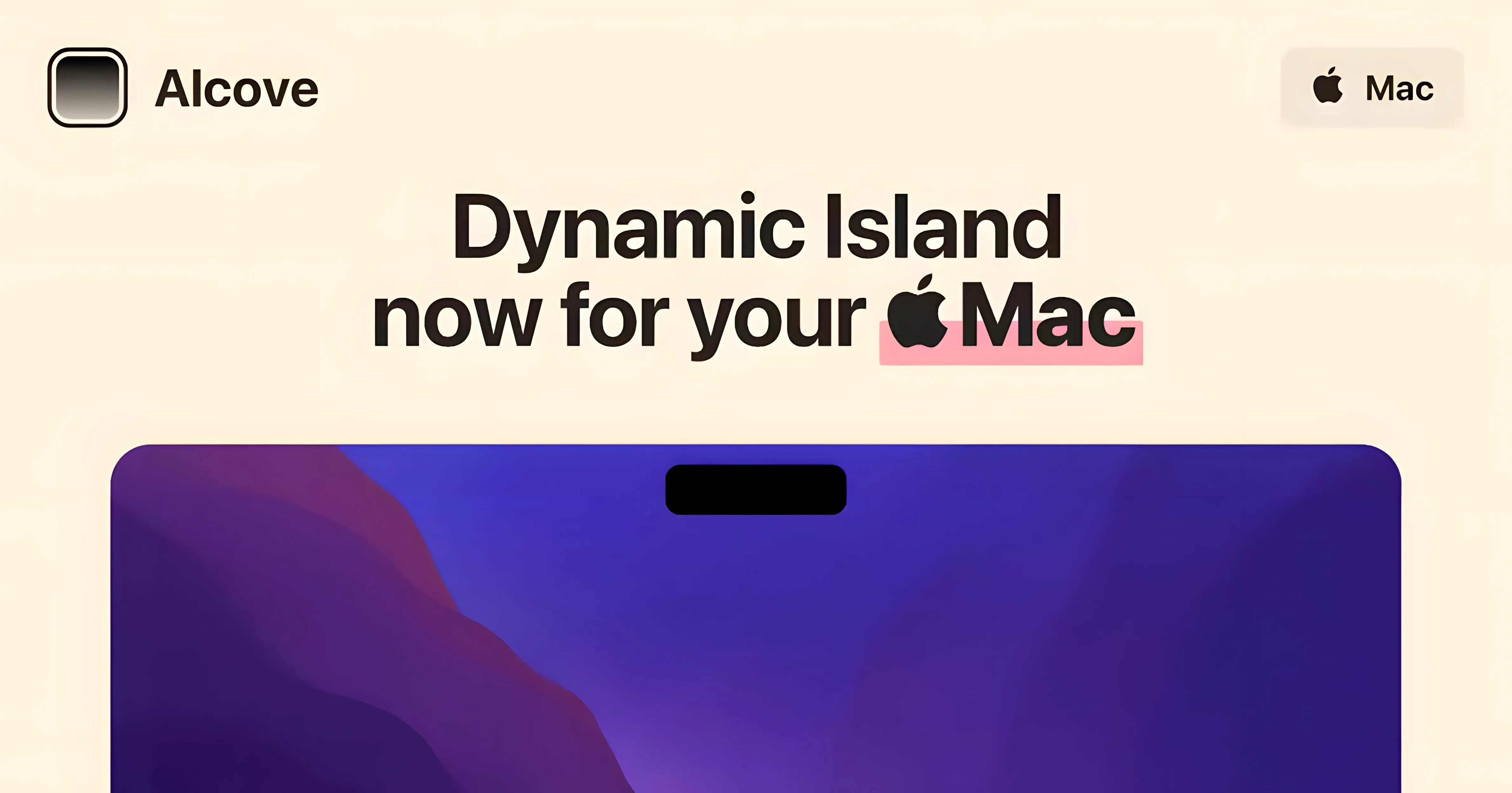
Dynamic Island-style capsule — media playback, notifications and Live Activities appear in a bar at the top of the screen, expanding with controls when you click.
Interactive actions — the capsule responds to system events and clicks, surfacing relevant controls without opening a full window.
English only — the interface is in English with no additional localisations.
Automatic updates off — the developer advises switching this off after install, so you control when new versions land.
When screen recording permission fixes the missing capsule
Most problems with Alcove come down to macOS permissions rather than the app itself. The capsule needs screen recording access to know where the notch sits and what’s happening around it. If it doesn’t show up at all, open System Settings, go to Privacy & Security, then Screen Recording, and make sure Alcove is on.
Another typical one: the capsule appears but stays a static grey bar. That usually means the app launched before the helper component finished loading. Quit Alcove from the menu bar icon, wait a couple of seconds, and open it again. No need to reinstall.
If media controls don’t react to playback from a specific app, check that the app isn’t running in some kind of full-screen focus mode that suppresses overlays. Browsers with aggressive full-screen video handling are the usual suspects. Switching the video player to standard full-screen rather than browser-native full-screen often fixes it.
Steadier Live Activities and fewer flashes in recent builds
Version 1.7.9 is a quiet release. No detailed changelog was published, and that’s typical for point releases from a solo developer. What users tend to notice across recent updates is steadier behaviour around Live Activities and fewer flashes when the capsule expands.
Earlier builds had moments where the custom volume HUD and the capsule fought for screen space. That’s been tidied up. The current build also handles multiple displays better — the capsule stays on the display with the notch rather than drifting to the wrong screen after wake from sleep.
If your copy is labelled alcove 1.7.9, it’s the build this page describes. Older cracked or repacked versions floating around — sometimes found under searches like alcove mac cracked or alcove torrent — may be missing the helper component and will misbehave until you manually reinstall that helper from a known good source.
Turn off auto‑updates first, then watch it work
Start by turning off automatic updates as the developer recommends. You want to know when a new version lands so you can check what changed before it installs itself.
Then spend ten minutes with the capsule in everyday use. Play something in Music, trigger a notification, and click the capsule each time to see how it expands. The interaction model is simple, but it’s worth learning what a short click does versus a longer hover.
- Open the disk image and drag Alcove to Applications.
- Launch it from Launchpad, not from the mounted disk image.
- Allow screen recording access when macOS asks — the capsule won’t appear without it.
- Turn off automatic updates in the app’s preferences.
- Restart once after the first launch so the helper settles in.
If macOS blocks the first launch because the app wasn’t notarised, right-click the app in Applications and choose Open. You only need to do that once.
Requirements
- macOS 14 or later
- Intel or Apple Silicon Mac with a notch
FAQ
Does Alcove work on any Mac?
It requires macOS 14 and a Mac with a notch. Both Intel and Apple Silicon models are supported.
What does Alcove show in the Dynamic Island area?
Media playback info, notifications, and Live Activities appear as an interactive capsule at the top of the screen.
Comments 0
Sign in or create an account to leave a comment.
No comments yet…
If you’ve installed it, say how it went. Mention your Mac and macOS version — it helps the next person more than you’d think.