
4K Video Downloader for macOS
Description
Version 26.3.5 is a maintenance release — no new features, just fixes under the hood. The core job hasn't changed: it grabs online videos, audio and subtitles and saves them to your Mac. It's not a player and it doesn't pretend to be one.
| What | Details |
|---|---|
| Current version | 26.3.5.0396 |
| macOS | 12+ (Intel) |
| Formats | Video, audio, SRT subtitles |
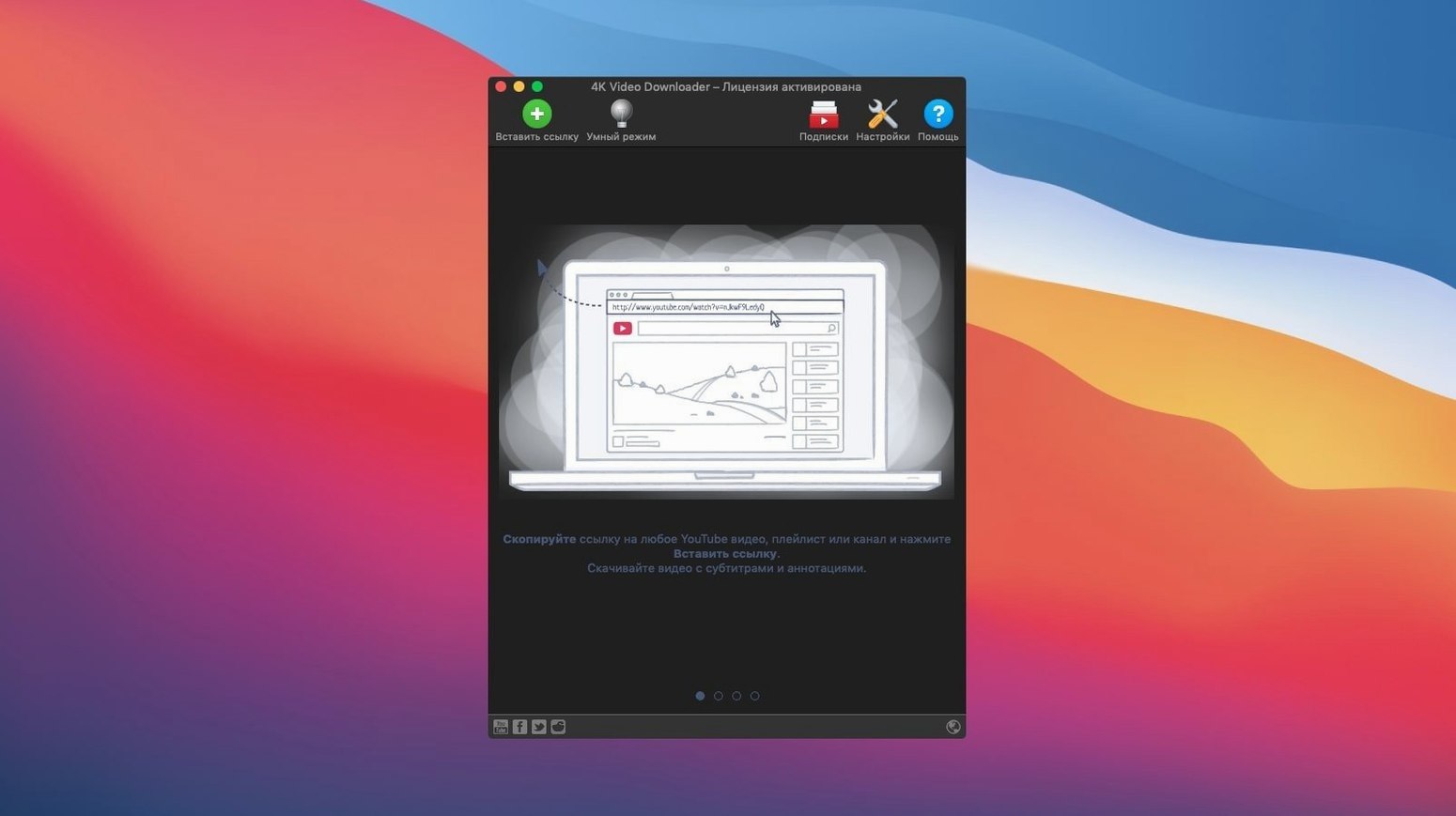
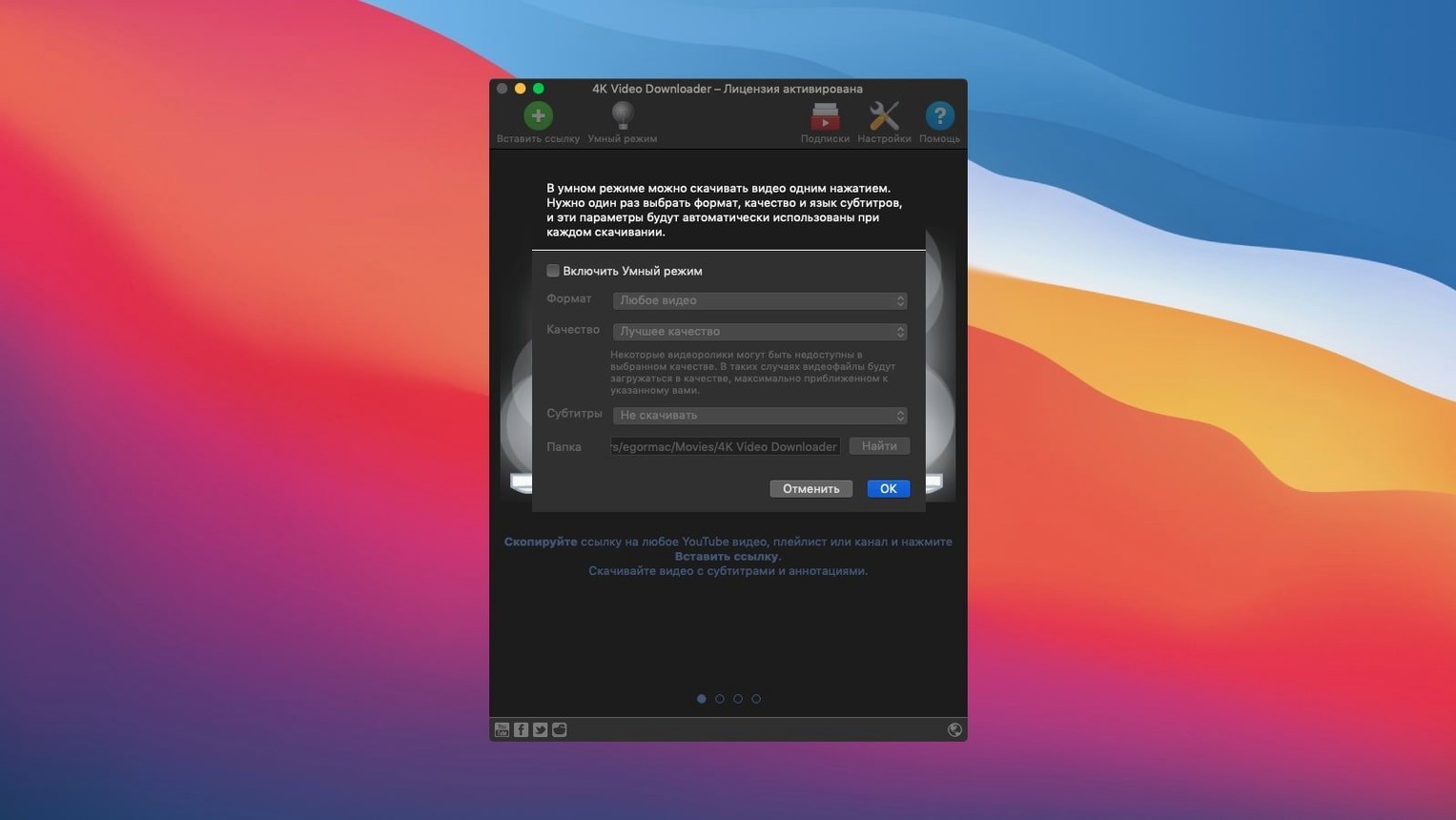
Paste a link or let it pick up a clipboard URL and it parses the source. You can pull down subtitles as a separate SRT or baked into the video. Smart Mode remembers your preferred format and quality so you aren't clicking through the same choices every time. It handles 3D video if the source offers it, and works across YouTube, Vimeo, SoundCloud, DailyMotion, Facebook, Flickr and Instagram. The paid Plus edition exists if you need more, but this build still covers the essentials for a straightforward download.
Reset the clipboard monitor when it stops noticing links
The clipboard monitor stops noticing links after a while. It's usually the first thing people report. Open Preferences, un-tick "Watch clipboard", wait a few seconds, then tick it again. If that doesn't stick, quit the app and relaunch — it re-registers the listener with macOS.
Parsing fails on long playlists. YouTube channels with hundreds of videos can time out before the app finishes reading the list. The workaround is boring but reliable: break the job into smaller chunks. Download 50 videos at a time, then grab the next batch. You'll lose less time than waiting for a 400-video queue to fail at number 387.
Subtitles come through as separate SRT files when you expected them embedded. That's a format limitation, not a bug. MP4 containers handle embedded subtitles poorly on some players. If you need them burned in, switch the output to MKV in Smart Mode before you start the download — MKV takes embedded subs without fuss.
4K resolution sometimes goes missing from the format picker. YouTube now serves 4K streams as separate video and audio tracks, and the app needs both available to offer the combined option. If the 2160p entry is greyed out or absent, the audio stream for that quality isn't being served. Drop to 1440p or wait a day — it's a server-side quirk, not something the app controls.
Why 'can't parse this link' errors dropped after parsing fixes
Version 26.3.5 tightened parsing for YouTube's current page structure. The practical effect is fewer "can't parse this link" errors on videos that worked fine two weeks earlier. YouTube tweaks its delivery weekly, and each maintenance release chases those changes.
Around version 26, the app switched how it handles age-restricted content. Older builds would fail silently. Newer ones prompt you to sign in with a YouTube account inside the app's browser panel — a one-time step that unlocks restricted videos for the session. It's not elegant, but it works.
Instagram downloads got more reliable somewhere in the 26.x cycle. Previously, story downloads would fail if the account was private (even if you followed it). The current build respects your login session and pulls stories from private accounts you have access to. Reels still download as silent MP4 files; audio is a separate extraction step.
A playlist-to-MP3 workflow, start to finish
- Find the playlist on YouTube and copy the URL from the address bar — not the "share" link, which sometimes truncates the list ID.
- Open 4K Video Downloader. If Smart Mode is on, turn it off for this job. Smart Mode is too blunt for format-switching mid-session.
- Click "Paste Url". The app parses the playlist and shows a count of videos found. If the number looks wrong — say, 15 when the playlist has 40 — cancel, refresh the YouTube page, and copy the URL again.
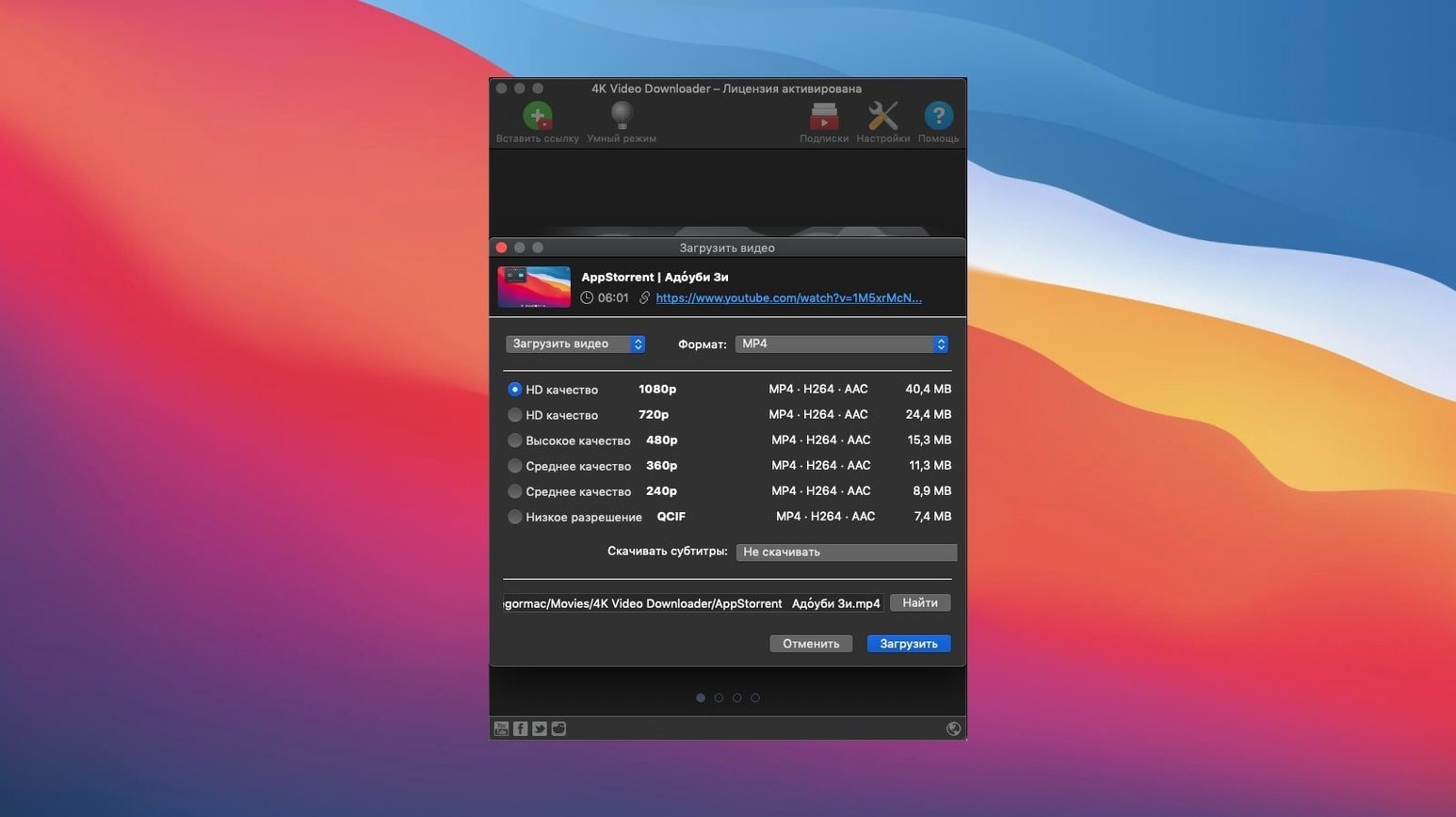
- In the format picker that appears, choose "Extract Audio". Pick M4A if you want smaller files and decent quality; pick MP3 if your car stereo is old and fussy. Set quality to "High".
- Un-tick "Download subtitles" — no point for audio-only. Choose a folder with plenty of space. A 100-track playlist at high bitrate will eat about a gigabyte.
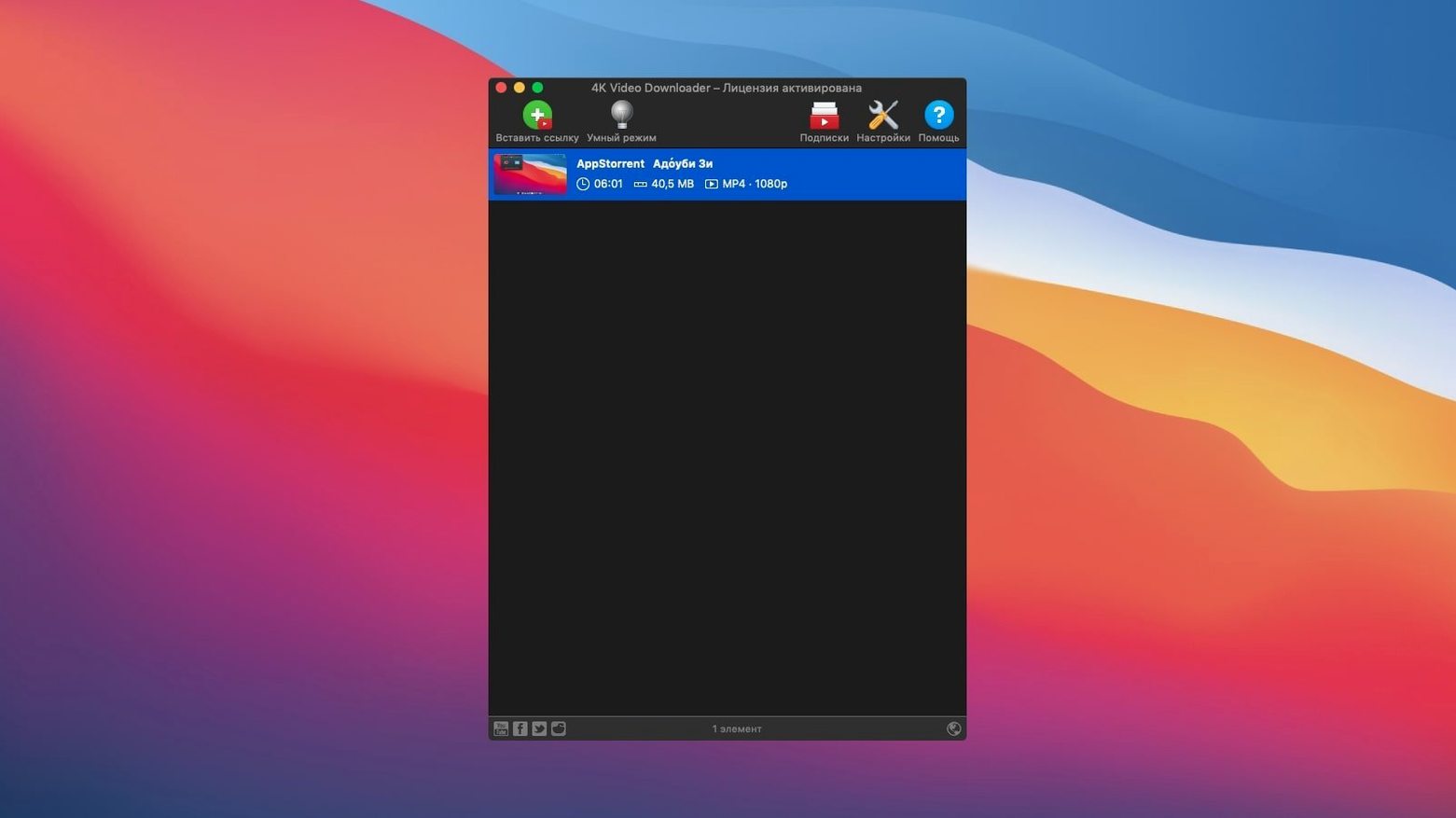
- Click "Download". The app queues the list and works through it. Don't put the Mac to sleep. If your internet wobbles, the app retries each file once before marking it as failed — you'll see a red icon next to the stragglers.
- When the queue finishes, open the output folder. All tracks are named by video title. Check the first and last three files for silence or truncation. If any failed, select the red-marked entries in the app, right-click, and choose "Download again".
Pick one download folder so nothing gets lost in ~/Movies
Set your output folder once and forget it. The default dumps everything into ~/Movies/4K Video Downloader, which gets messy fast. Make a folder called "Downloads/Video grabs" and point the app there in Preferences. You'll actually find things later.
Smart Mode is a trap if you switch between video and audio regularly. Leave it off for the first week. Learn which settings you reach for most often, then configure Smart Mode to match your most common job — not every job. Mine is set to 1080p MP4 with separate SRT subtitles. When I need audio or 4K, I do it manually.
The "Download playlist" option shows a checkbox for "Create M3U file". Tick it if you use VLC or any media player that reads playlists. It saves you the effort of loading 40 files individually. The M3U lands in the same folder and references relative paths, so don't move the video files afterwards without editing the M3U in TextEdit.
If you download from YouTube regularly, sign the app into your YouTube account on day one. Go to Preferences > Login and use the in-app browser. It stops age-restriction blocks and lets you pull your private playlists and Watch Later list directly. The session persists across restarts — you won't need to sign in again unless YouTube revokes the token, which happens every few months.
Keep an eye on disk space. A weekend of downloading full channels in 4K can fill a 256GB drive without warning. The app shows total queue size in the status bar, but only once parsing finishes. Check it before you click Download.
Requirements
- macOS 12 or later
- Intel 64-bit processor
Comments 0
Sign in or create an account to leave a comment.
No comments yet…
If you’ve installed it, say how it went. Mention your Mac and macOS version — it helps the next person more than you’d think.