Microsoft PowerPoint for macOS
Description
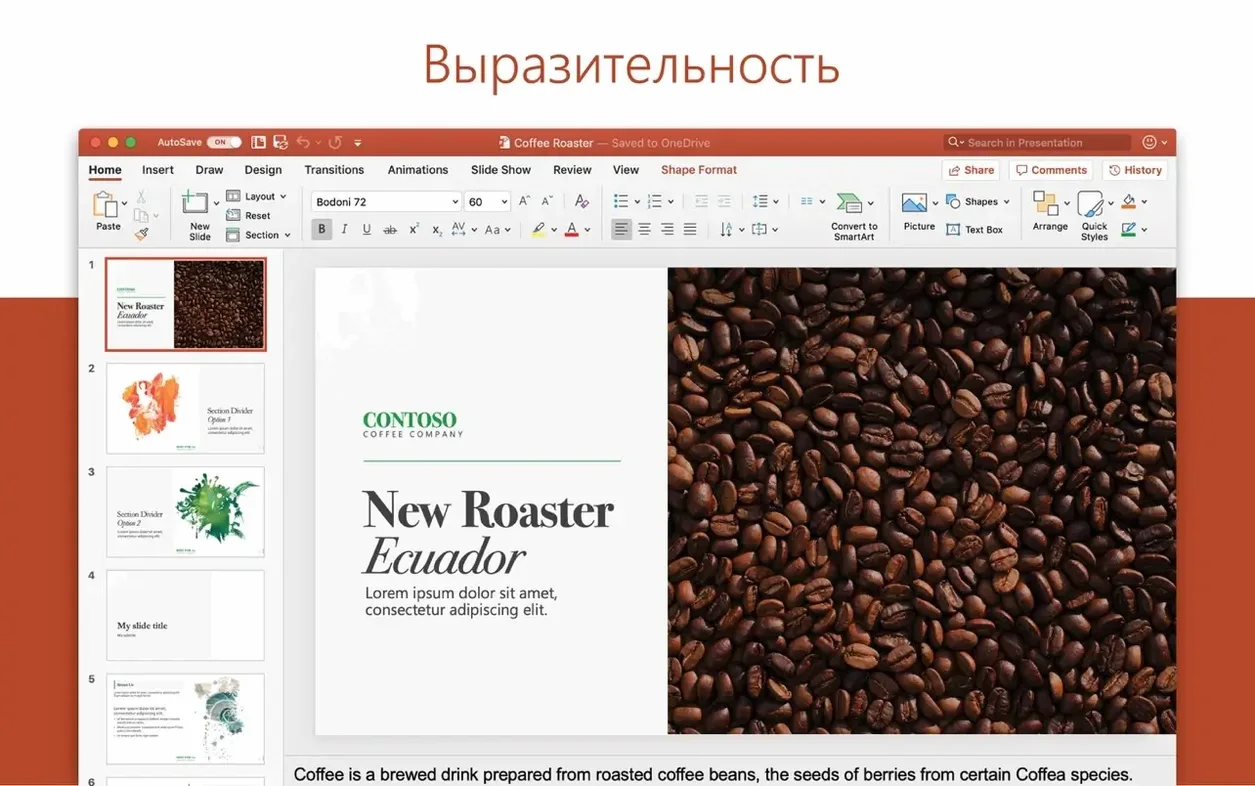
Morph transition. It is the one feature that makes a deck look like someone spent a day on it, when you really just duplicated a slide, moved a few things, and let the software figure out the in-between. That is the kind of smart tech PowerPoint brings to a Mac, slotting in next to the rest of Office without fuss.
Shared clipboard and cloud drive with Office apps
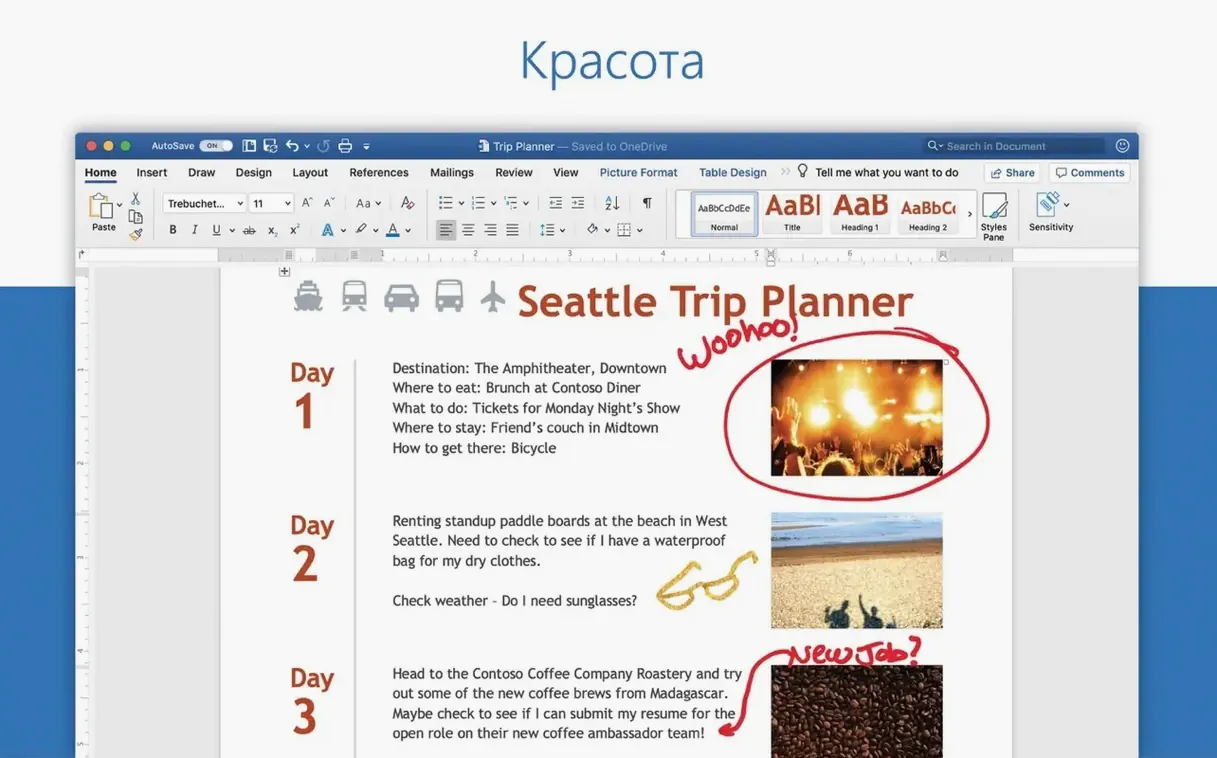
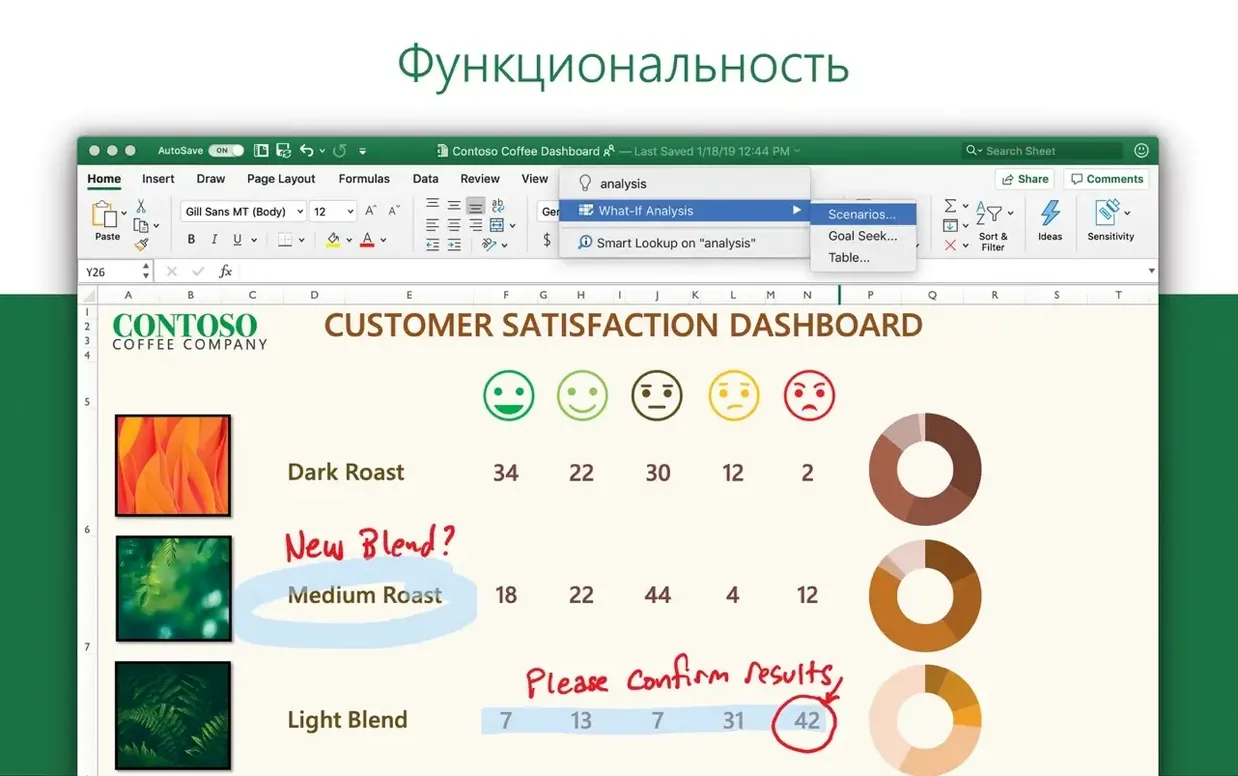
PowerPoint is not a standalone island. It is part of Office 2024 for Mac, which means it shares a clipboard, a font library, and a cloud drive with Word, Excel, and OneNote. You build a chart in Excel, paste it into a slide, and update the numbers later without leaving PowerPoint. The interface looks like the Mac version of Office you already know, so the learning curve is flat. It runs on Apple silicon and Intel Macs from macOS 13 forward, and the current version 16.93 speaks 21 interface languages, from Russian to Japanese.
Cinematic visuals and real-time co-authoring
You get a presentation tool that handles the basics well and gives you cinematic visuals when you want them. The collaborative features mean a colleague can fix a typo on slide seven while you are still working on slide two. It is not a lightweight app, but it is the same heavyweight the rest of the corporate world uses, and that is often the point.
A lecturer’s last-minute deck
Tuesday morning, 8:47 am. A biochemistry lecturer realises her 10 am talk still has placeholder data from last year’s cohort. The graphs need updating, and the department head just emailed a revised results table in Excel. With PowerPoint open alongside Excel, she copies the new cells, pastes them into the chart data sheet, and the bars on the slide redraw themselves. She drags a 3D model of a protein from the stock library onto the title slide, adds a gentle motion path so it rotates into view, then runs Slide Show to check the timing. Fifteen minutes, and the deck is ready. The only thing left to fix is the room projector, and PowerPoint cannot help with that.
Opening PowerPoint files in Keynote means realigning text
Keynote is the obvious Mac-native alternative. It produces beautifully smooth slides with less effort, and the cinematic transitions are genuinely elegant. But open a PowerPoint file in Keynote and you will spend an afternoon nudging text boxes back into alignment. If you live in a .pptx world, Keynote is a lovely guest that does not quite speak the language.
Google Slides lives in a browser tab and asks for nothing except a Wi‑Fi connection. Real-time collaboration is its strongest card, and it handles simple decks without blinking. The trade-off is limited animation control, no 3D model support, and a slide layout engine that feels like it was designed for school projects. For anything going to a paying audience, Slides runs out of polish quickly.
LibreOffice Impress is the open-source contender. It opens PowerPoint files and gives you most of the same tool categories — transitions, masters, charts. The interface, however, belongs to a different decade, and motion path editing is clunky enough that most people give up before they start. It is a backup plan, not a daily driver.
Building a conference talk from scratch
Here is one way to go from blank slide to finished deck without painting yourself into a corner.
- Set up the slide master first. Open Slide Master view and define your title slide, section dividers, and body slides. Pick colours, set the font pair, and place a logo on the background. Doing this now saves you from reformatting thirty slides later.
- Dump the outline into Outline View. Type or paste your talk structure as bullet points. Each top-level line becomes a slide title. Use the Promote and Demote buttons to organise sub-points. You get a rough deck in under two minutes.
- Add the heavy visuals. Insert charts from linked Excel data, drop in 3D models if they help explain a structure, and use Designer on key slides to generate layout ideas. Reject the ones that look like a motivational poster, keep the clean ones.
- Apply transitions sparingly. Morph on a handful of slides where you move an image across the canvas. A simple fade on the rest. Anything flashier will distract from what you are saying.
- Rehearse with Presenter View. This shows your speaker notes, a timer, and the next slide on your Mac screen while the projector sees only the current slide. Run through it once, adjust notes where you stumble, and you are ready.
The whole thing takes under an hour once you know the sequence. The deck looks consistent because you started with the master, and the linked charts mean you are not rebuilding graphs the night before the talk.
What’s new
Updates PowerPoint as part of the Office 16.93 release.
Requirements
- macOS 13 or later
- Apple silicon or Intel 64-bit processor
FAQ
Does PowerPoint for Mac work on Apple silicon?
Yes. Version 16.93 runs natively on both Apple silicon and Intel 64-bit Macs.
Which languages does the PowerPoint interface support?
It supports 21 languages, including English, German, Spanish, French, Russian, Japanese and Korean.
What macOS version do I need?
You need macOS 13 or later.
Comments 0
Sign in or create an account to leave a comment.
No comments yet…
If you’ve installed it, say how it went. Mention your Mac and macOS version — it helps the next person more than you’d think.