

Microsoft Office for macOS
Description
Office for Mac needs macOS 13 (Ventura) or later. It runs on both Apple Silicon and Intel Macs, 64-bit only. Version 16.93 landed on 14 January 2025 and brings the usual monthly refresh to Word, Excel, PowerPoint, Outlook and OneNote.
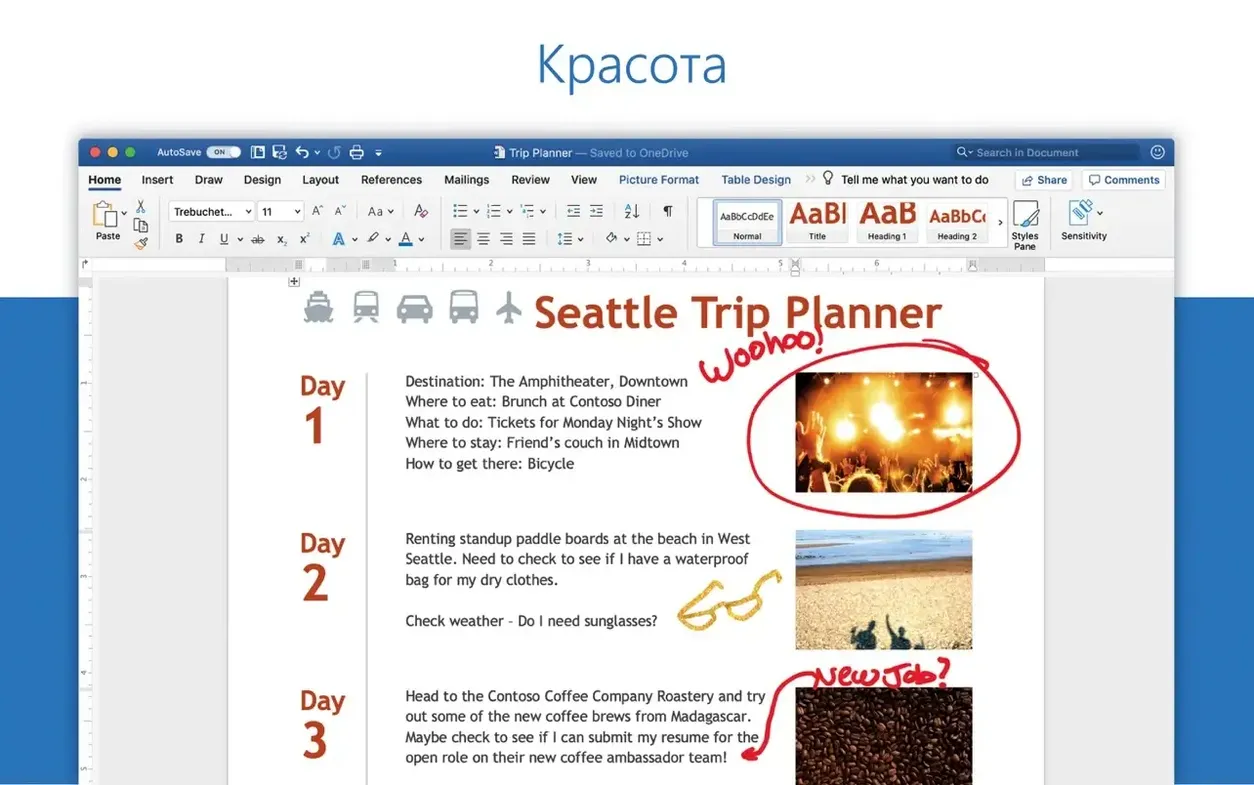
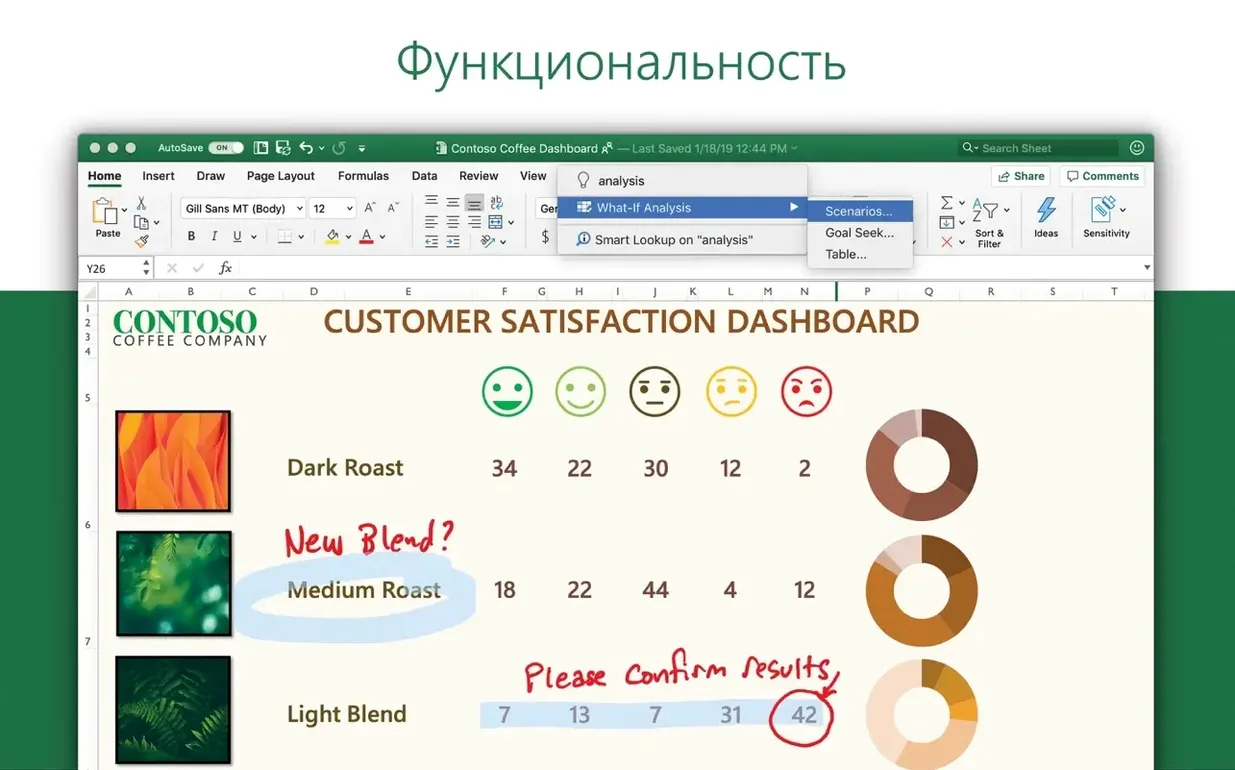
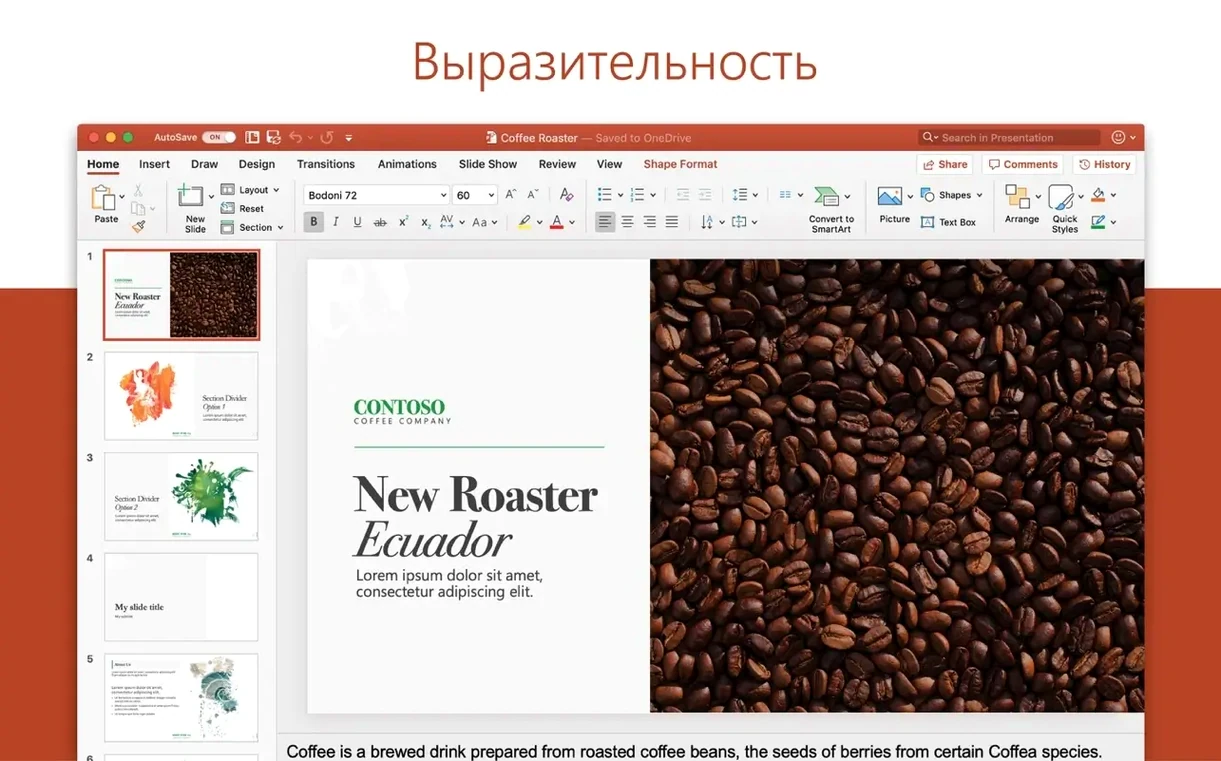
These apps sit alongside whatever else you already use. Word handles heavy text documents without making a fuss about Pages files. Excel opens the spreadsheets people actually send you, complete with charts and the Ideas feature for spotting trends you might miss. PowerPoint does the same for presentation decks. Outlook keeps mail and calendar in one window.
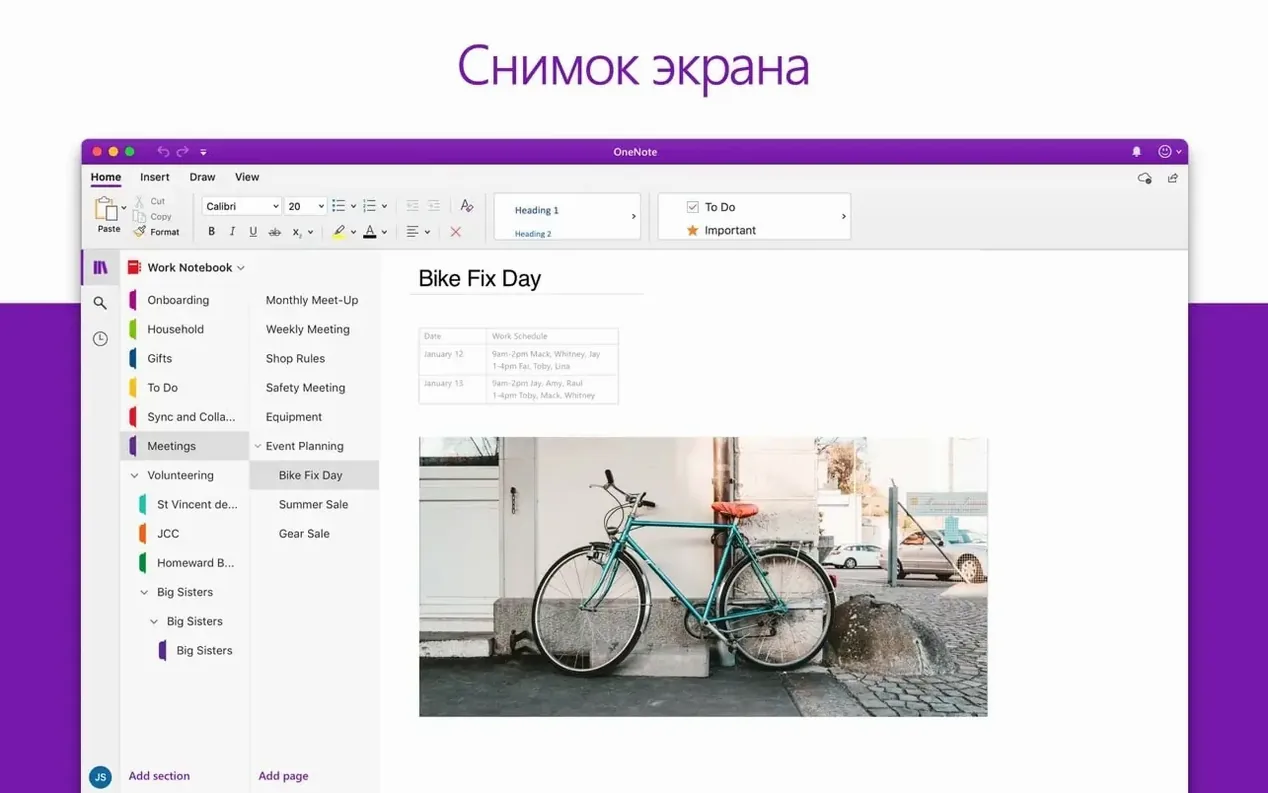
OneNote is the odd one out — a freeform note-taker that syncs with OneDrive. You might prefer Apple Notes for quick stuff, but OneNote earns its keep when you need sections, tags and ink annotations on a shared notebook.
Updates come roughly once a month through Microsoft AutoUpdate. The suite doesn't try to replace every tool on your Mac. It just fills the gaps that appear the moment someone sends you a tracked-changes document or a macro-laden spreadsheet.
A start-to-finish spreadsheet workflow
Say you get handed a quarterly budget tracker from a colleague — an .xlsx file with three tabs, conditional formatting and a pivot table that last refreshed nobody knows when. Opening it in Numbers would break half of it. Excel handles it first time.
- Open the file. Excel loads the pivot table intact. No prompts about unsupported features.
- Go to the Data tab and click Refresh All. The pivot pulls in the latest figures from the source tab.
- Select the data range you actually care about. Hit Ctrl+T to make it a proper table — this gives you filter arrows and stripey rows without touching the formatting menu.
- Click the Ideas button on the Home tab. Excel scans the table and surfaces a few trends: outlying spend months, the category that grew fastest. Drag one of its suggested pivot charts onto a new sheet.
- Name the new sheet something useful. Adjust the chart colours with the paintbrush icon that appears next to it — pick a palette that won't embarrass you in a meeting.
- Right-click the chart and choose Move to own sheet if you want a full-page view for printing.
- Save as .xlsx. Send it back. Nobody complains about broken formatting.
The whole thing takes four minutes. The Ideas pane isn't perfect — it occasionally states the obvious — but it saves you building a dozen exploratory charts just to find the one that tells the story.
SmartArt that breaks when you move between Windows and Mac
First: ignoring the compatibility check in Word's File menu. People paste in elaborate SmartArt from a Windows machine, save, and wonder why it looks wrong on someone else's Mac. The compatibility report tells you exactly which elements will degrade when the file travels. Run it before you send anything important.
Second: dragging images into a Word document and leaving them as free-floating objects. They'll jump to page 47 the moment you add a paragraph above. Right-click the image, choose Wrap Text and pick In Line with Text unless you genuinely need text to flow around it. Your layout will survive edits.
Third: using Excel without ever opening the Format Cells dialogue (Cmd+1). Rookies spend ten minutes manually colouring negative numbers red. The Number tab in that dialogue has a built-in option for negative red, with parentheses, in two clicks.
Fourth: in PowerPoint, pasting screenshots and then squashing them by eye to fit. Use the Crop tool on the Picture Format tab instead. Hold Shift while dragging a corner handle to keep the proportions. The Compress Pictures option in the same tab stops your deck from ballooning to 80MB.
Jump to yesterday’s edit spot with Shift+F5
In Word, Shift+F5 jumps back to your last edit point. It works across saves — open a document from yesterday and the shortcut drops you right where you were typing. Press it again to cycle through the last three spots.
Excel's Quick Analysis button appears at the bottom-right of any selected range. It offers one-click conditional formatting, charts, totals and sparklines without touching the ribbon. It's so unobtrusive that people overlook it for years.
Outlook has a Send Later button hidden in the compose window toolbar. Write an email at 11pm, set it to go out at 8am. The Mac needs to be awake for the scheduled send to fire, so leave it open or set a short wake time in Energy Saver settings.
Across all the apps, Cmd+` cycles between open windows of the same app — Excel workbook to workbook, Word document to document. Beats hunting through the Window menu.
PowerPoint's Designer pane (on the Design tab) suggests slide layouts based on your content. Drop in three photos and a heading; it offers half a dozen arrangements. Pick one, tweak it, move on. It isn't always tasteful, but it's faster than a blank slide.
Save a backup .wbk file for crash recovery
Open Word's Preferences (Cmd+,). Under Save, tick Always create backup copy. It saves a .wbk file alongside your document that you'll bless the day Word crashes mid-track-change session.
In Excel preferences, go to General and set the number of sheets in a new workbook to 1. Nobody needs three empty sheets called Sheet1, Sheet2 and Sheet3 every time they open a fresh file.
Outlook's Reading preferences let you switch the reading pane off by default. If you prefer double-clicking to open messages rather than having them mark themselves read while you scroll past, it's worth the extra click.
Turn off AutoCorrect maths in Excel — the one that replaces two hyphens with an em-dash just as you're typing a formula. It lives in Tools > AutoCorrect under the AutoFormat As You Type tab. Uncheck Hyphens with dash and your formulas will stop getting sabotaged.
In PowerPoint, under Save, switch the default save format from .pptx to the PowerPoint Macro-Enabled Presentation format only if you actually use macros. Otherwise leave it alone — the standard format is what everyone expects, and changing it confuses recipients.
Finally, open the Microsoft AutoUpdate app itself and tick Automatically download and install. The monthly updates are usually security fixes. Letting them pile up for six months creates a tedious install session you'll put off even longer.
What’s new
- Updates Word, Excel, PowerPoint, Outlook and OneNote to build 25011212.
Requirements
- macOS 13 or later
- Apple Silicon or Intel Mac (64-bit)
FAQ
Which apps are included in Office for Mac?
Word, Excel, PowerPoint, Outlook, OneNote and OneDrive for Mac.
What macOS version does Office 16.93 require?
It requires macOS 13 Ventura or later, and runs on both Apple Silicon and Intel Macs.
How often is Office for Mac updated?
Microsoft updates the suite roughly once a month through Microsoft AutoUpdate.
Comments 0
Sign in or create an account to leave a comment.
No comments yet…
If you’ve installed it, say how it went. Mention your Mac and macOS version — it helps the next person more than you’d think.
More in Office
All in Office-
 Microsoft Excel
16.93
Apple Silicon
Microsoft Excel
16.93
Apple Silicon
-
 Microsoft Outlook
16.93
Apple Silicon
Microsoft Outlook
16.93
Apple Silicon
-
 Microsoft PowerPoint
16.93
Apple Silicon
Microsoft PowerPoint
16.93
Apple Silicon
-
 Microsoft Word
16.93
Apple Silicon
Microsoft Word
16.93
Apple Silicon
-
 Matlab R2025b
R2025b ARM only
Apple Silicon
Matlab R2025b
R2025b ARM only
Apple Silicon
-
 LookAway
2.4.8
Apple Silicon
LookAway
2.4.8
Apple Silicon
-
 Nitro PDF Pro
13.3.1
Apple Silicon
Nitro PDF Pro
13.3.1
Apple Silicon
-
 Numbers Creator Studio
15.3.1
Apple Silicon
Numbers Creator Studio
15.3.1
Apple Silicon